Cloud OnRamp for Multicloud - SDCI Overview
Software-Defined Cloud Interconnect (SDCI) providers offer secure and automated connectivity to any cloud provider environment. SDCI utilizes dispersed sites (PoPs) and SD-WANs to interconnect sites and also to connect them to cloud infrastructures.
With Cisco Catalyst SD-WAN, you have the ability to deploy an SDWAN edge device within the fabric of a Software-Defined Cloud Interconnect (SDCI) provider and establish a connection between a branch location and this edge device through the SD-WAN fabric. Using this edge device, you can establish software-defined interconnects to other Cisco Catalyst SD-WAN edge devices in the SDCI provider fabric, as well as to public or private clouds. As a result, the edge devices in the SDCI provider fabric function as Interconnect Gateways.
sdci-overview.png
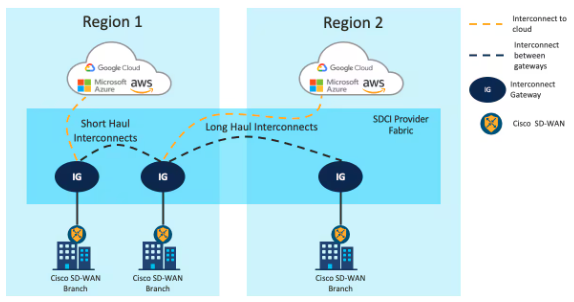
Cisco has partnerships with both Megaport and Equinix as SDCI providers. In this lab, you will deploy two edge devices in the Megaport fabric (Interconnect Gateways), configure a connection between them, and set up tunnels from your Catalyst SD-WAN fabric.
For more information on use-cases configured in this section as well as other capabilities of Megaport & Cisco consult the documentation found HERE and HERE.
Review Megaport Global Settings
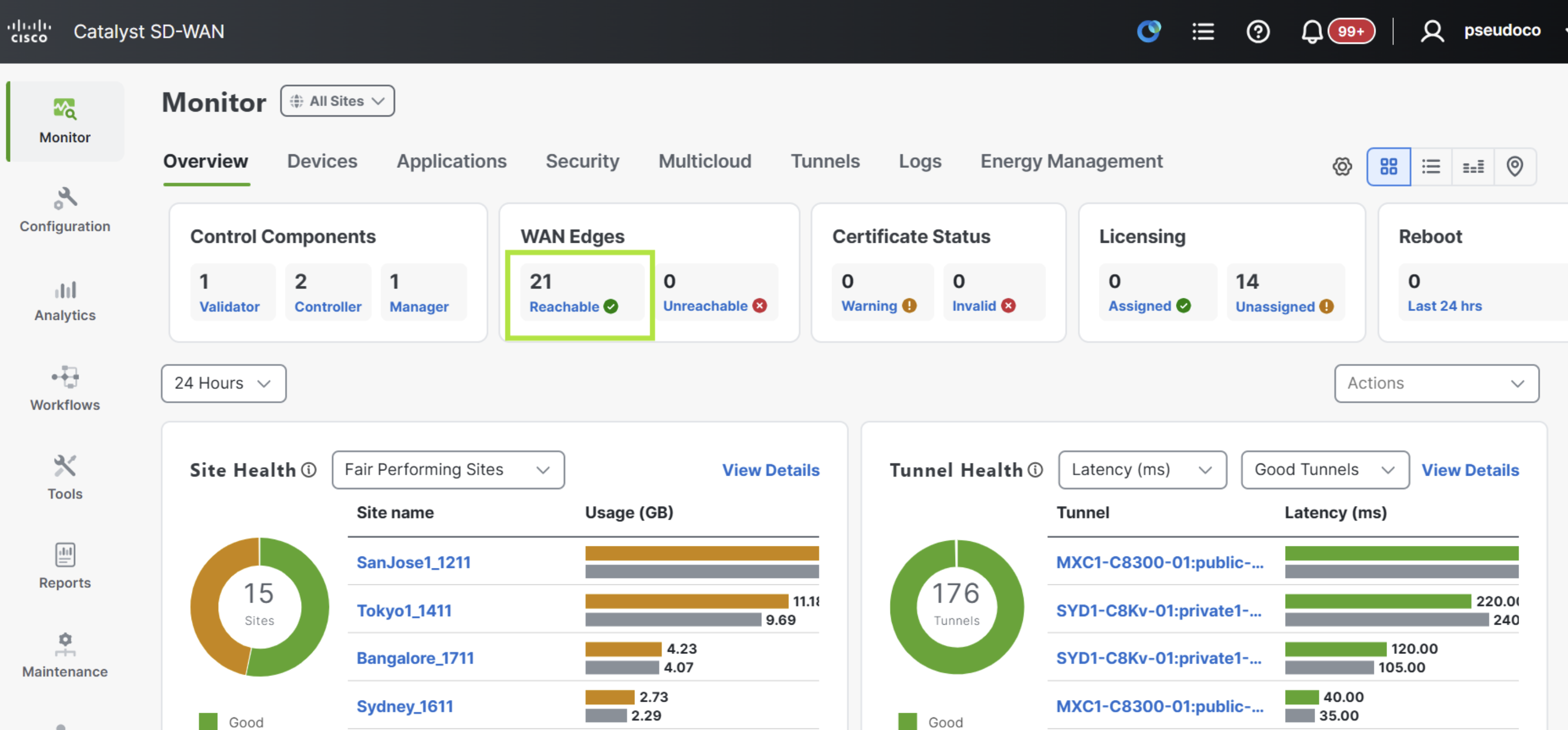
To start, navigate to Monitor > Overview in the SD-WAN Manager and verify the total WAN Edges count.
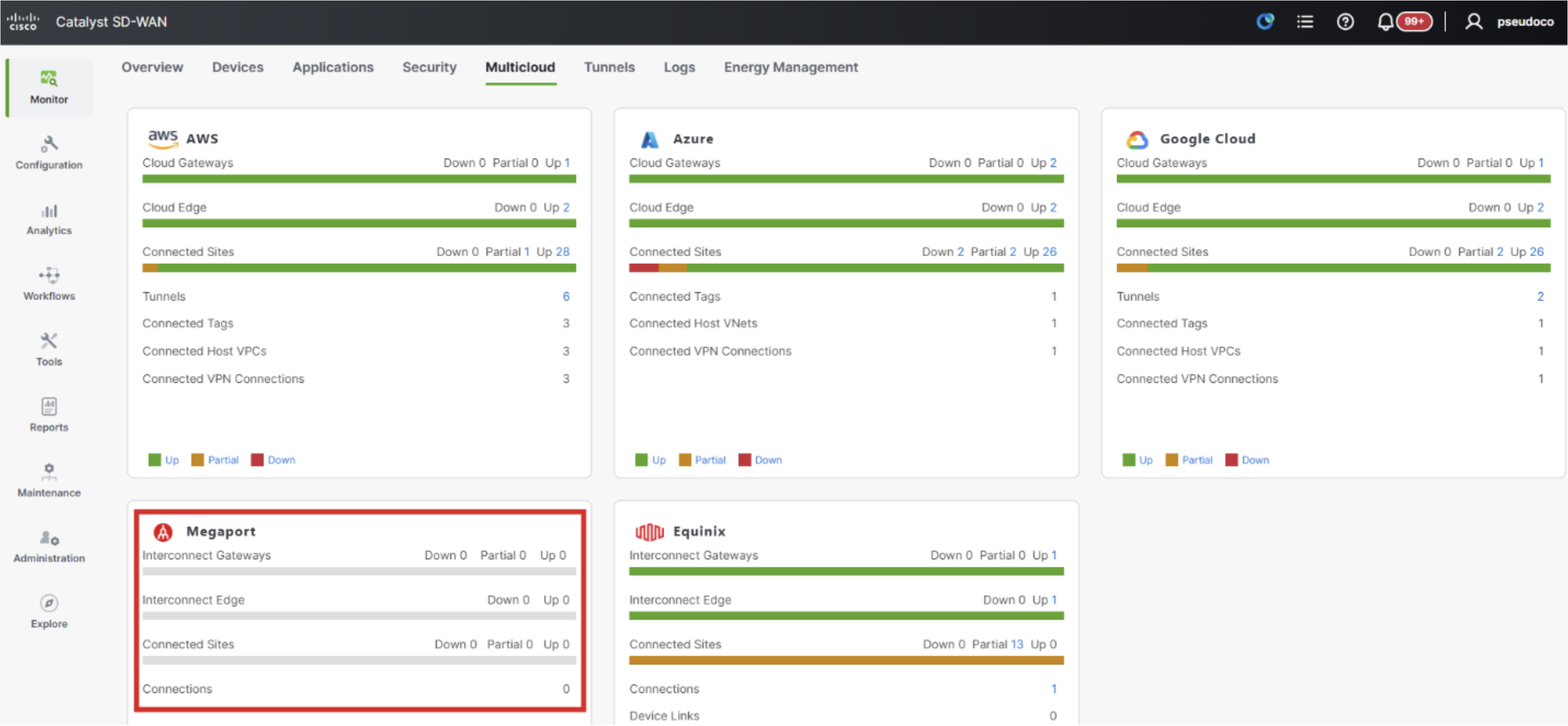
Navigate to Monitor > Multicloud and review the Megaport widget which will not show any data yet.
Next navigate to Configuration > Configuration Groups and locate the MP-Config taking note that currently no devices are provisioned.
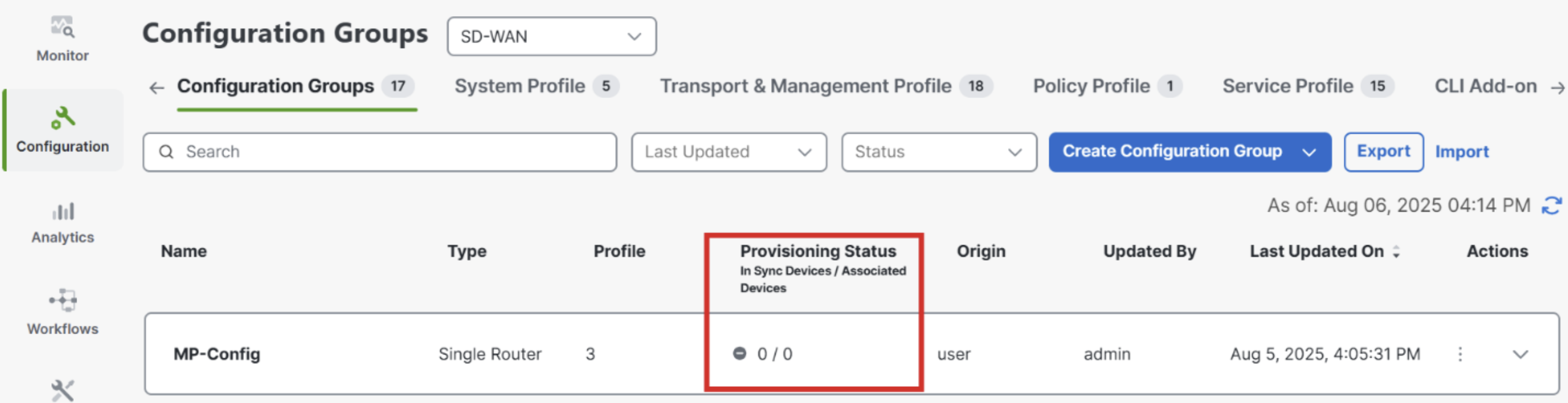
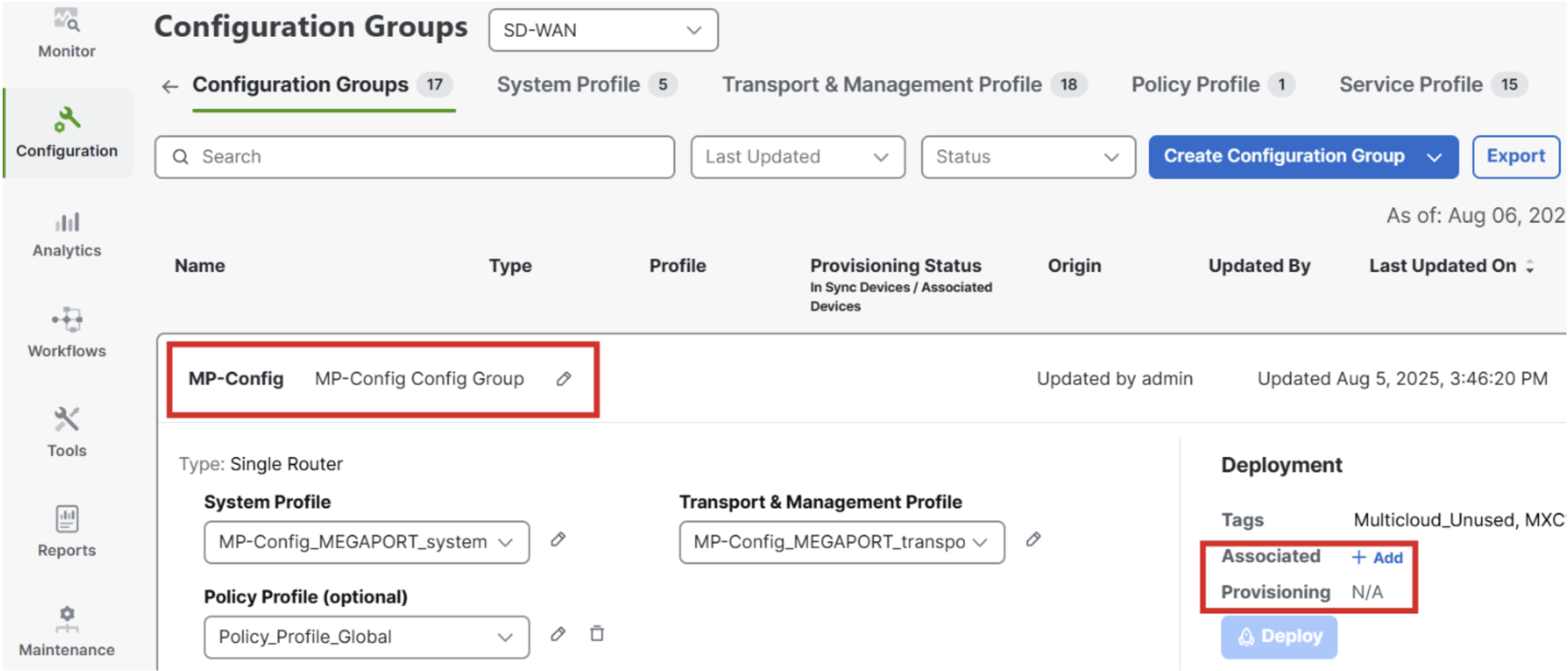
Still on the Configuration > Configuration Groups page expand the MP-Config using th arrow on the right to check the details. No devices are yet associated.
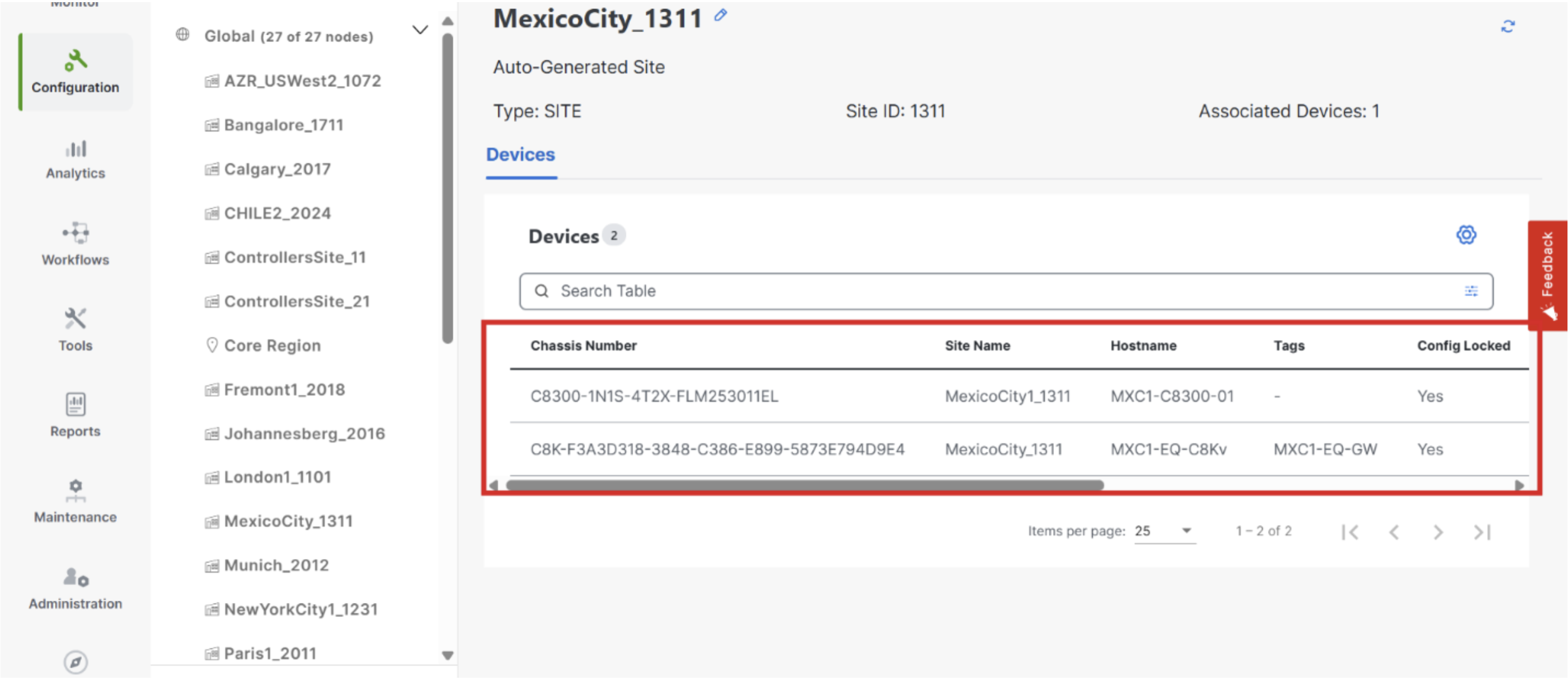
Navigate to Configuration > Network Hierarchy and select MexicoCity_1311 confirming that there are 2 SD-WAN Edges assigned to this site.
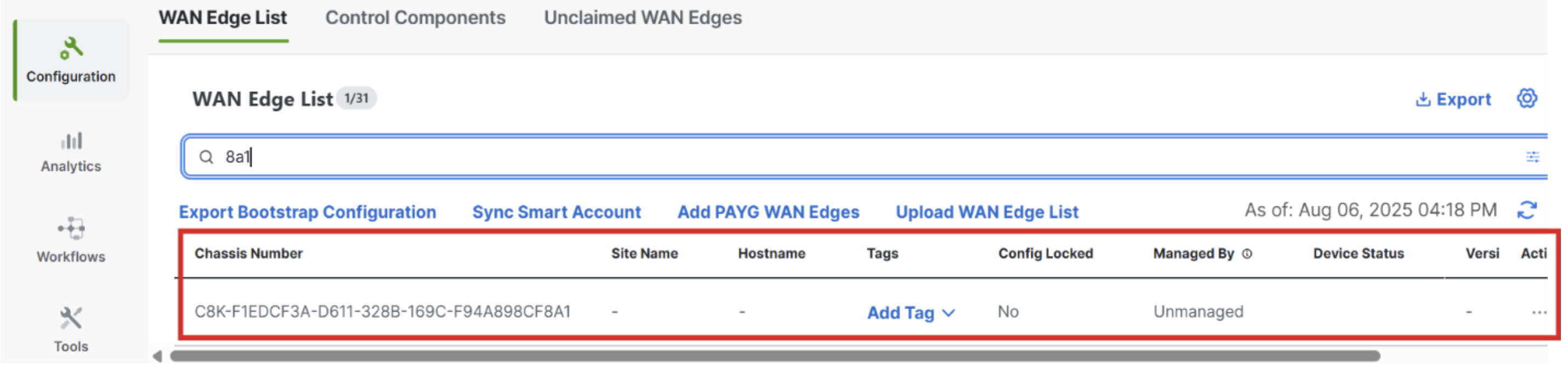
Navigate to Configuration > WAN Edges > WAN Edge List and then search for 8A1 to see the device that will be used for the Megaport connection is not provisioned and its status is currently unmanaged.
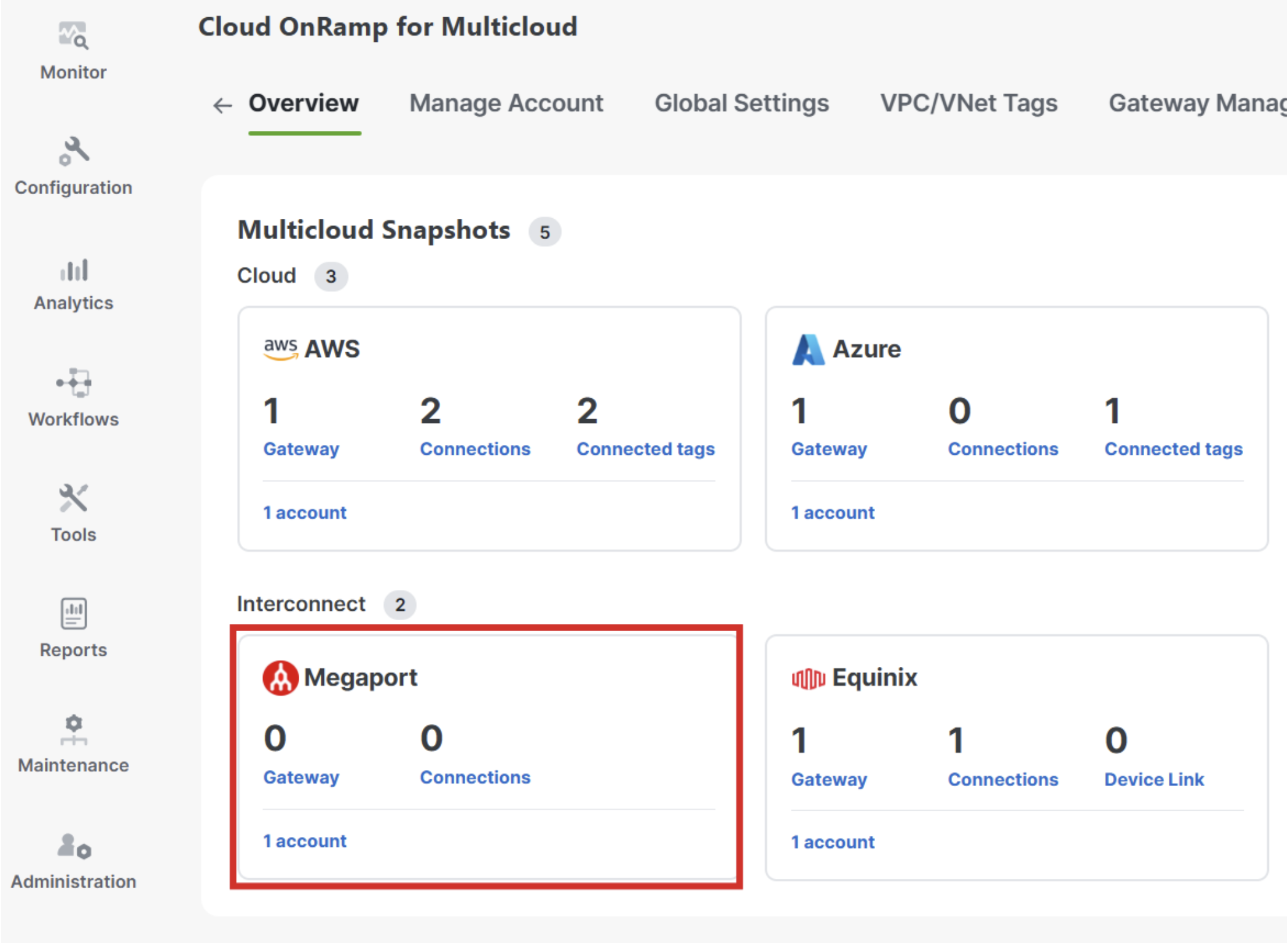
Now navigate to Configuration > Cloud OnRamp for Multicloud > Overview where the Megaport widget shows that zero Gateways and zero Connections are currently provisioned.
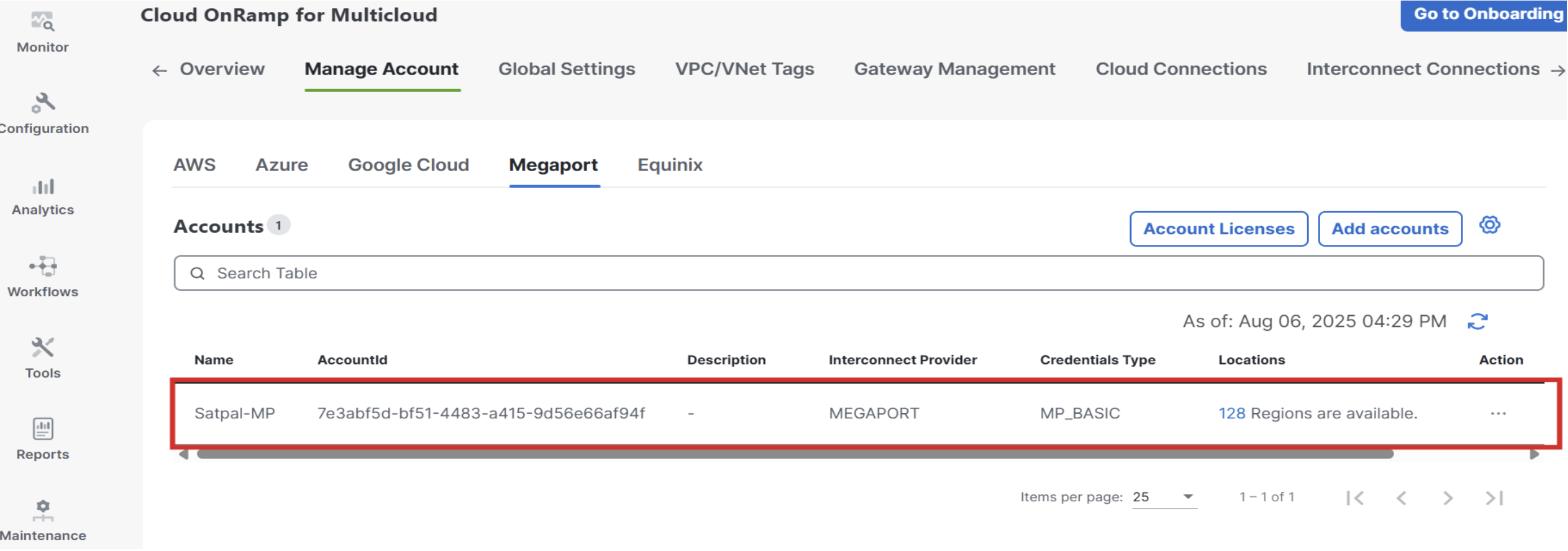
Navigate to Configuration > Cloud OnRamp for Multicloud > Manage Account > Megaport as pictured below to see the Megaport Account that has been pre-provisioned within the SD-WAN Manager.
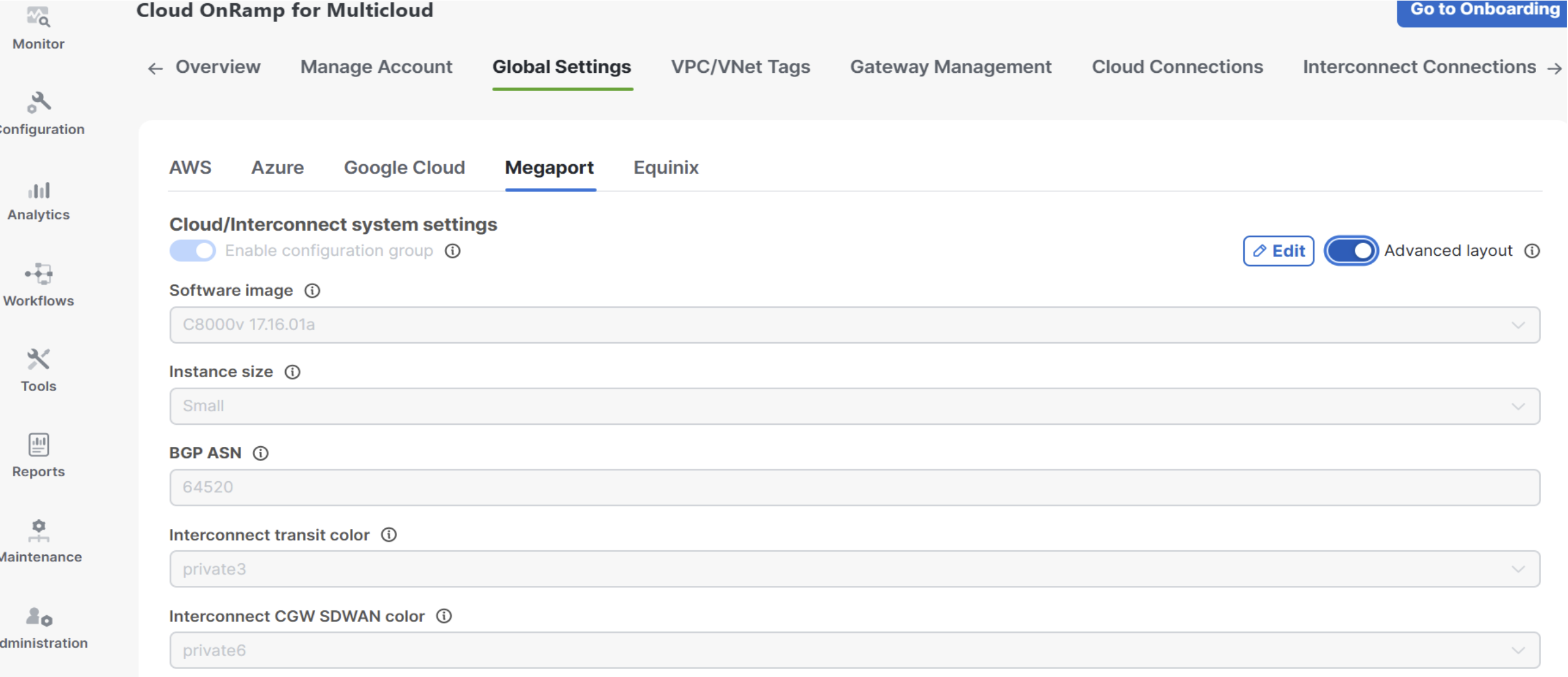
Click on the three dots under Actions on the right and select Edit from the dropdown menu to see the settings that were configured for the Megaport account.
Create the Megaport Interconnect Gateway
A Cisco Megaport Virtual Edge C8000V can be provisioned for routing in autonomous mode or for SD-WAN in SD-WAN mode. The appliance mode determines how you configure and manage your MVE deployment. A Cisco MVE provisioned in SD-WAN mode supports IOS XE SD-WAN functionalities, including comprehensive SD-WAN, WAN gateway, and network services functions within Megaport just like any other Edge edge in the fabric.
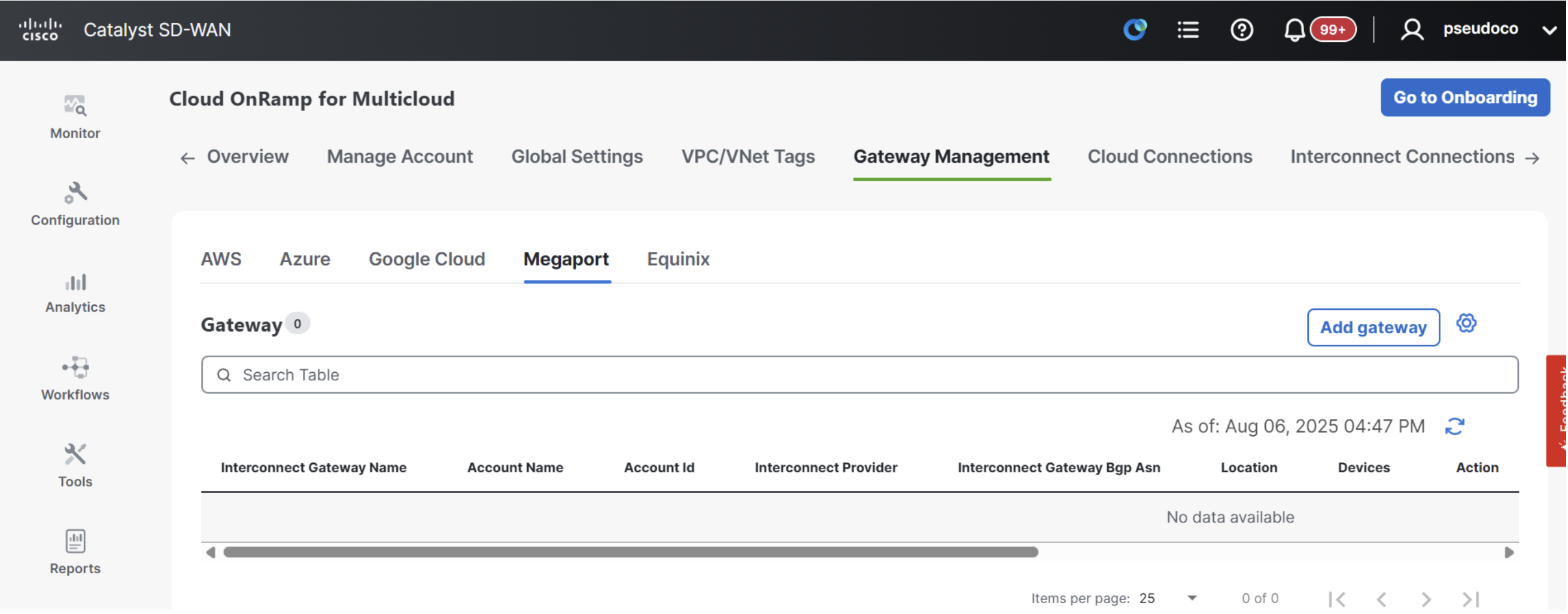
Go to Configuration > Cloud OnRamp for Multicloud > Gateway Management and then click on the blue Add gateway button on the right.
On the resulting page enter the below details before clicking on the blue Next button.
- Provider:
Megaportfrom the dropdown menu. - Account Name:
Satapal-MPfrom the dropdown menu. - Interconnect Gateway Name:
MXC1-MP-GW - Description:
(Optional)
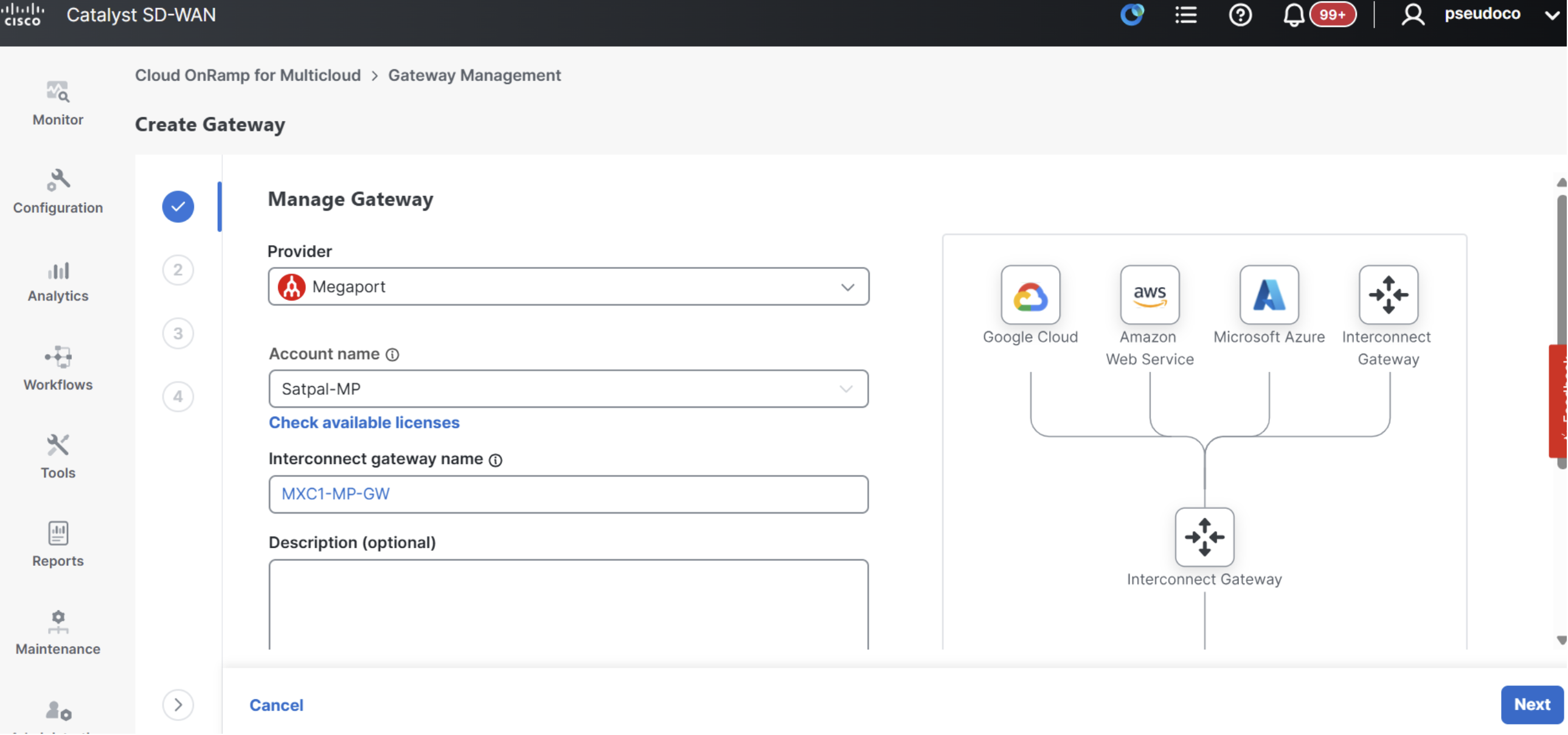
On the following page enter the below details before clicking on the blue Next button.
- Location:
Digital Reality Dallas DFW10 (DAL1), Dallas, TX, USAfrom the dropdown menu. - WAN Region:
Globalfrom the dropdown menu. - Site Name:
MexicoCity_1311from the dropdown menu. - Internet Bandwidth:
20 Mbpsfrom the dropdown menu. - Configuration Group:
MP-Config - Chassis Number:
C8K-F1EDCF3A-D611-3288-169C-F94A898CF8A1 - Instance Settings:
Default - Software Image & Instance Size:
Default - Multi Region Fabric Settings:
-
- MRF Role:
Edge
- MRF Role:
-
- Transport Gateway:
Enabled
- Transport Gateway:
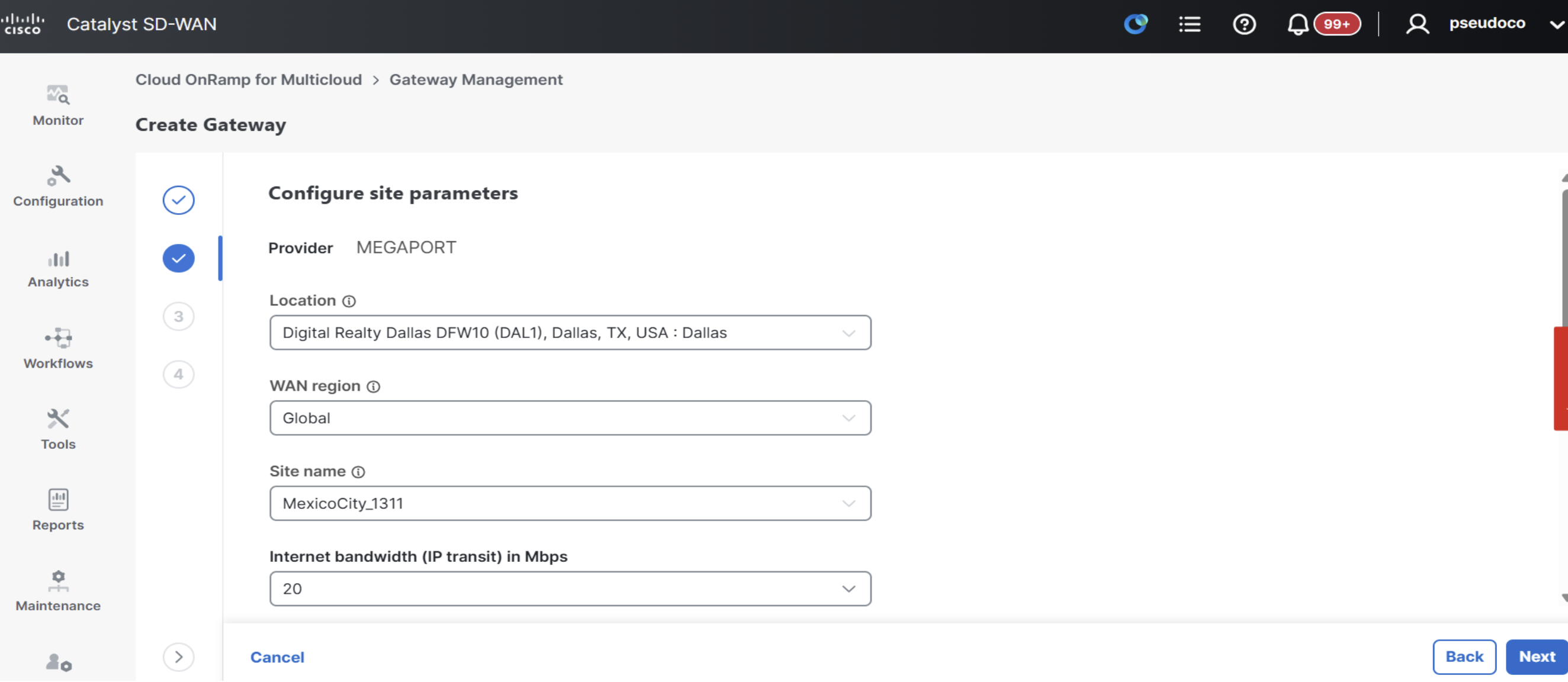
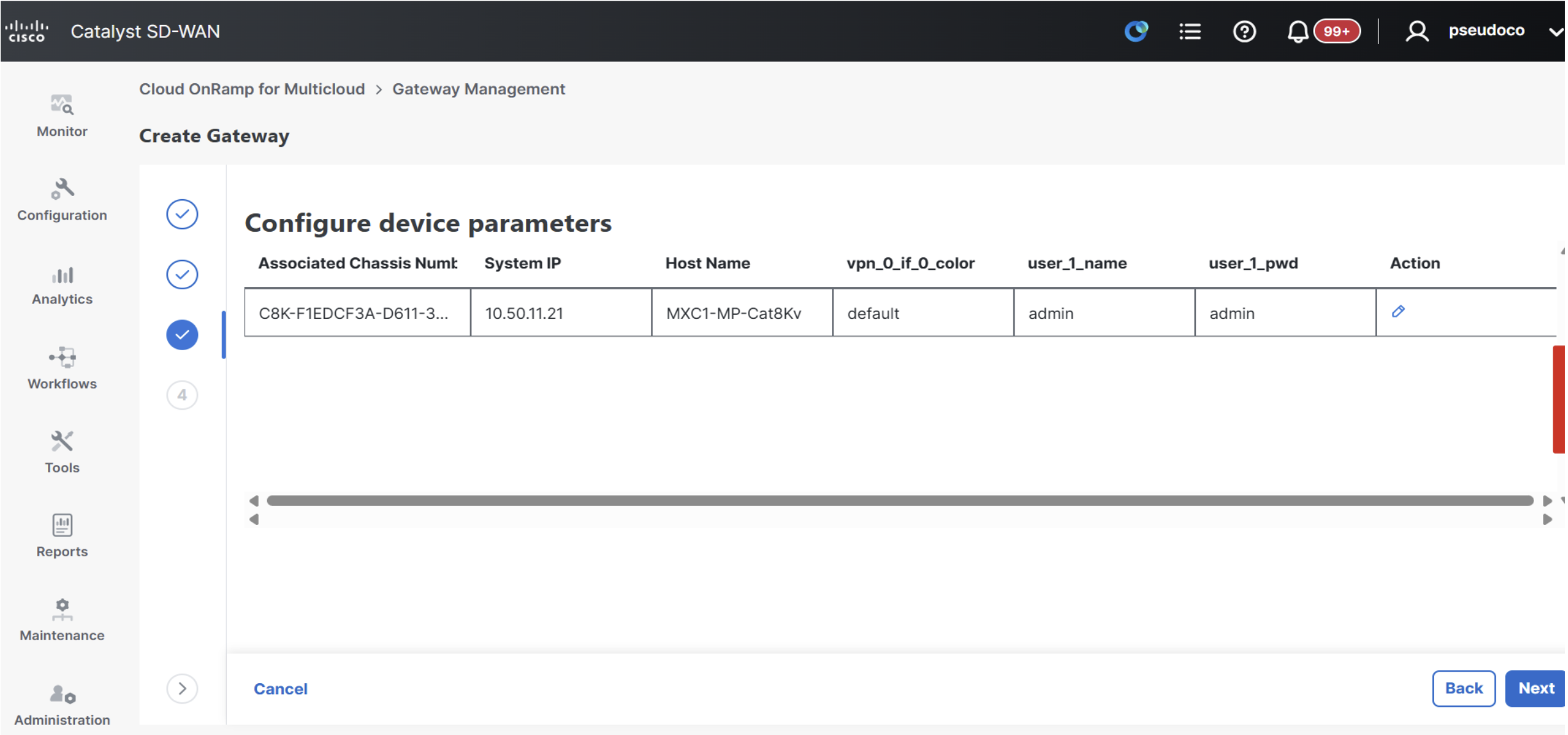
On the next page click on the blue pencil icon under Action on the right and edit the below two device parameters while leaving the others unchanged. Then click on the blue Next button.
- System IP:
10.50.11.21 - Host Name:
MXC1-MP-Cat8Kv
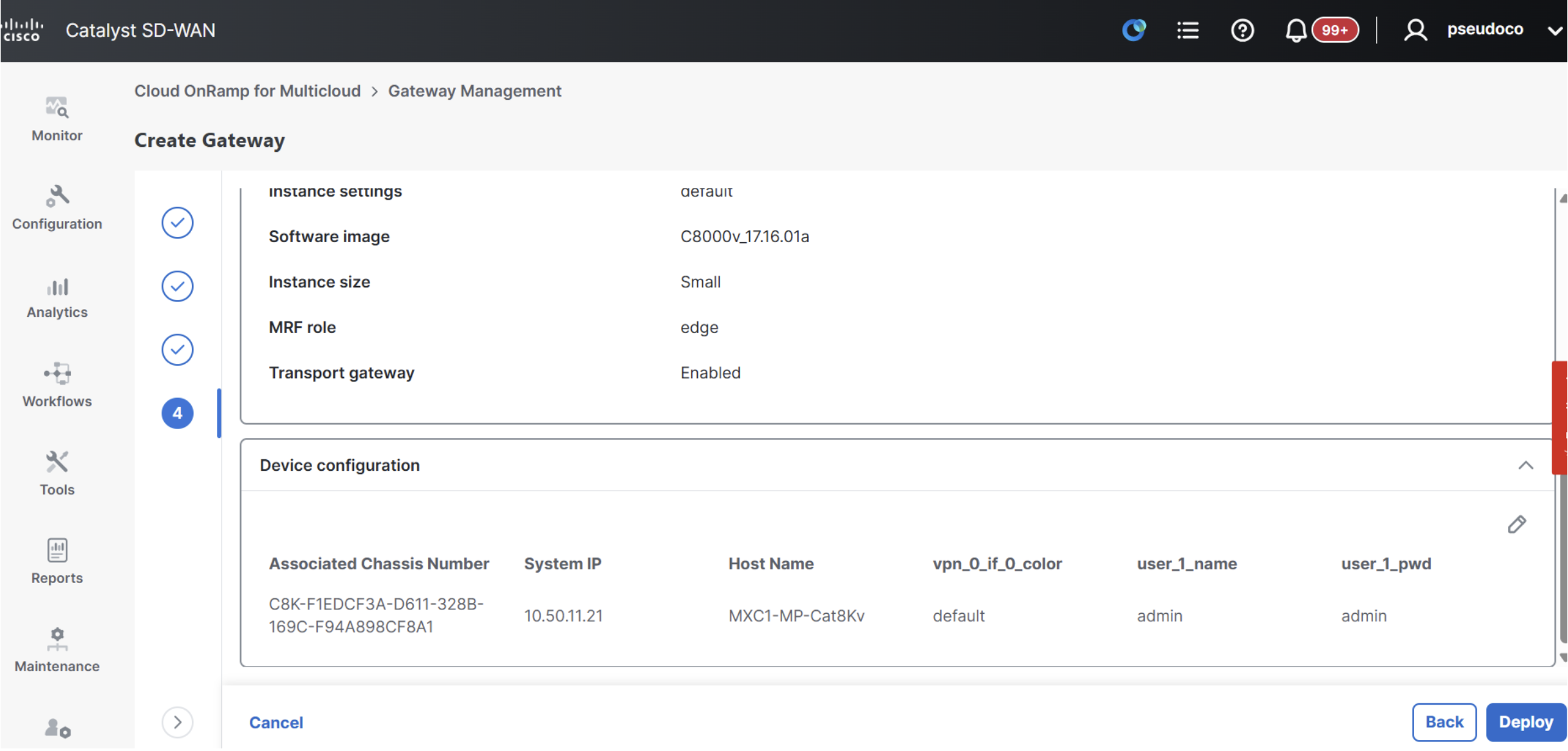
On the last page of the workflow, click on the blue Deploy button to complete the gateway setup.
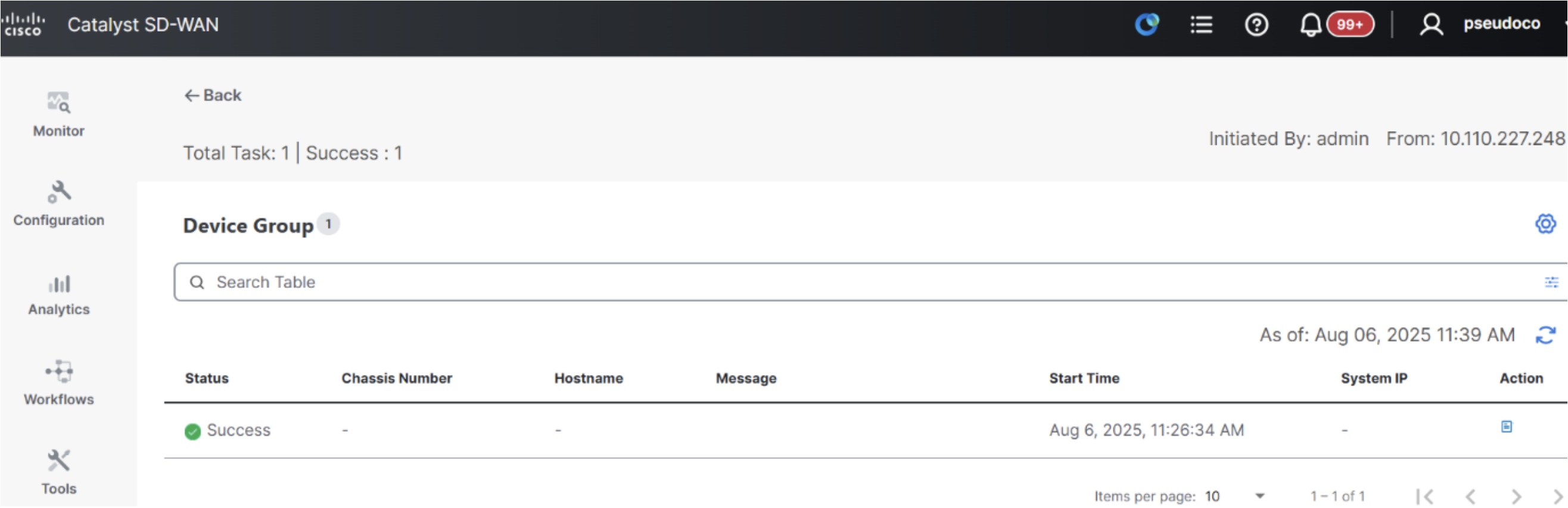
Afterwards, a success message appears as pictured below. Click on the blue View Task Monitoring Page link.

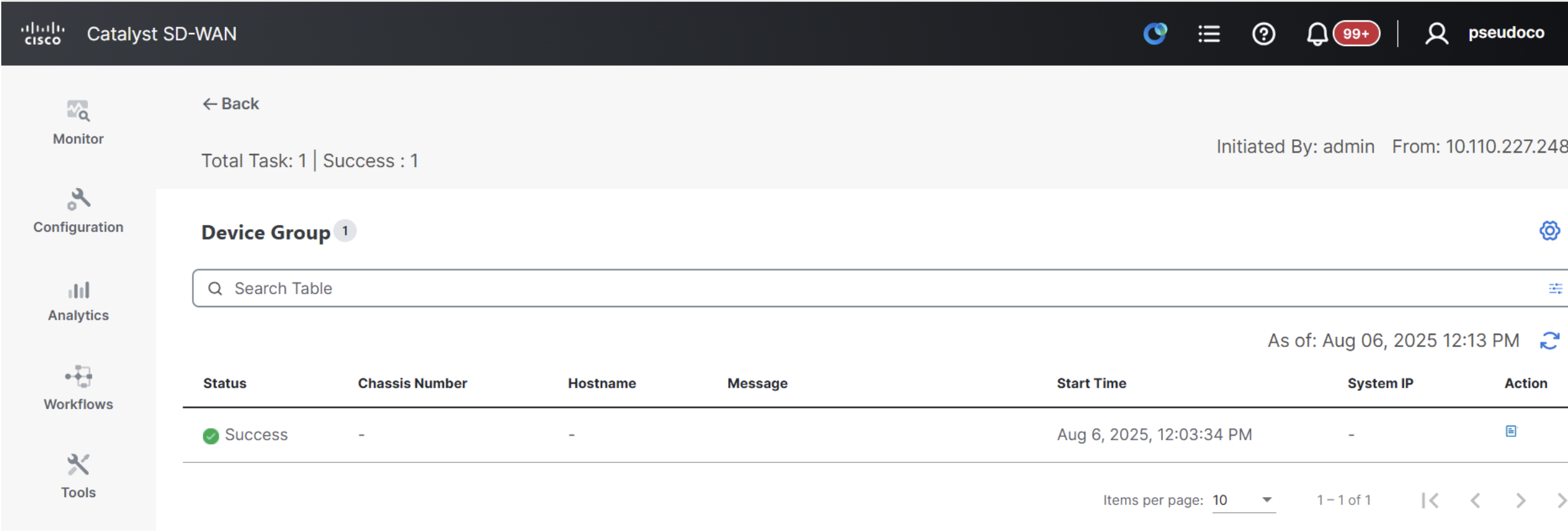
Confirm that the Device Group status shows as 8Success like the picture.
Review the Megaport Interconnect Gateway
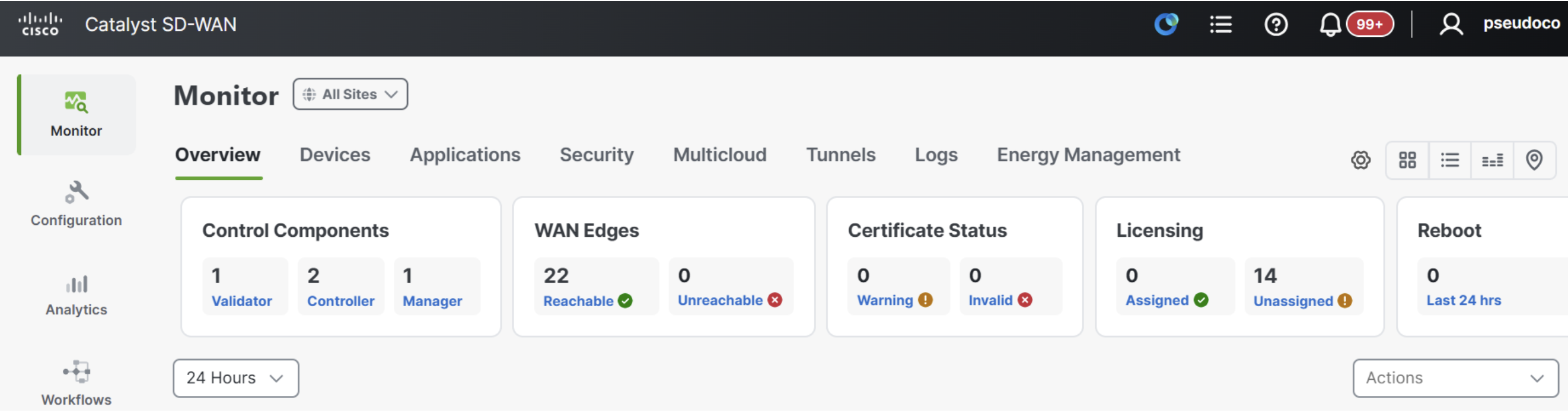
To start, navigate to Monitor > Overview again and verify the total WAN Edges count has increased by one.
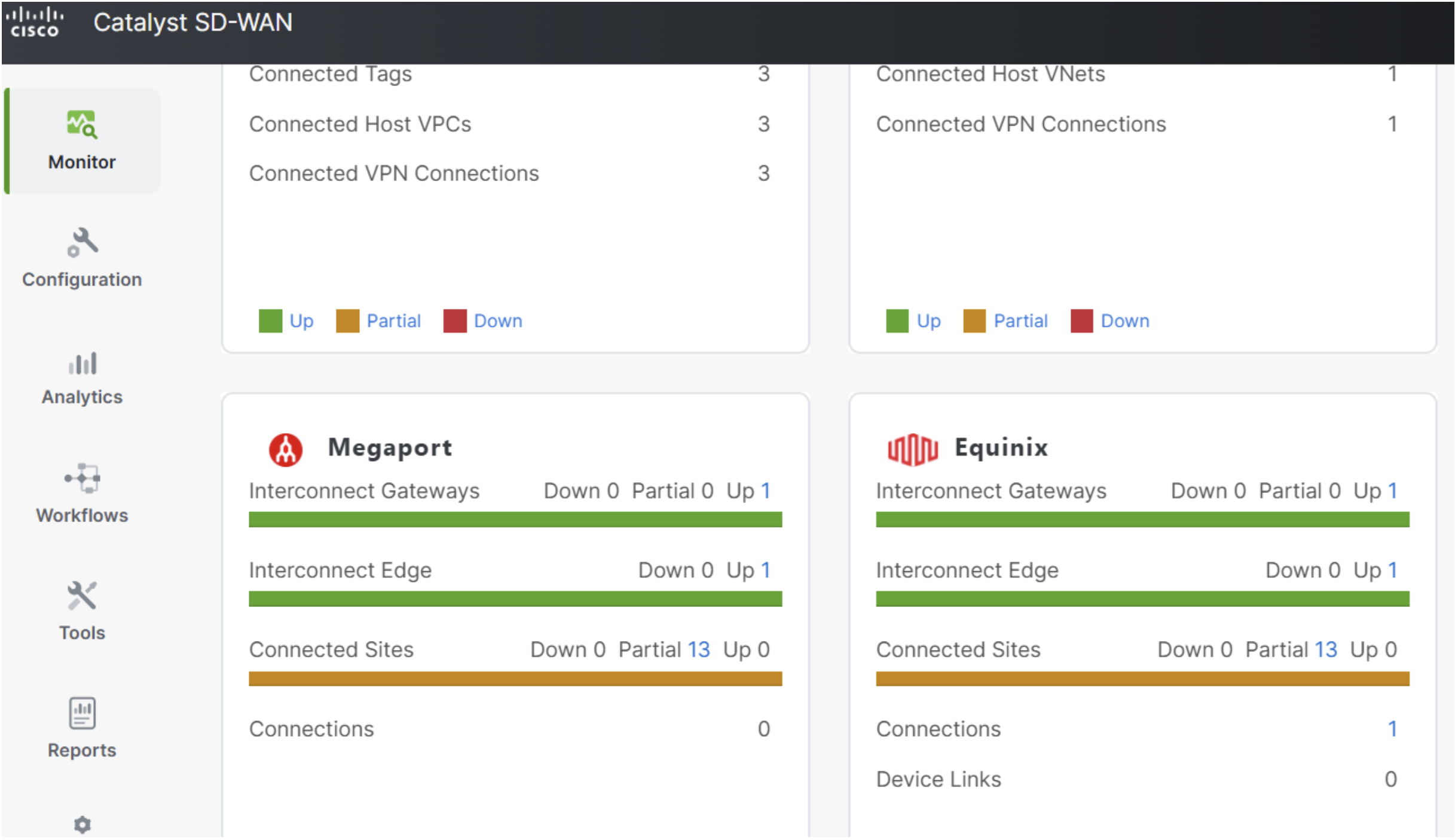
Navigate to Monitor > Multicloud and review the Megaport widget which will now show some data.
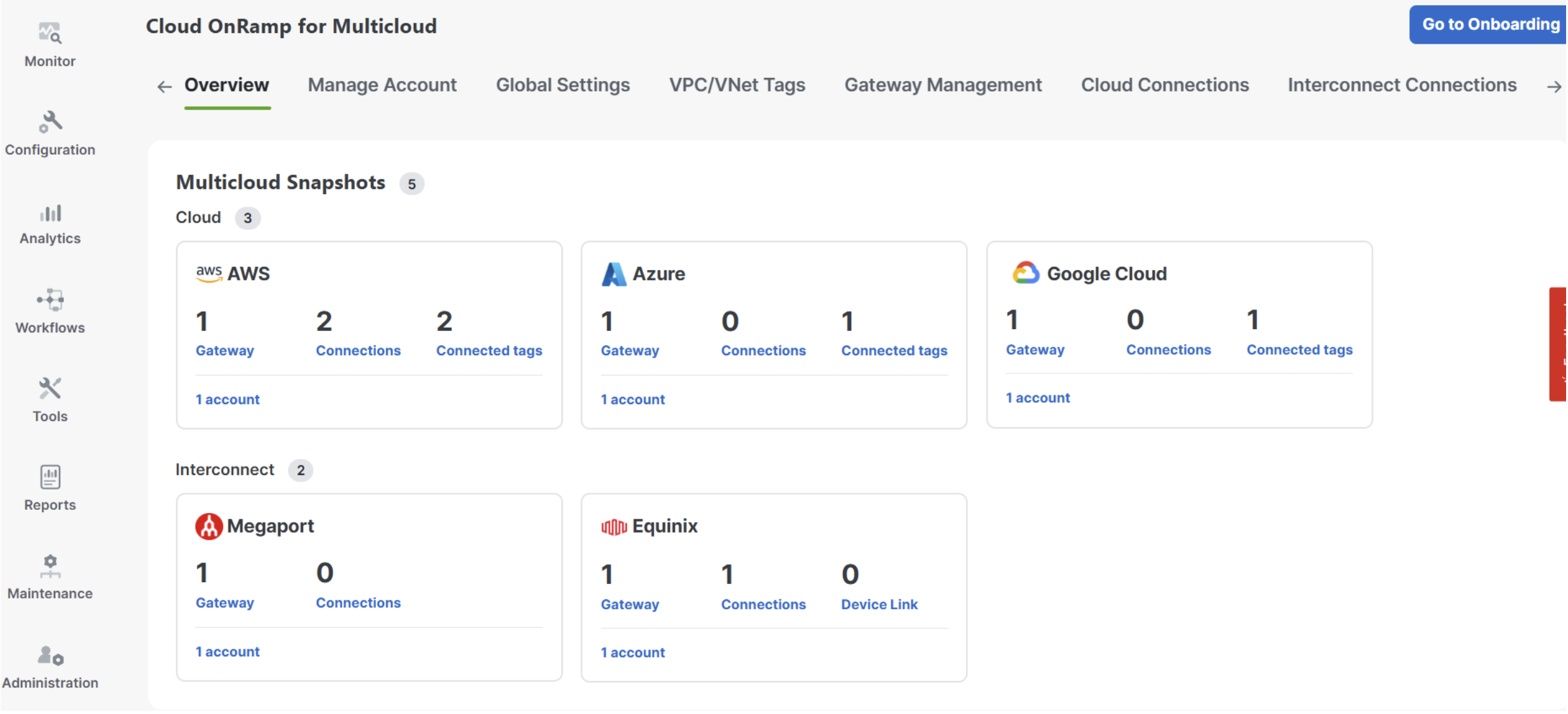
Navigate again to Configuration > Cloud OnRamp for Multicloud > Overview and review the Megaport widget which will now show one gateway.
Navigate to Configuration > Network Hierarchy and select MexicoCity_1311 confirming that there are now 3 SD-WAN Edges assigned to this site.
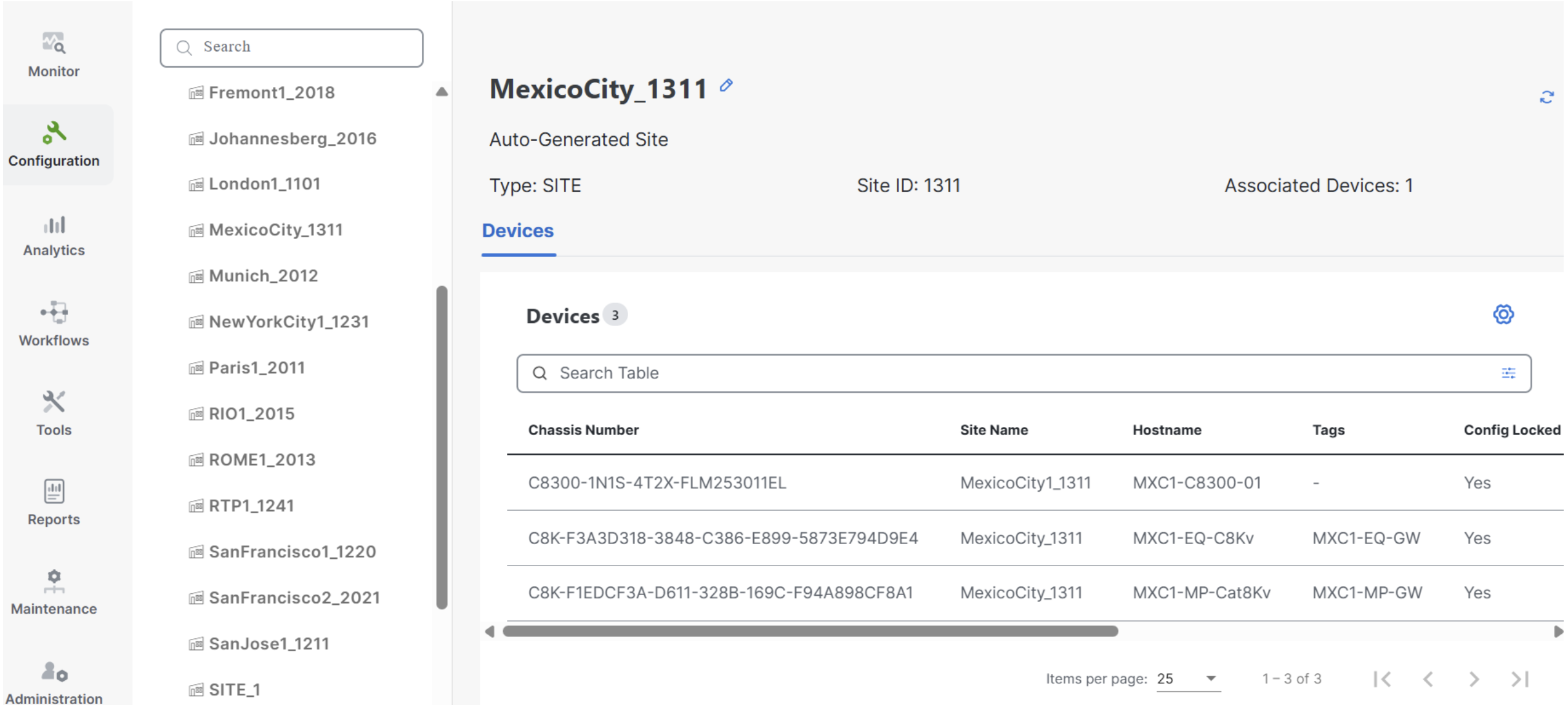
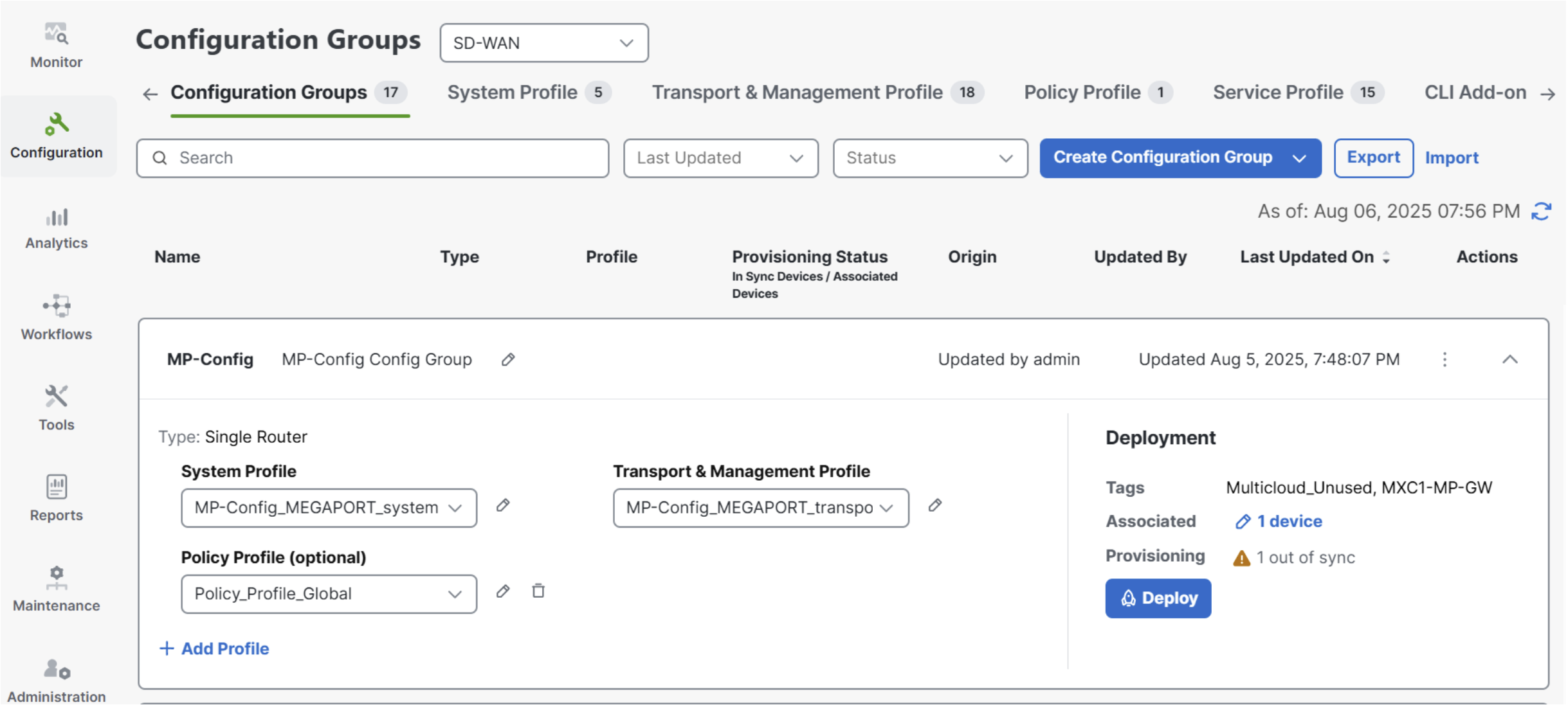
Next navigate to Configuration > Configuration Groups and locate the MP-Config taking note that now one device is associated.
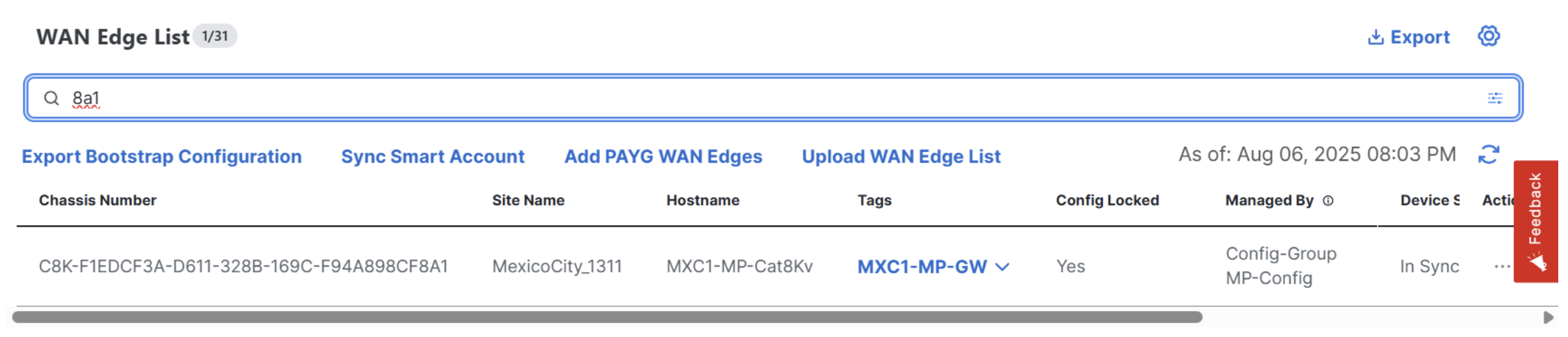
Navigate to Configuration > WAN Edges > WAN Edge List and then search for 8A1 to locate the new sd-wan edge in Megaport.
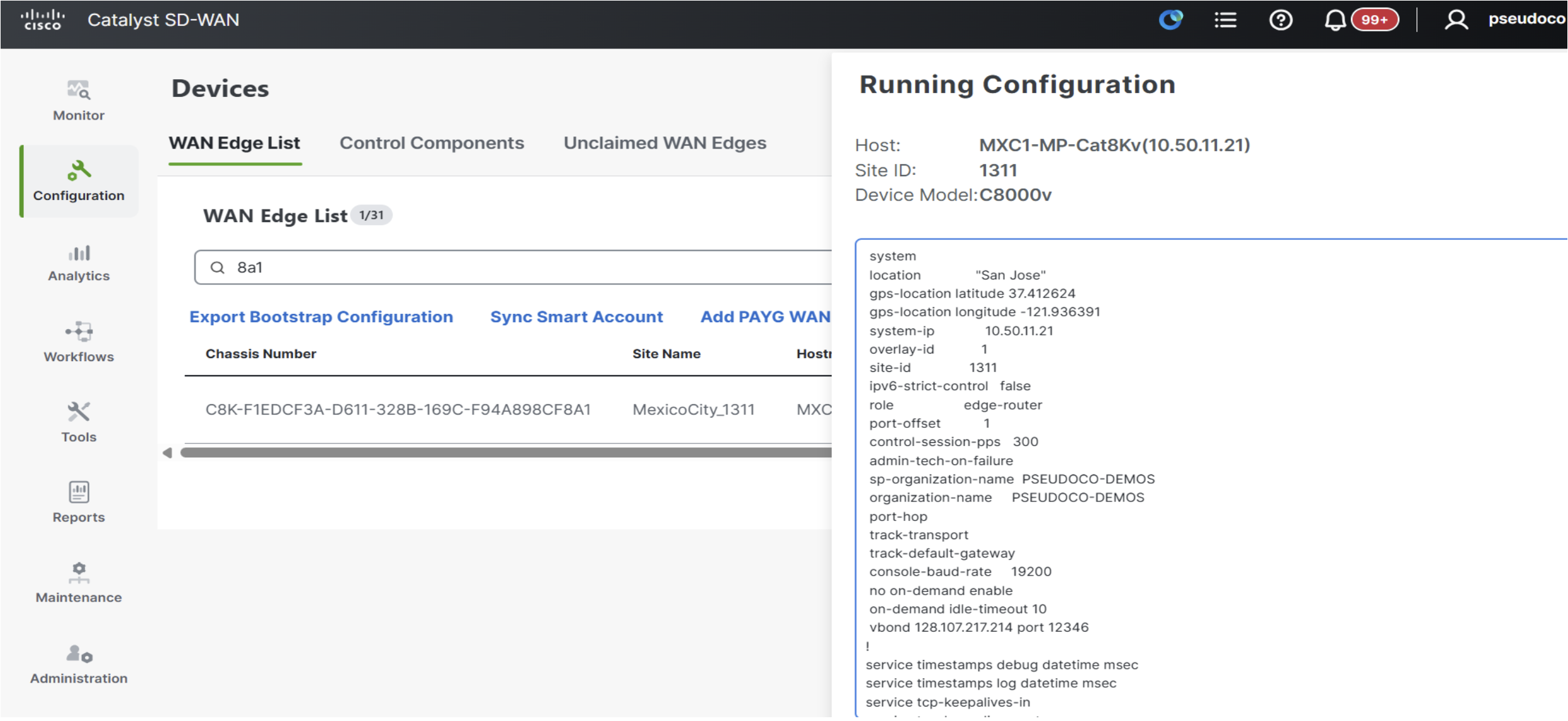
Click on the three dots on the right under Actions and select Running Configuration to see the live config pulled in from the edge device.
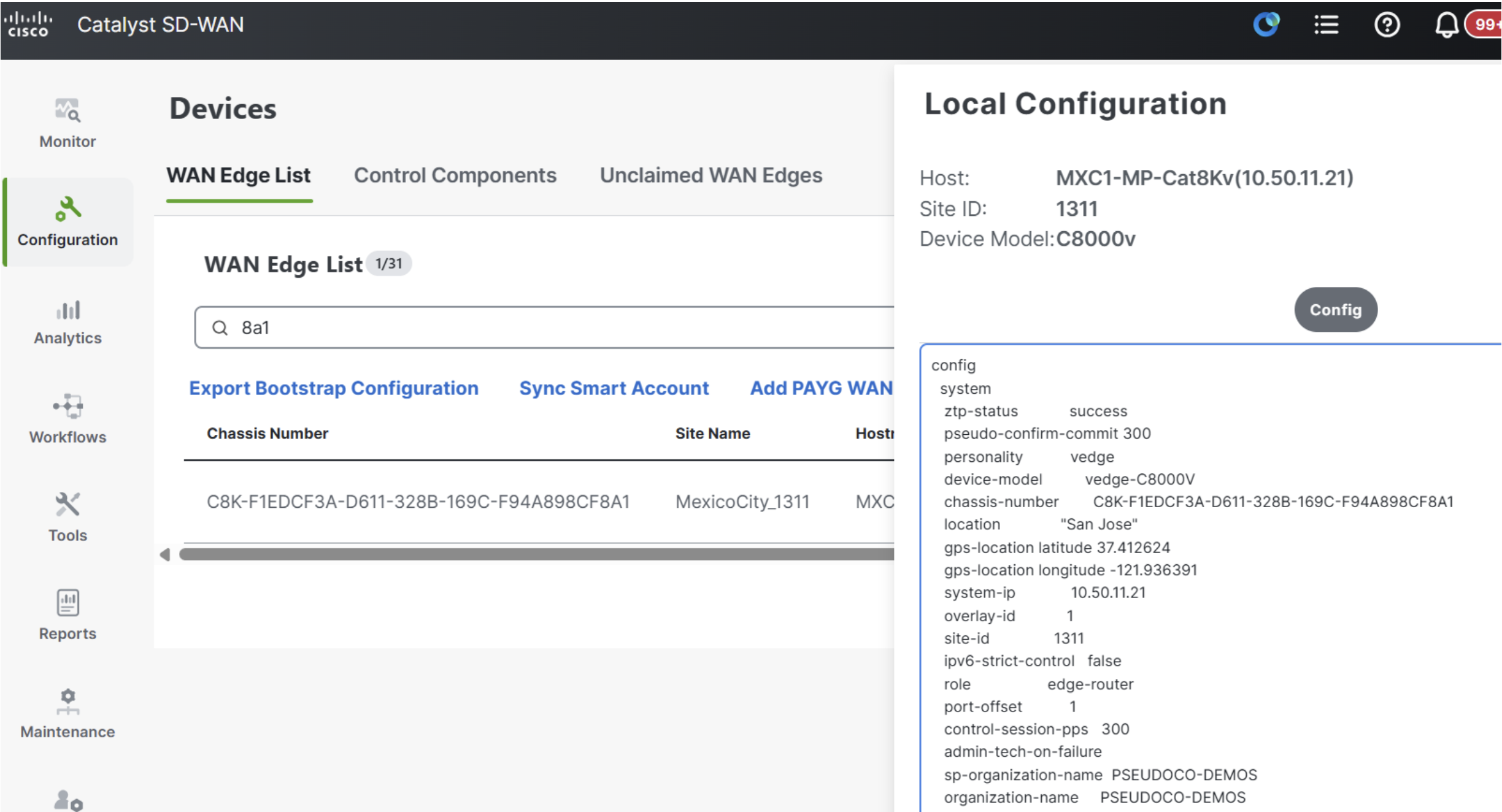
Click on the three dots on the right under Actions and select Local Configuration to see the stored intended config held in the Manager.
Create Middle-Mile Network Connection
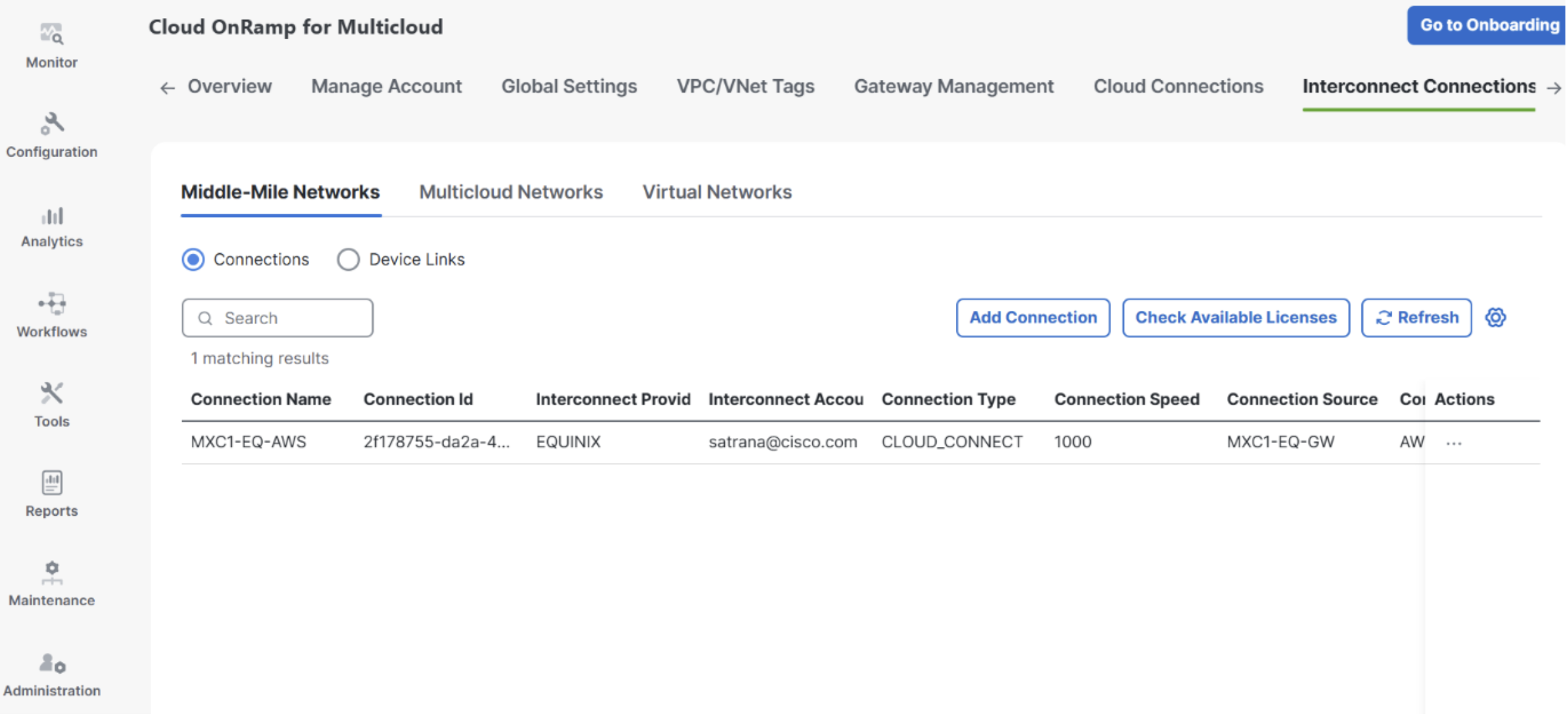
Navigate to Configuration > Cloud OnRamp for Multicloud > Interconnect Connections > Middle-Mile Networks and then select the radio button labeled Connections before clicking on the blue Add Connection button.
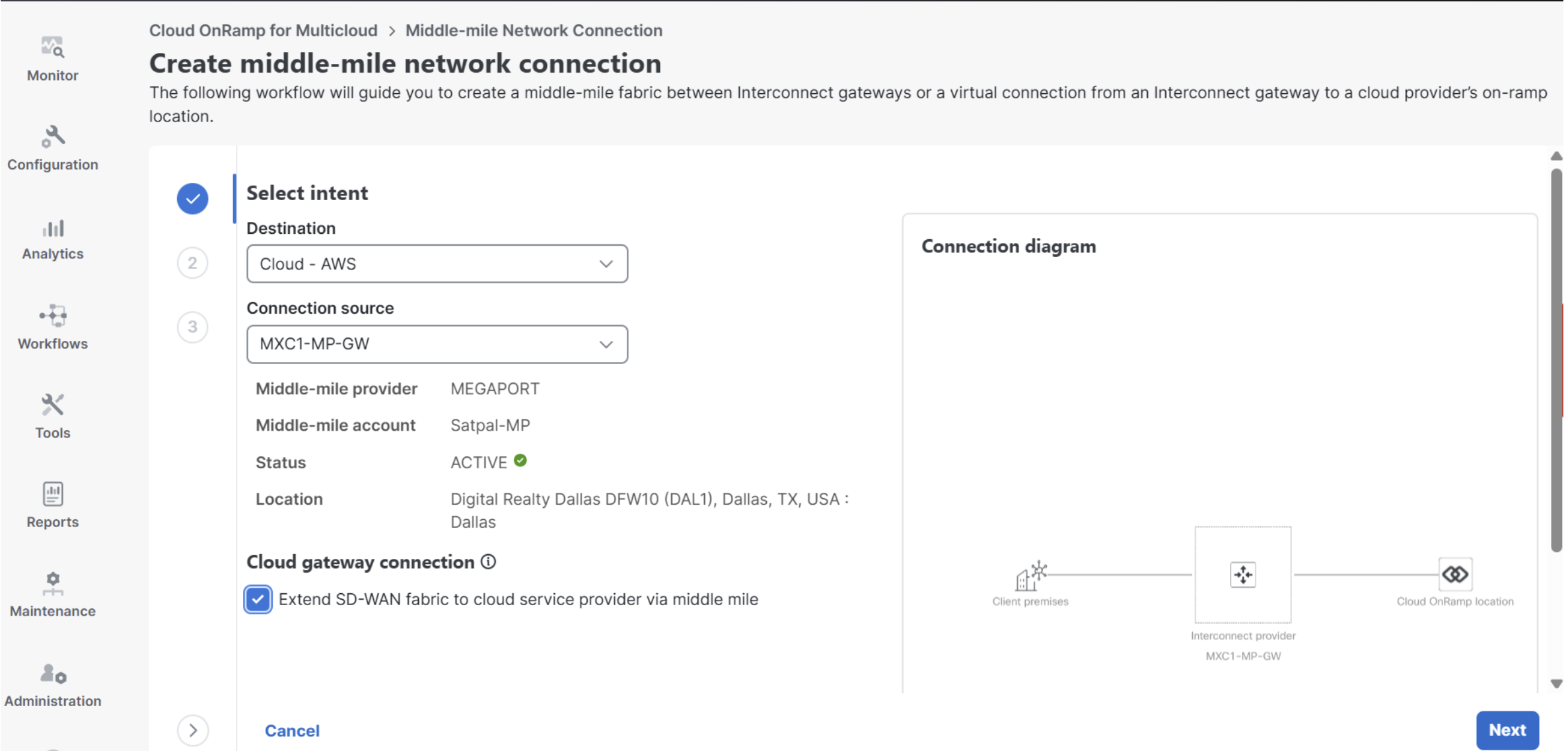
On the resulting page enter the information provided and then click on the blue Next button.
- Destination:
Cloud - AWSfrom the dropdown menu. - Connection Source:
MXC1-MP-GW - Cloud Gateway Connection:
Extend SD-WAN fabric to cloud service provider via middle milecheck box
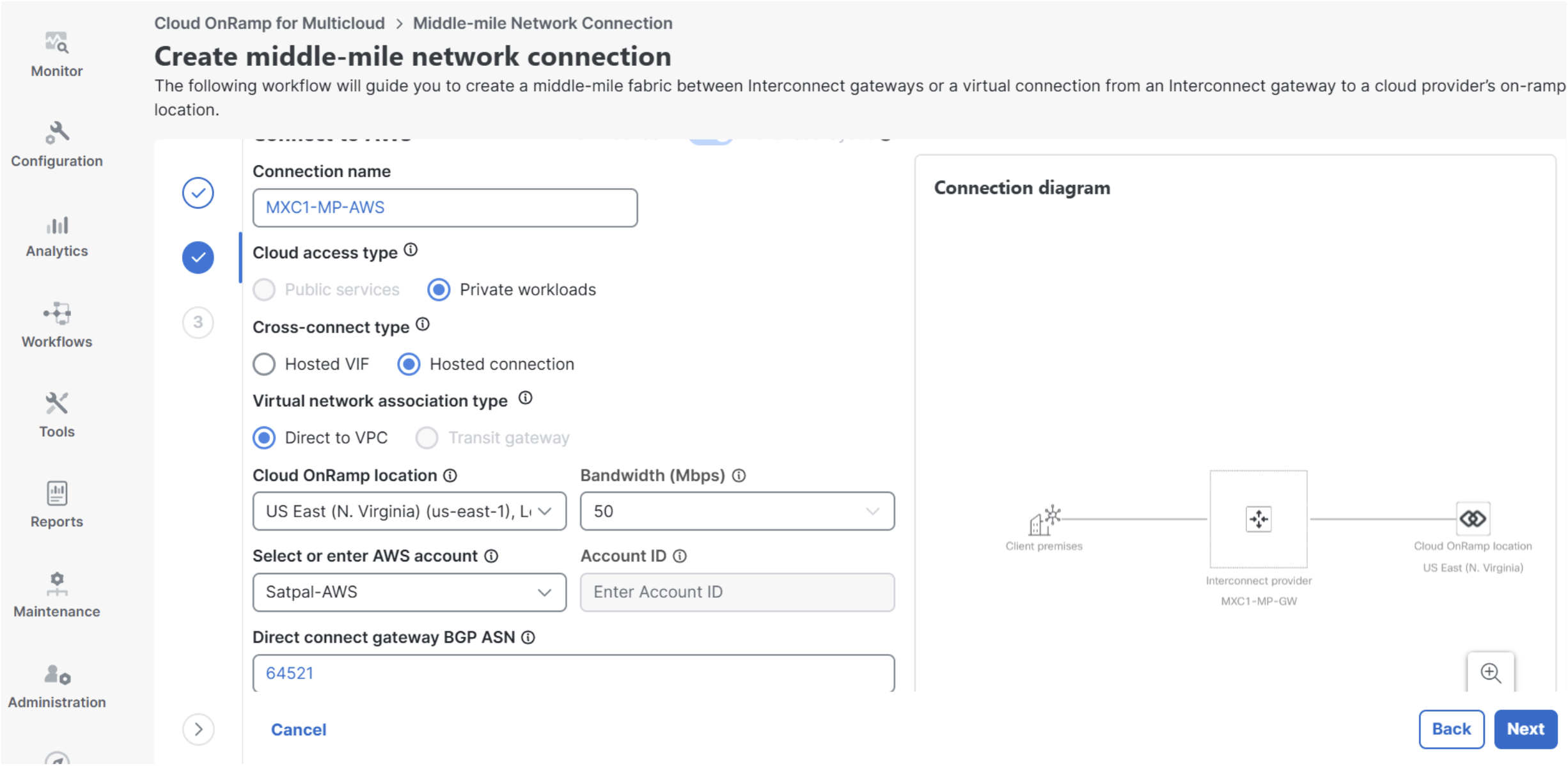
On the next page of the workflow enter the provided information provided and then click on the blue Next button.
- Connection Name:
MXC1-MP-AWS - Cloud Access Type:
Private workloadsTake the Default - Cross-Connect Type:
Hosted connectionTake the Default - Virtual Network Association Type:
Direct to VPCTake the Default - Cloud OnRamp Location:
US East (N. Virginia) (us-east-1), Location ID: 71 - Dallas - TX - USAfrom the dropdown menu. - Bandwidth:
50 Mbpsfrom the dropdown menu. - AWS Account:
Satpal-AWSfrom the dropdown menu. - Direct Connect Gateway BGP ASN:
64521 - Connection Peering Settings:
Auto-generated
On the next page click on the blue Deploy button to create the connection. Afterwards click on the blue Task Monitoring link to track the status of the deployment.
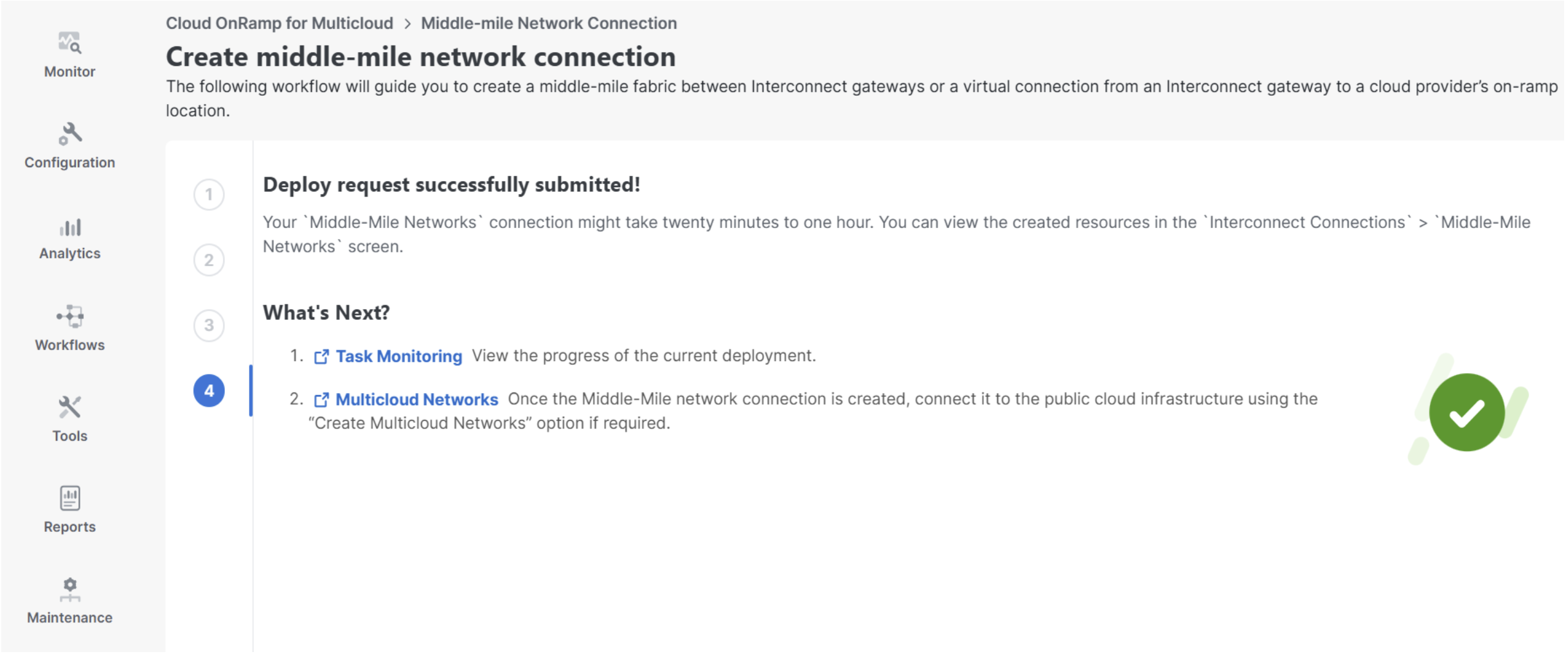
On the resulting page confirm that the status of shows as Sucess like the picture below.
Review Status and Configuration
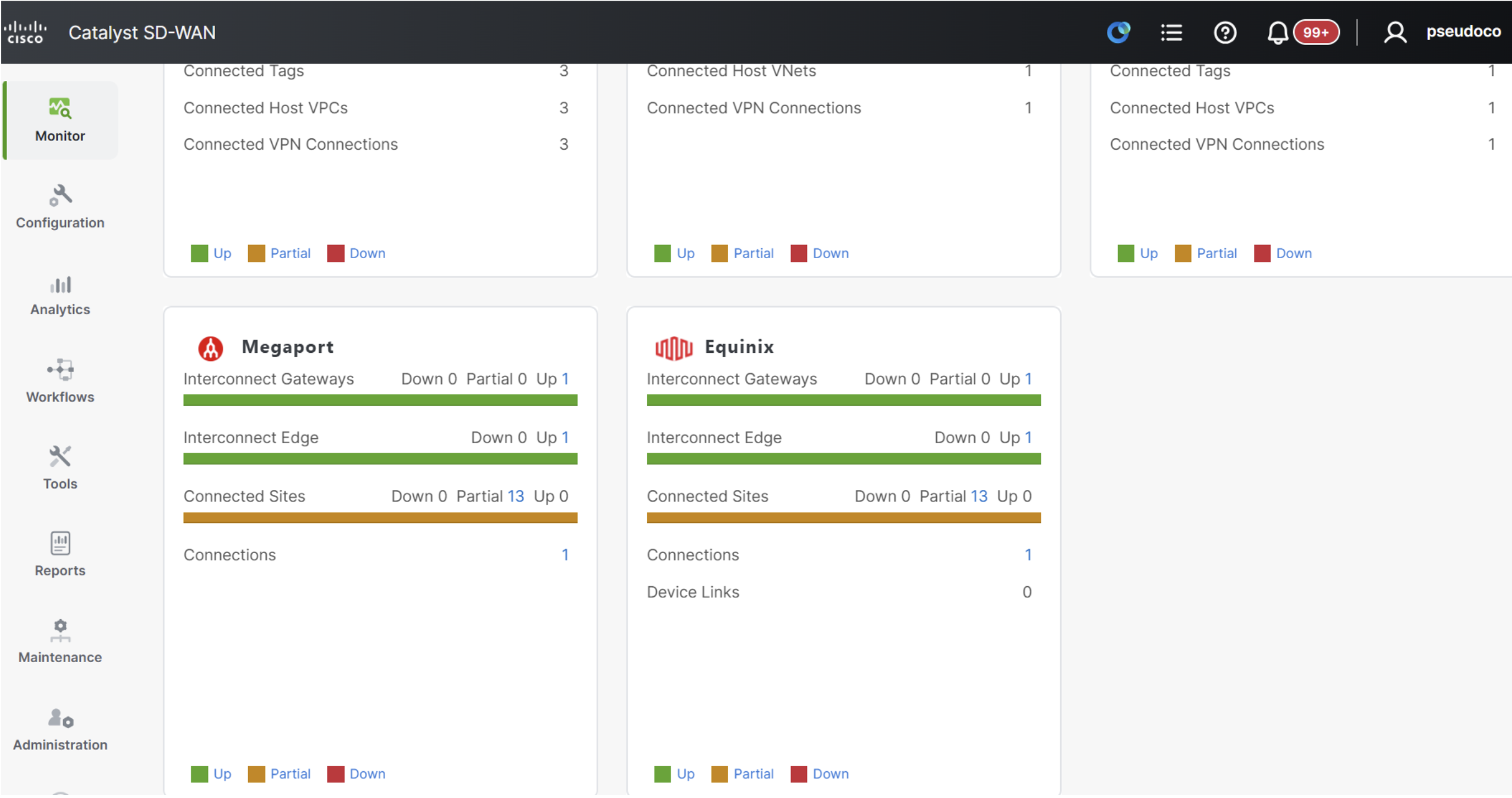
Navigate to Monitor > Multicloud and review the Megaport widget which will show both an Interconnect Gateway and an Interconnect Edge both active.
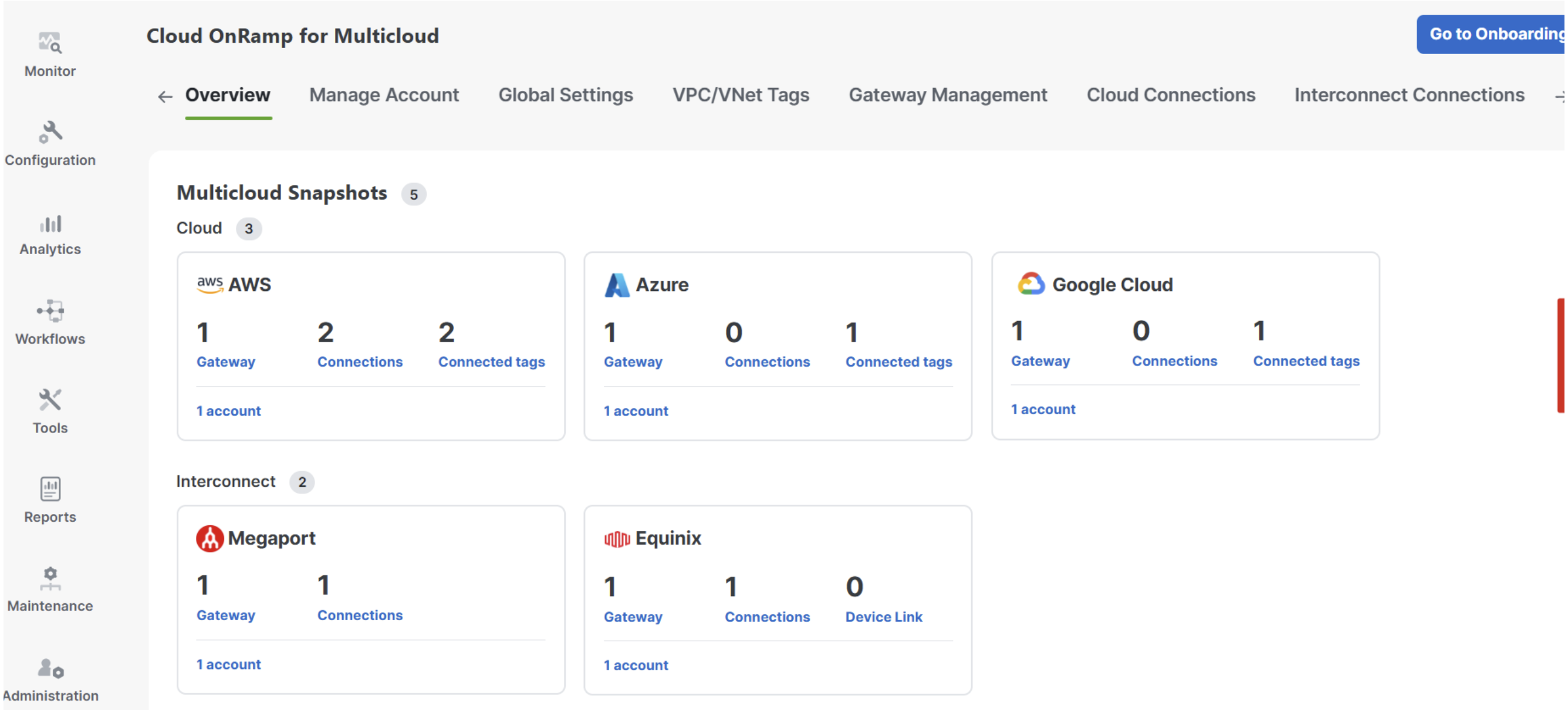
Go to Configuration > Cloud OnRamp for Multicloud > Overview to confirm the same Megaport information shows both an Interconnect Gateway and an Interconnect Edge are both active.
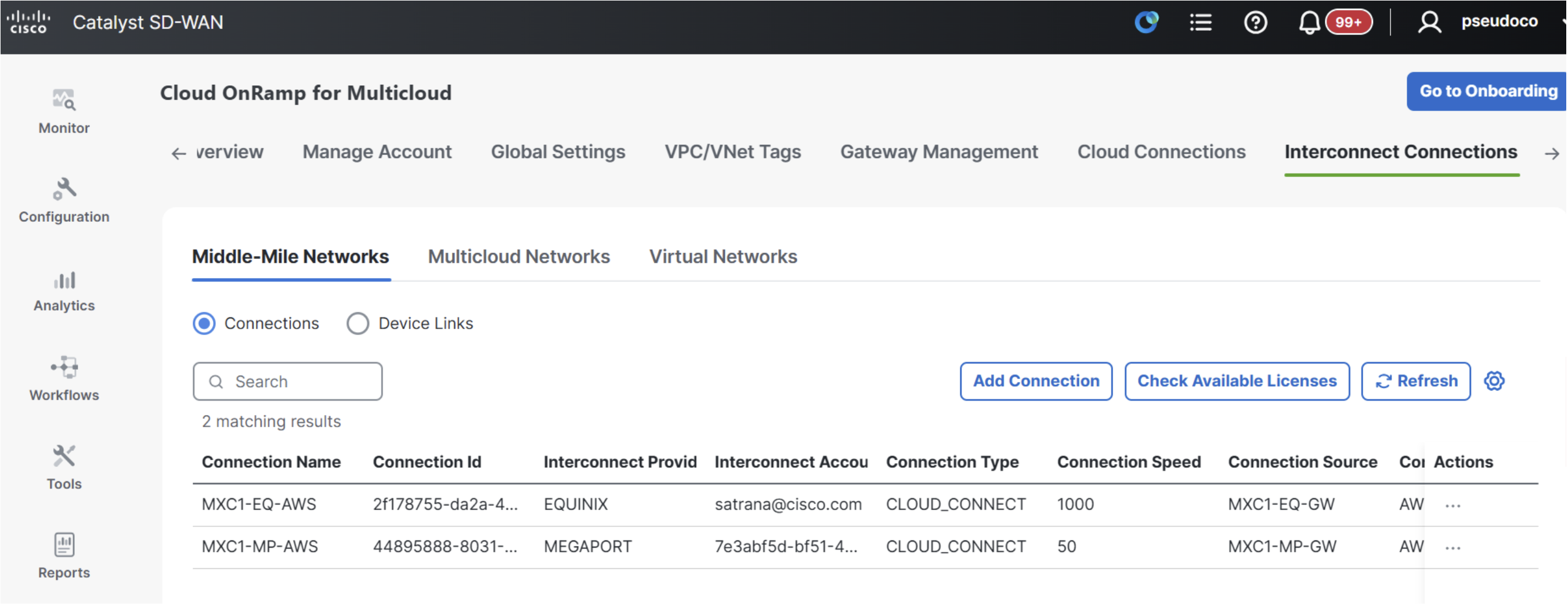
Go to Configuration > Cloud OnRamp for Multicloud > Interconnect Connections > Middle-Mile Networks to see the Megaport connection next to the pre-existing Equinix connection.