Networking and Security Capabilities on Catalyst SD-WAN for Industrial IoT (IIoT)
Catalyst SD-WAN integrates industry-leading SD-WAN technology with purpose-built industrial routing to seamlessly connect and secure individuals and devices in rugged environments.
This section addresses monitoring and configuration capabilities of ruggedized WAN Edges within an SD-WAN deployment: Device Monitoring with Cellular Connectivity, Next Generation Firewall (NGFW), Configuration Catalog and Zero Touch [ZTP] Provisioning (also referred to as PnP or Plug-and-Play deployment).
Device Monitoring with Cellular Connectivity
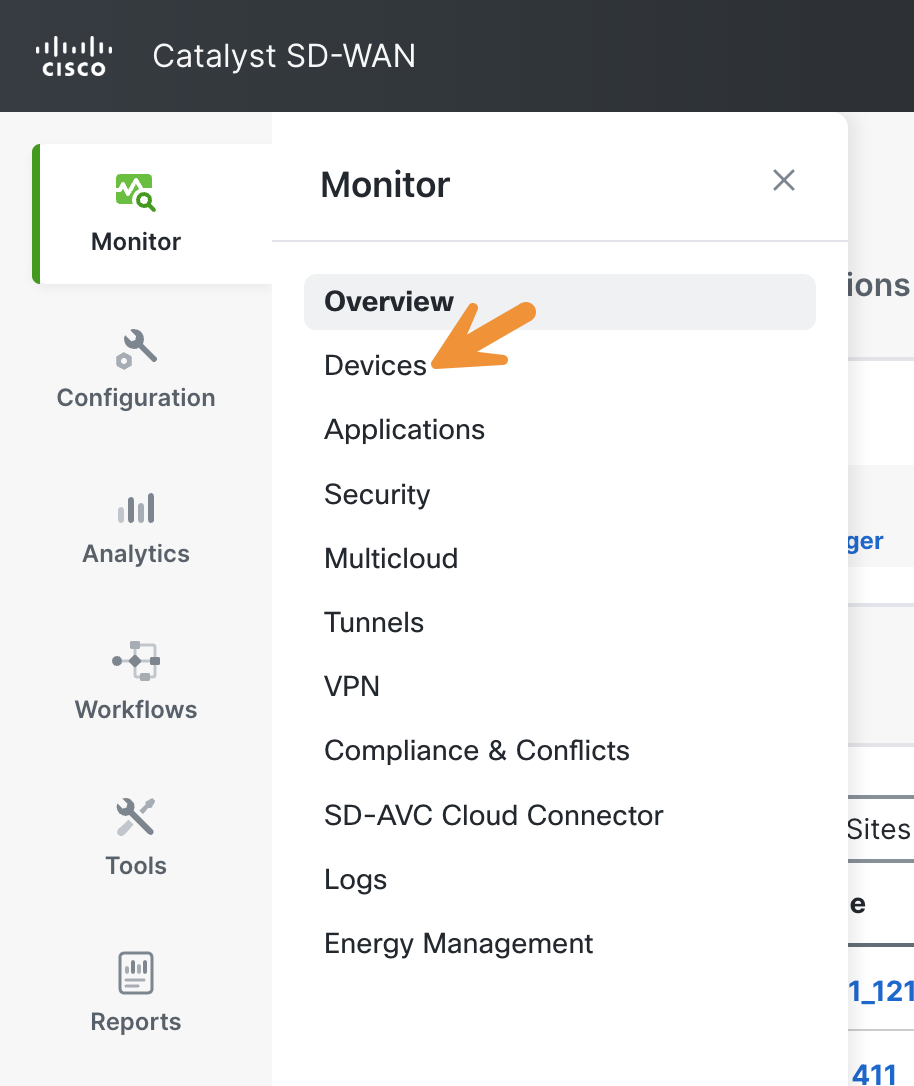
To start, navigate to Monitor > Devices in the SD-WAN Manager.
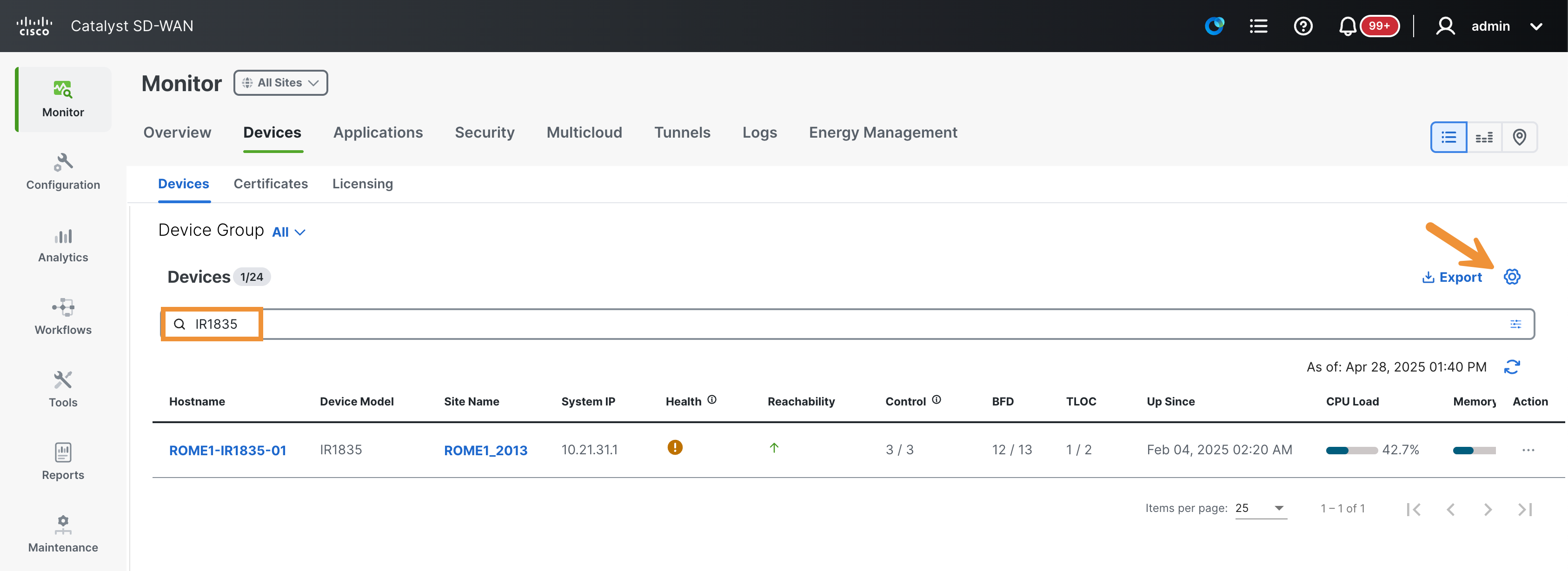
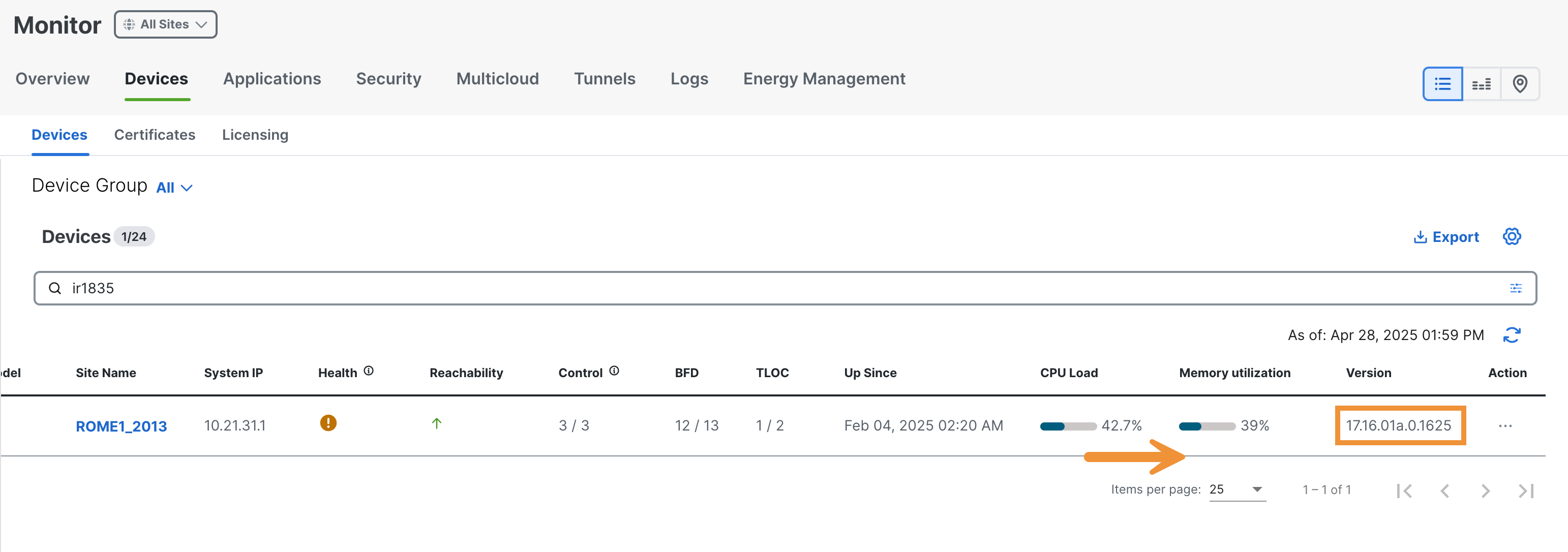
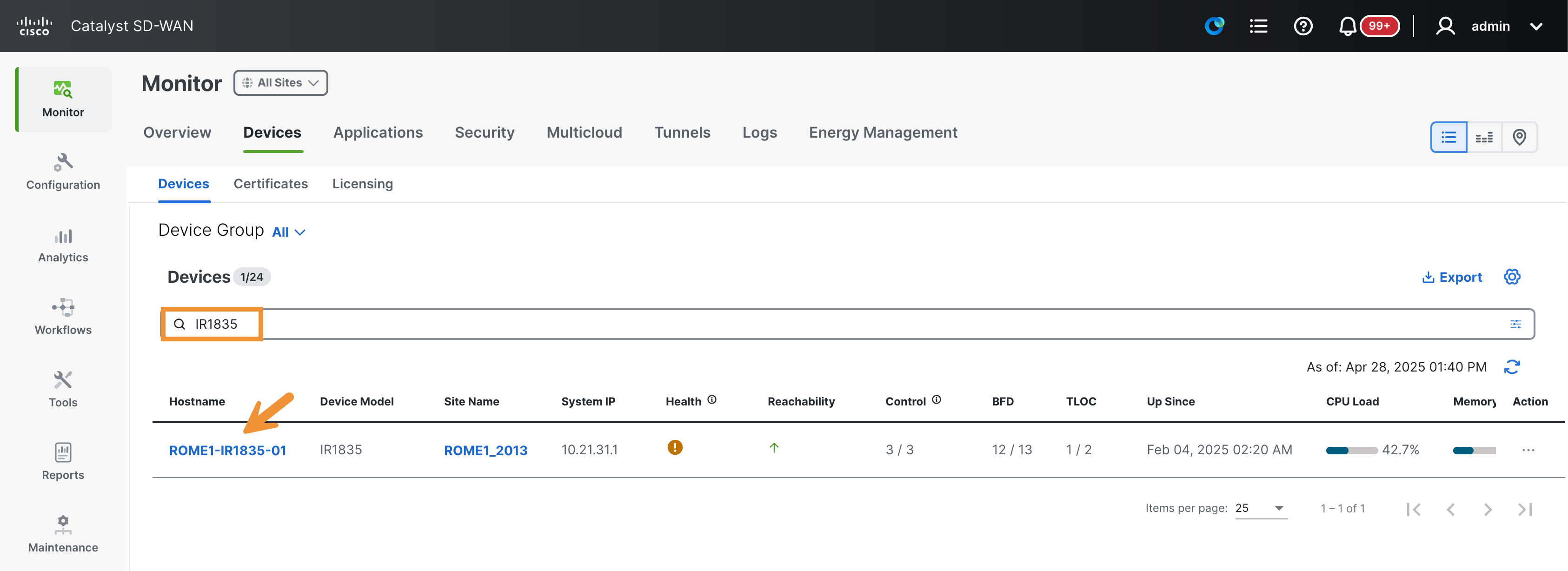
Search for IR1835 and identify the device ROME1-IR1835-01. Click on the cog icon.
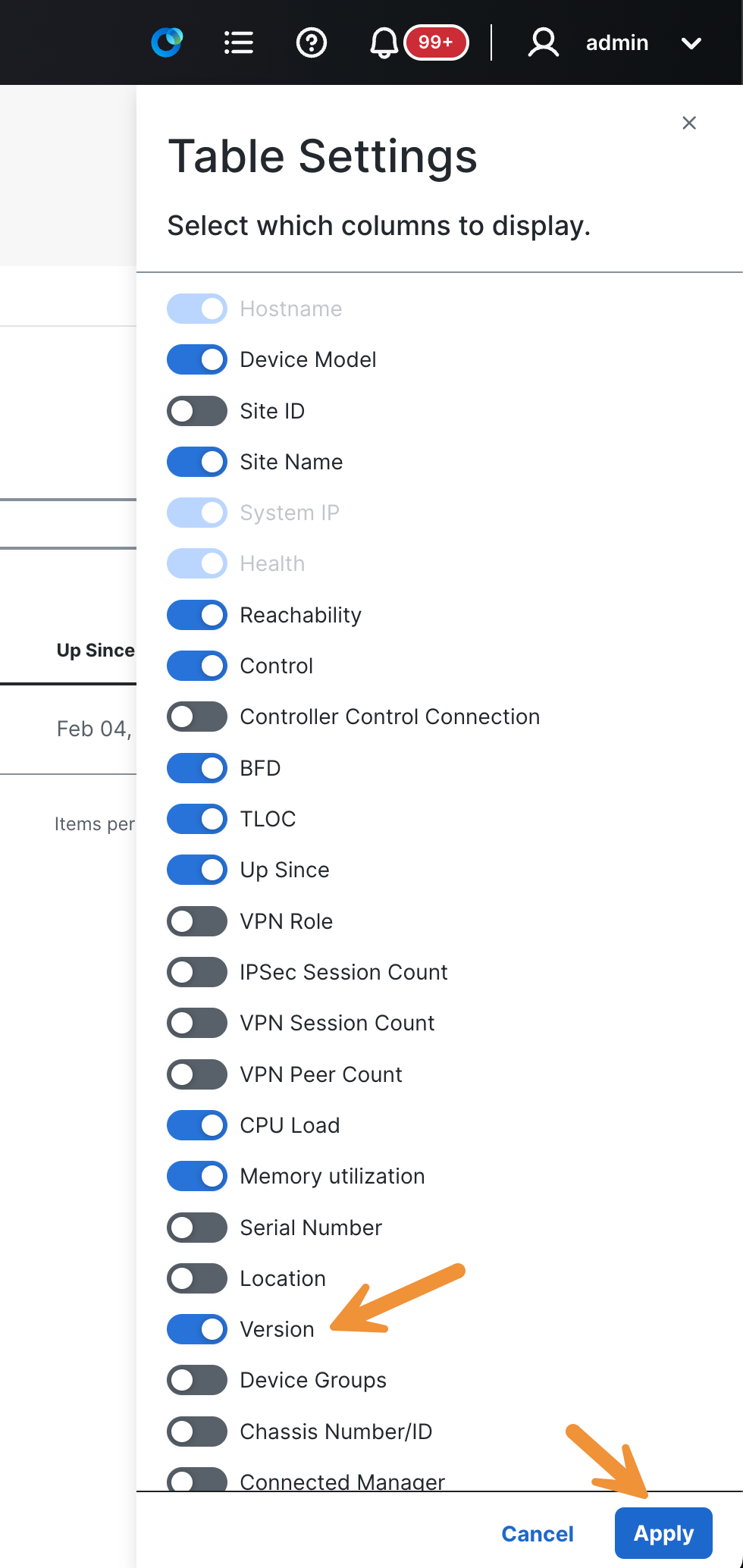
In the slide-out panel that appears, select Version then click Apply.
Scroll to the right and verify the software version of the Rome device. It should be on the 17.16 release.
Scroll to the left and click on the device name ROME1-IR1835-01 to review more details.
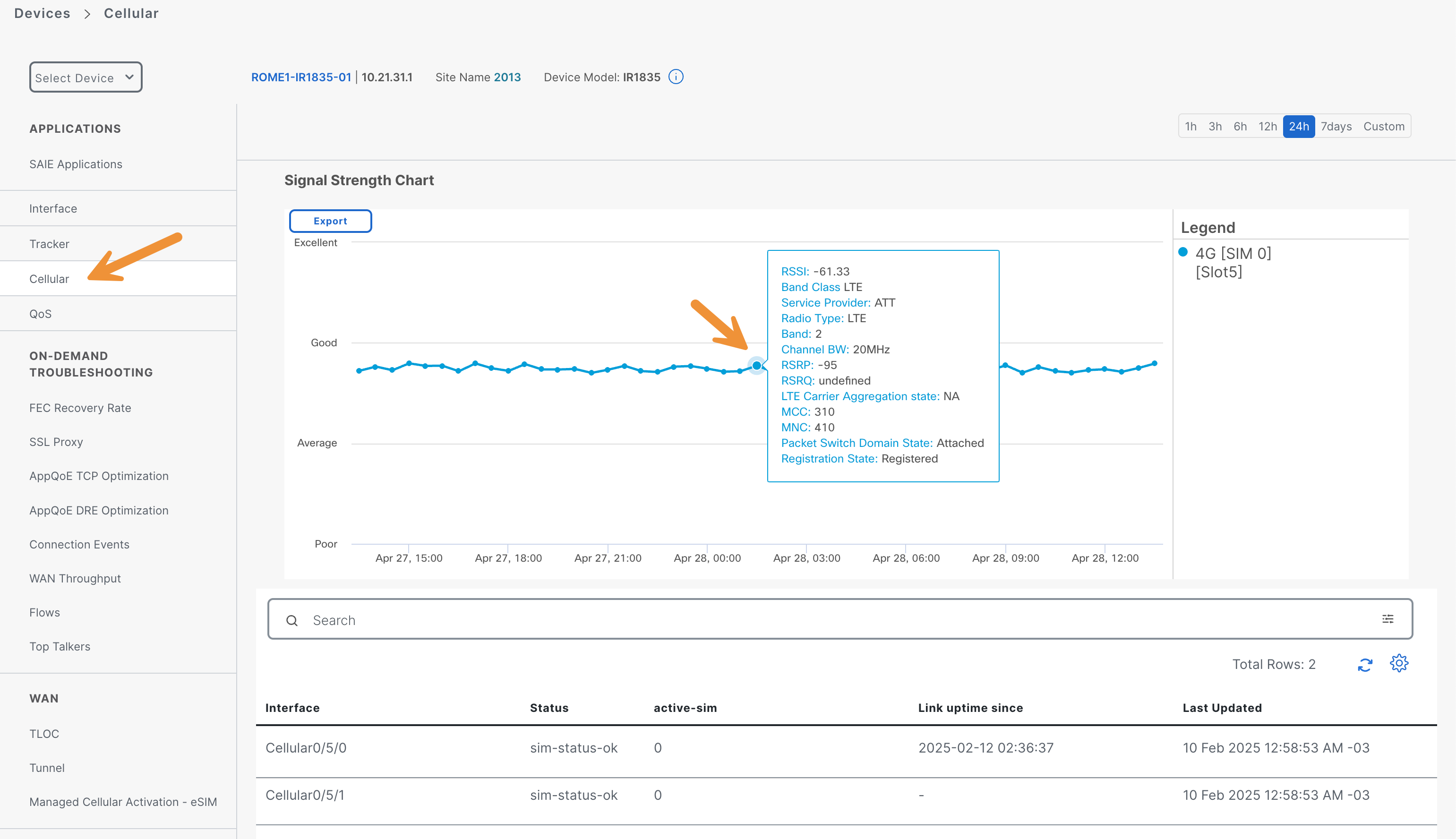
Click on Cellular in the menu on the left. Review the graph displaying the cellular signal strength. Hover over the graph to view metrics related to the cellular interface.
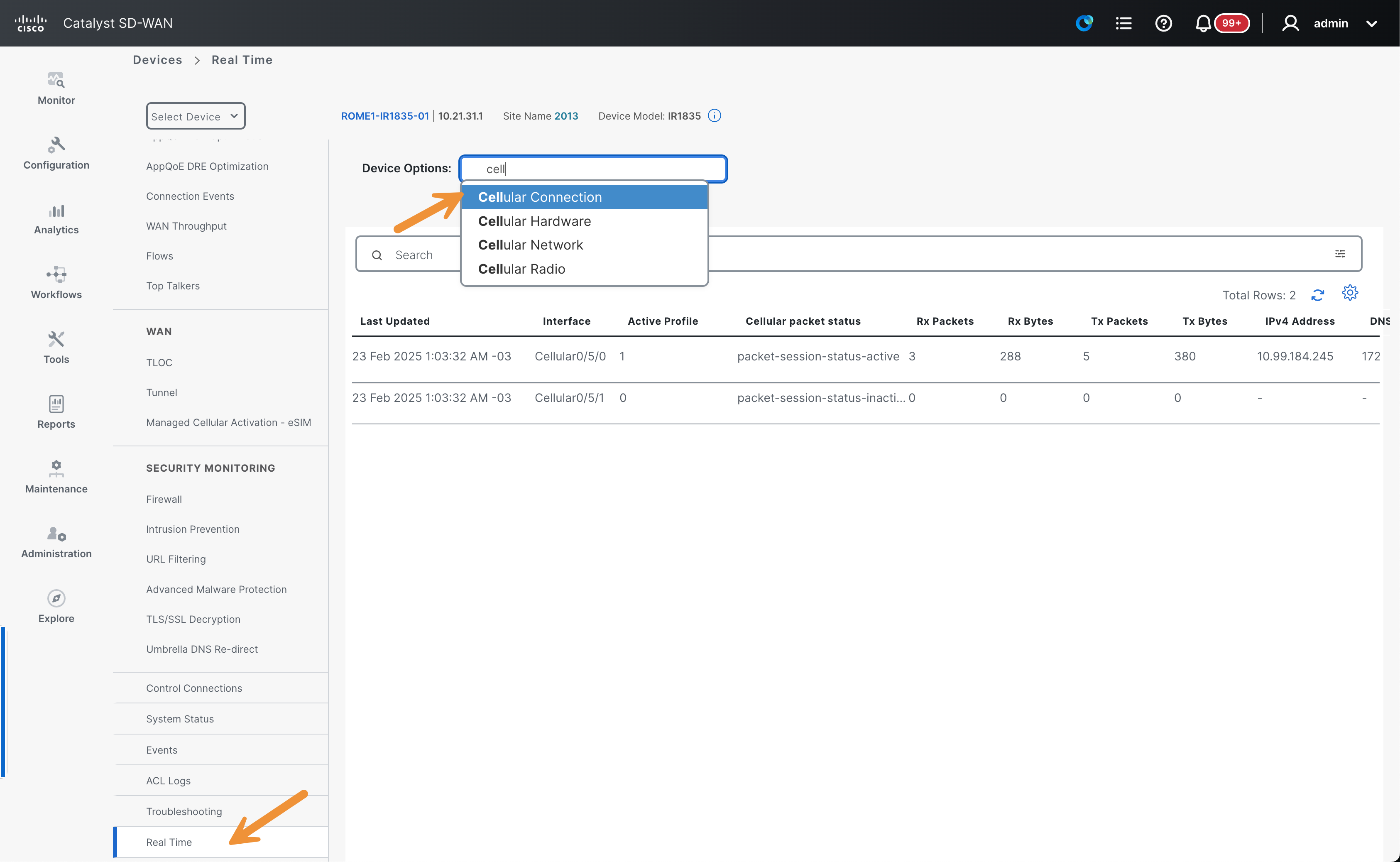
Click on Real Time. Select Cellular Connection from the menu to capture more detailed network information from the cellular interface. Scroll to the right to view all the data.
Firewall and IPS Deployment Check
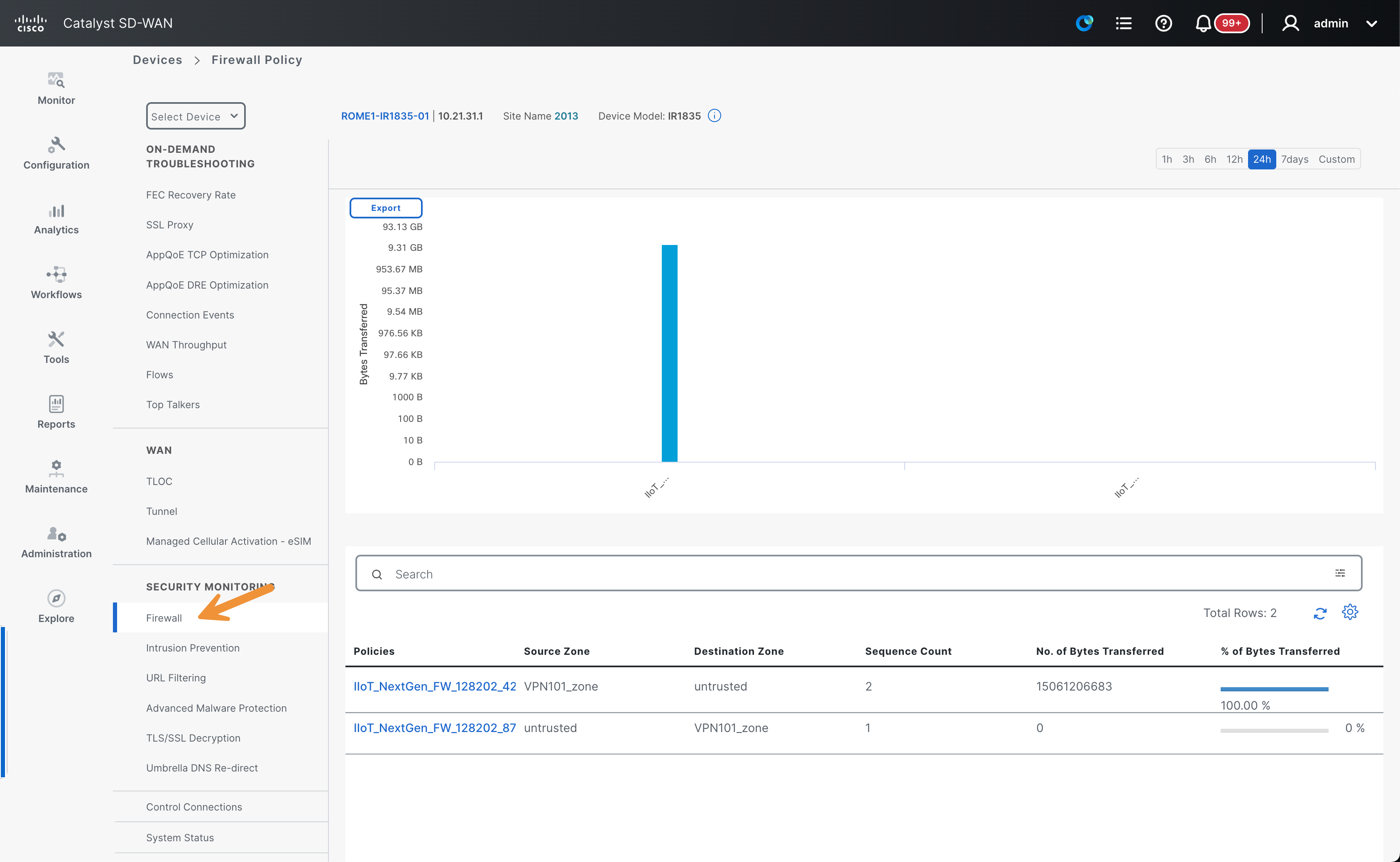
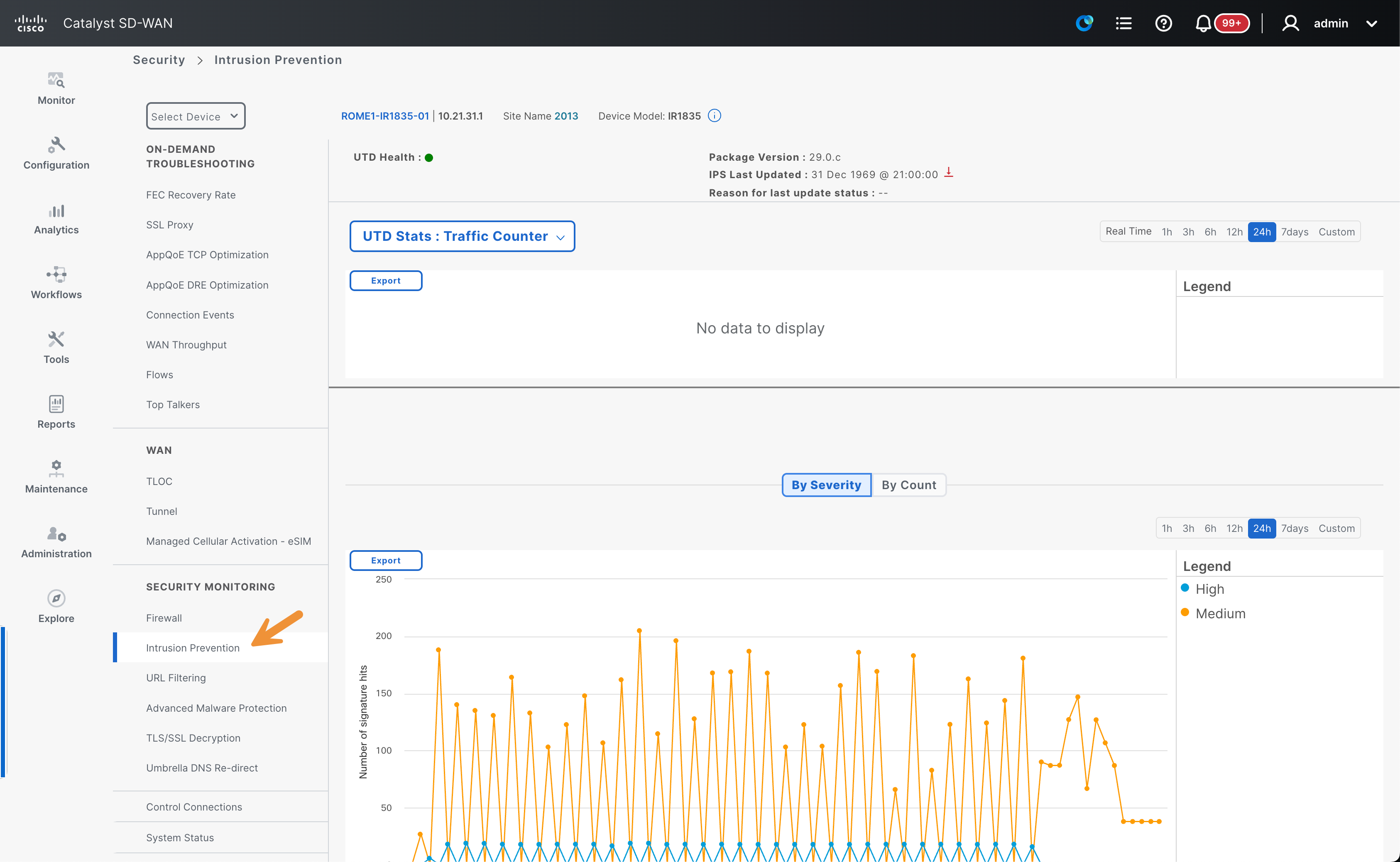
Click on Firewall and then on Intrusion Prevention. Please note that rugged WAN edge devices also support security capabilities, which are essential for industrial networking deployments.
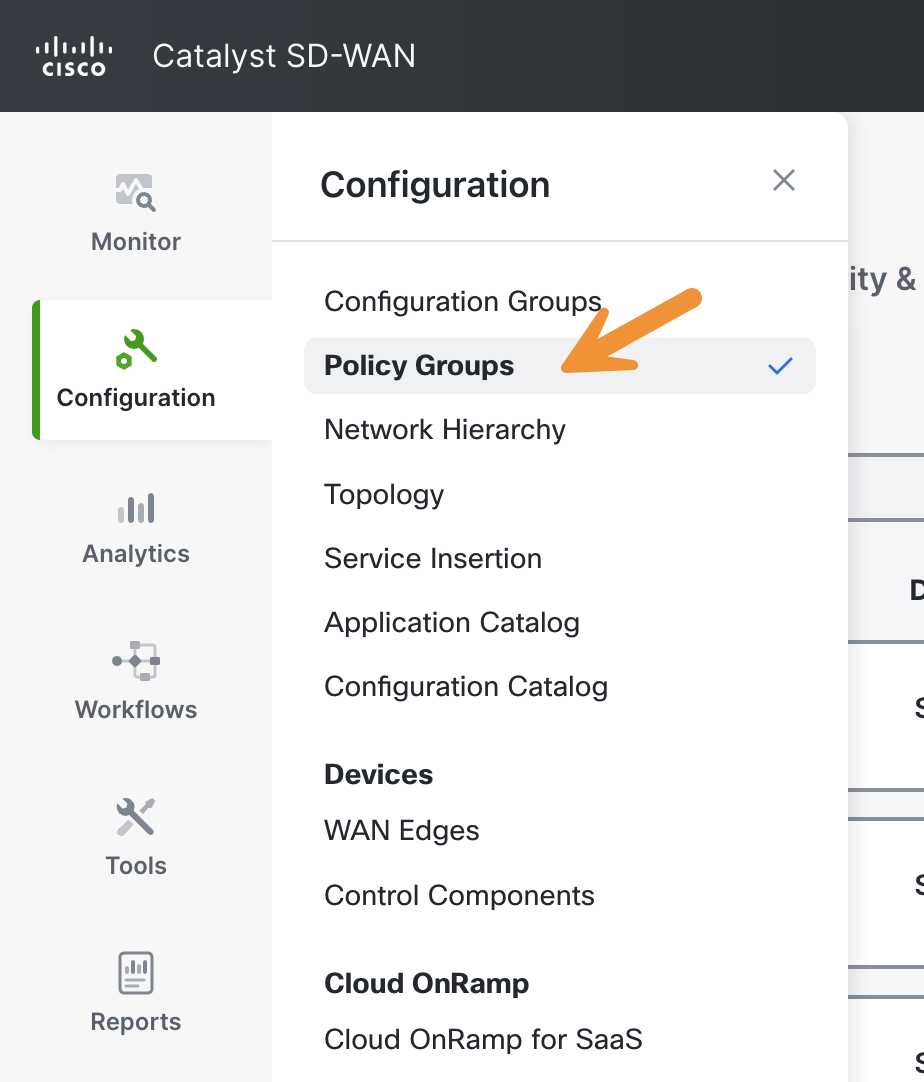
Click on Configuration > Policy Groups in the SD-WAN Manager.
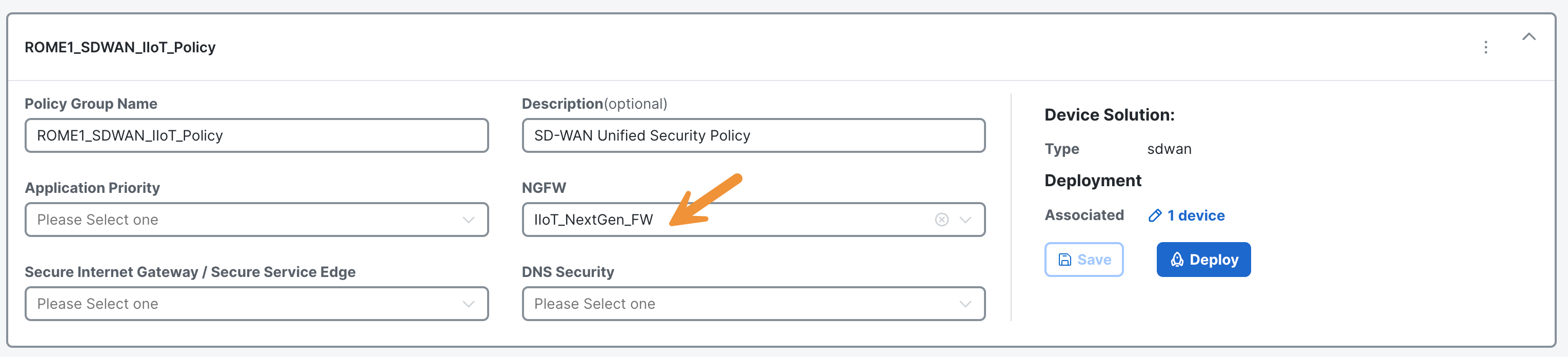
Click on the ROME1_SDWAN_IIoT_Policy policy on the Policy Group page to access more detailed information.
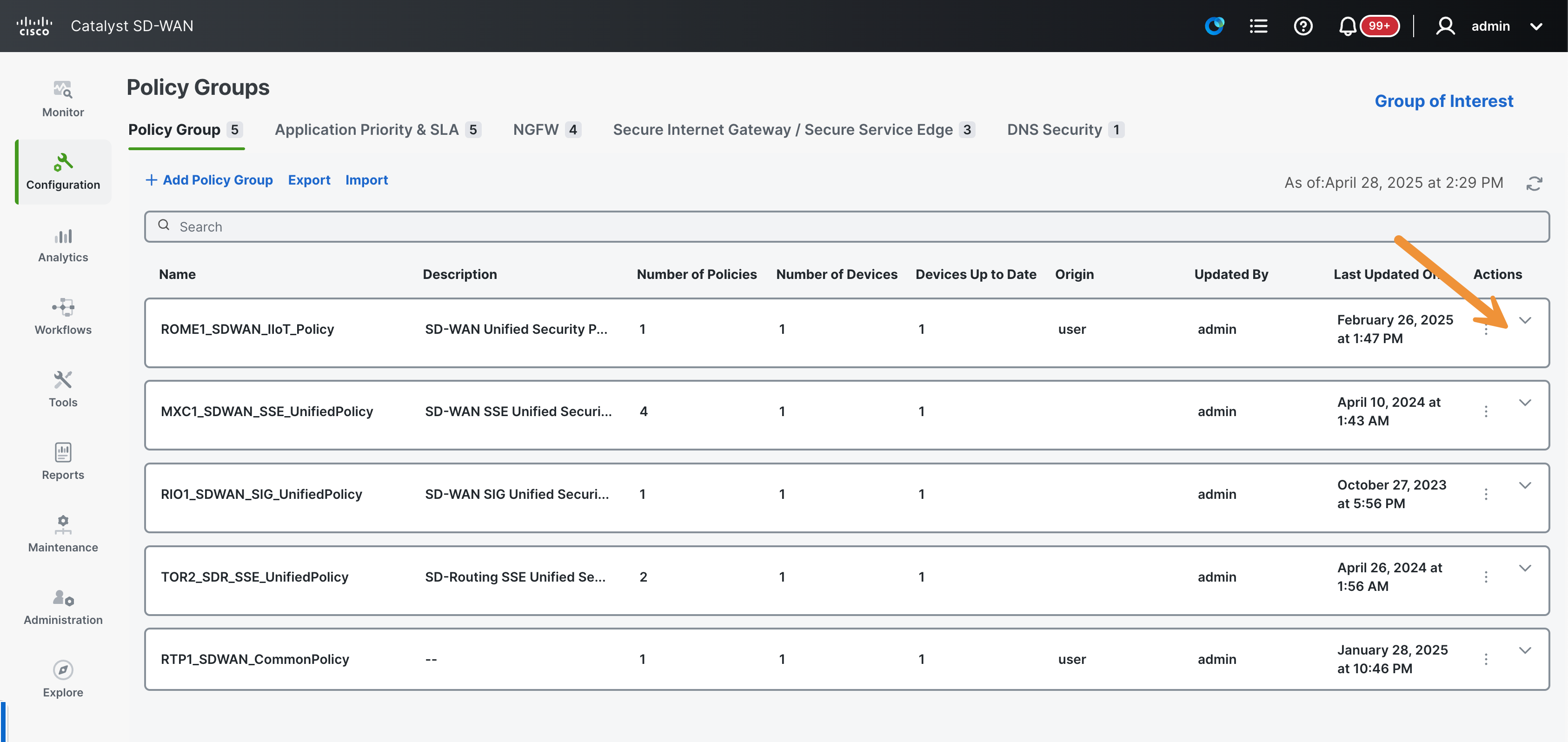
You will find the listing for the IIoT_NextGen_FW policy under NGFW.
Onboard an IIoT WAN device with Configuration Catalog
Secure onboarding of all WAN edge devices requires them to be identified, trusted, and permitted in the network. The physical or virtual WAN edge onboard options include manual, bootstrap, or the automated deployment process, which is referred to as Plug-and-Play (PnP) (also known as Zero-Touch Provisioning, or ZTP).
The Day Zero automated Plug-and-Play (PnP) process provides a simple, secure procedure to discover, install, and provision an Cisco IOS-XE device to join the Catalyst SD-WAN overlay network. This feature also includes industrial routers. This section covers the onboarding process of an IR 1101 device. The Munich WAN edge will be brought online simply and easily by using the Configuration Catalog.
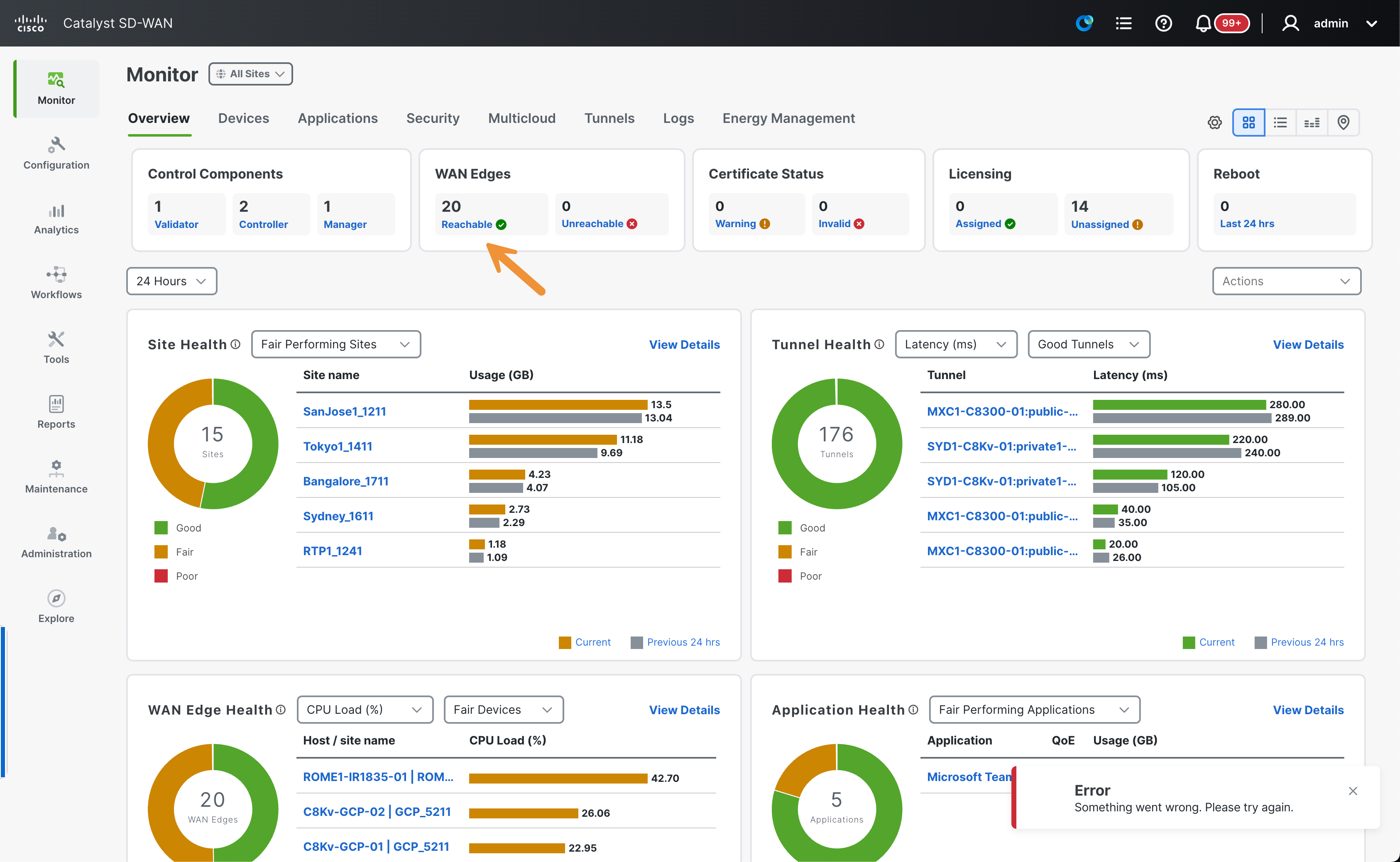
To start, navigate to Monitor > Overview in the SD-WAN Manager.
View the number of WAN Edges in the network. There should be 20.
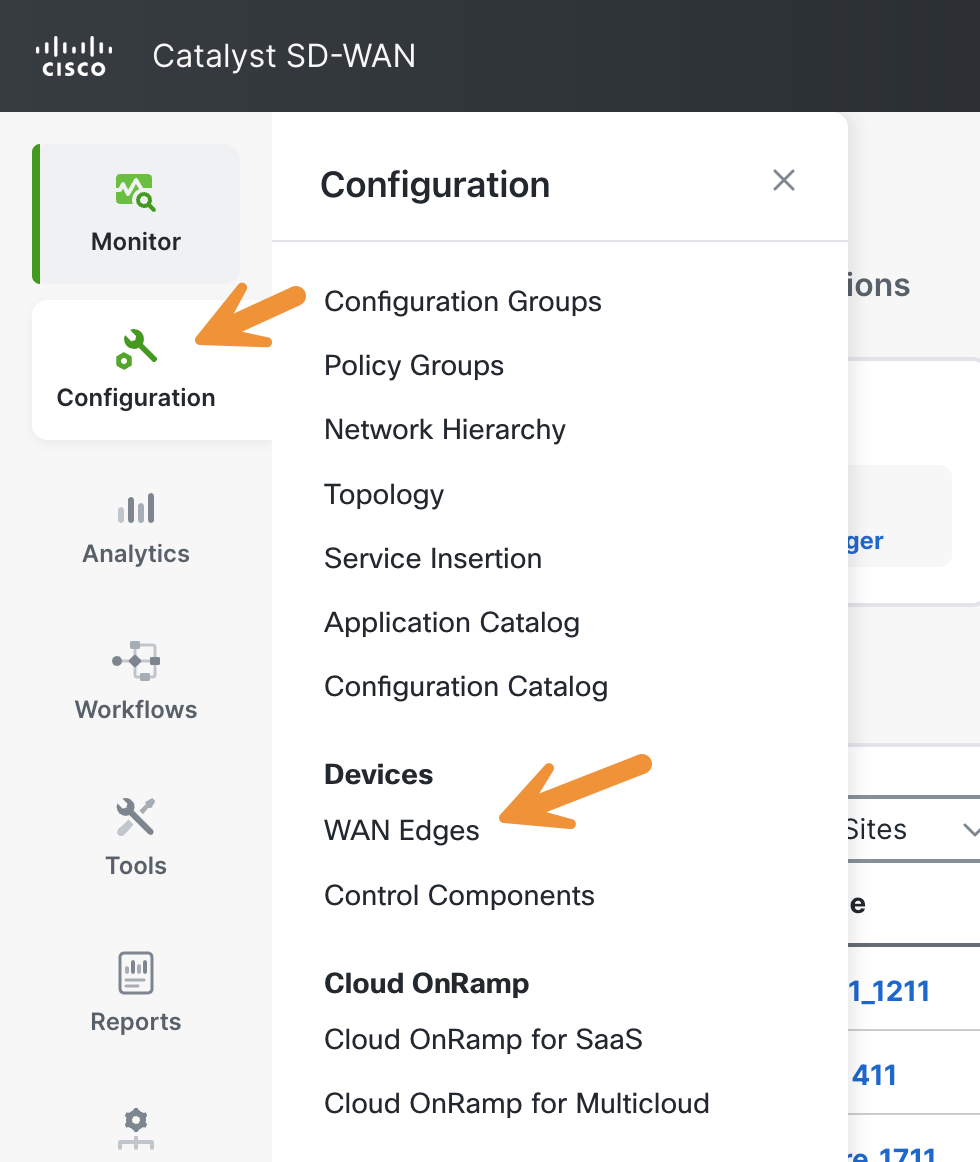
Go to Configuration > WAN Edges (under Devices) in the SD-WAN Manager.
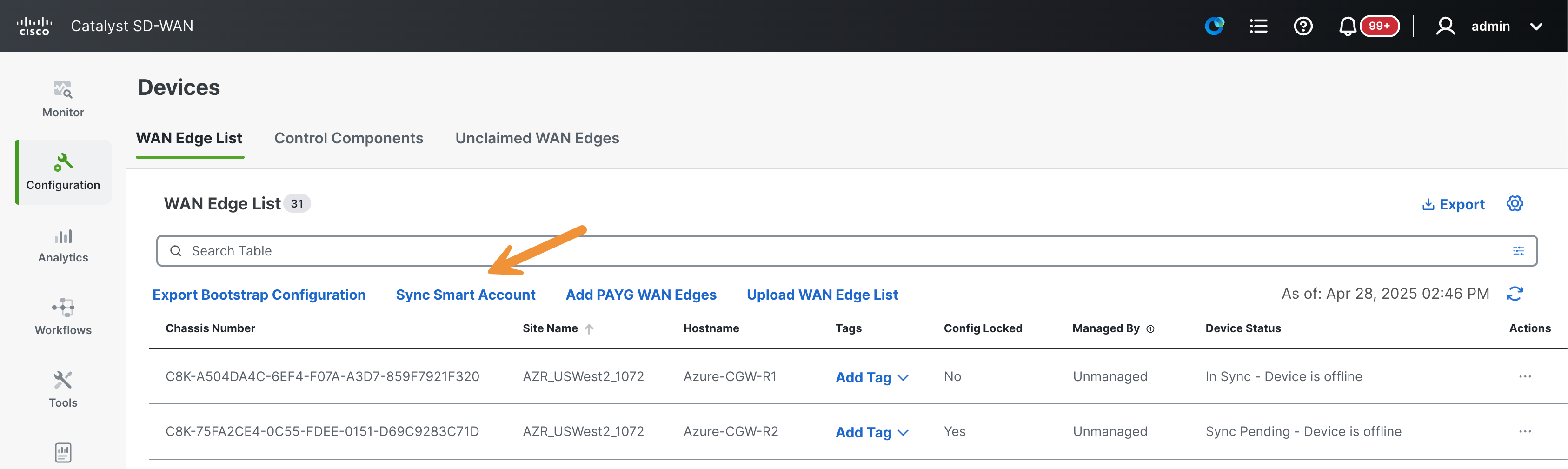
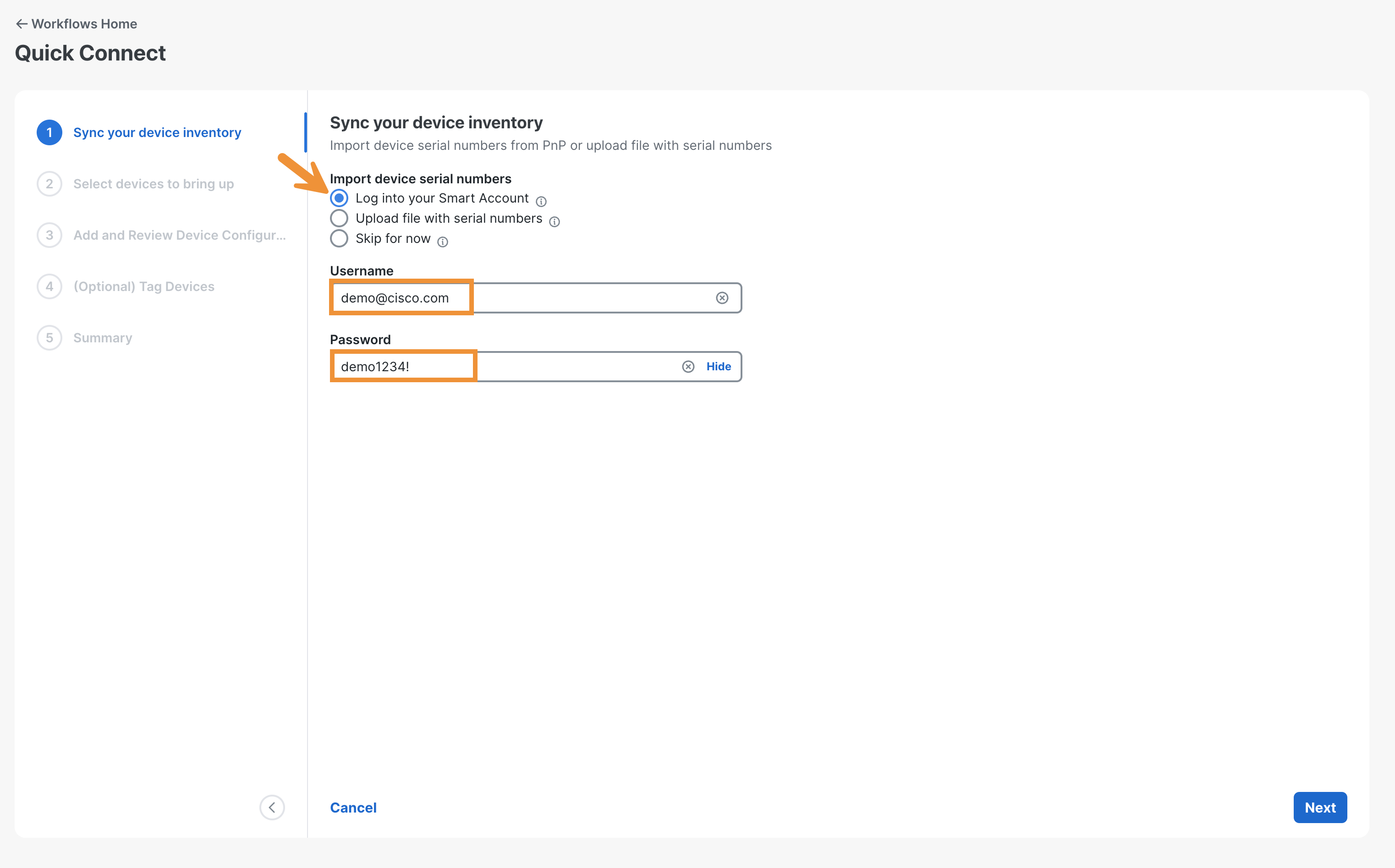
Click on Sync Smart Account.
Select Log into your Smart Account and use the following credentials:
- Username:
demo@cisco.com - Password:
demo1234!
Click Next.
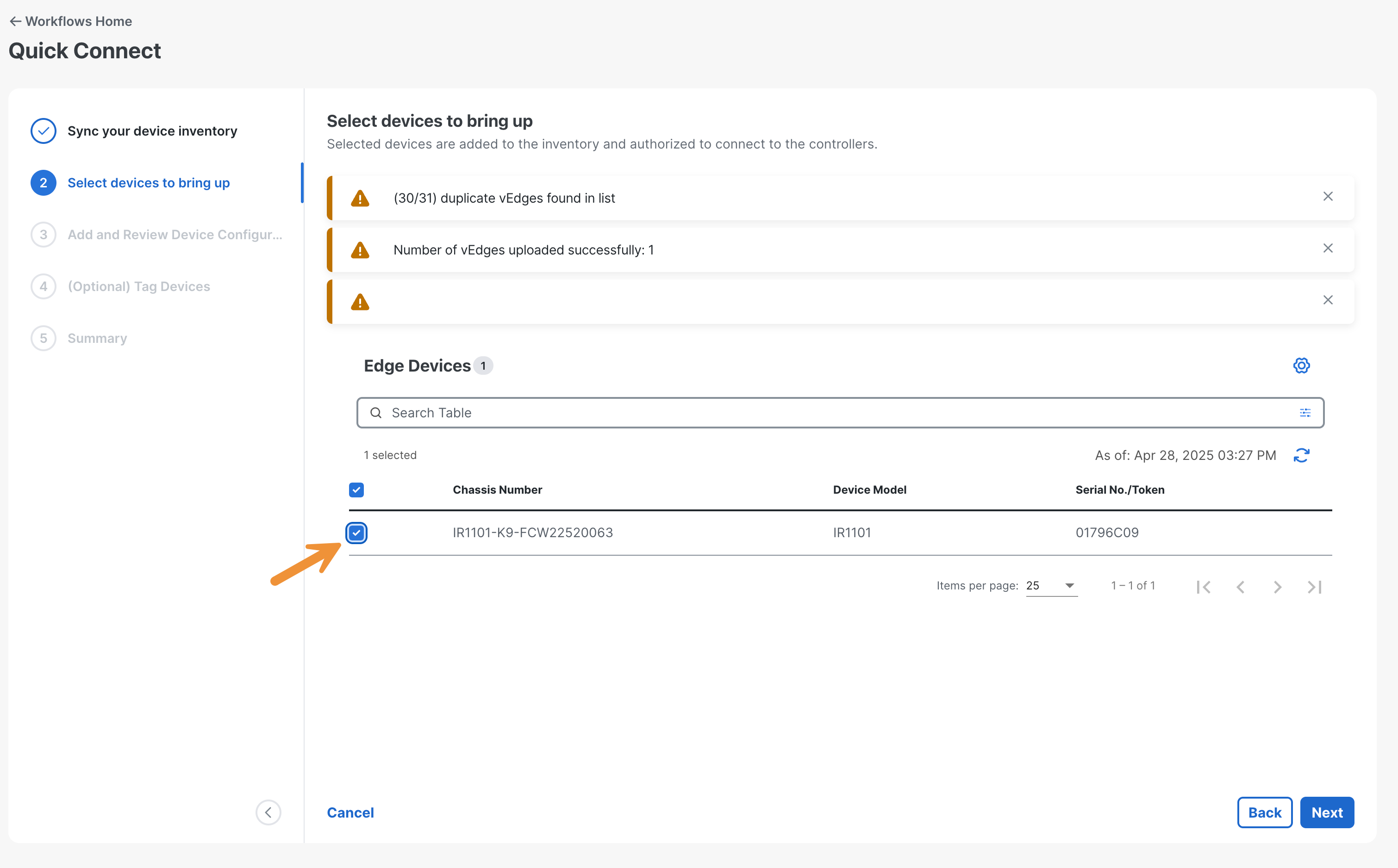
Select the new device (an IR1101) and click Next.
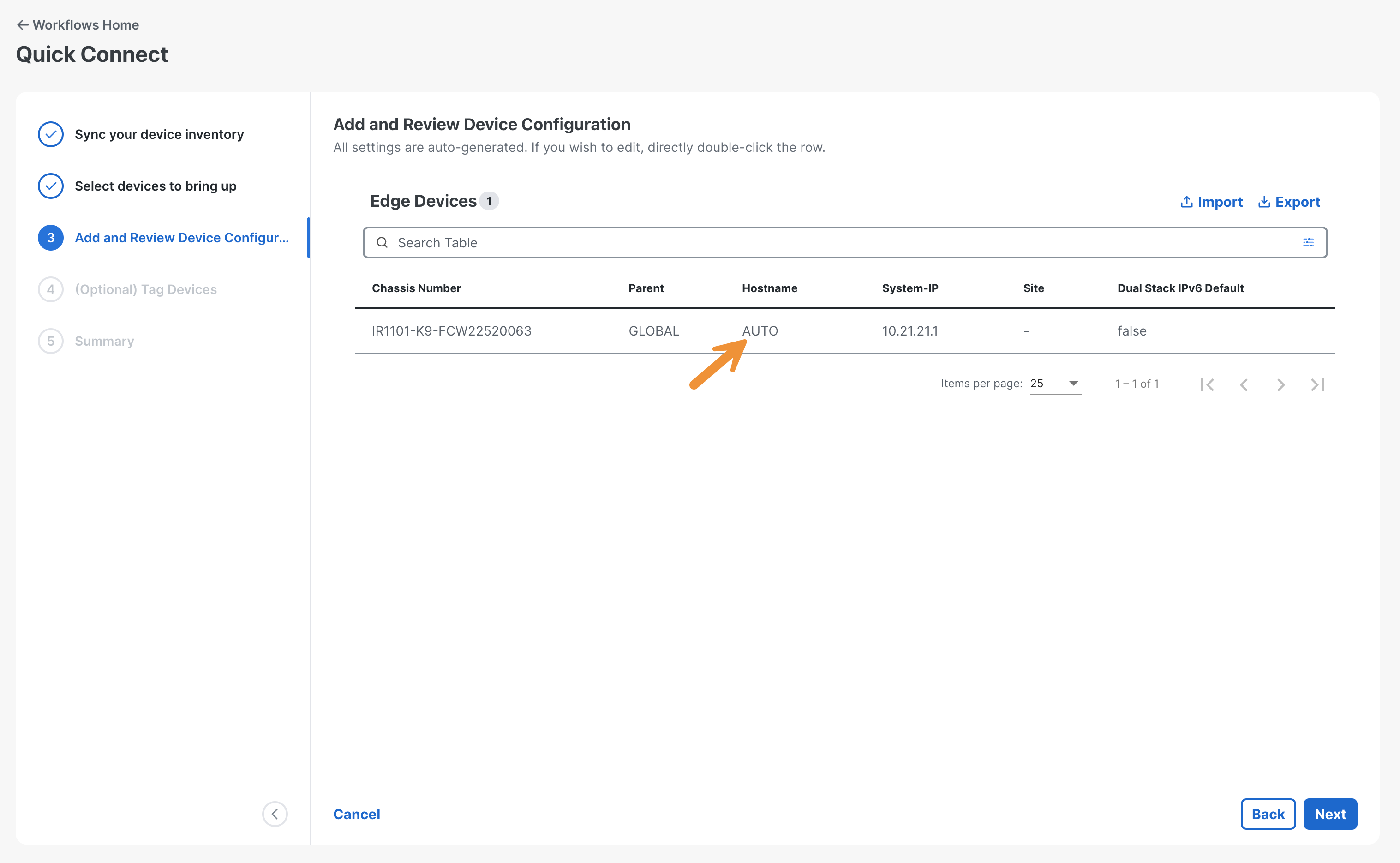
Double-click on AUTO (under Hostname).
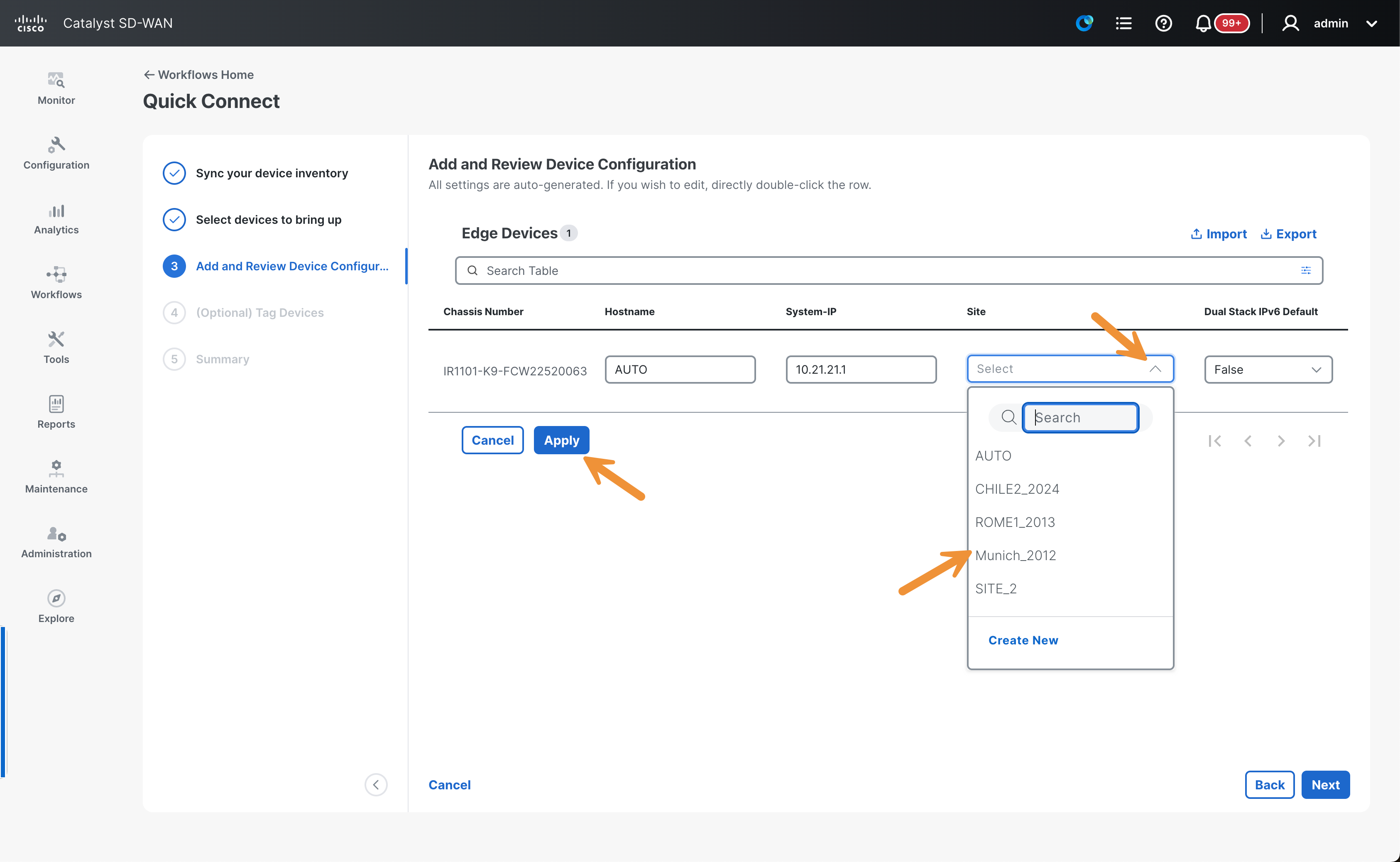
Scroll to the right and select Munich_2012 under Site and click Apply, then Next.
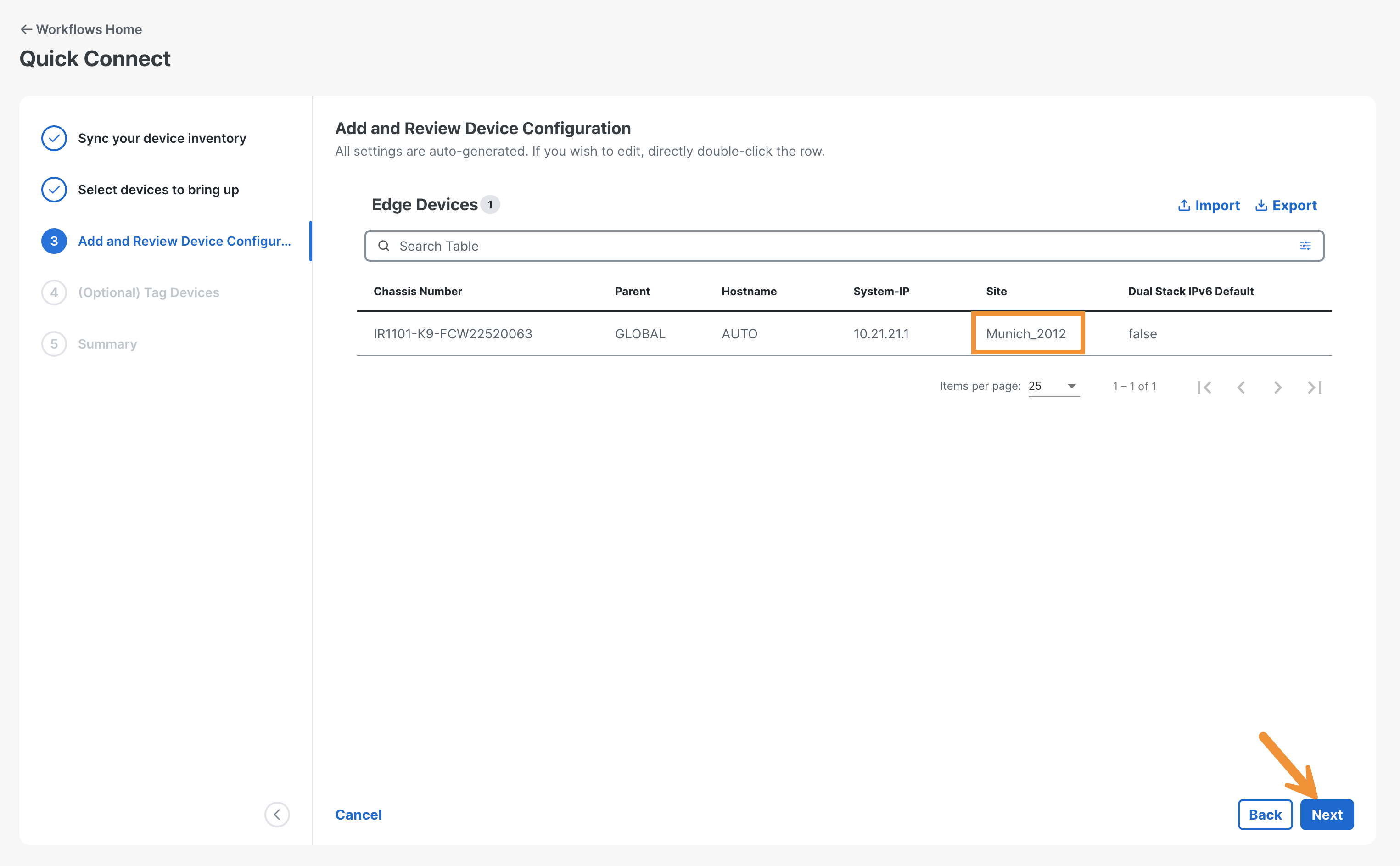
Click Next.
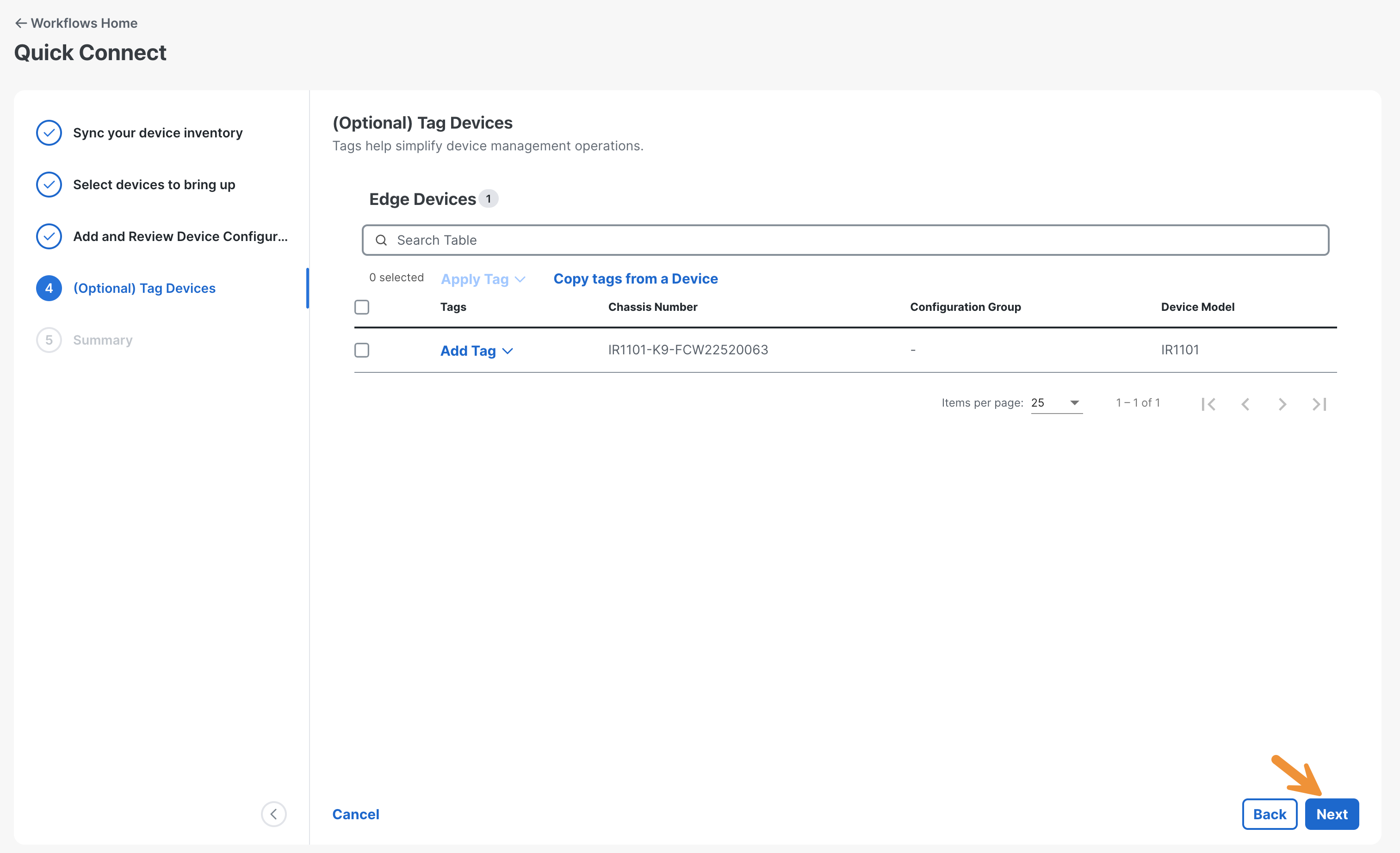
Click Onboard.
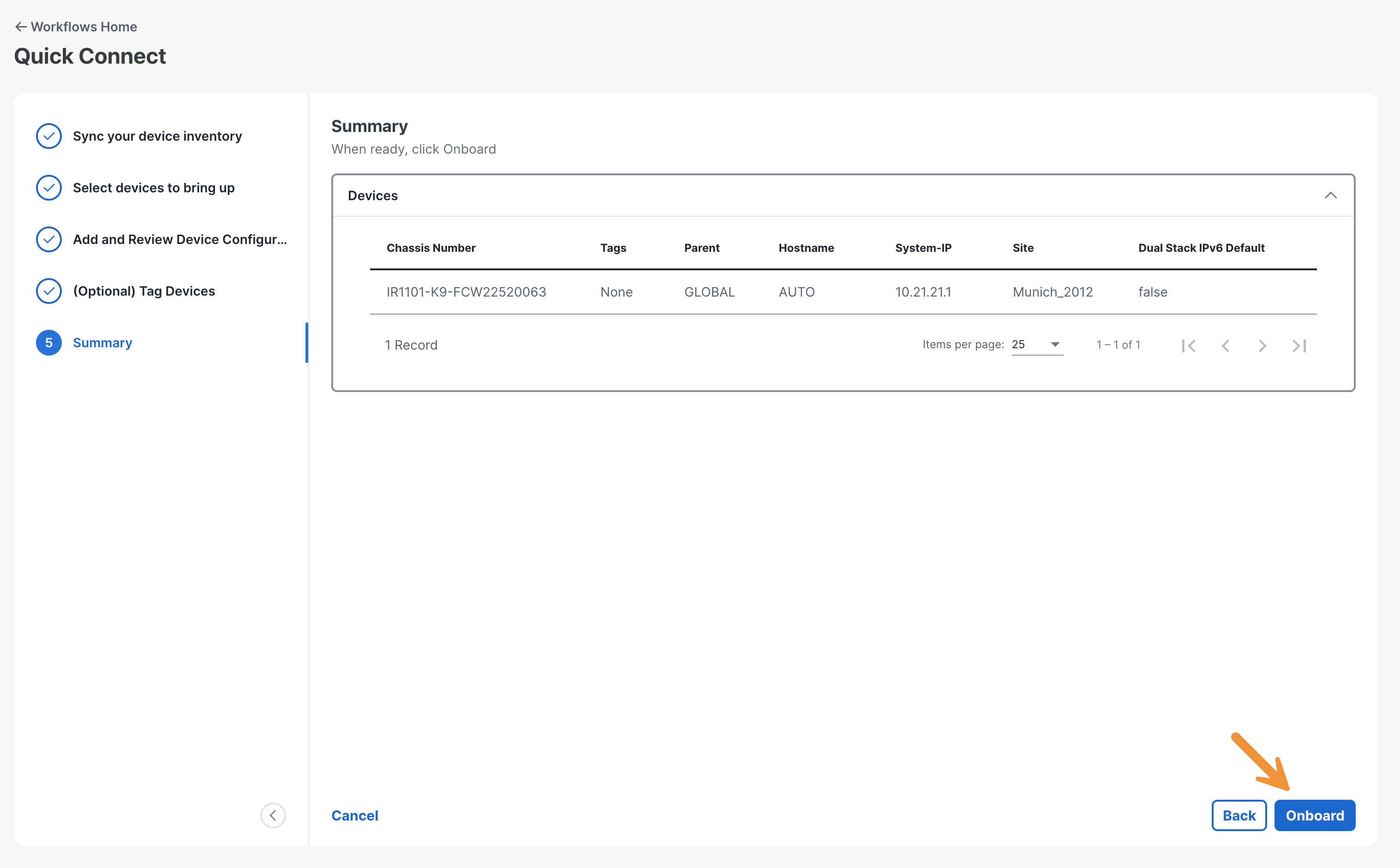
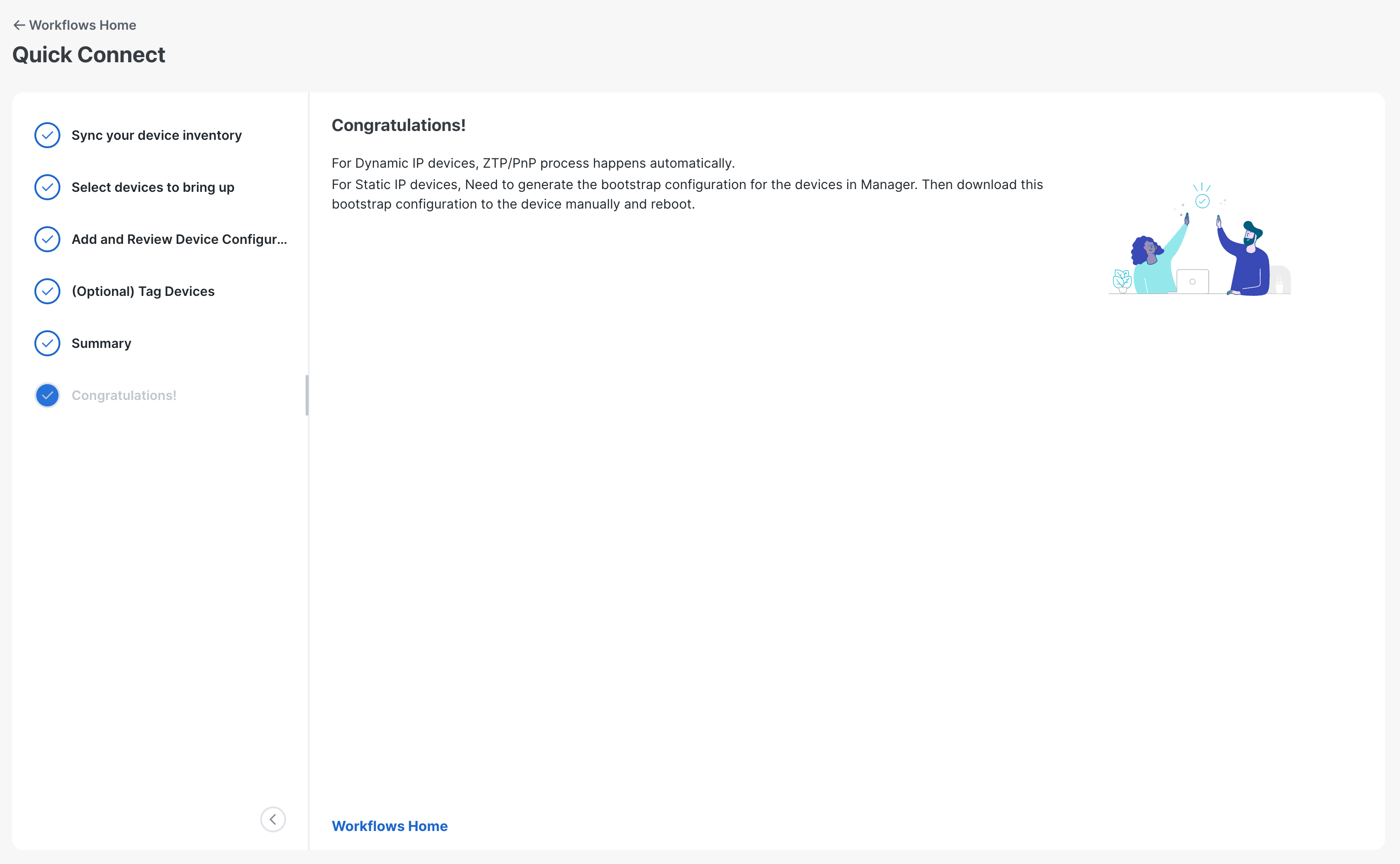
Go to Configuration > WAN Edges (under Devices) in the SD-WAN Manager.
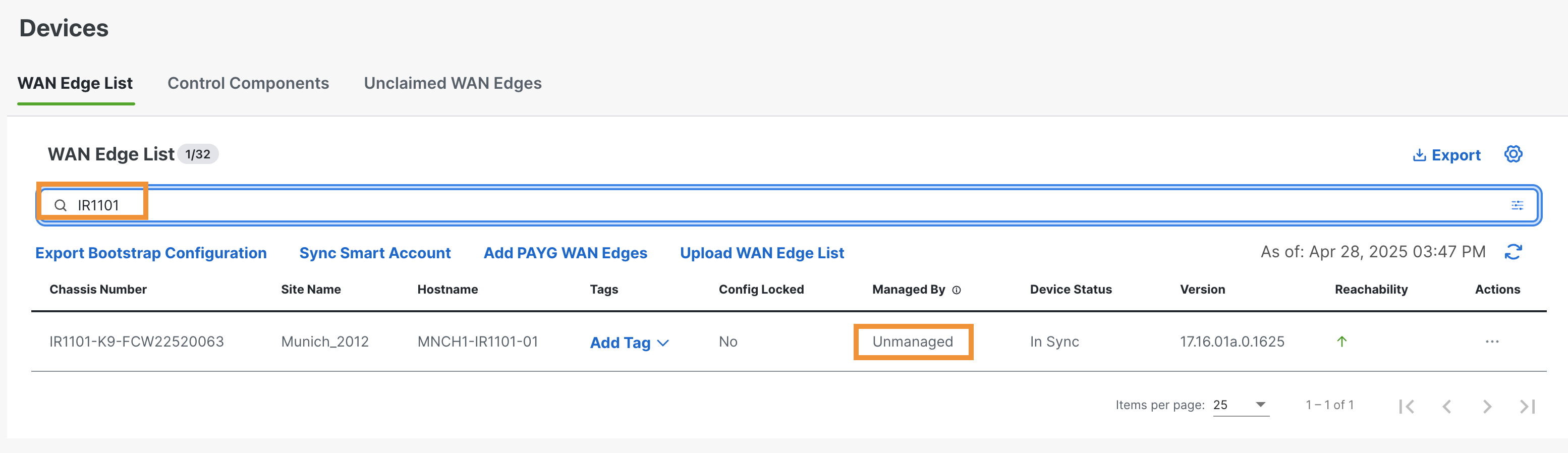
Search for IR1101 and identify the new device. Please note that it is still listed as unmanaged since there is no configuration applied yet.
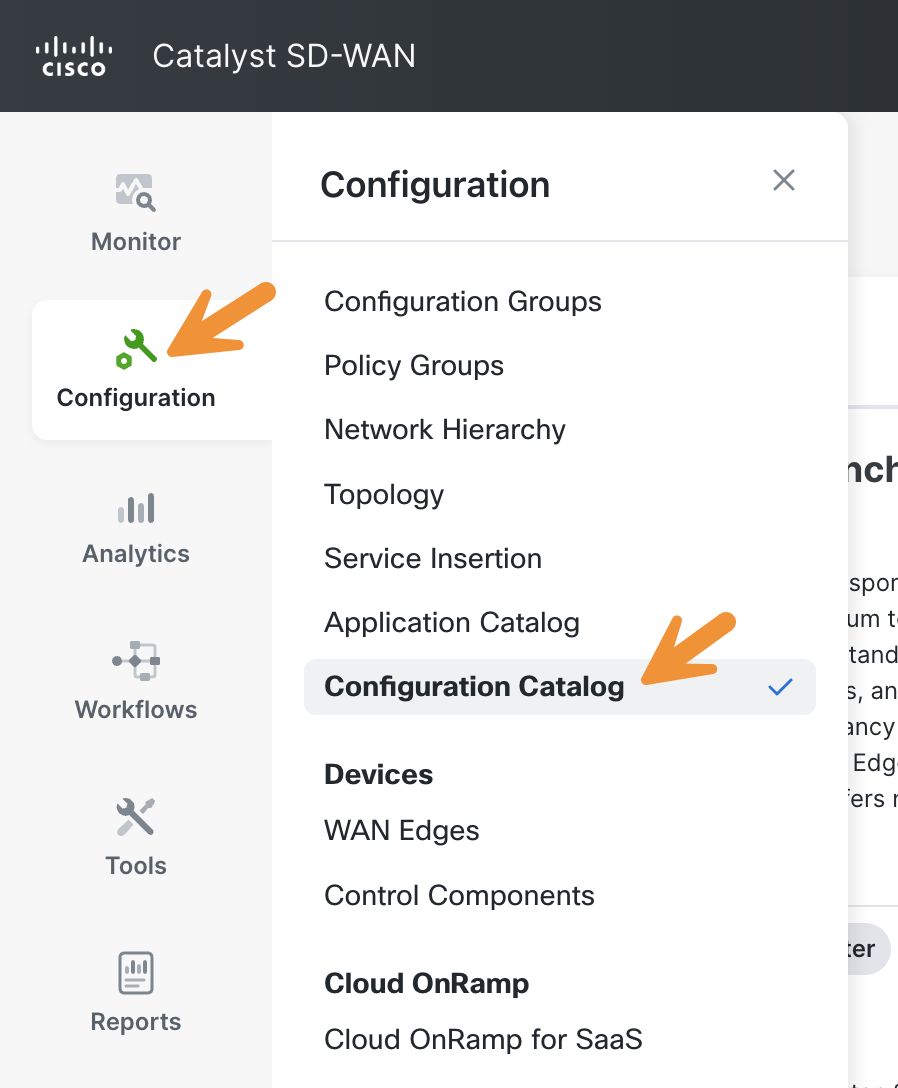
Go to Configuration > Configuration Catalog in the SD-WAN Manager.
- Configuration Catalog is a new feature integrated into the SD-WAN Manager, providing a repository of predefined, optimal configurations aimed at simplifying network deployments. Rather than manually creating each configuration — an often tedious and error-prone process — customers can now utilize these best practice configurations to assemble network setups more efficiently.
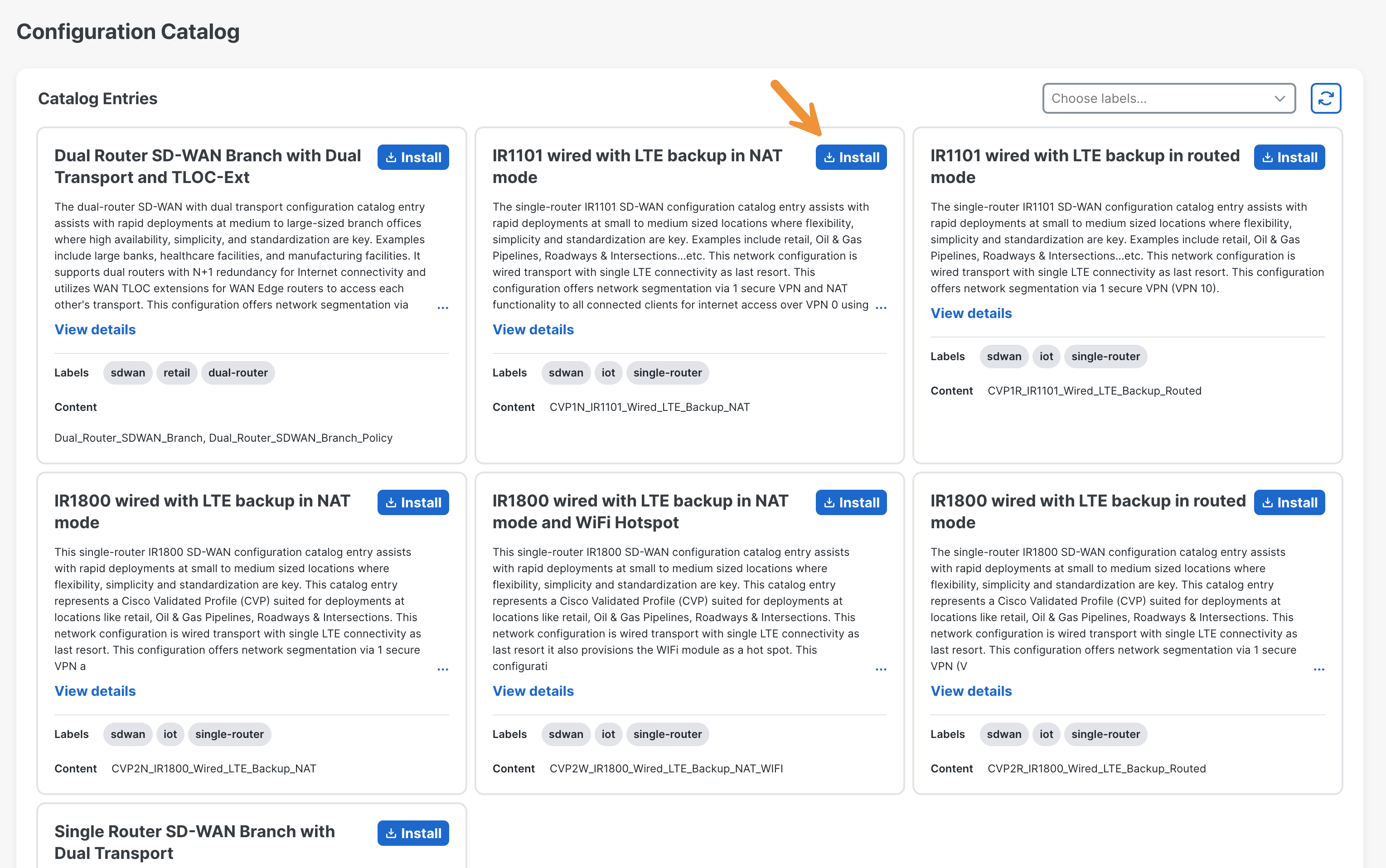
Click Install for the package IR1101 wired with LTE backup in NAT mode.
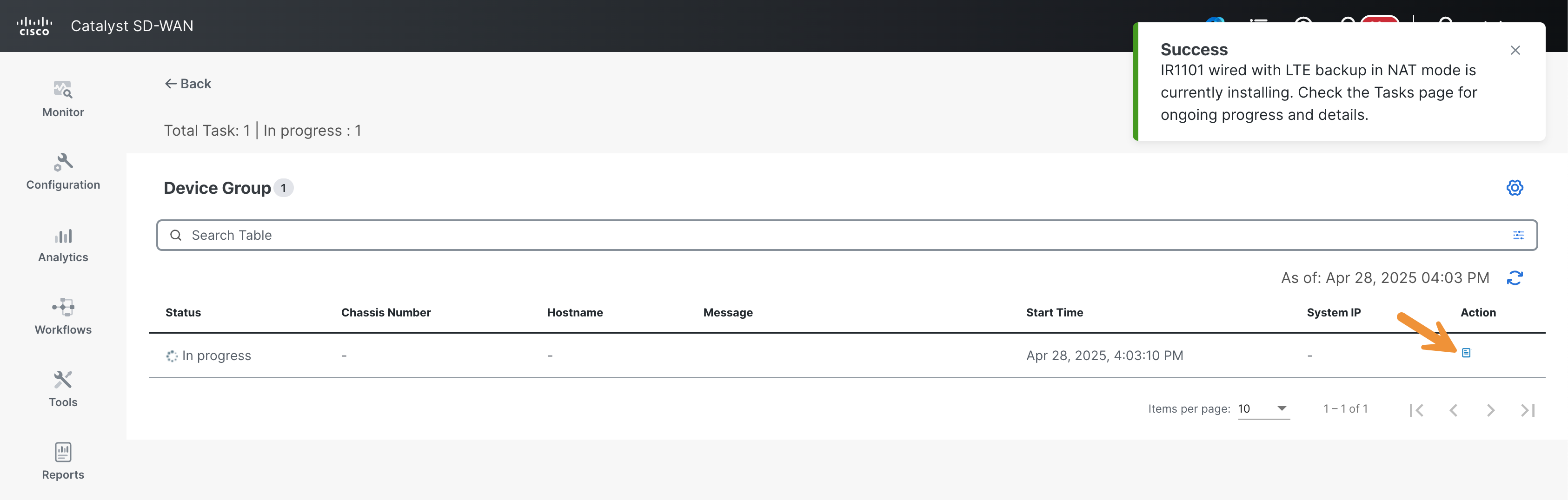
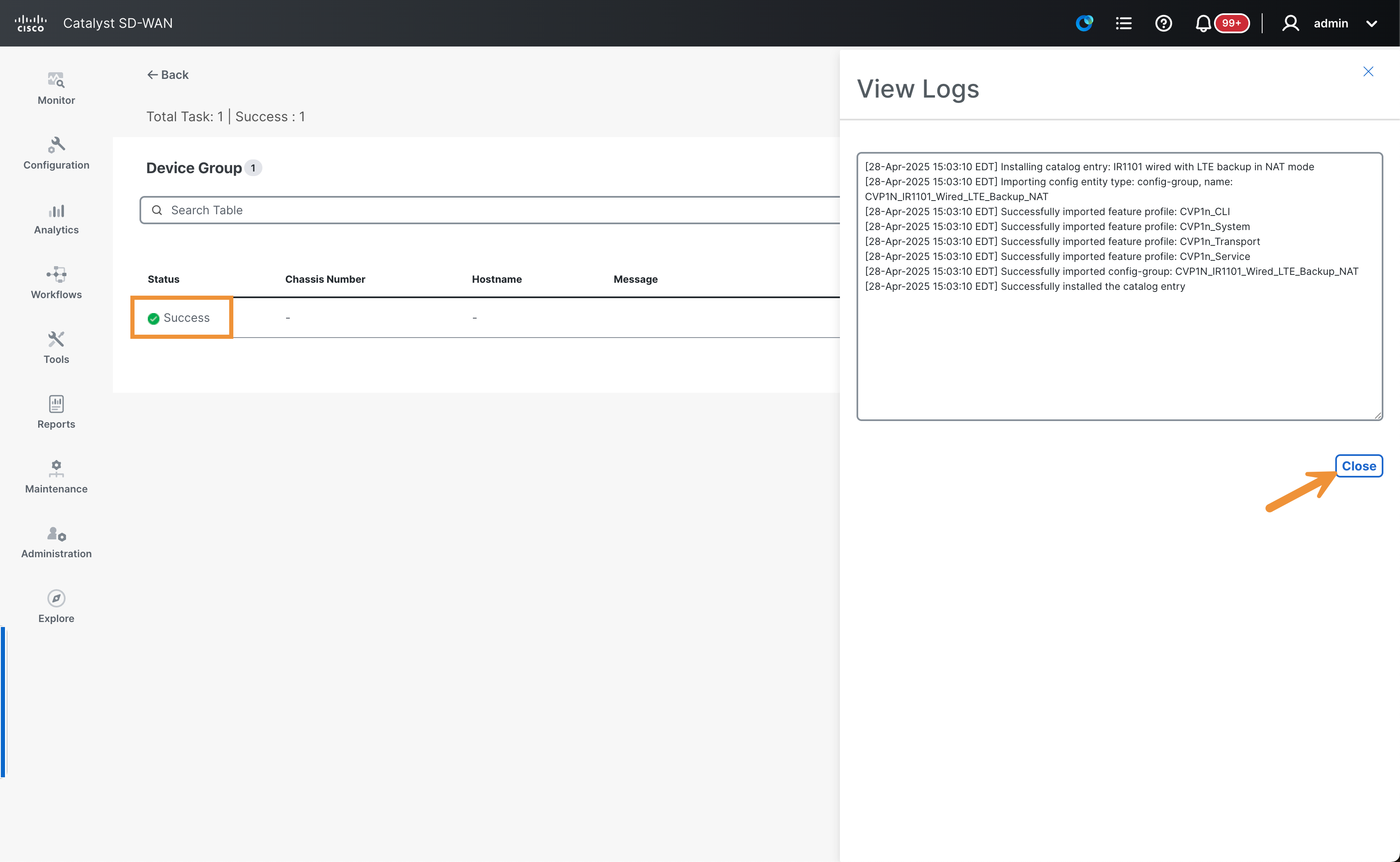
Click on the little icon under Action to check the task progress.
Check the logs in the slide-out window then click Close when finished.
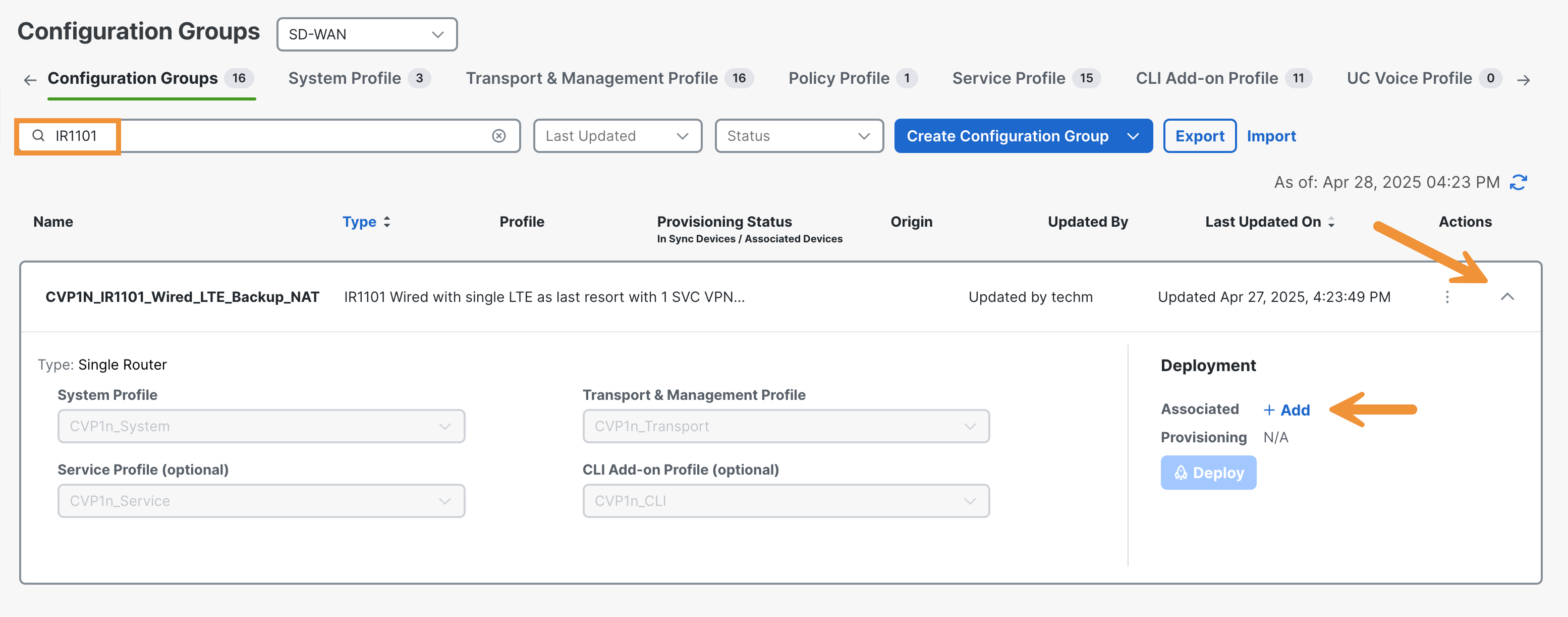
Go to Configuration > Configuration Groups in the SD-WAN Manager.
Search for IR1101 and identify the new configuration group, added by the installation of the configuration catalog entry. Then click on it to access more detailed information and then on + Add to associate the WAN edge device.
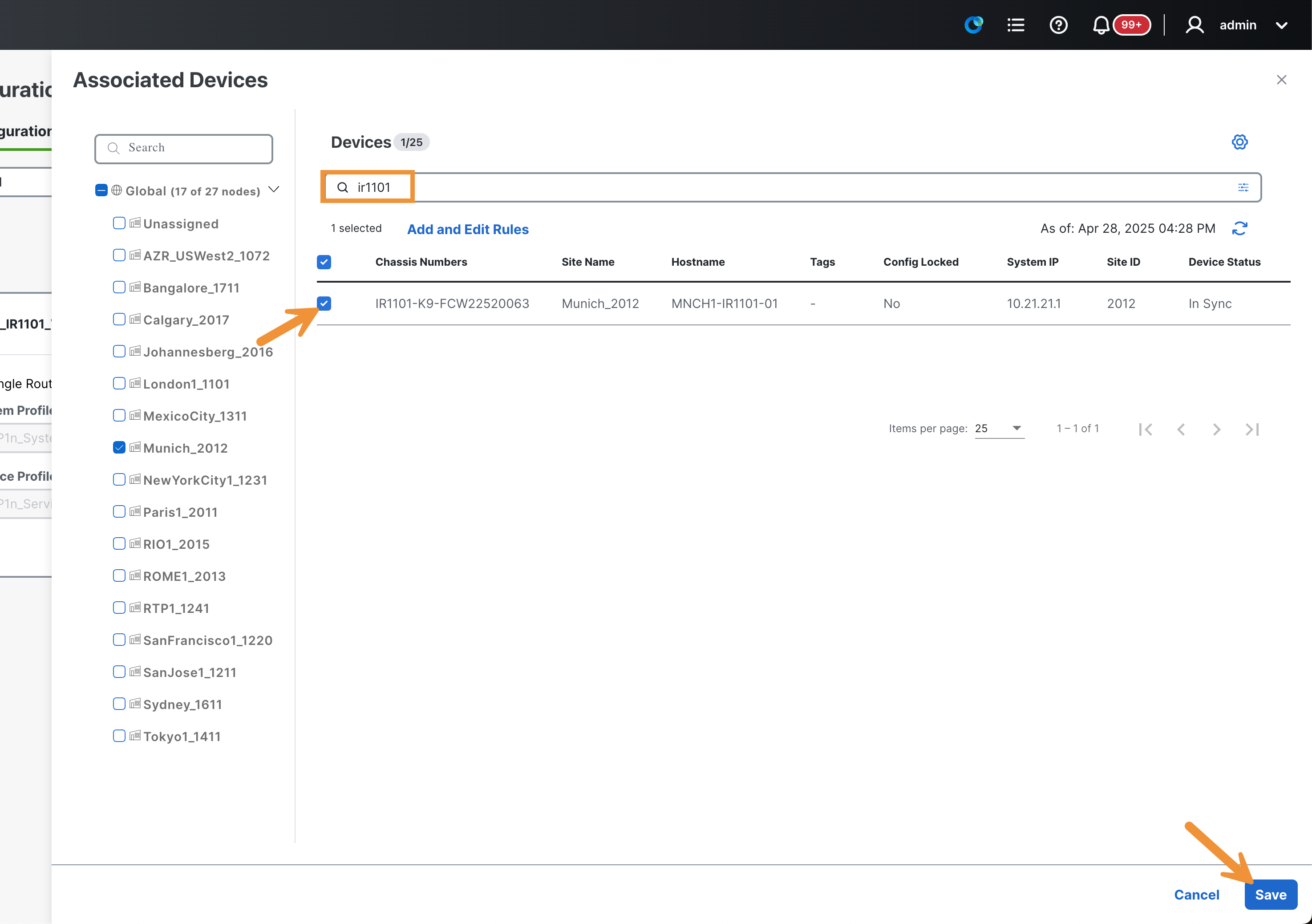
In the slide-out panel, search for IR1101 and select the Munich device. Click Save
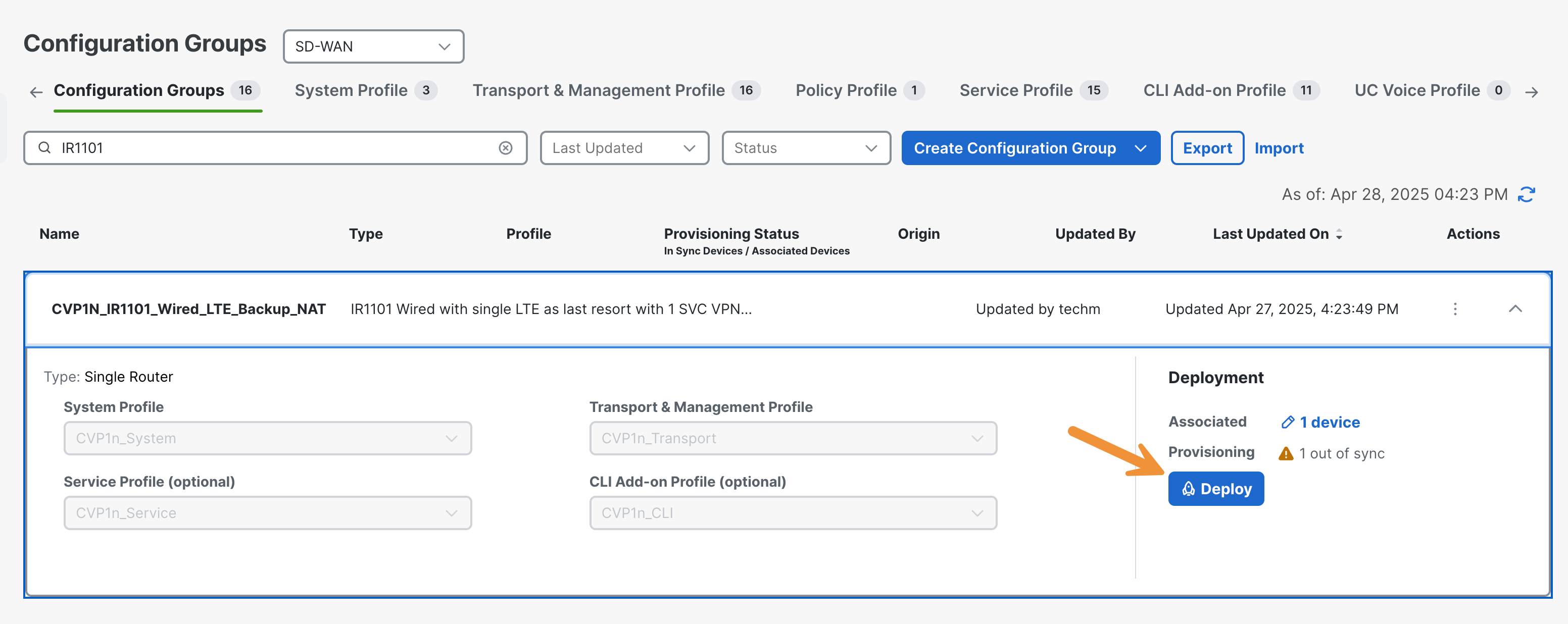
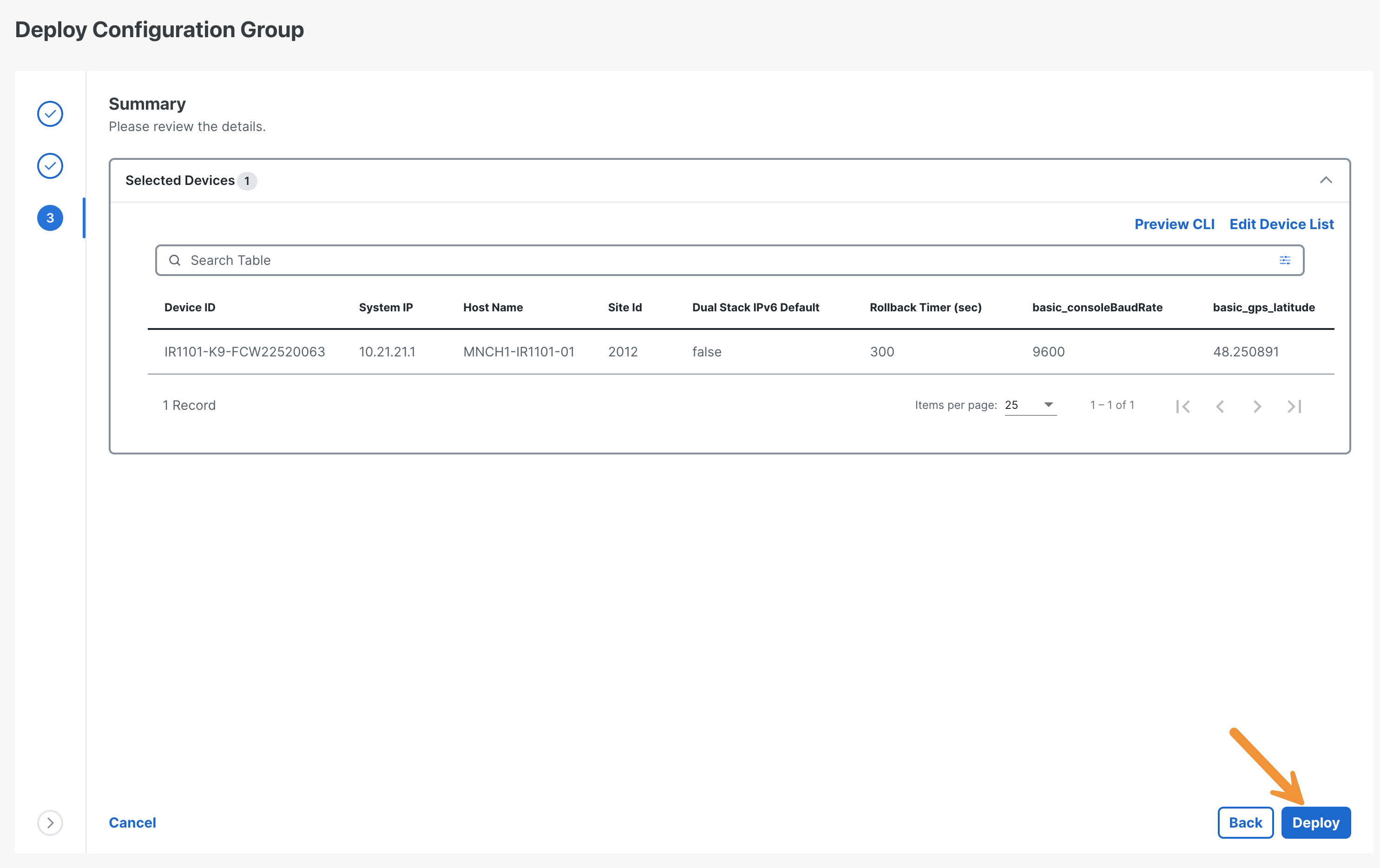
Click on the configuration group again then on Deploy.
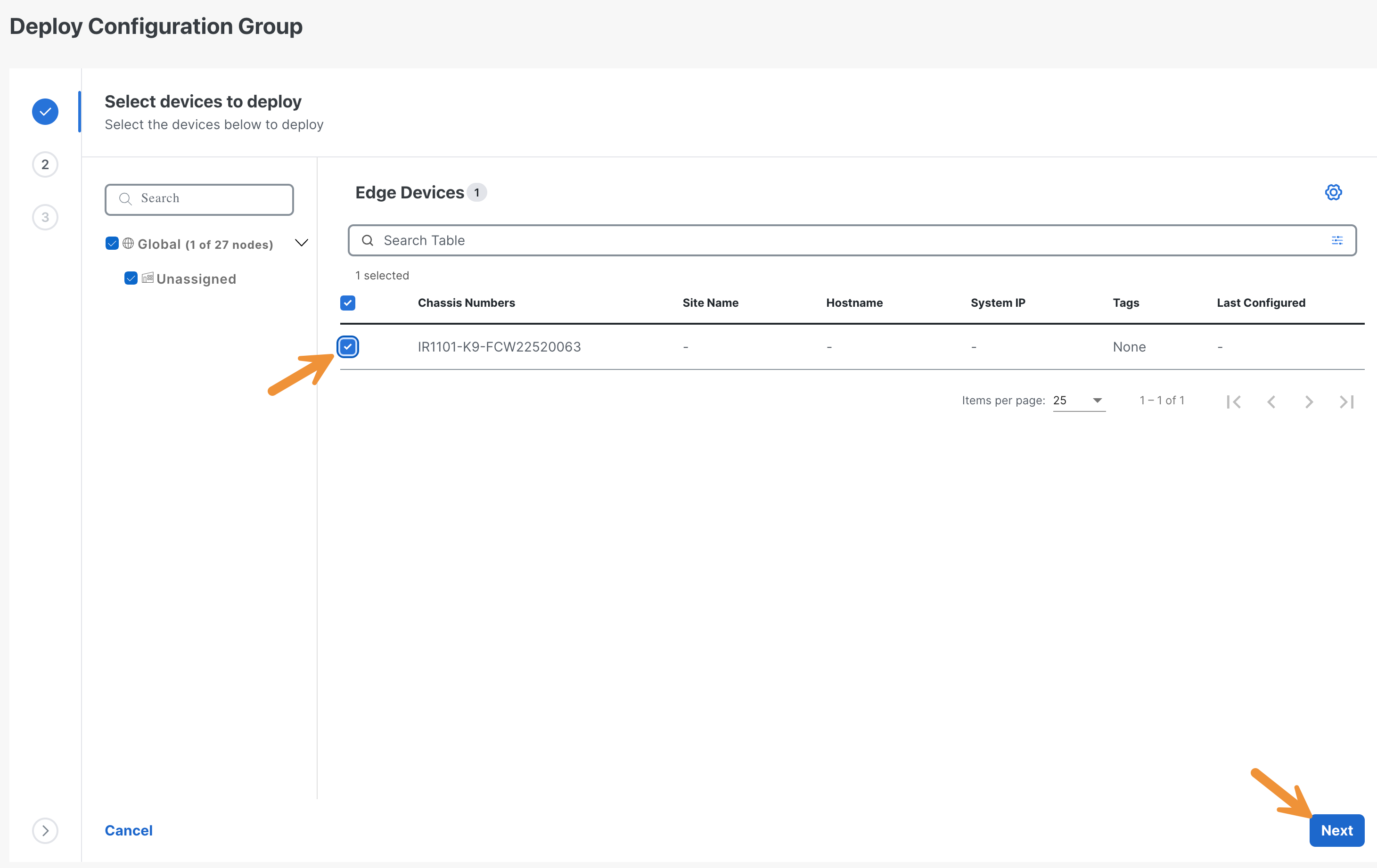
Select the IR1101 device then click Next.
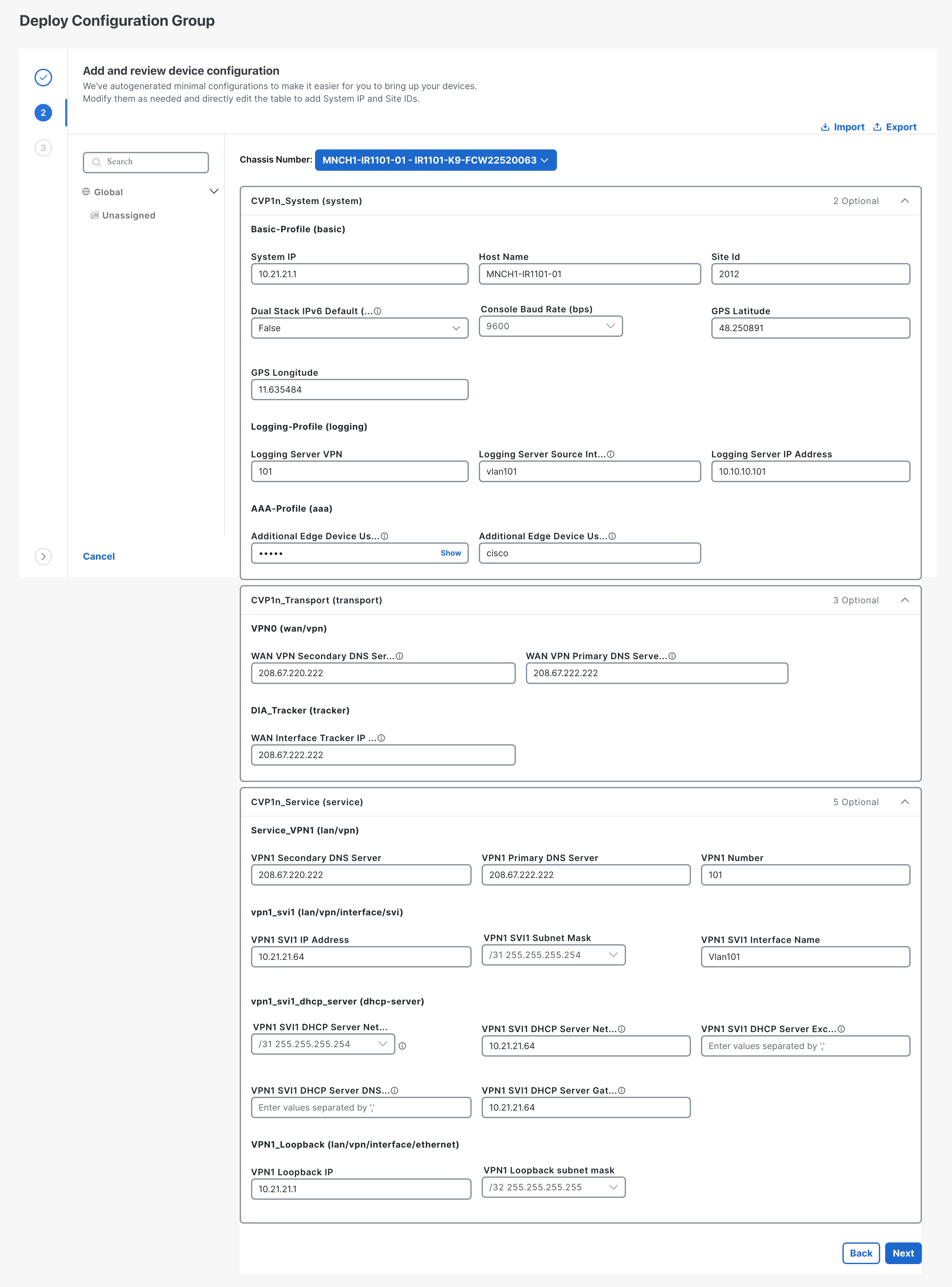
Expand the configuration profiles and review the configuration data. Click Next when finished.
- Note: In this environment, the device data is pre-populated to facilitate the demo flow. In a real deployment, the customer will need to fill out the variable data.
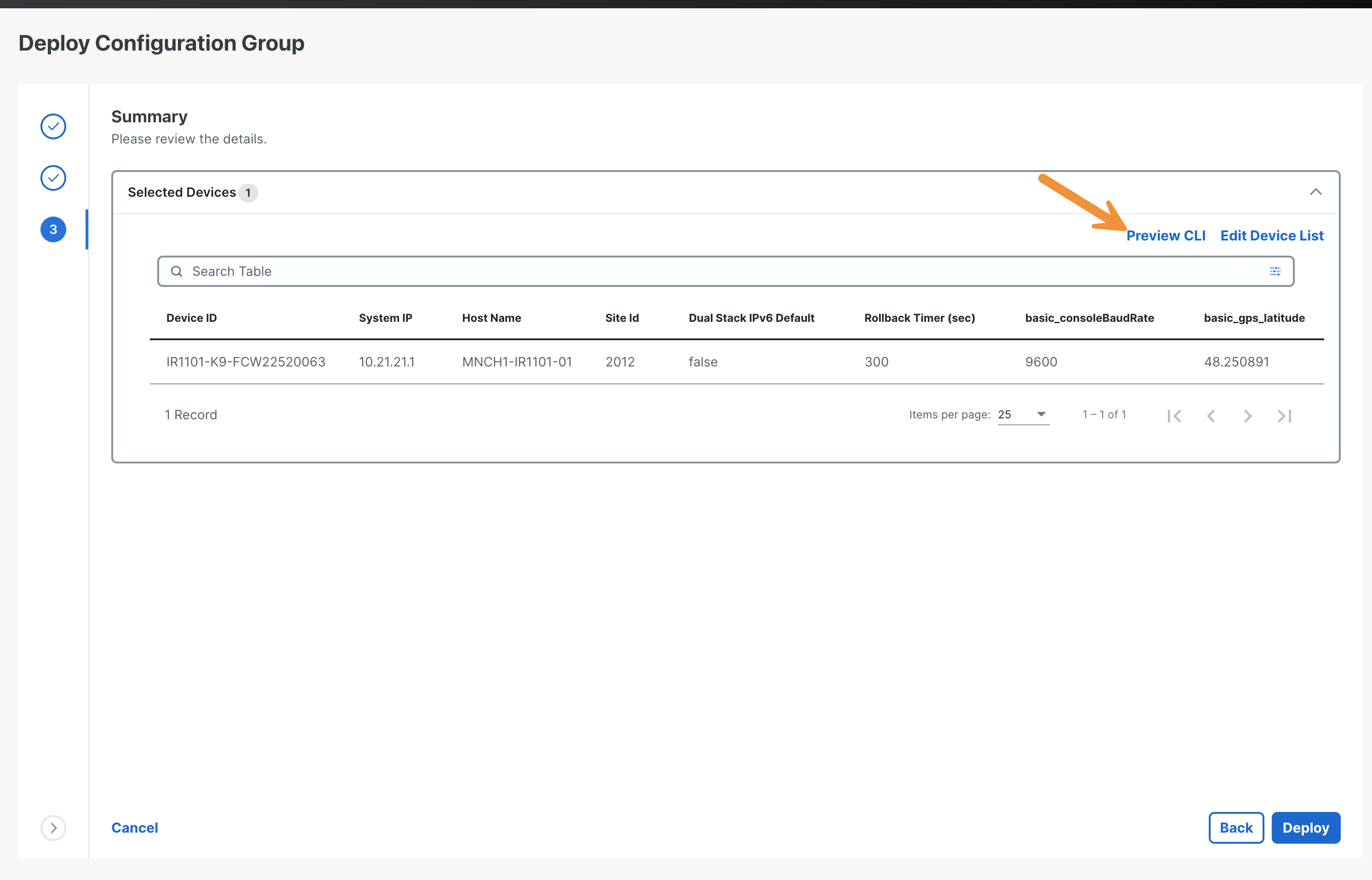
Click Preview CLI if you want to review the CLI configuration to be deployed.
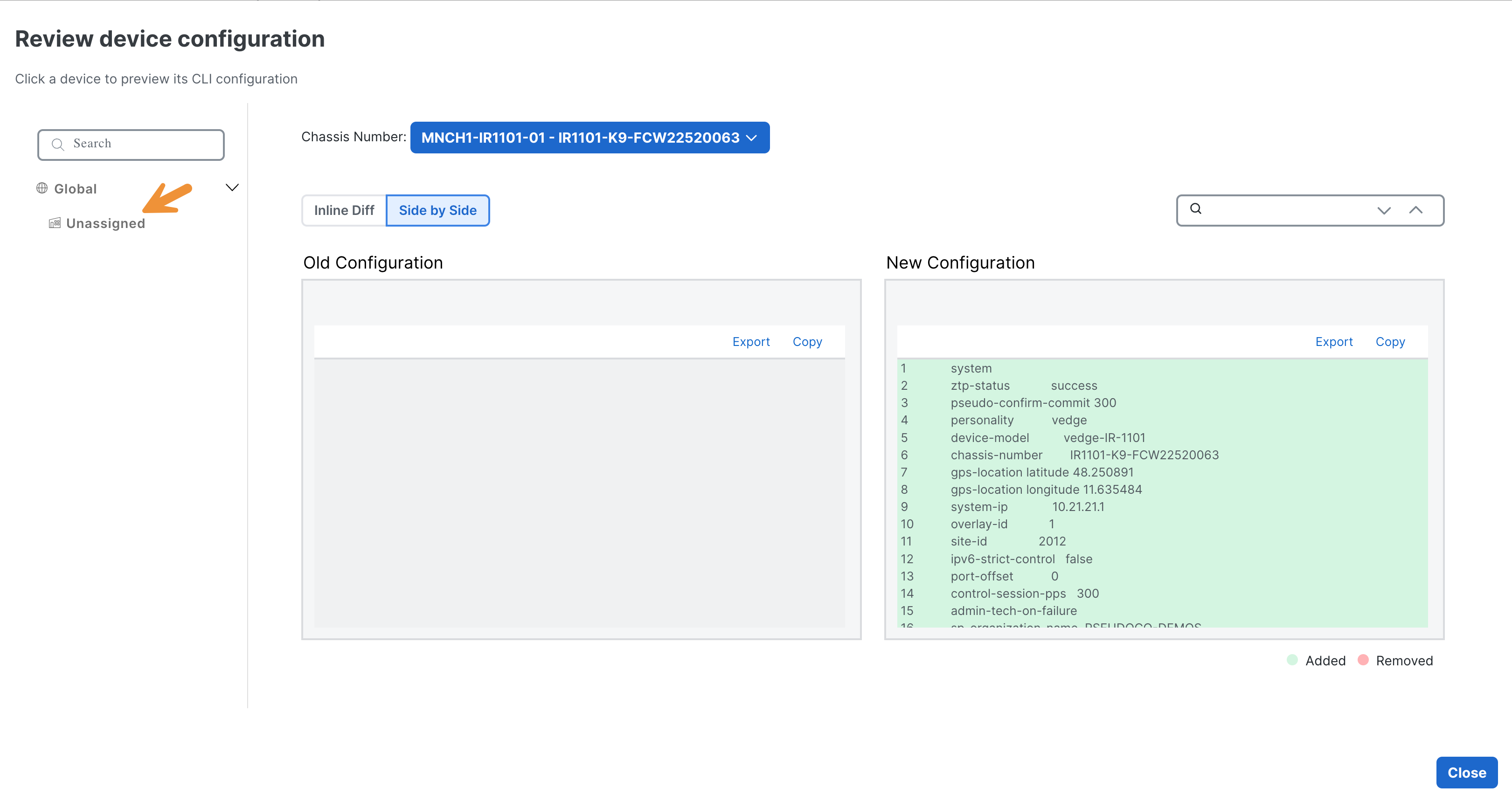
Select Unassigned from the menu on the left. Click Close after reviewing.
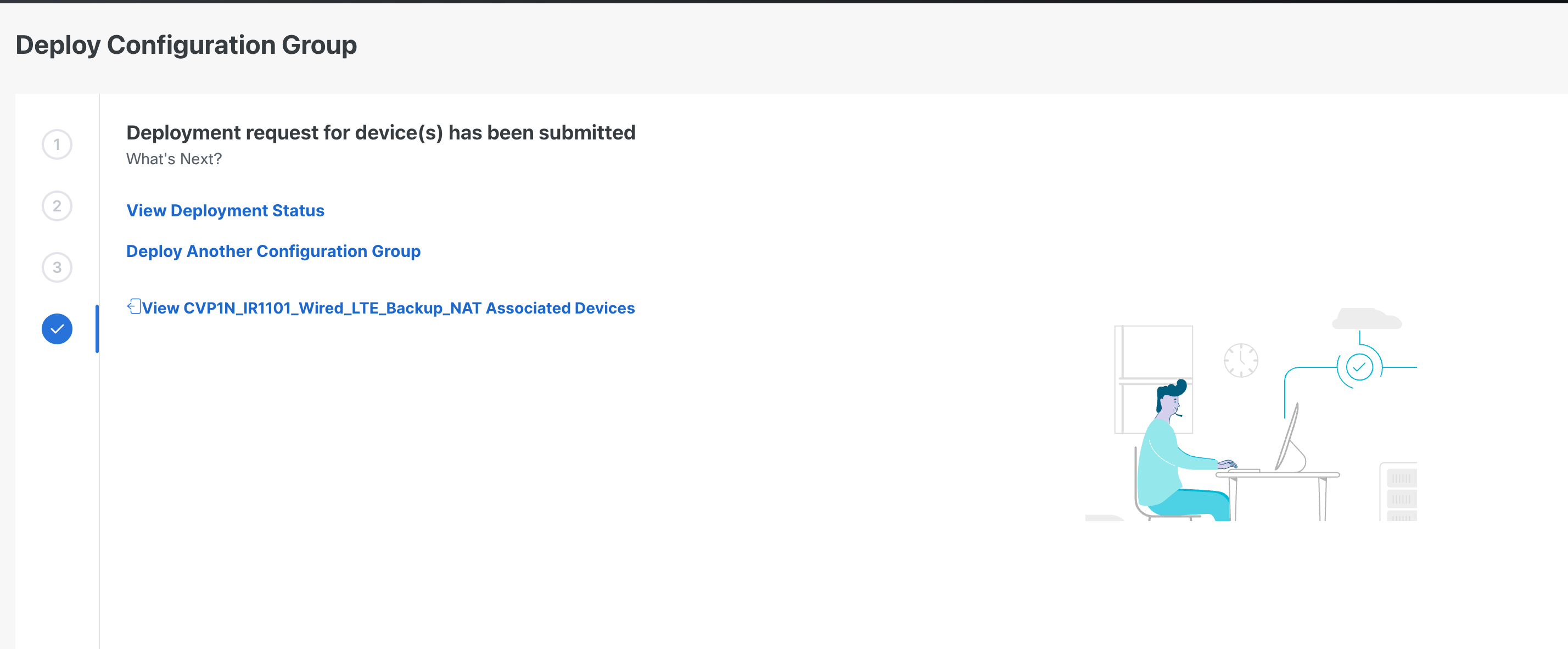
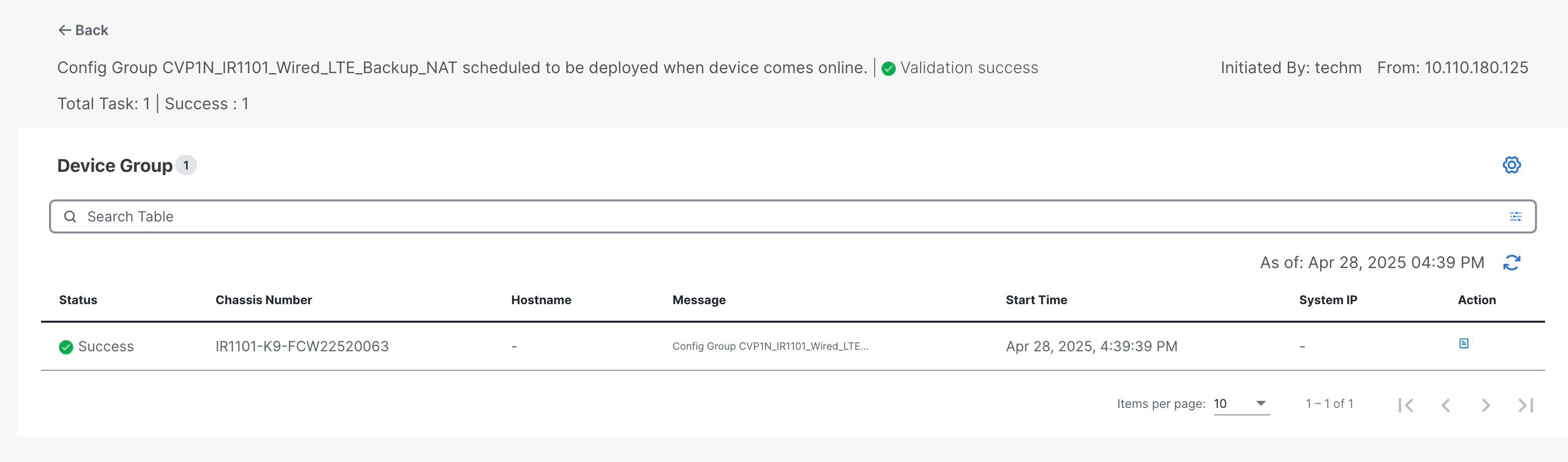
Click Deploy, then on View Deployment Status and wait for the configuration to be pushed.
Go to Monitor > Overview in the SD-WAN Manager.
View the number of WAN Edges in the network. There should now be 21.
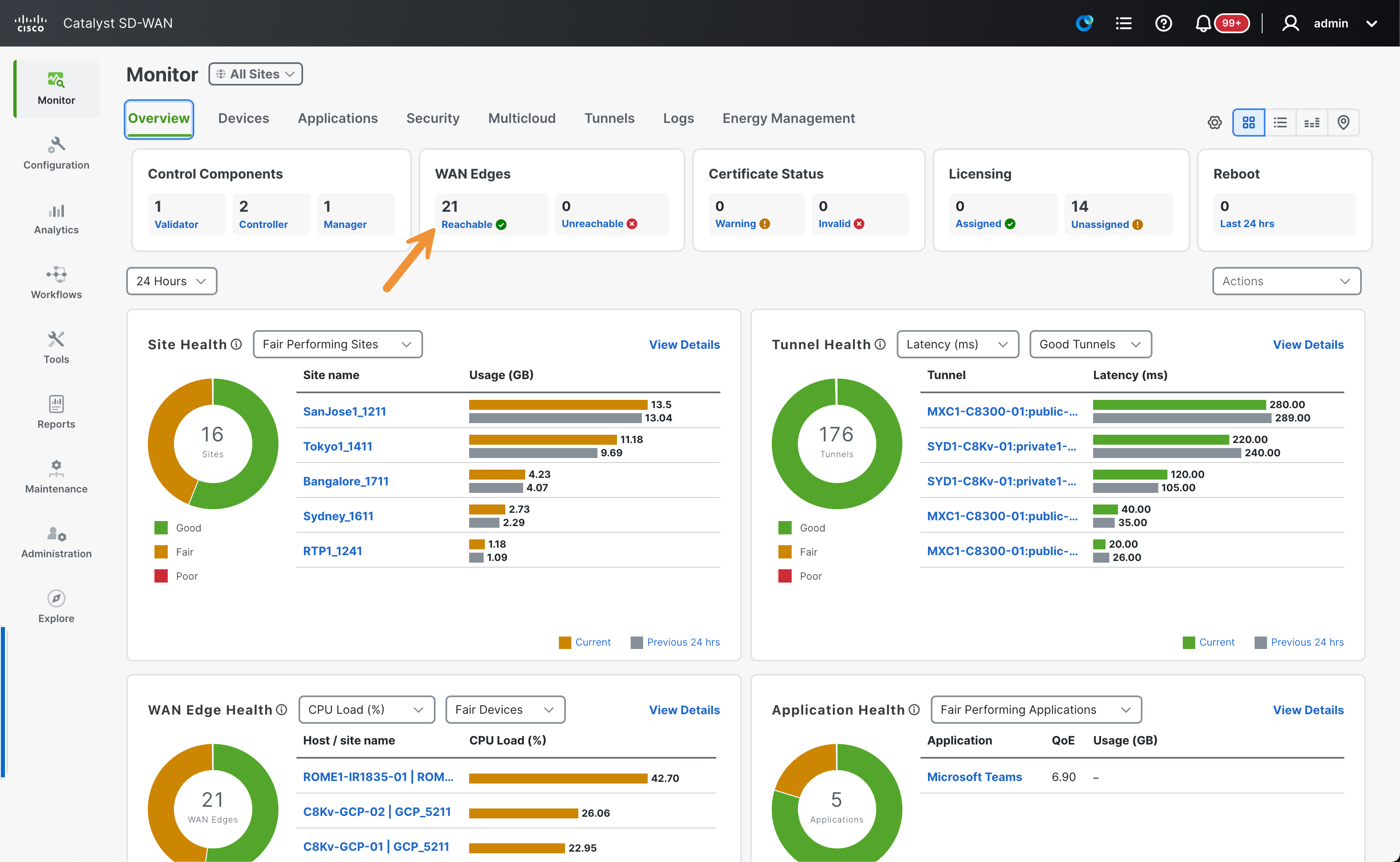
Go to Monitor > Devices in the SD-WAN Manager.
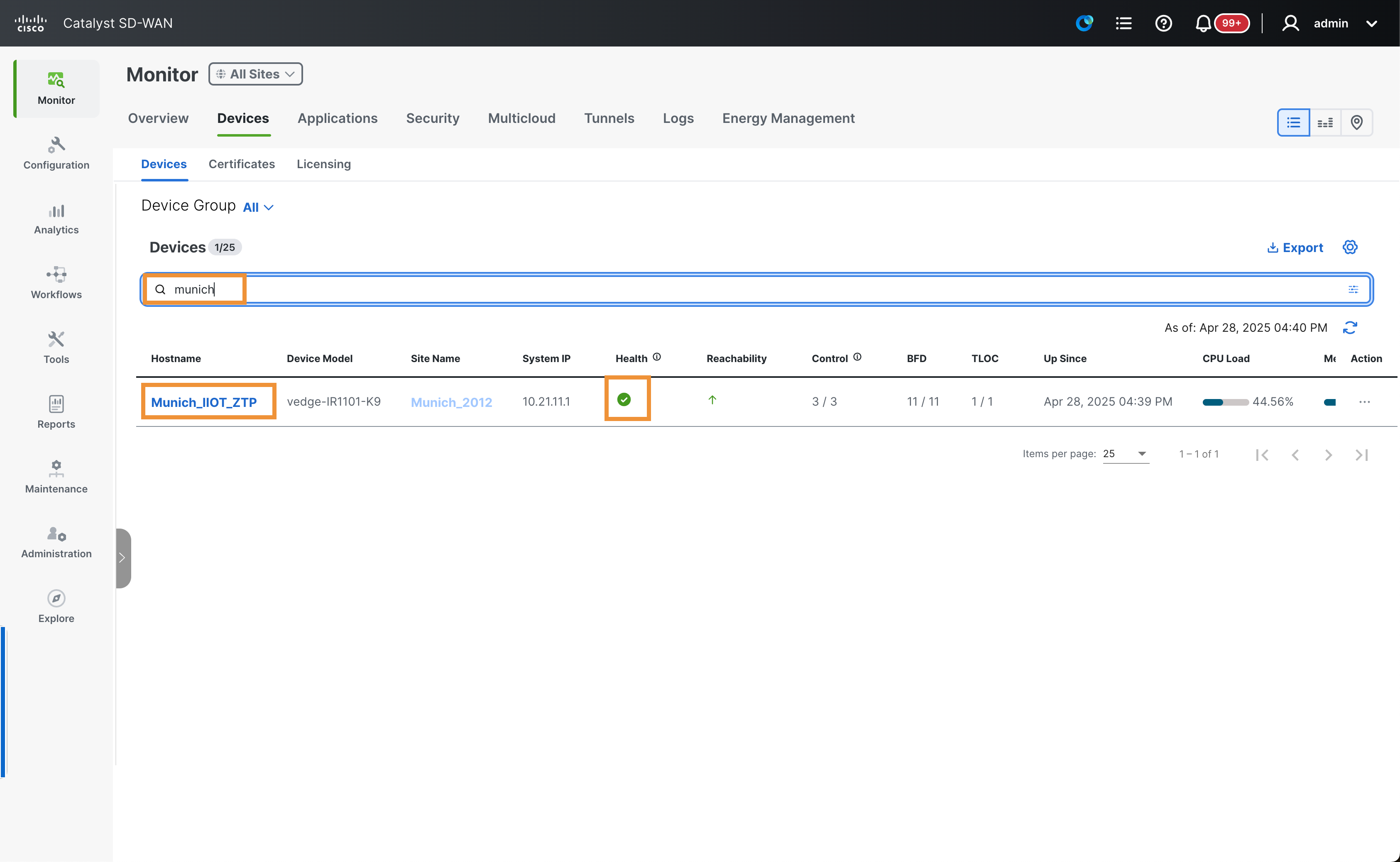
Search for Munich and identify the new managed device with the Munich_IIOT_ZTP hostname.