Cloud OnRamp for Multicloud with AWS
Catalyst SD-WAN empowers robust on-premises security by extending distributed security directly to the network edge. This simplifies compliance efforts while offering continuous protection against evolving threats, both internal and external.
It also offers comprehensive Secure Access Service Edge (SASE) capabilities through a seamless integration with various Secure Service Edge (SSE) solutions.
This section covers:
- Security capabilities of the WAN Edges such as Advanced Malware Protection (AMP), Intrusion Prevention (IPS), URL Filtering (URLF) and Next Generation Firewall (NGFW). The tight integration between Catalyst SD-WAN and Cisco Identity Services Engine (ISE) also enables SGT-based security functions for the traffic that goes through an SD-WAN fabric (SGT = Security Group Tag)
- The integration with cloud-based SSE providers such as Cisco Secure Access and Zscaler.
Review Existing Configuration
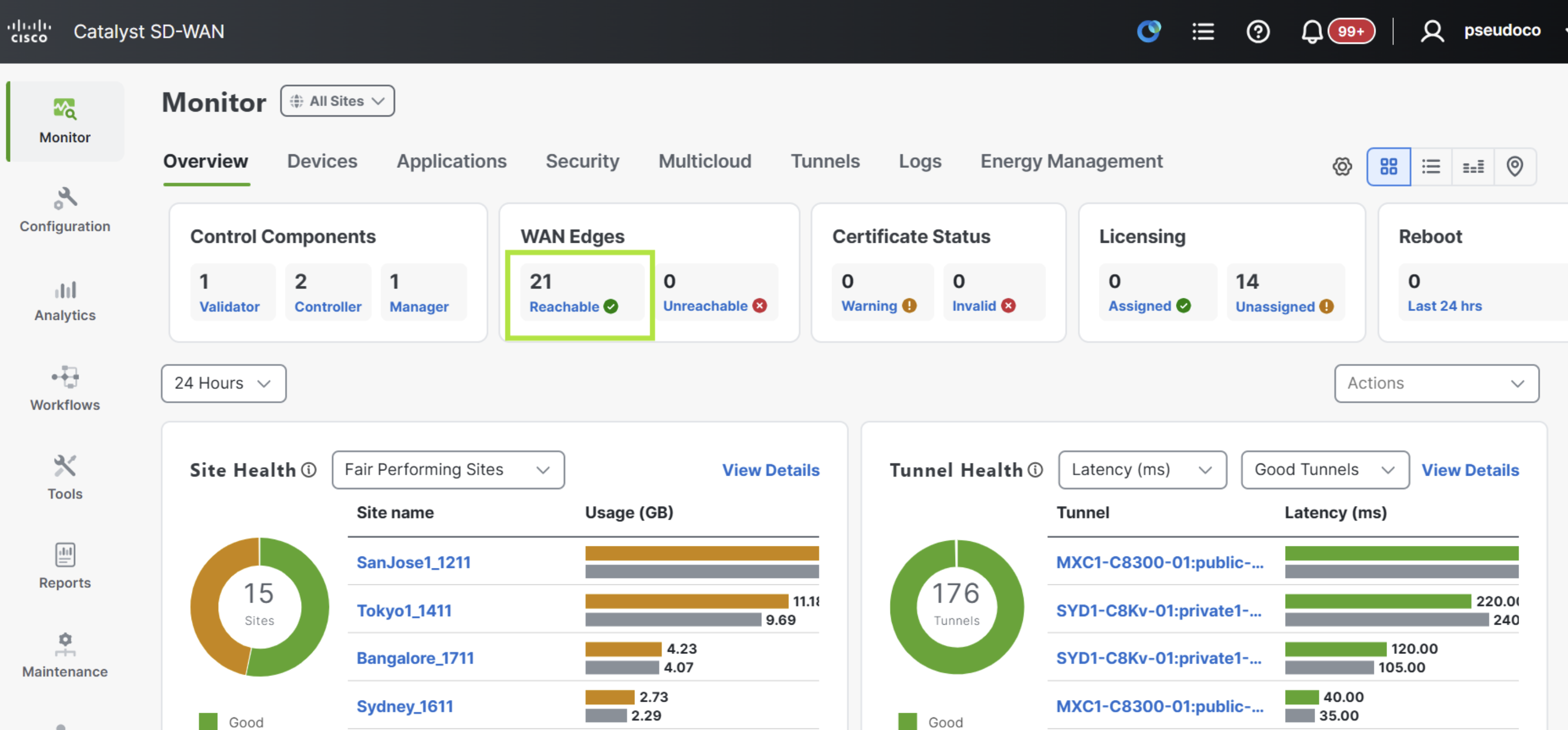
To start, navigate to Monitor > Overview in the SD-WAN Manager and verify the total WAN Edges count.
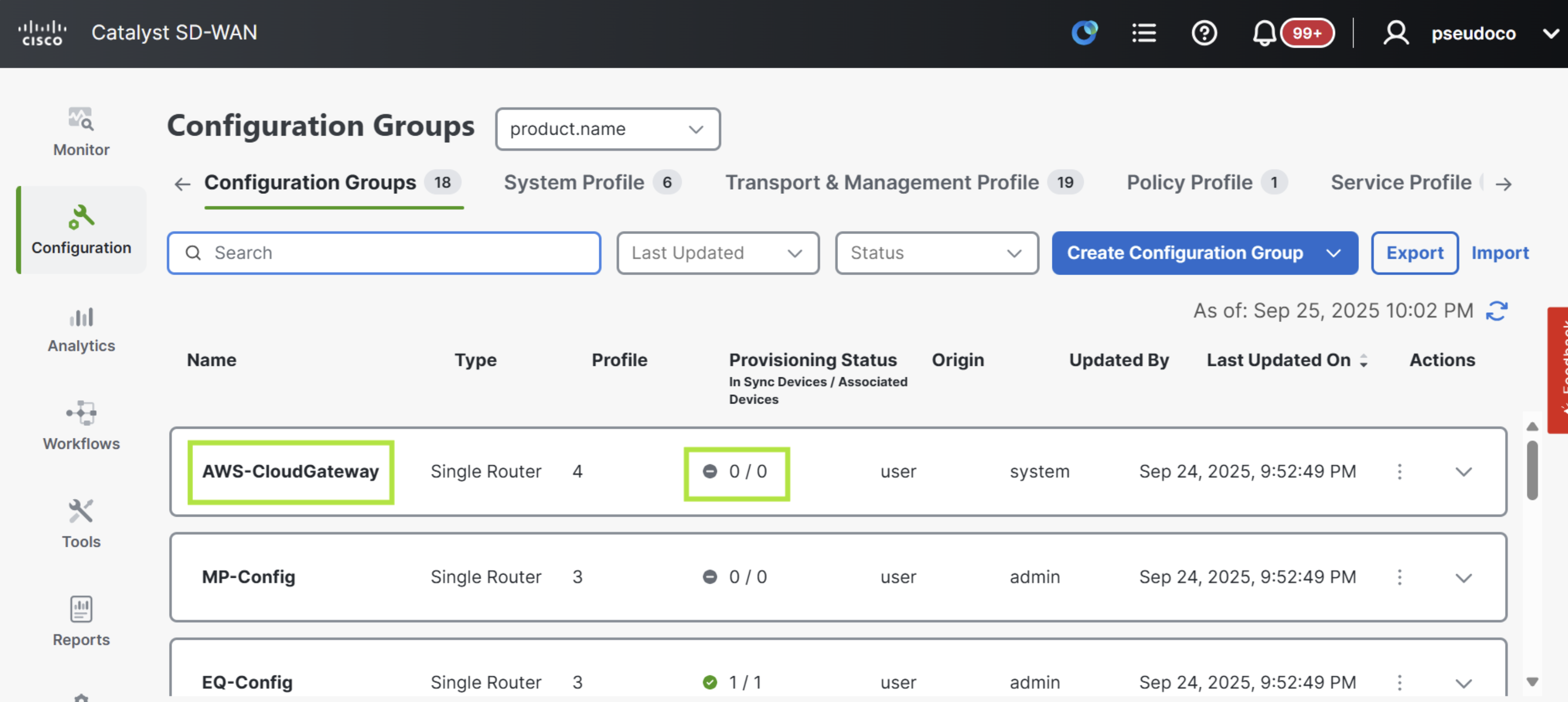
Navigate to Configuration > Configuration Groups in the SD-WAN Manager and locate the AWS-CloudGateway config group is present and devices provisioned is zero.
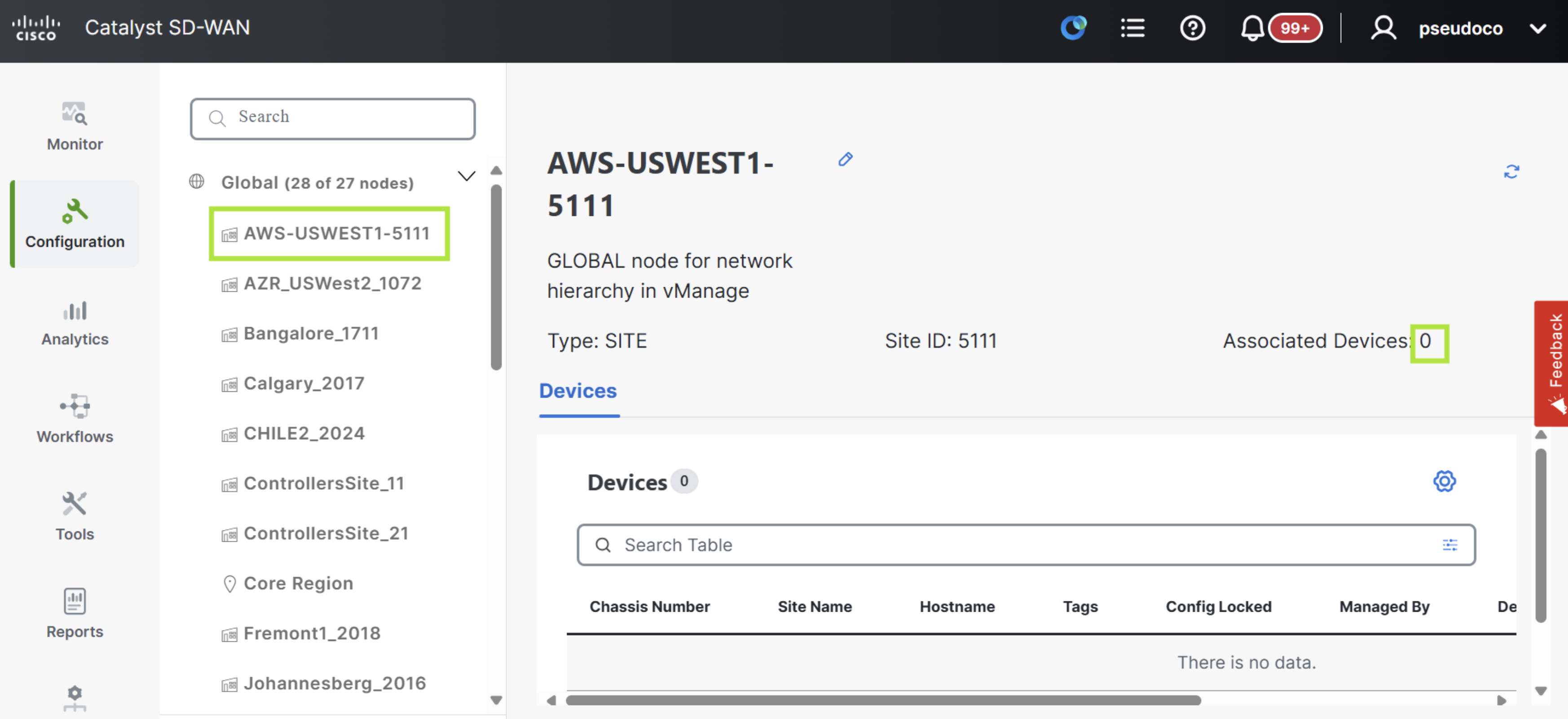
Next check the Configuration > Network Hierarchy and verify that the AWS-USWEST-5111 site has been pre configured and zero devices are associated.
Check the Monitor > Overview > Multicloud and see that no AWS Cloud Gateways have yet been provisioned.
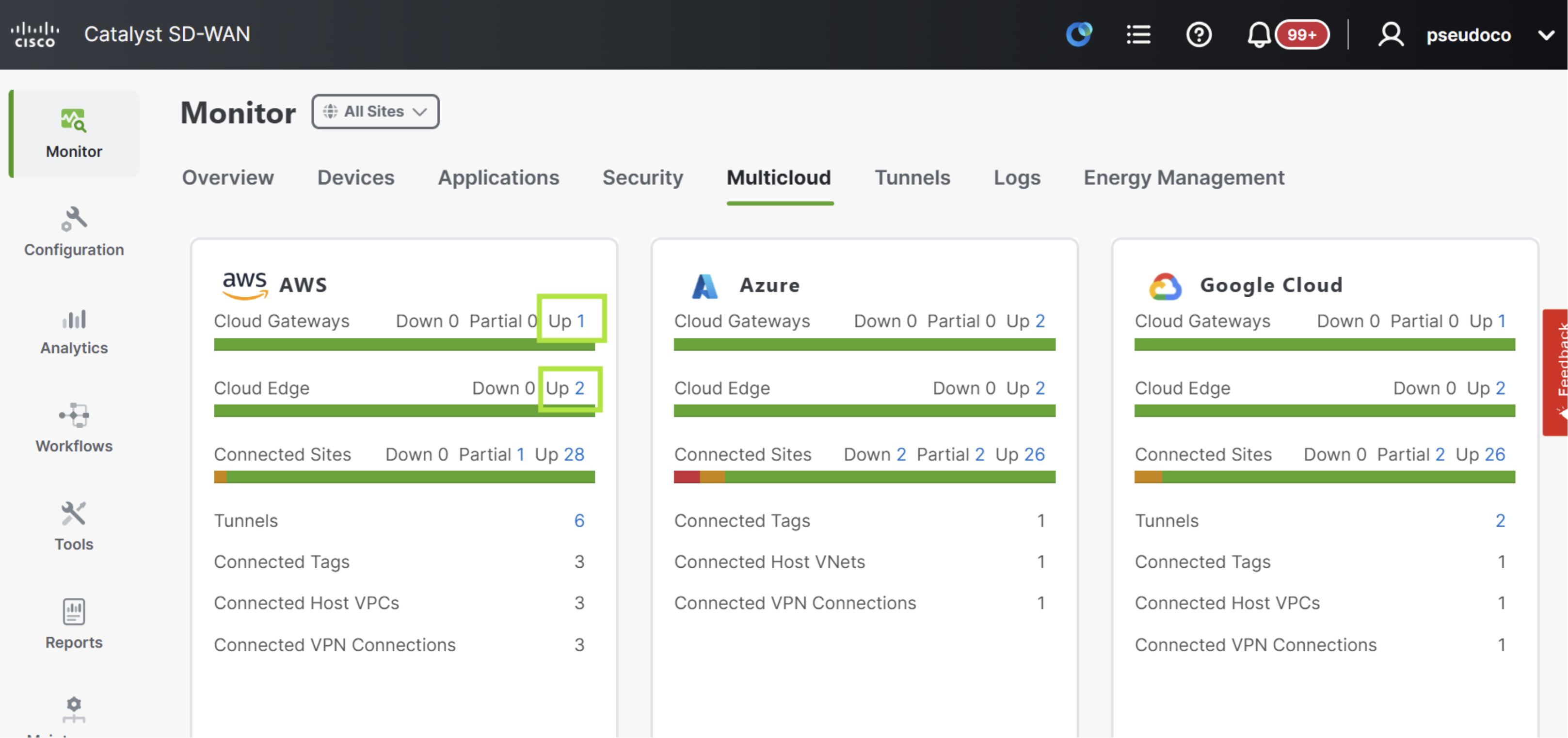
Create AWS Cloud Gateway
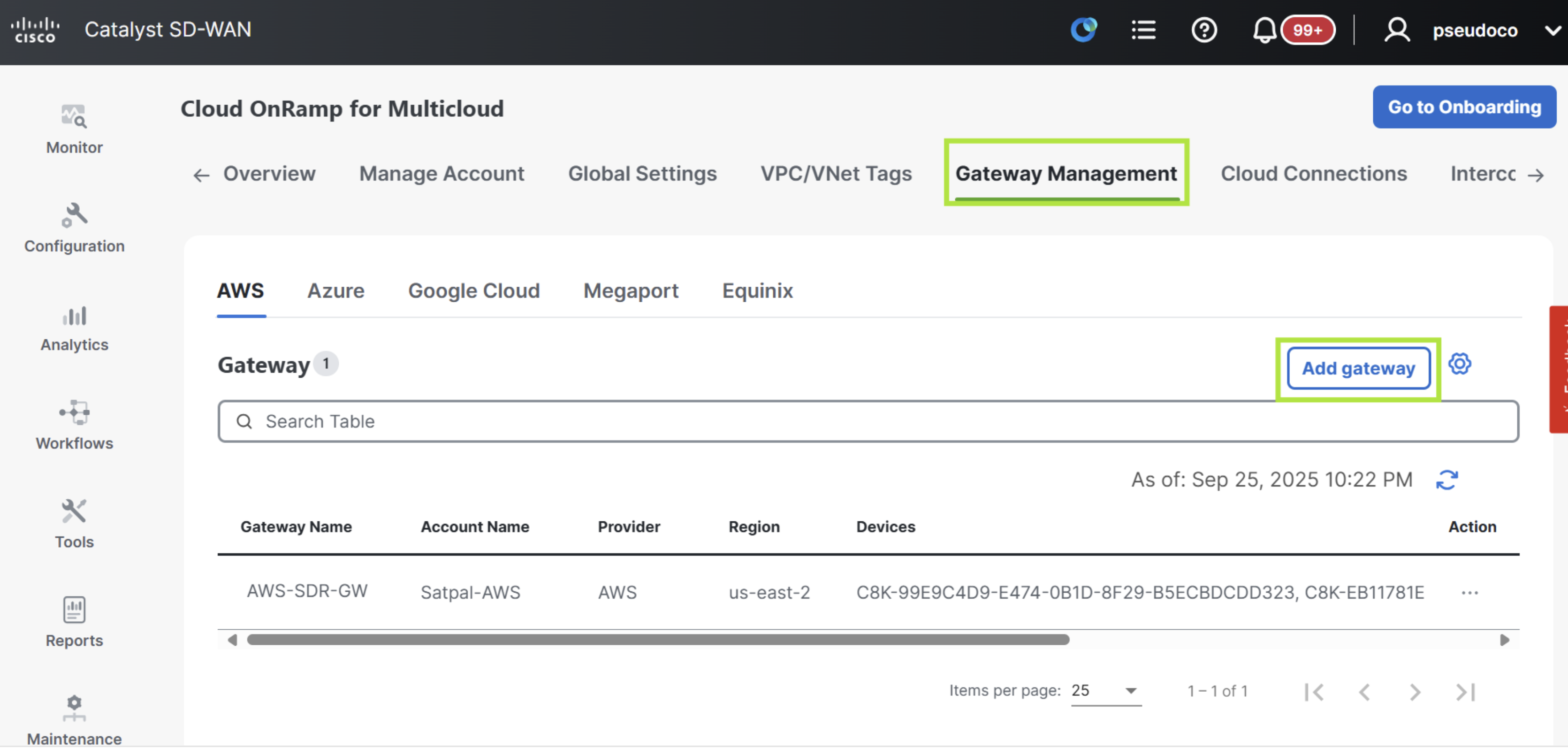
Start by navigating to Configuration > Cloud OnRamp > Cloud OnRamp for Multicloud then click on the Add gateway button under Gateway Management tab.
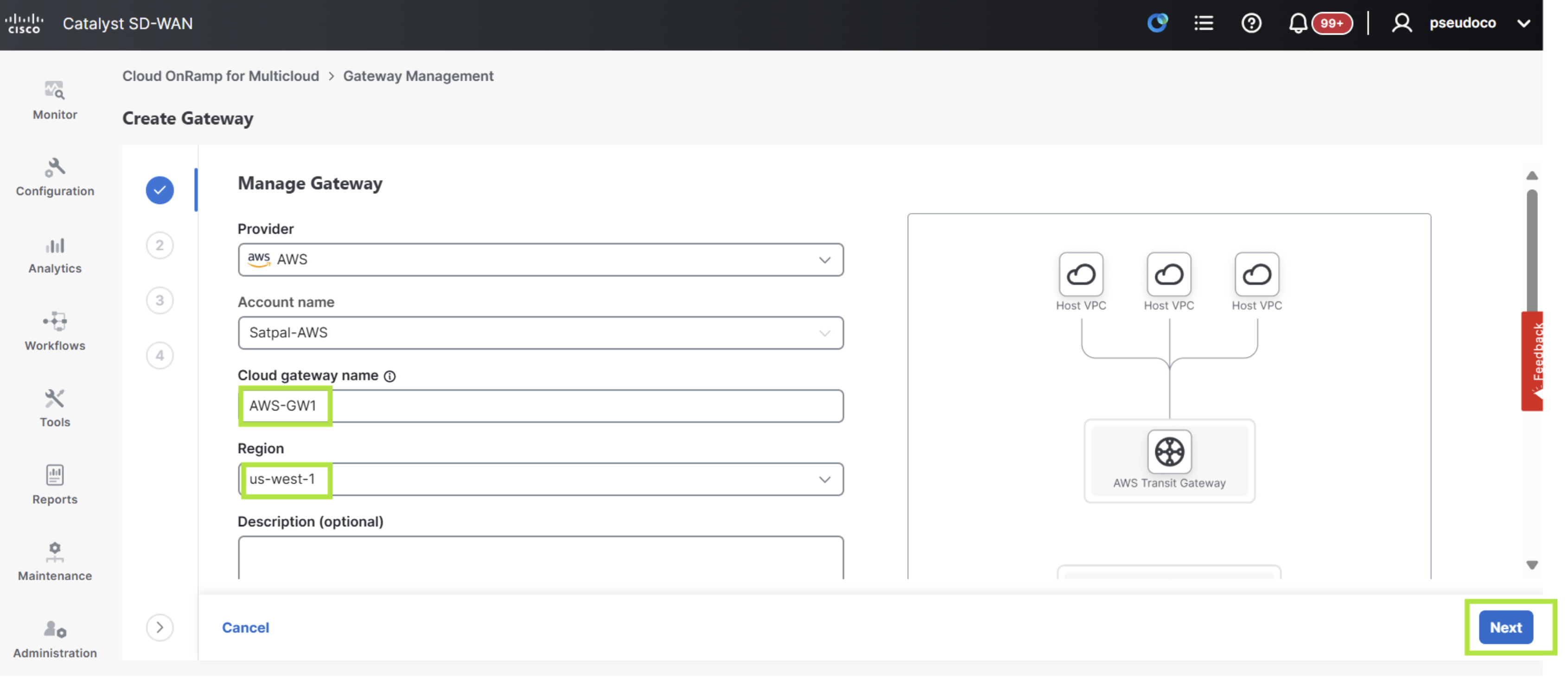
Enter the Cloud gateway name: AWS-GW1 and select the Region: us-west-1 as pictured below. Then select Next button.
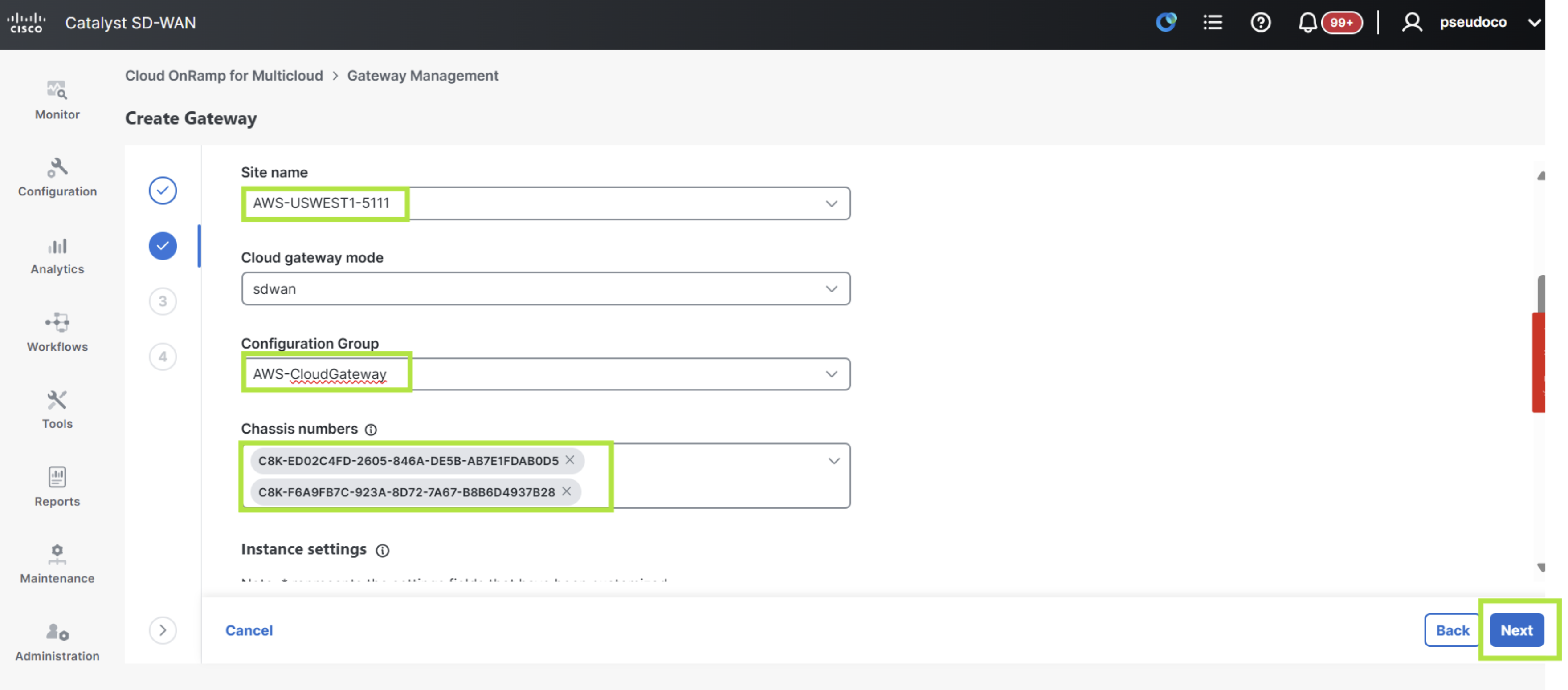
Select the Site name: AWS-USWEST1-5111 and select the Configuration Group: AWS-CloudGatway from the dropdowns. The two chassis numbers are auto selected after choosing the intended configuration group. Then select Next button.
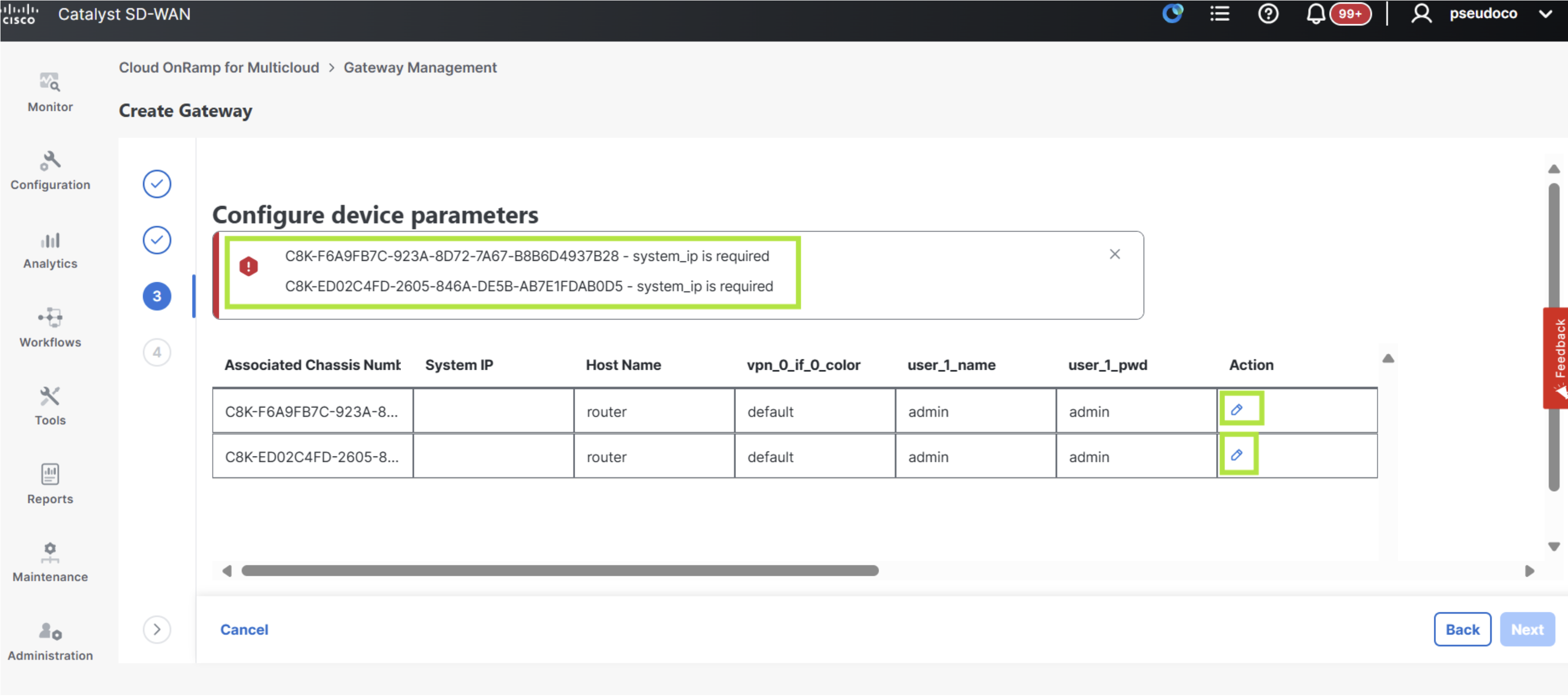
On the resulting page, click on the blue pen icon to edit the values.
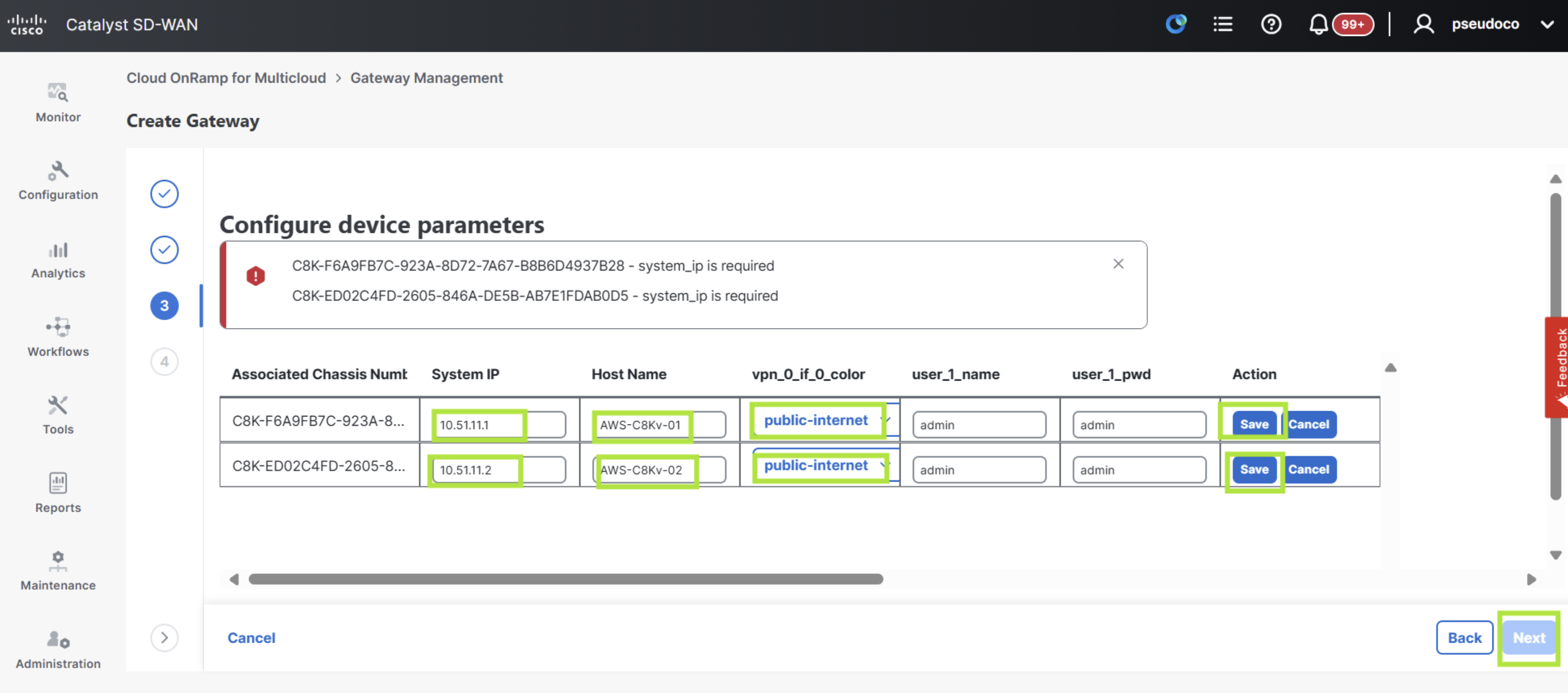
Enter the values as listed below, then click on the blue Save button for both Catalyst 8Kv edges.Then after both of the devices have the settings saved click on the blue Next button.
For the Chassis Number starting with C8K-F6A9FB7C
- System IP:
10.51.11.1 - Host Name:
AWS-C8Kv-01 - Vpn_0_if_0_color: select
public-internetfrom the drop down
For the Chassis Number starting with C8K-ED02C4FD
- System IP:
10.51.11.2 - Host Name:
AWS-C8Kv-02 - Vpn_0_if_0_color: select
public-internetfrom the drop down
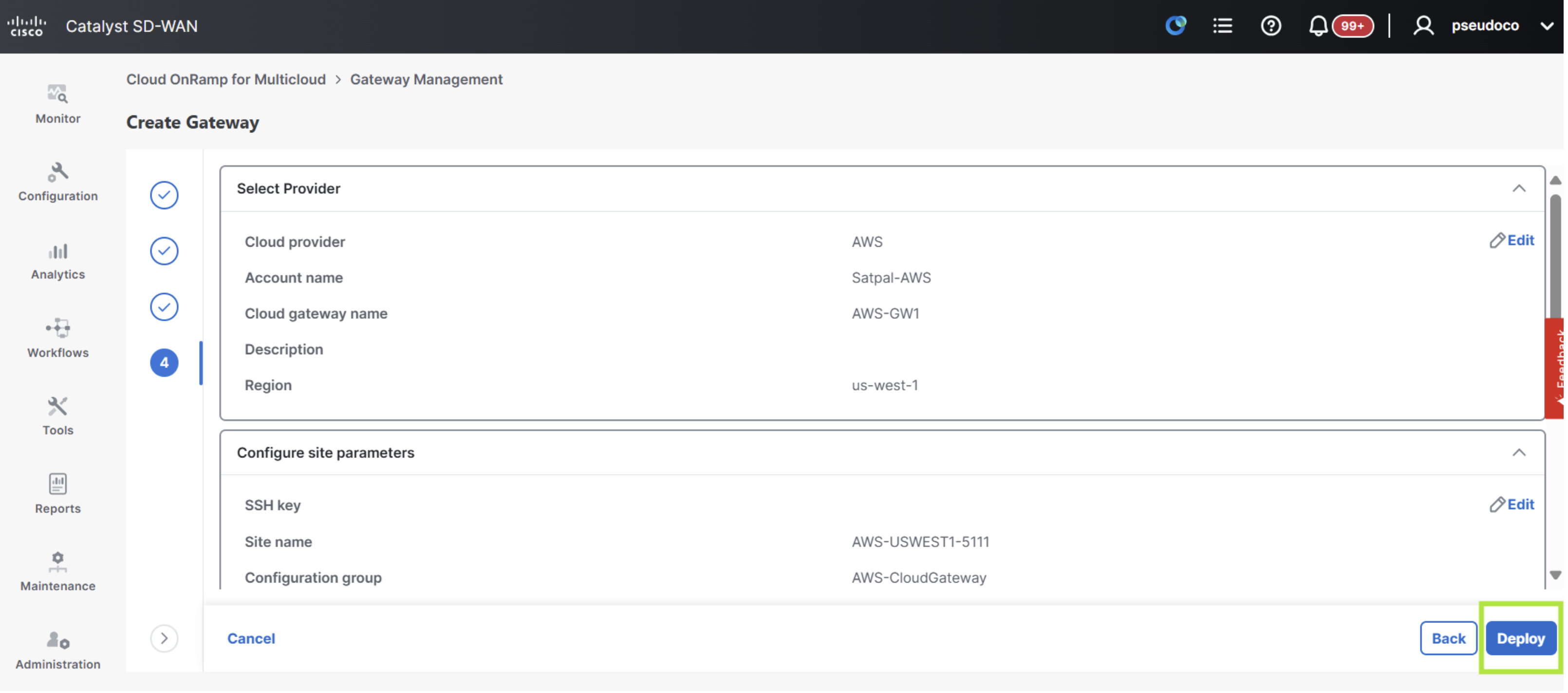
Check all the deice values have been entered correctly and click on blue Deploy button.
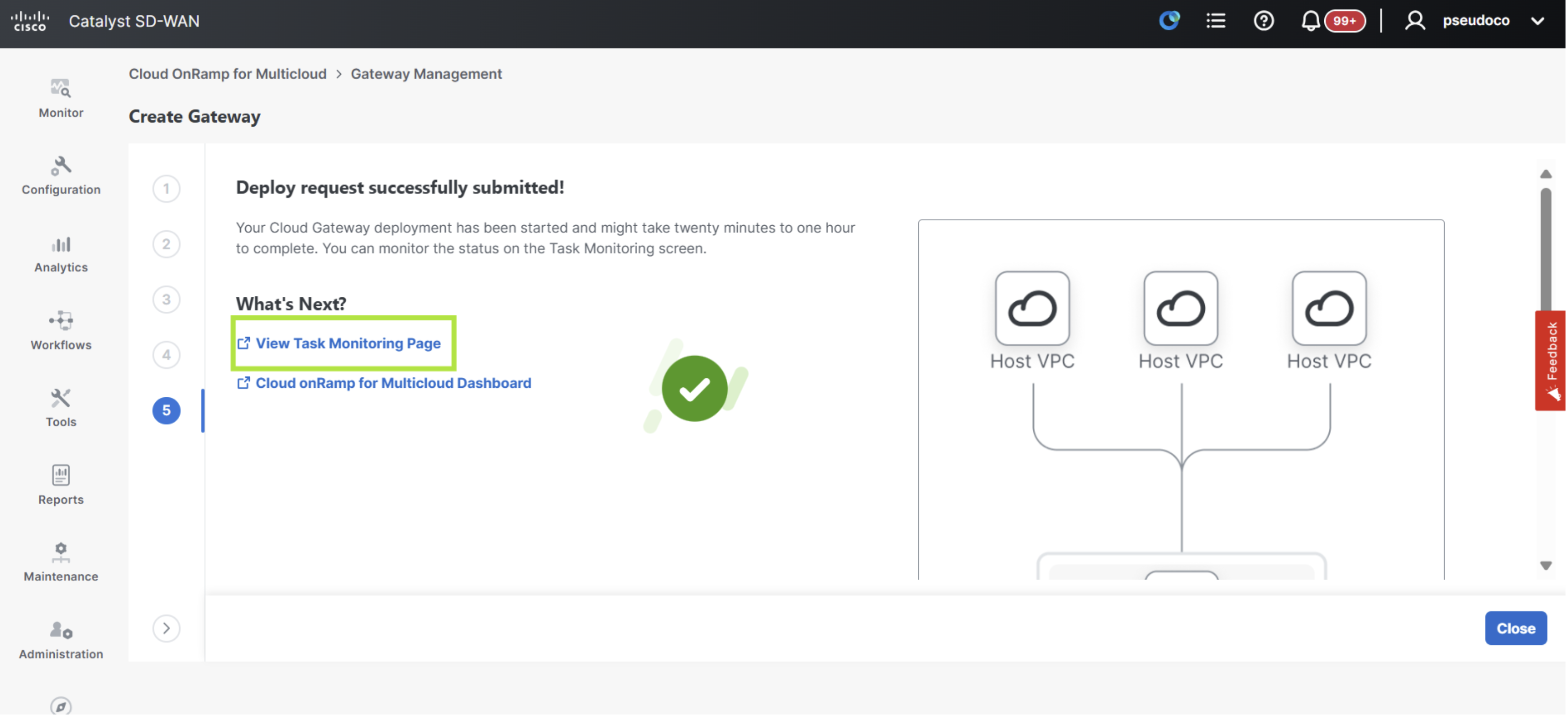
Click on View Task Monitoring Page link to see progress information on the deployment.
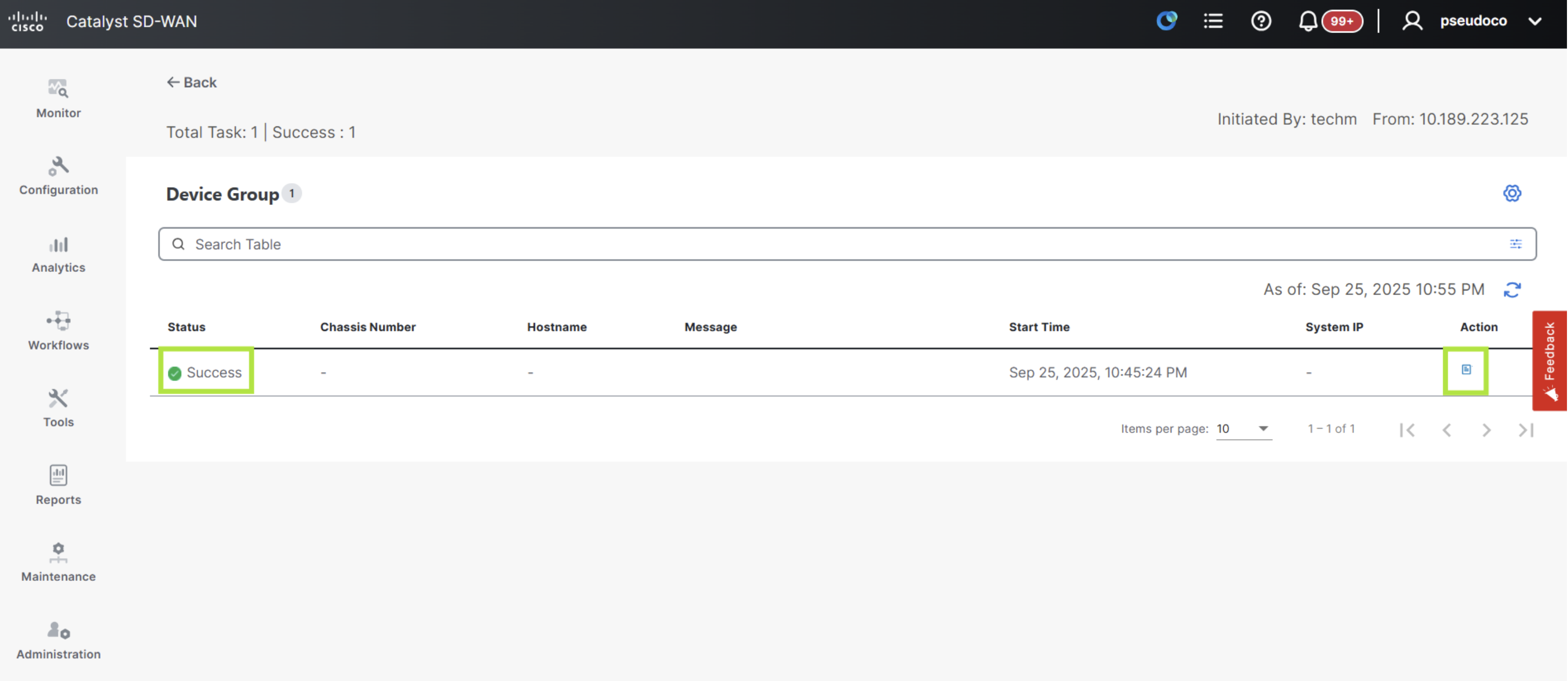
Here the current task status is displayed, click on blue icon under Action to see the logs.
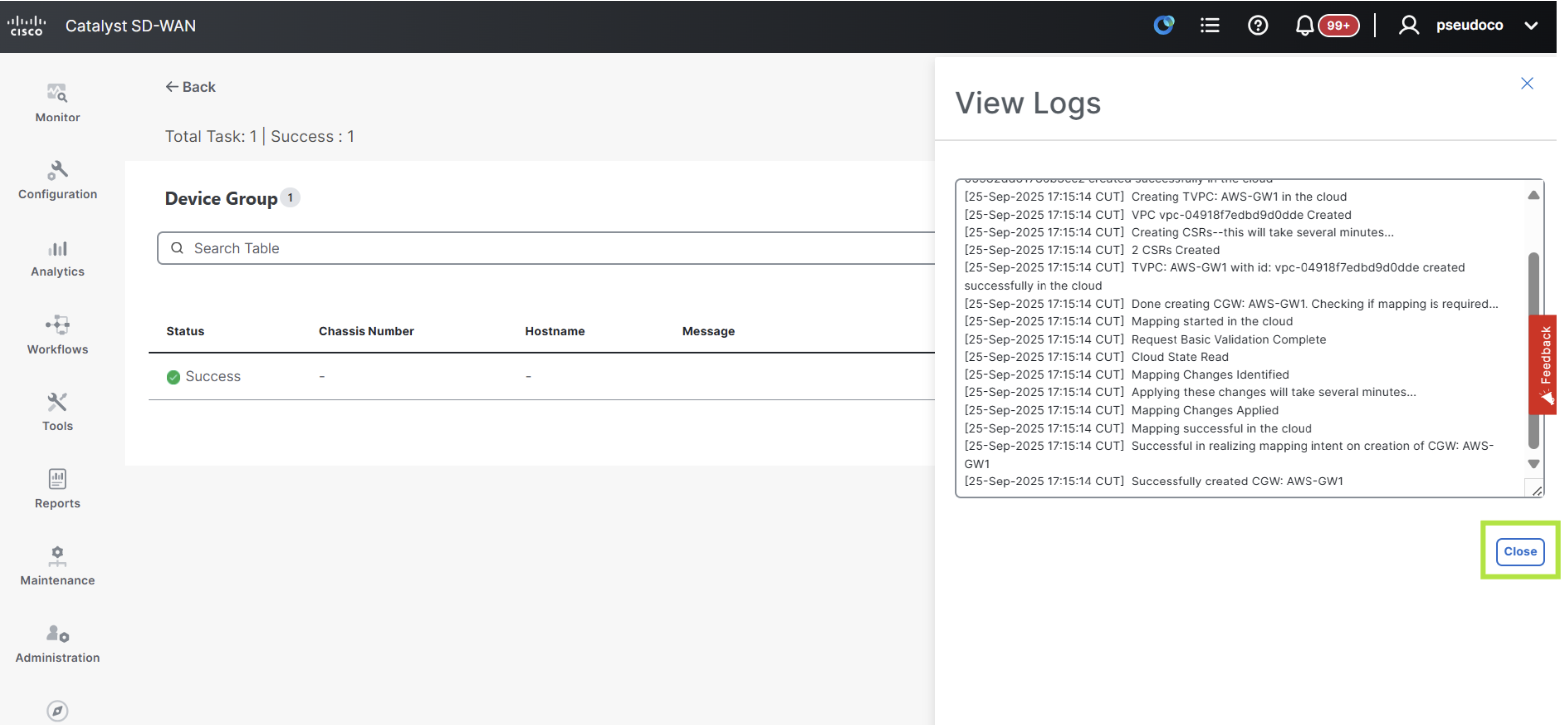
Review the progress logs with details on the various steps including the API calls to AWS to provision the Gateway. Afterwards click on the blue Close button.
Verify and Review AWS Cloud Gateway
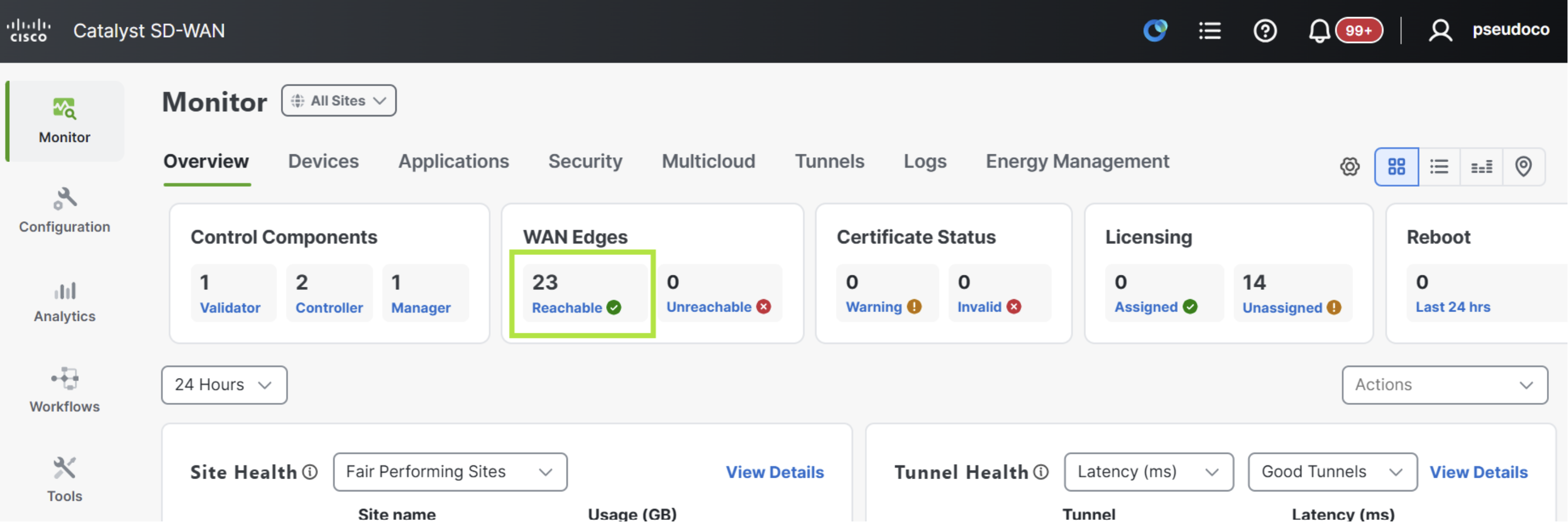
Begin by navigating again to Monitor > Overview in the SD-WAN Manager and see the WAN Edges count has increased by two.
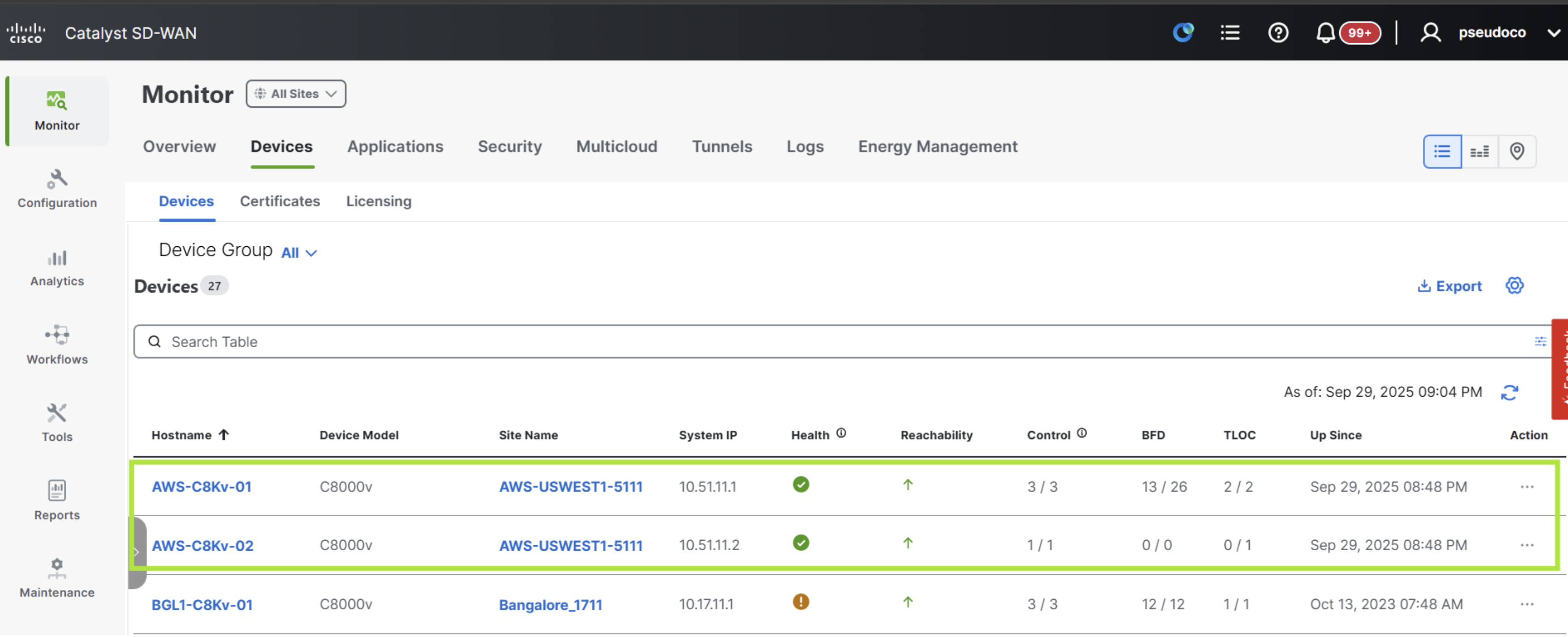
Navigating to Monitor > Devices observe the two new C8000v Edges each with the hostname configured in the pervious workflow.
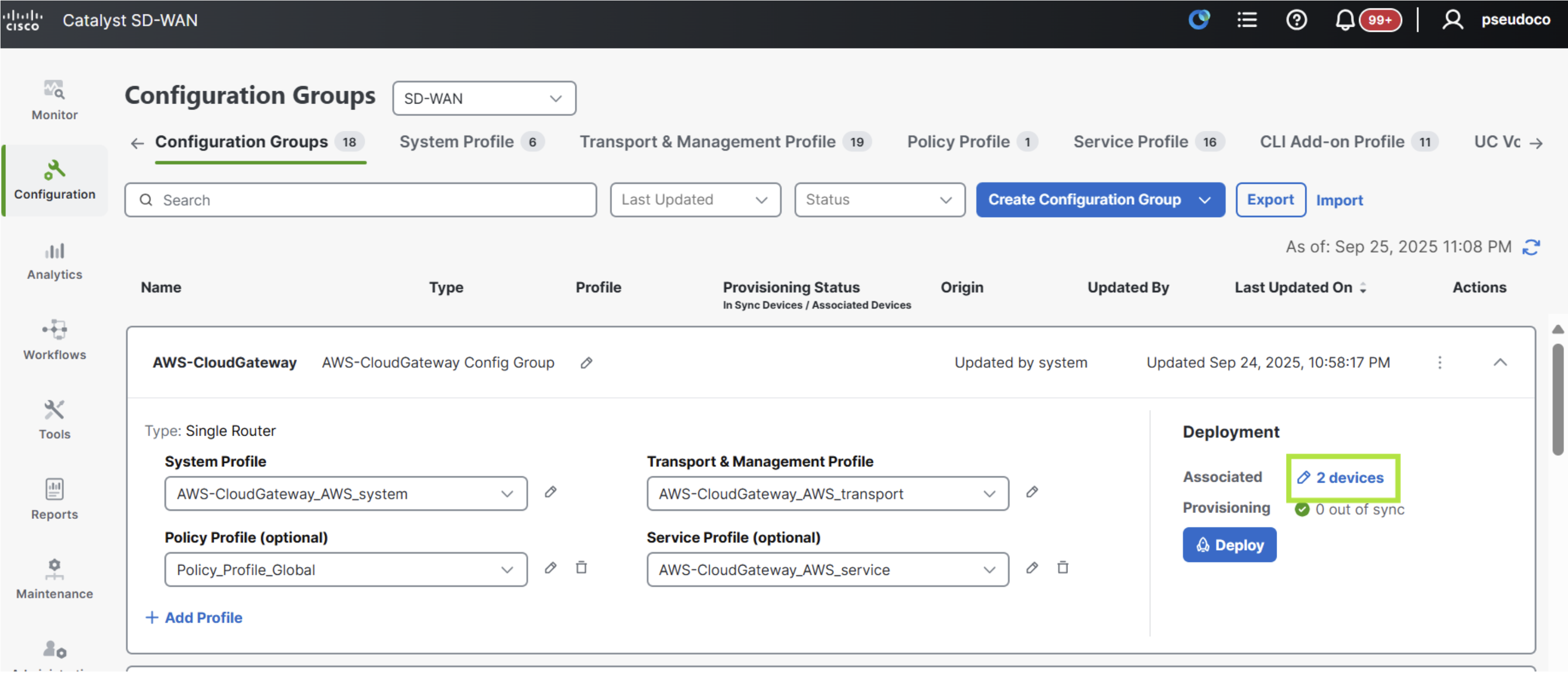
Next navigate to Configuration > Configuration Groups again and locate the AWS-CloudGateway config group now has two devices provisioned. Click on the arrow icon to
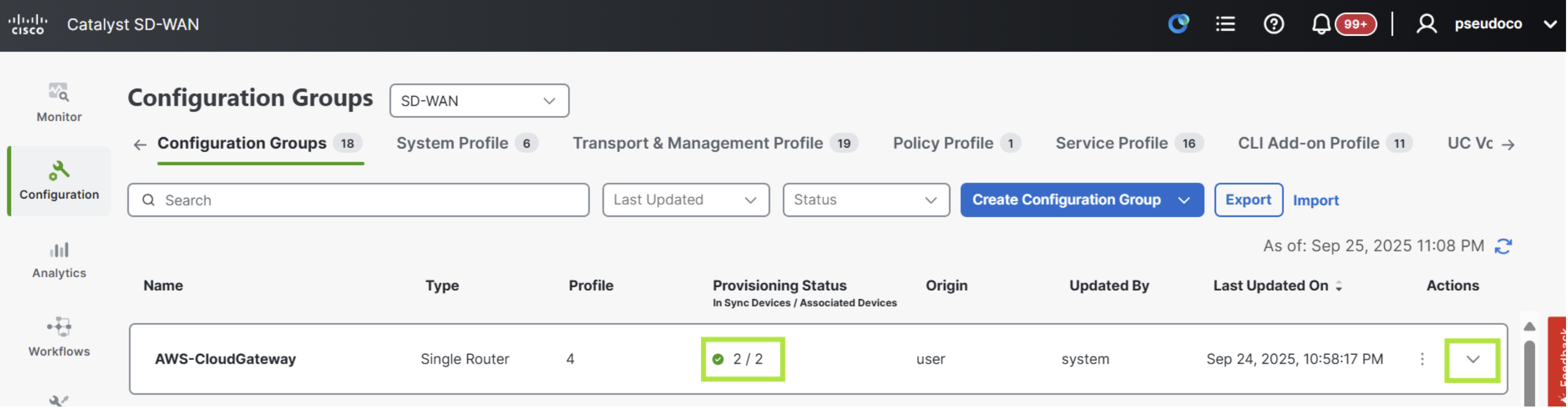
Verify that there are 2 devices on the right associated.
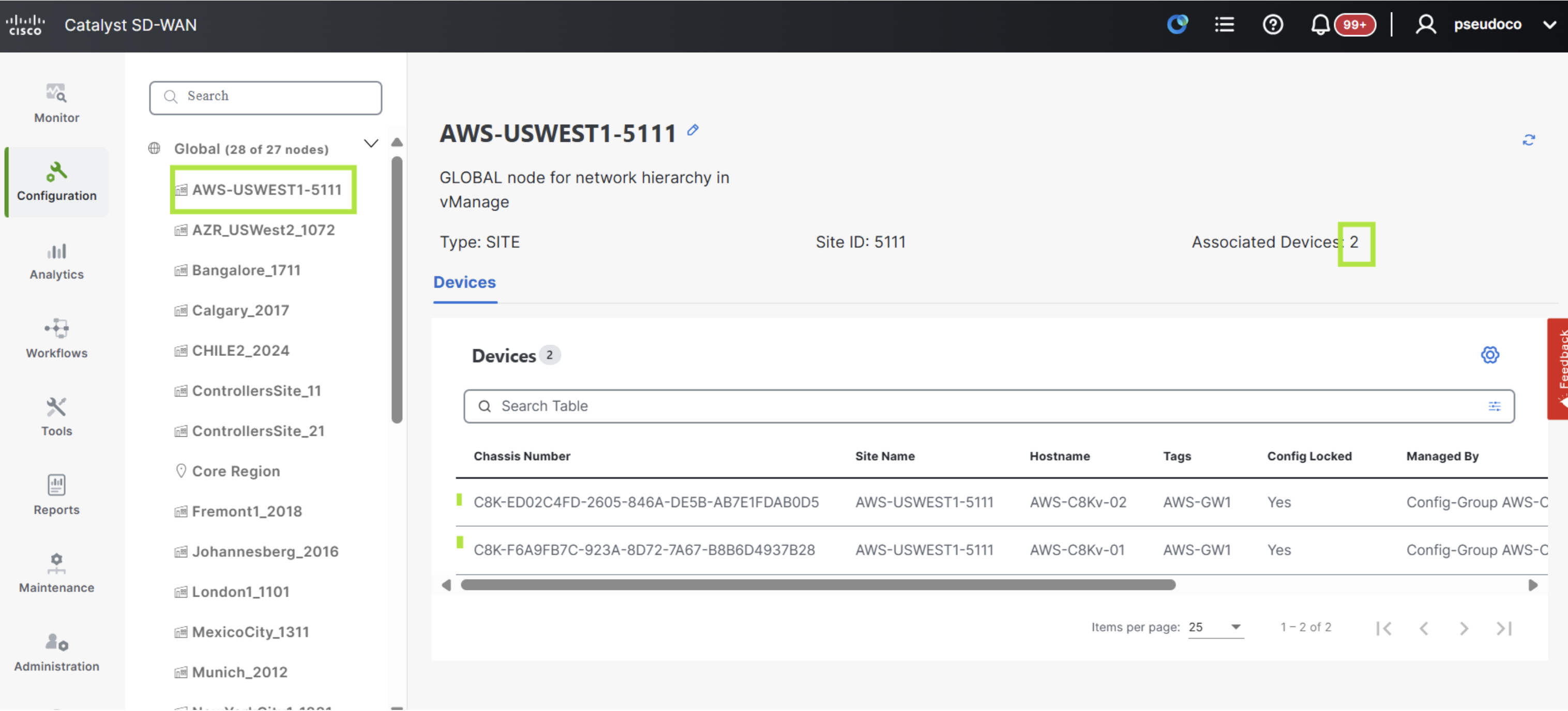
Next navigate to Configuration > Network Hierarchy and click on AWS-USWEST1-5111 as seen below and verify that the two edges are present.
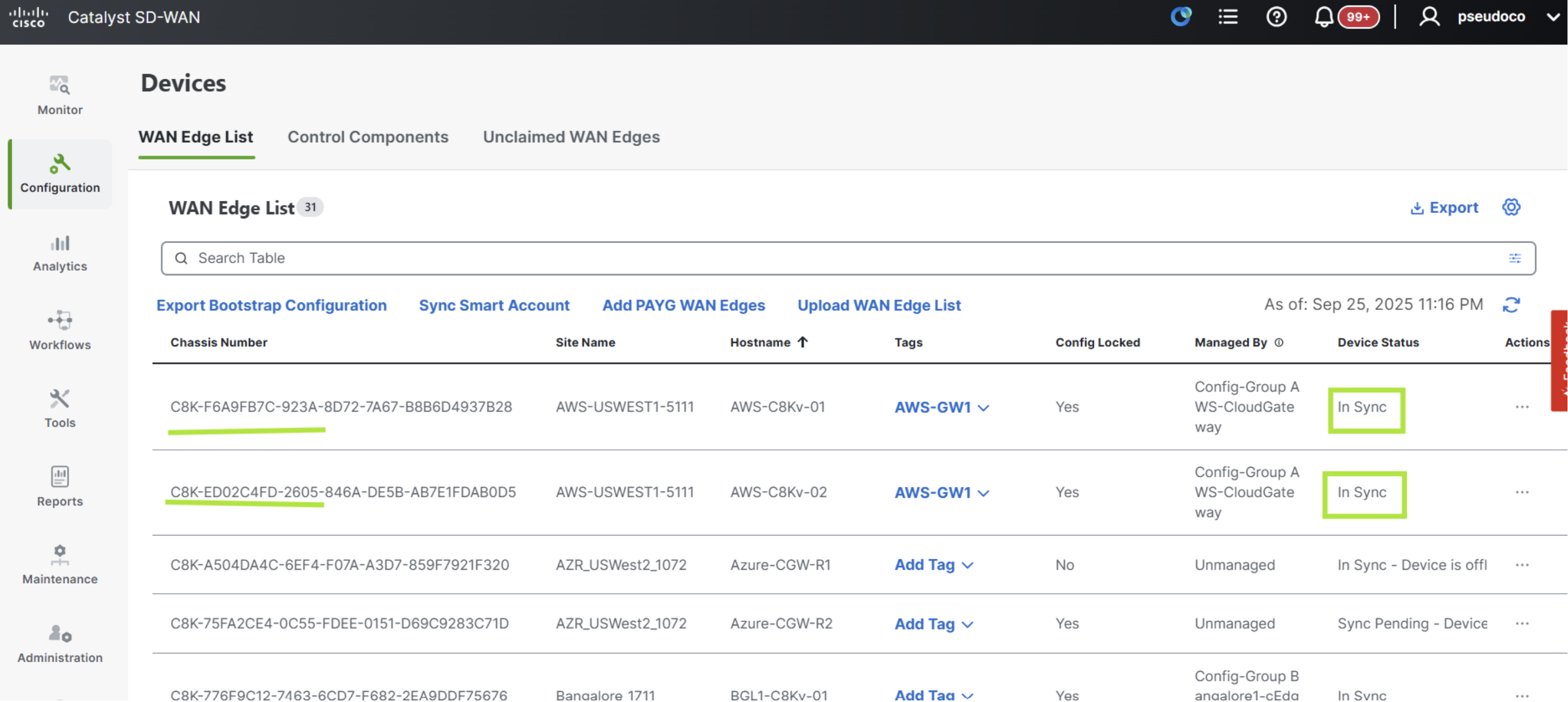
Navigate to Configuration > Devices > WAN Edges and verify that both of the new C8K edges are now online and show an In Sync status.
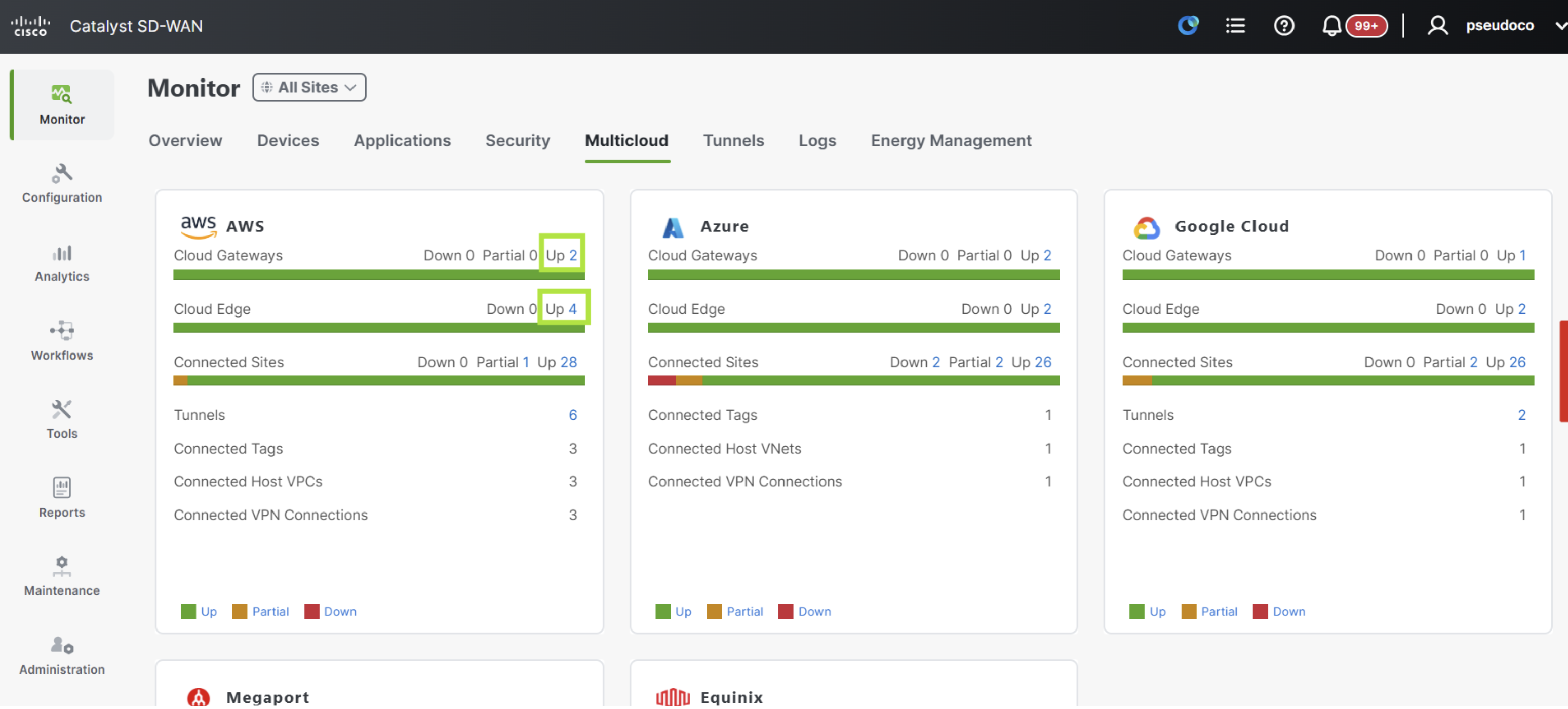
Navigate to Monitor > Multicloud and notice that now the gateways count has increased by one.
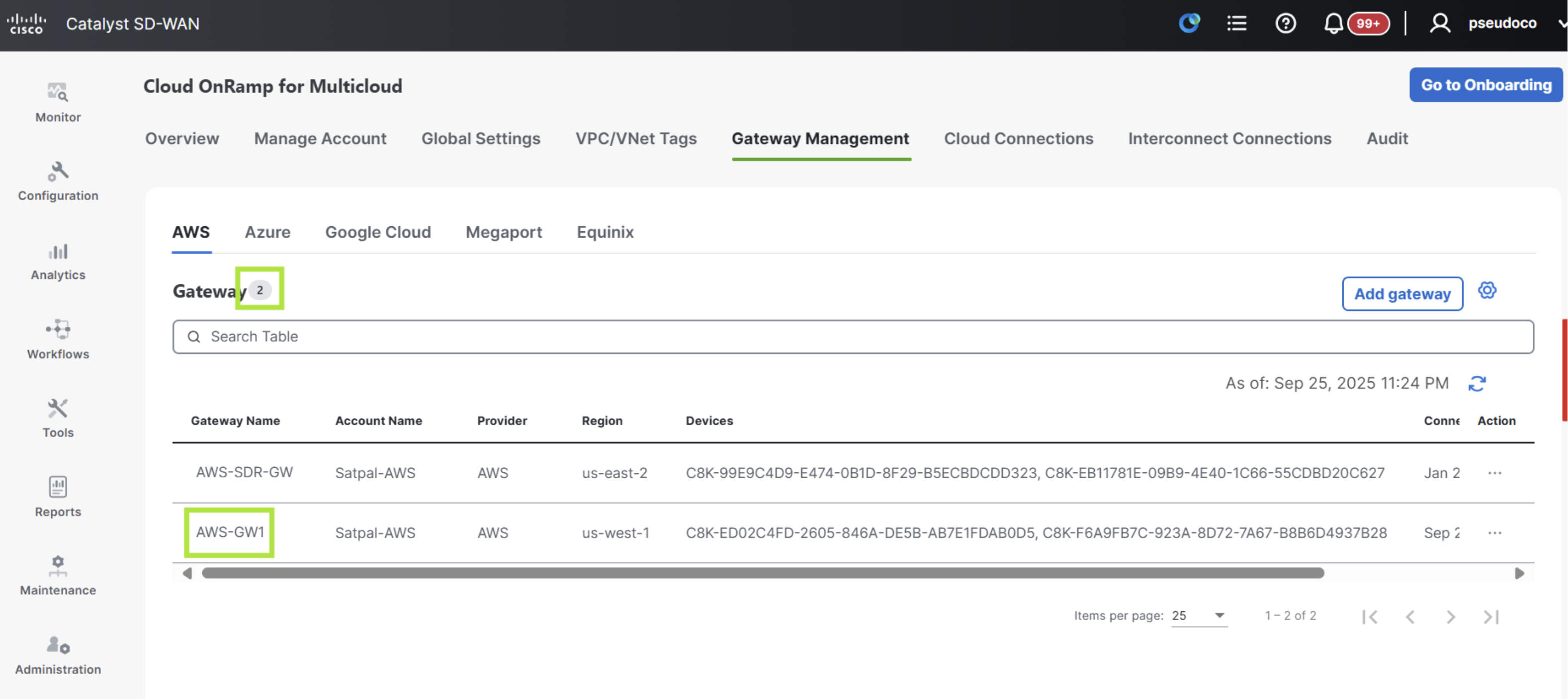
Now navigate to Configuration > Cloud OnRamp > Cloud OnRamp for Multicloud > Gateway Management and note the AWS-GW1 is not present.
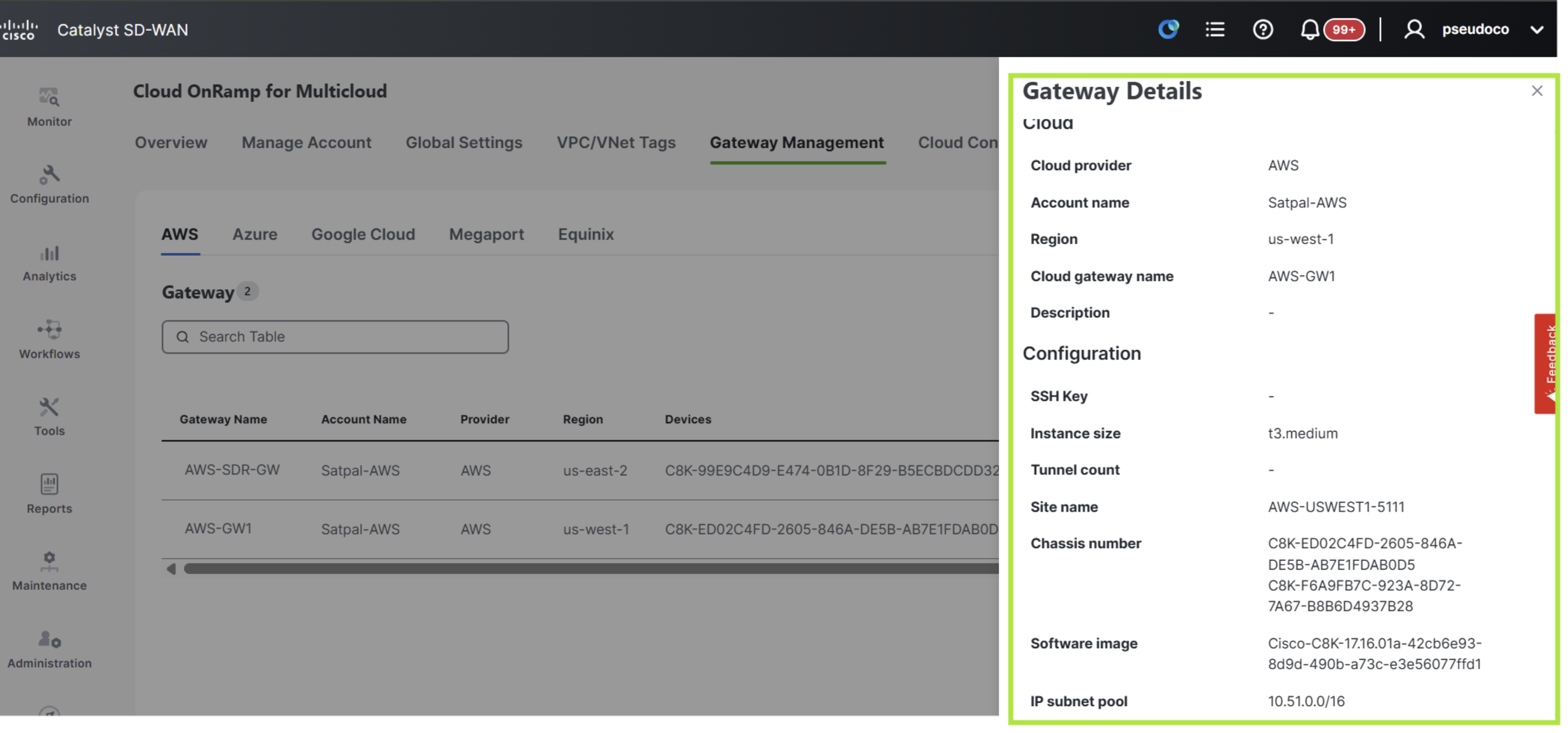
Still on the same page click on the Actions menu and select View to see additional detail about the gateway.
Create AWS Cloud Connection
Navigate to Configuration > Cloud OnRamp > Cloud OnRamp for Multicloud > Cloud Connections > AWS and then click on the blue Edit button on the right.
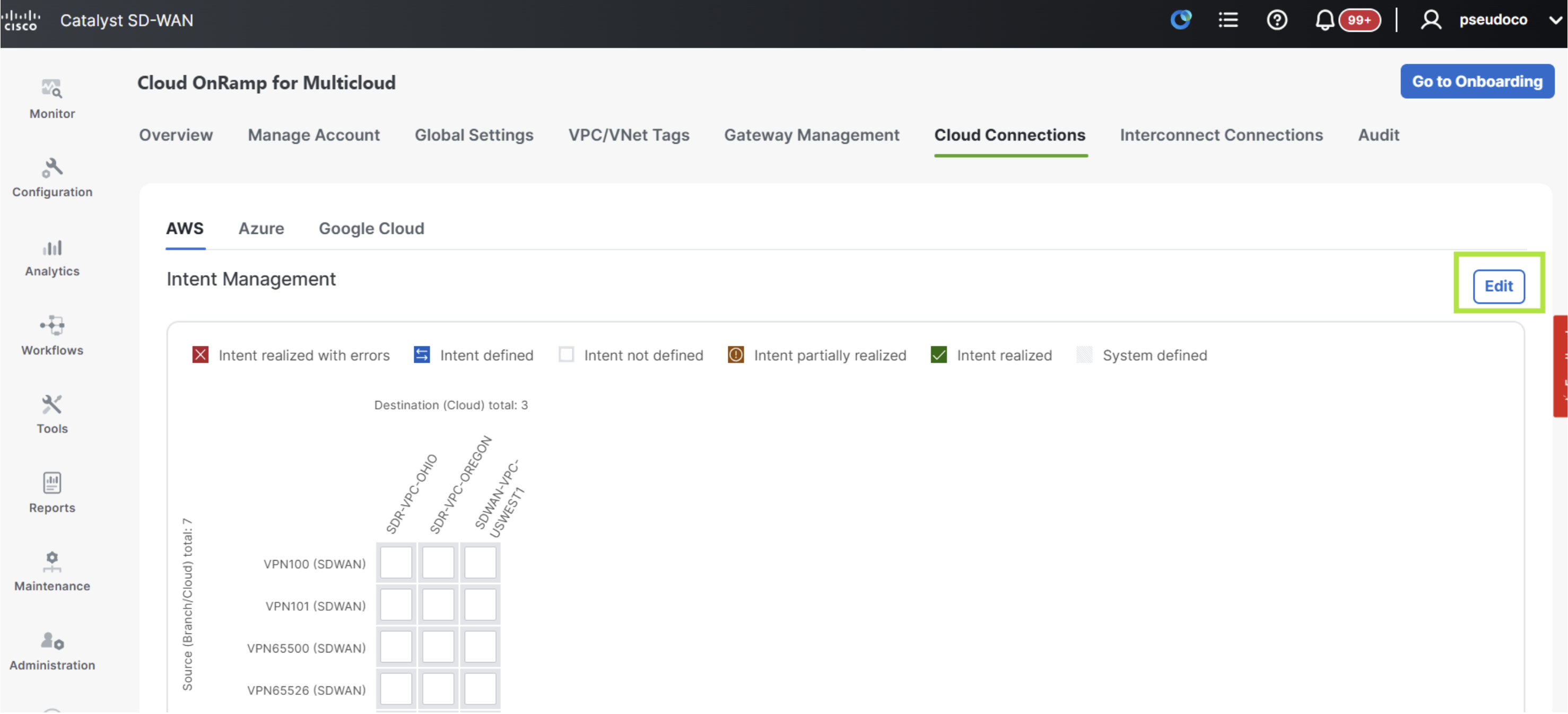
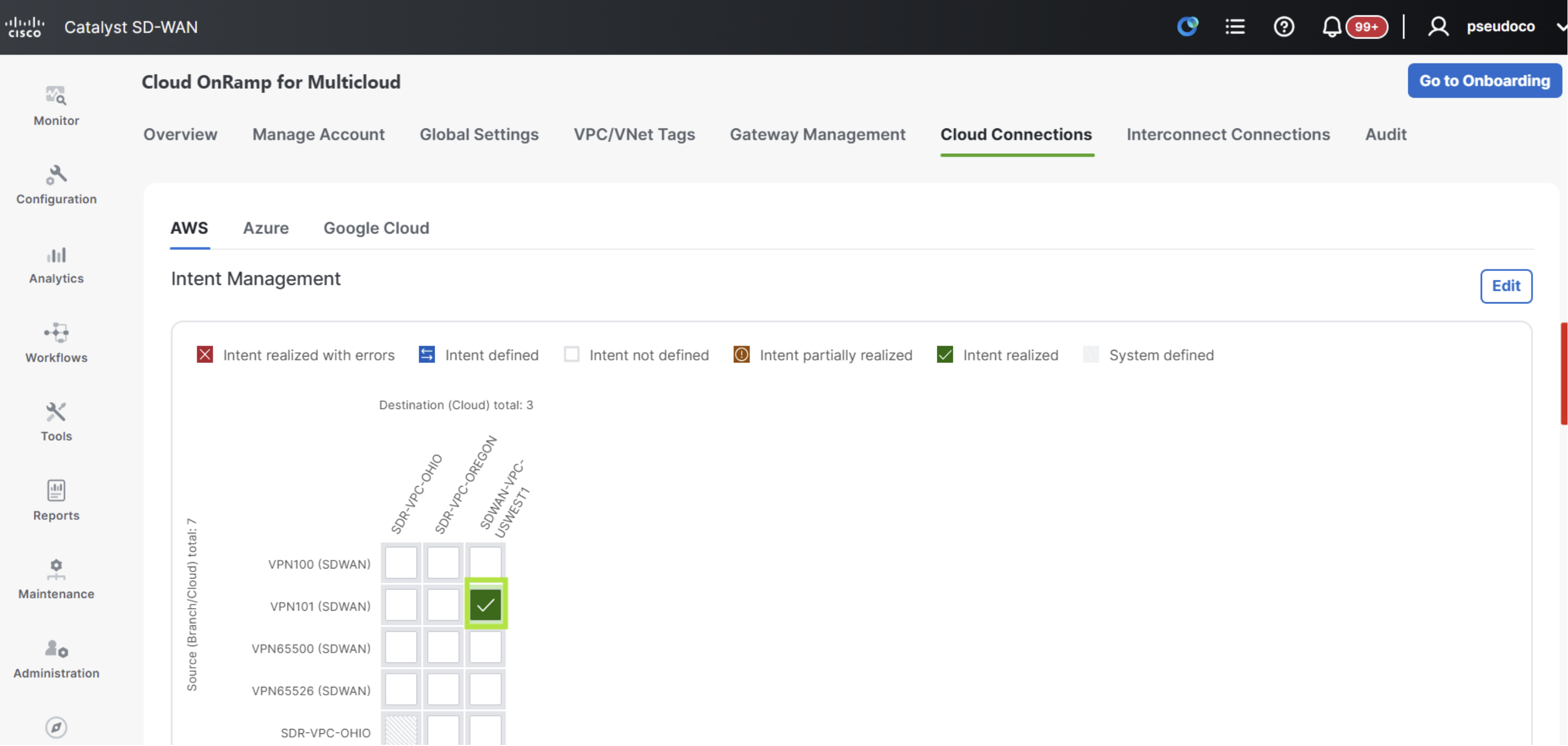
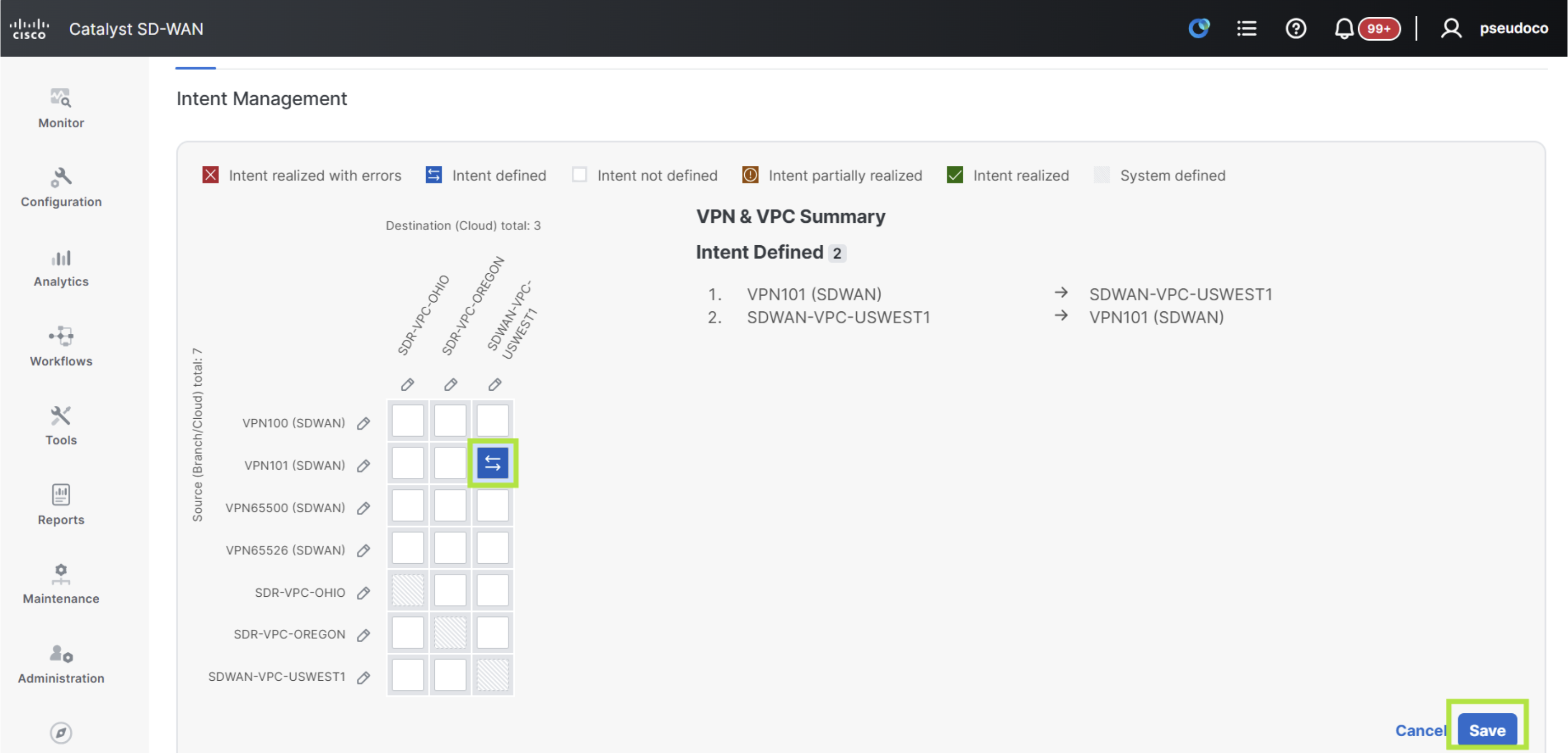
Click on the square within the matrix for VPN101 and SDWAN-VPC as pictured below. Then click on the blue Save button.
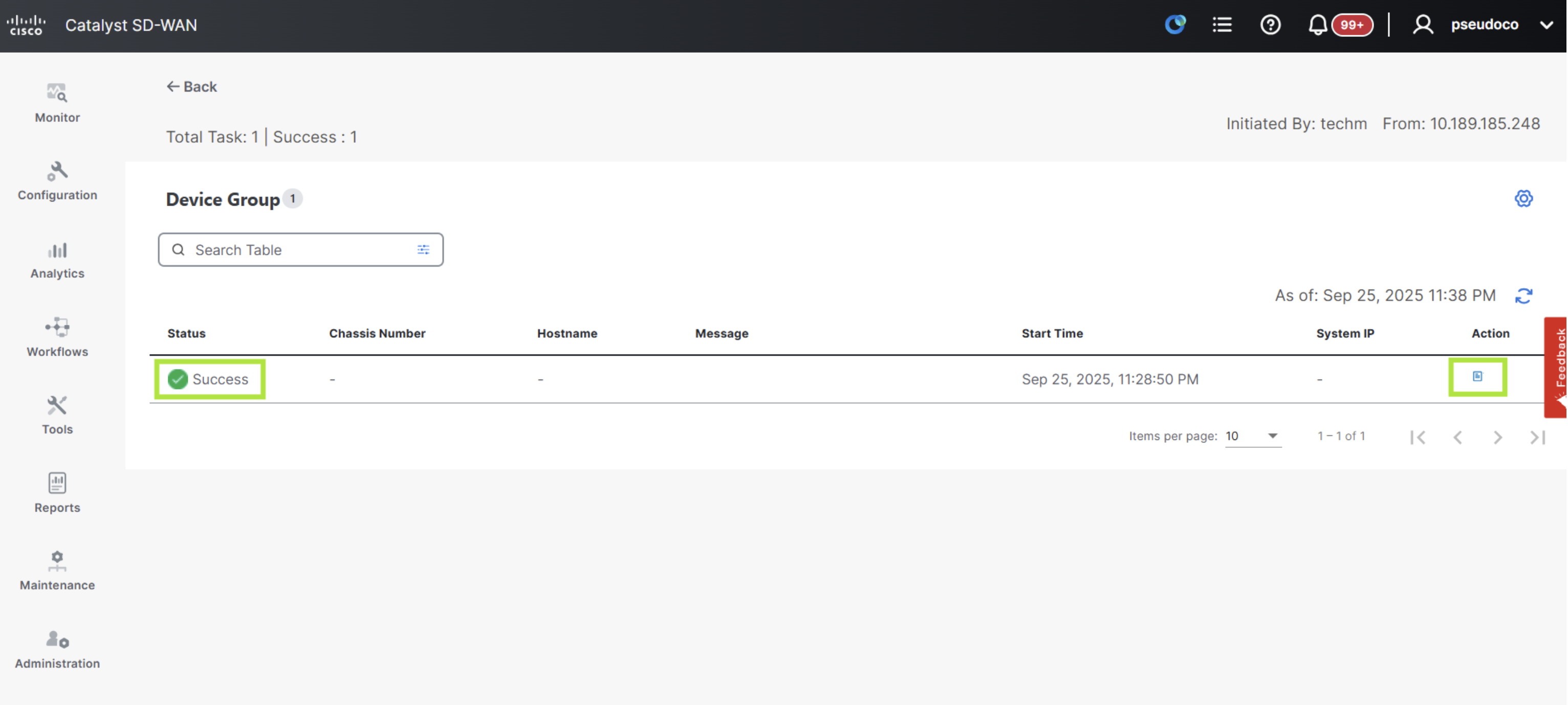
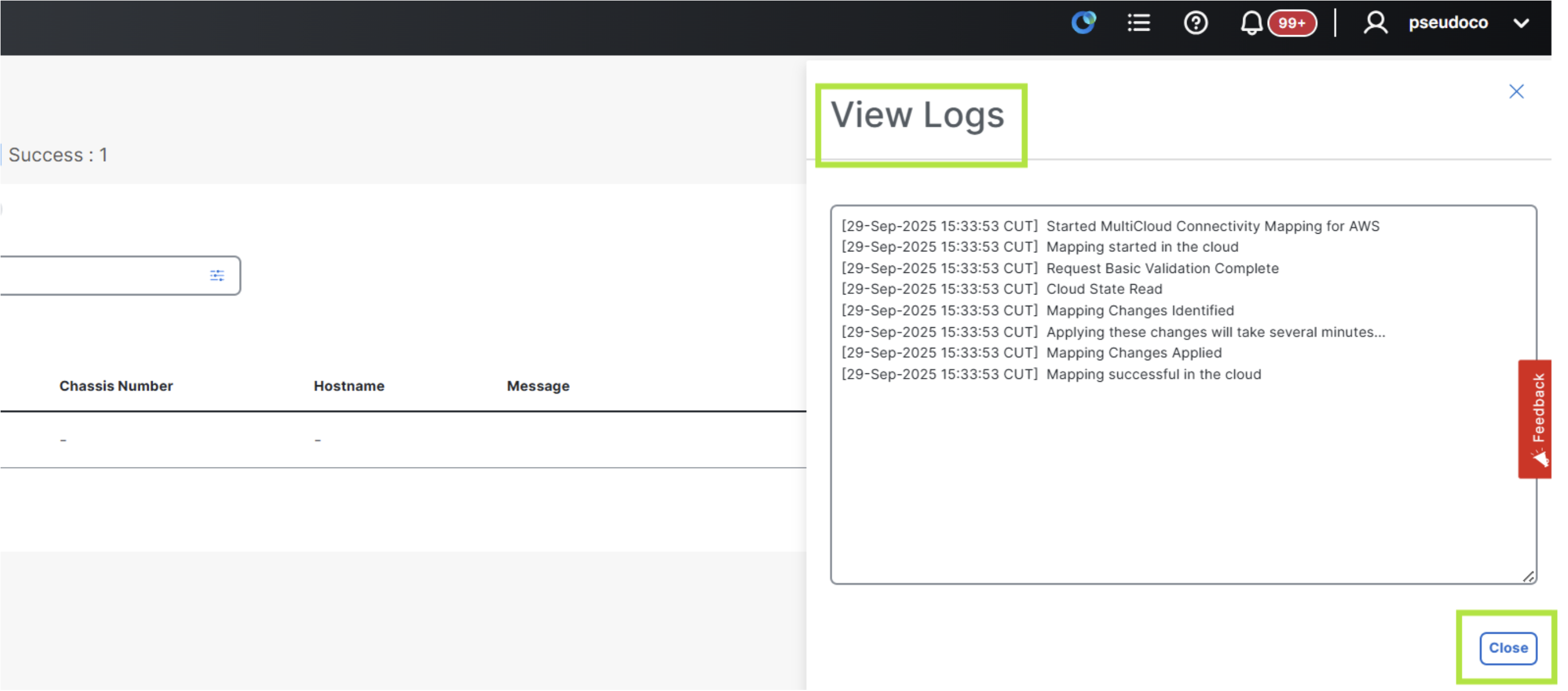
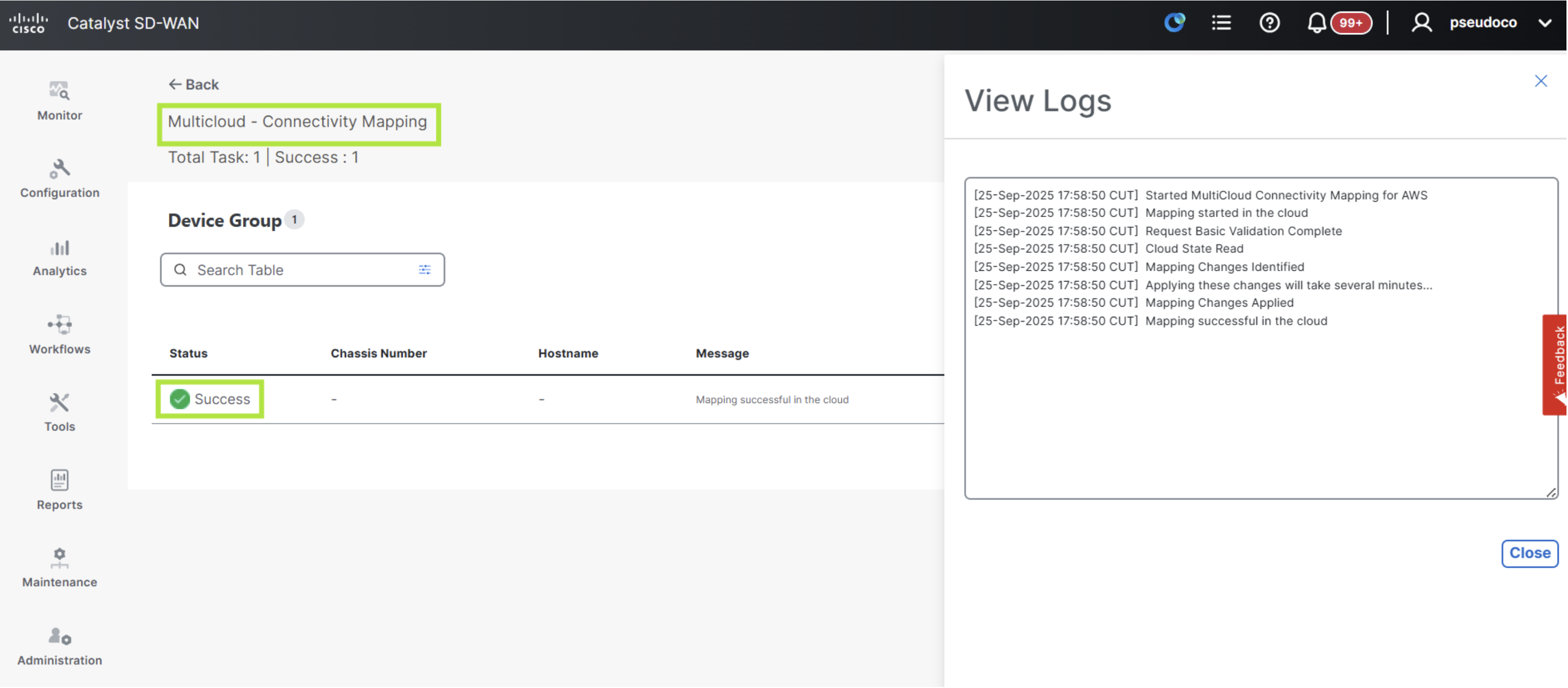
on the resulting page confirm that the task status is Success and then click on the blue icon under Actions on the right to see the logs.
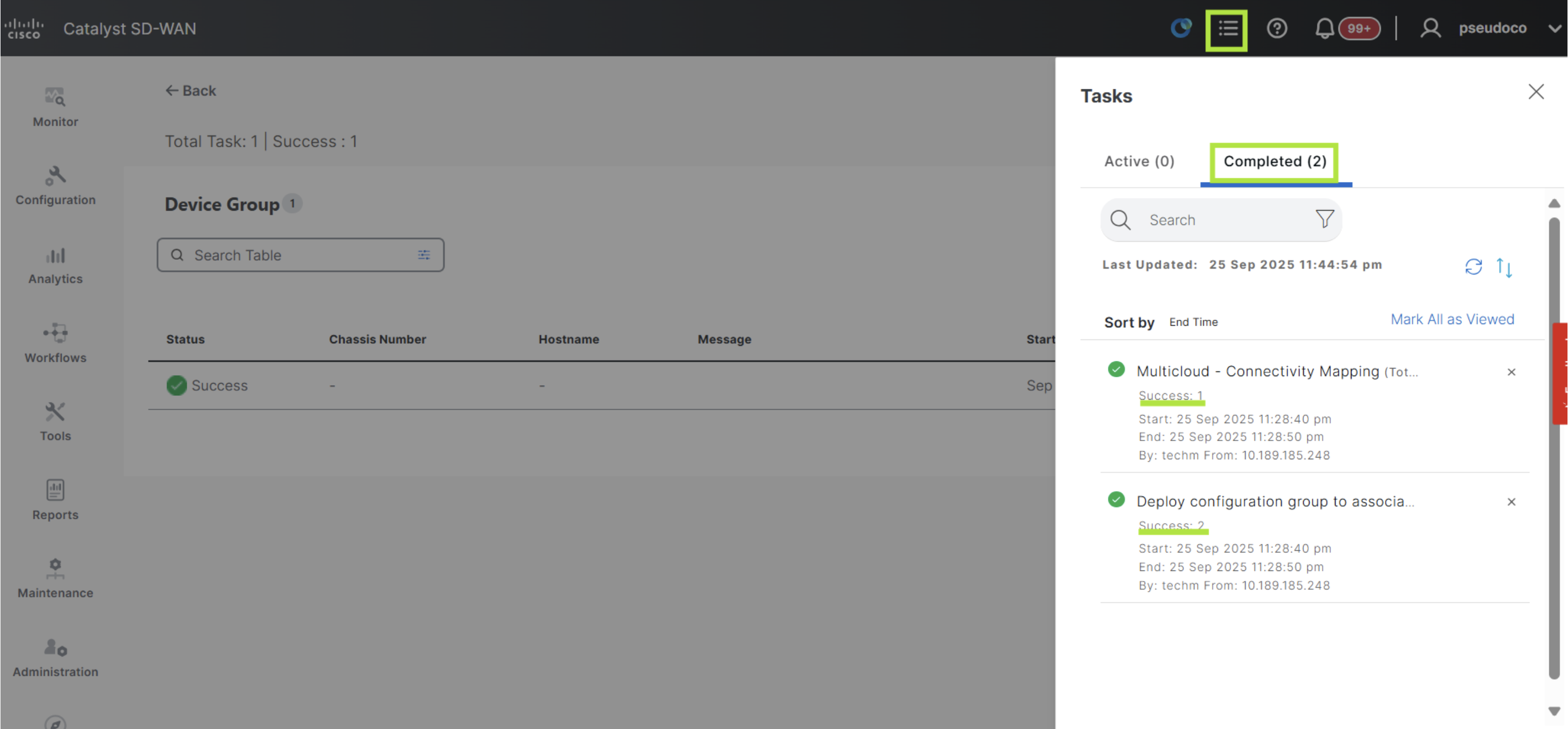
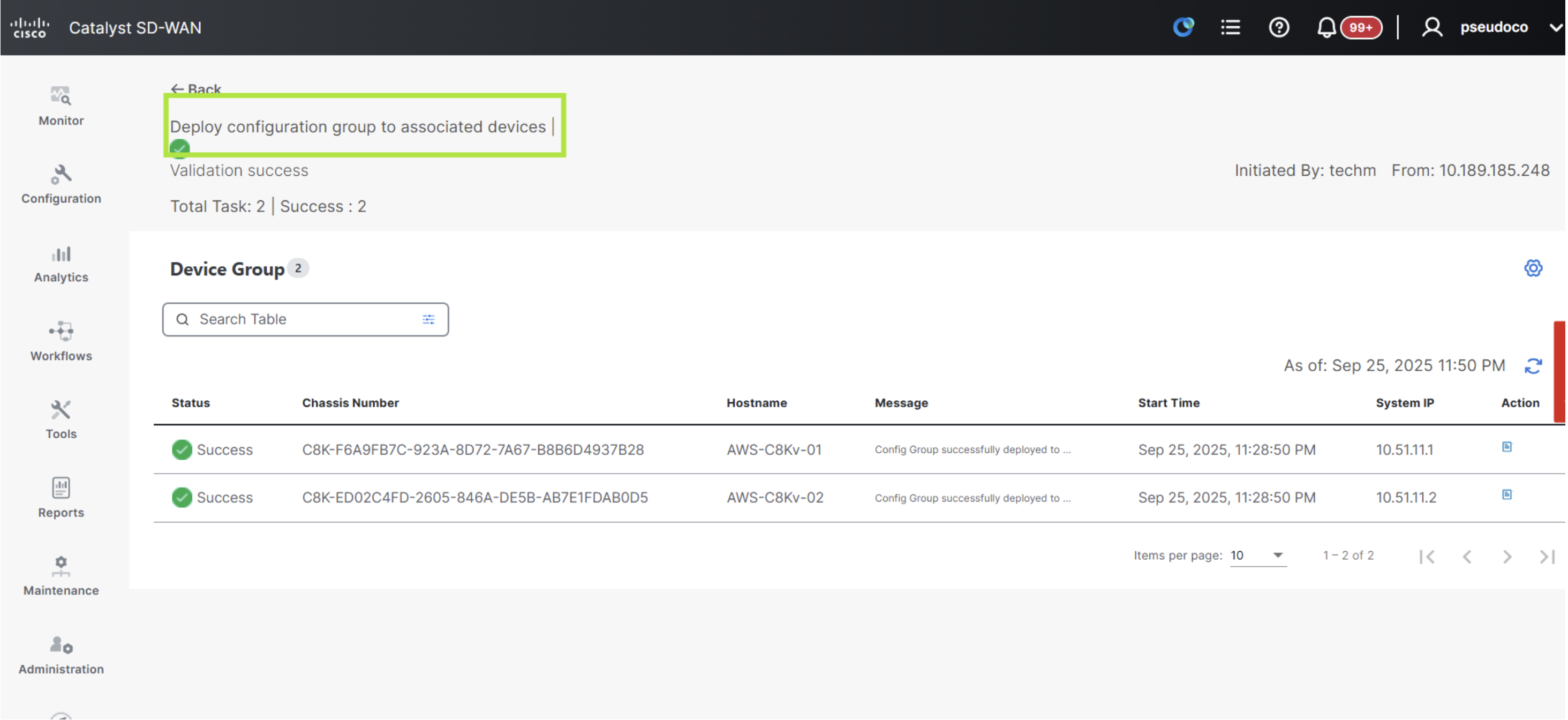
Next click on the thee bars icon in the header of the page to see all the tasks, including the latest one running to deploy the cloud connection. You will observe 2 tasks. Click on each of them to see the further logs if desired.
Verify AWS Cloud Connection
Navigate to Configuration > Cloud OnRamp for MultiCloud > Cloud Connections > AWS and you will observe the cloud connectivity created successfully with a green square in the matrix.