Get Familiar with SD-WAN Manager
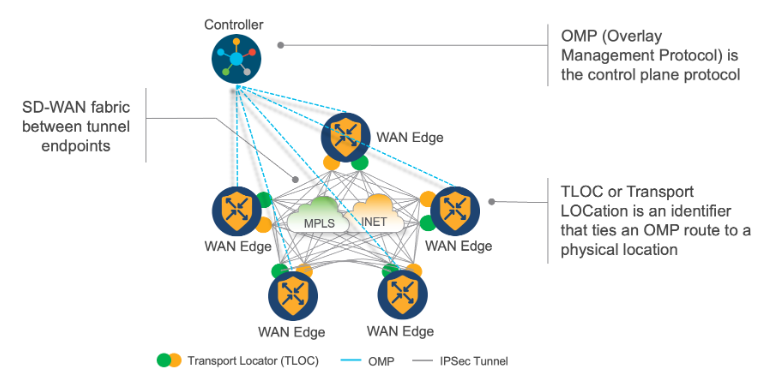
These are the Cisco Catalyst SD-WAN architecture elements:
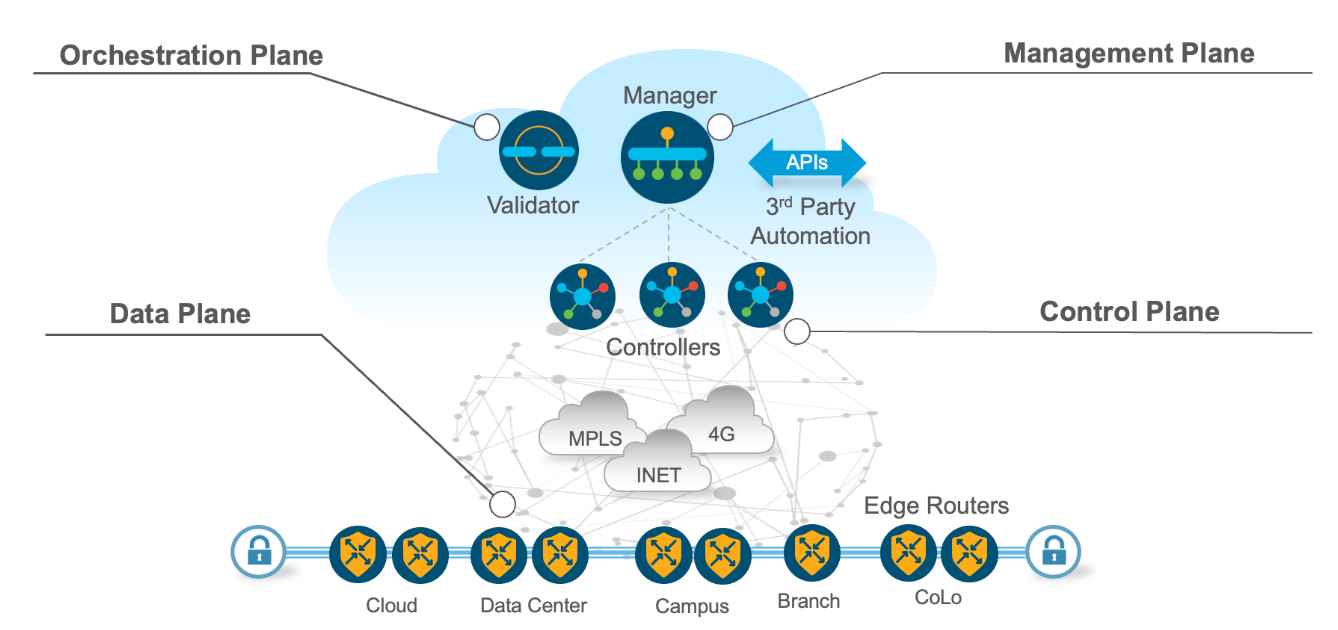
This section provides an overview of the Catalyst SD-WAN dashboard.
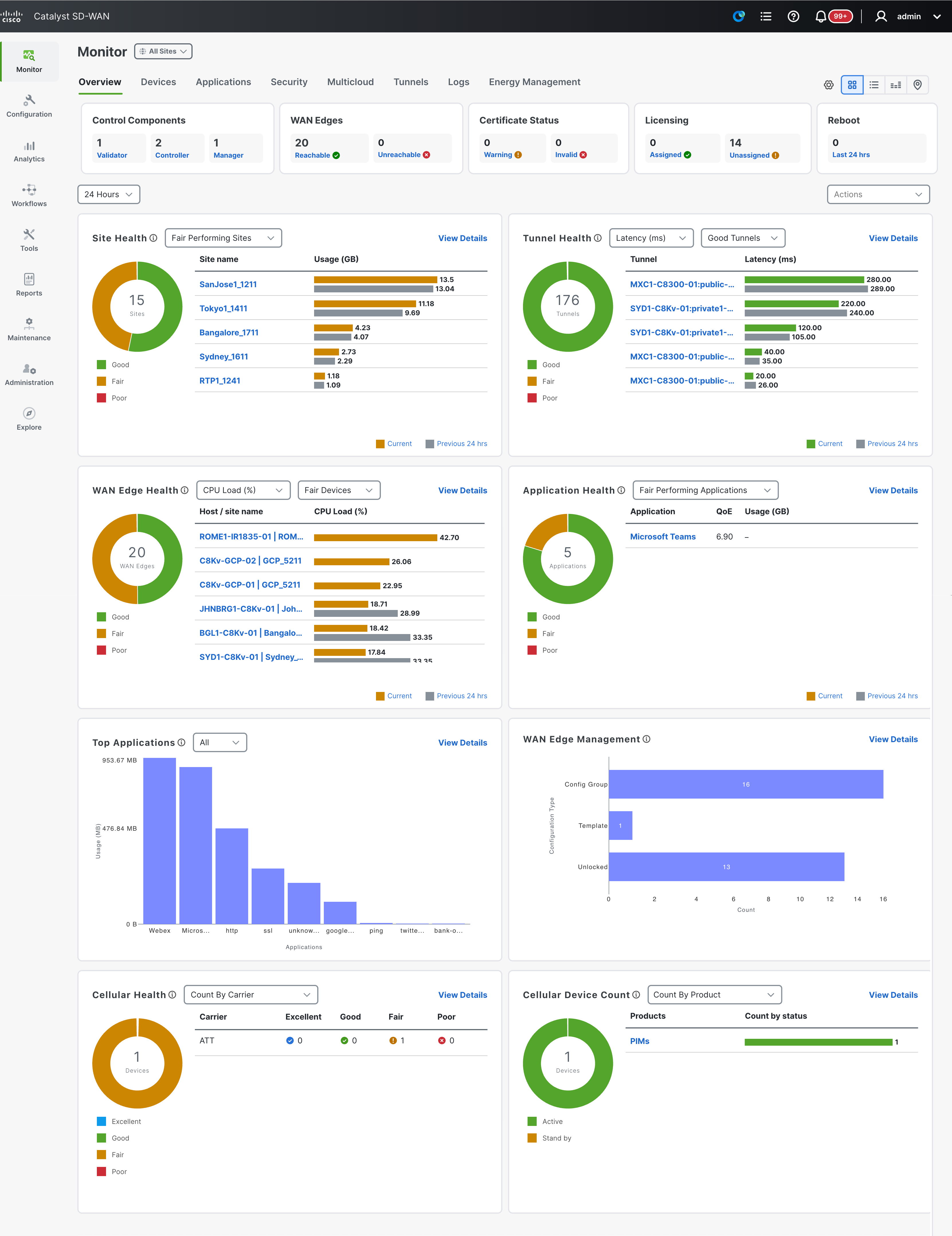
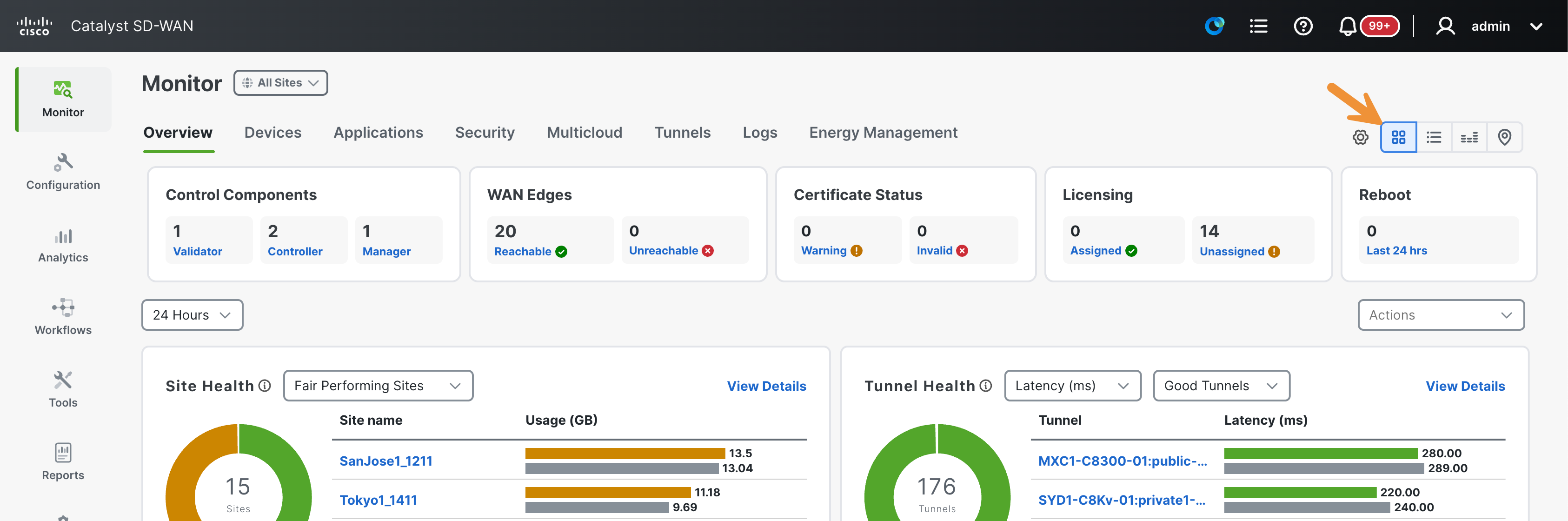
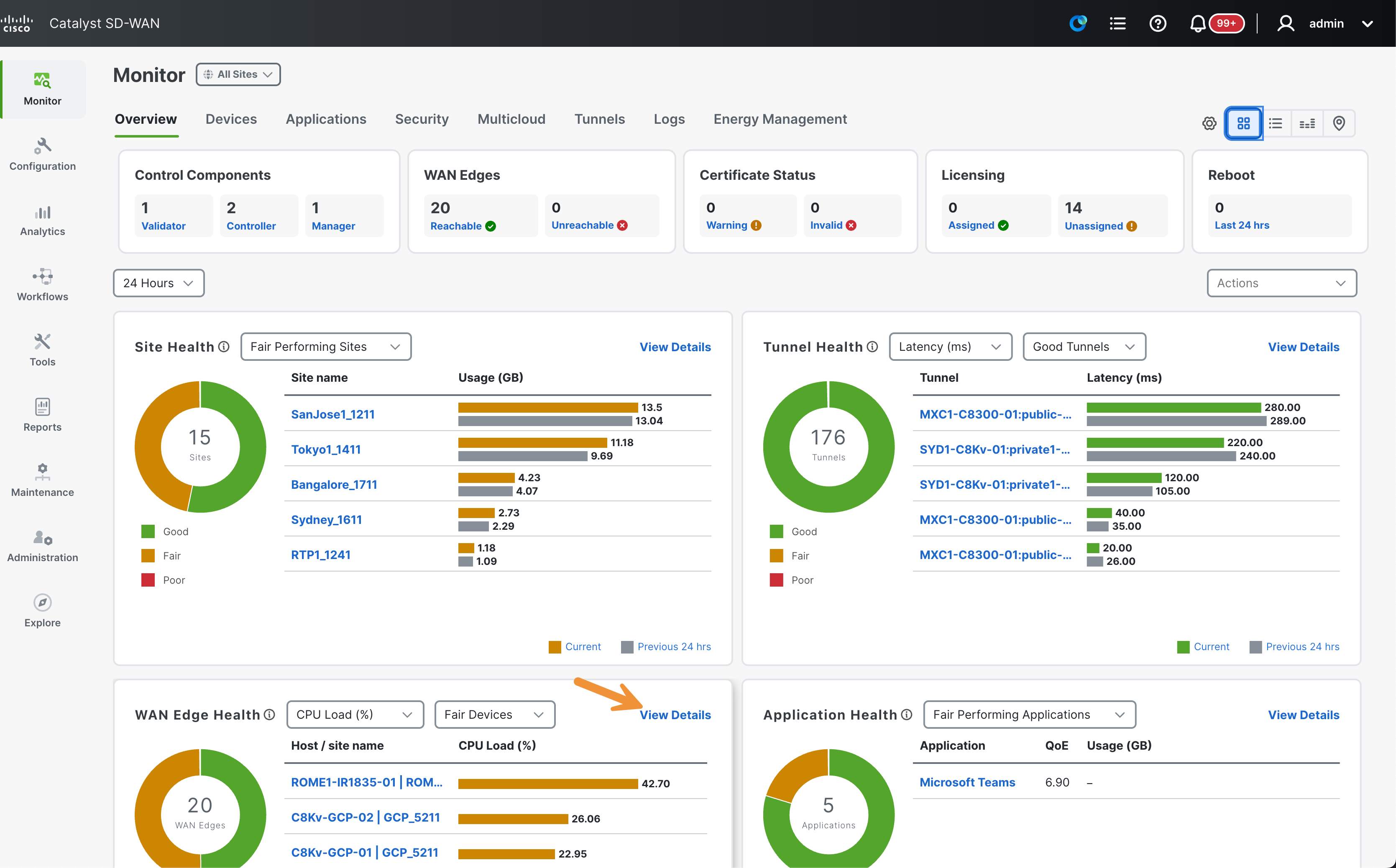
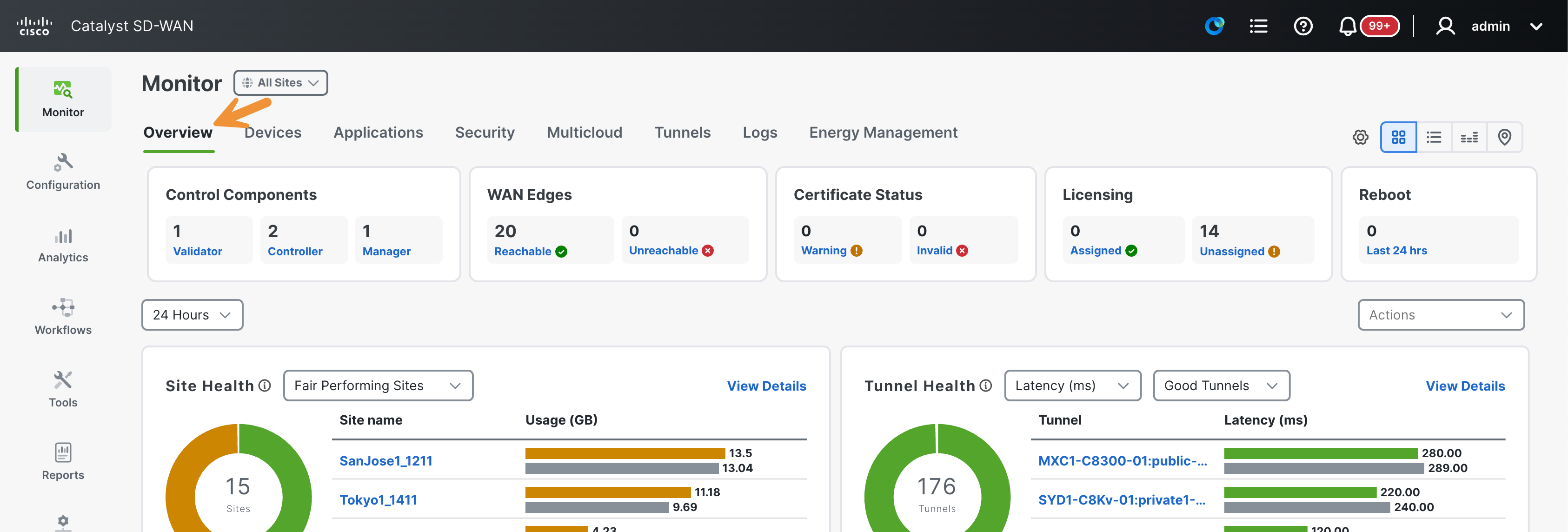
To start exploring, navigate to Monitor > Overview in the Catalyst SD-WAN Manager.

Make sure to take note of the counts for the Validator, Controller, and Manager devices, as well as the Health Scores of the SD-WAN components, such as WAN edges, tunnels, and applications.
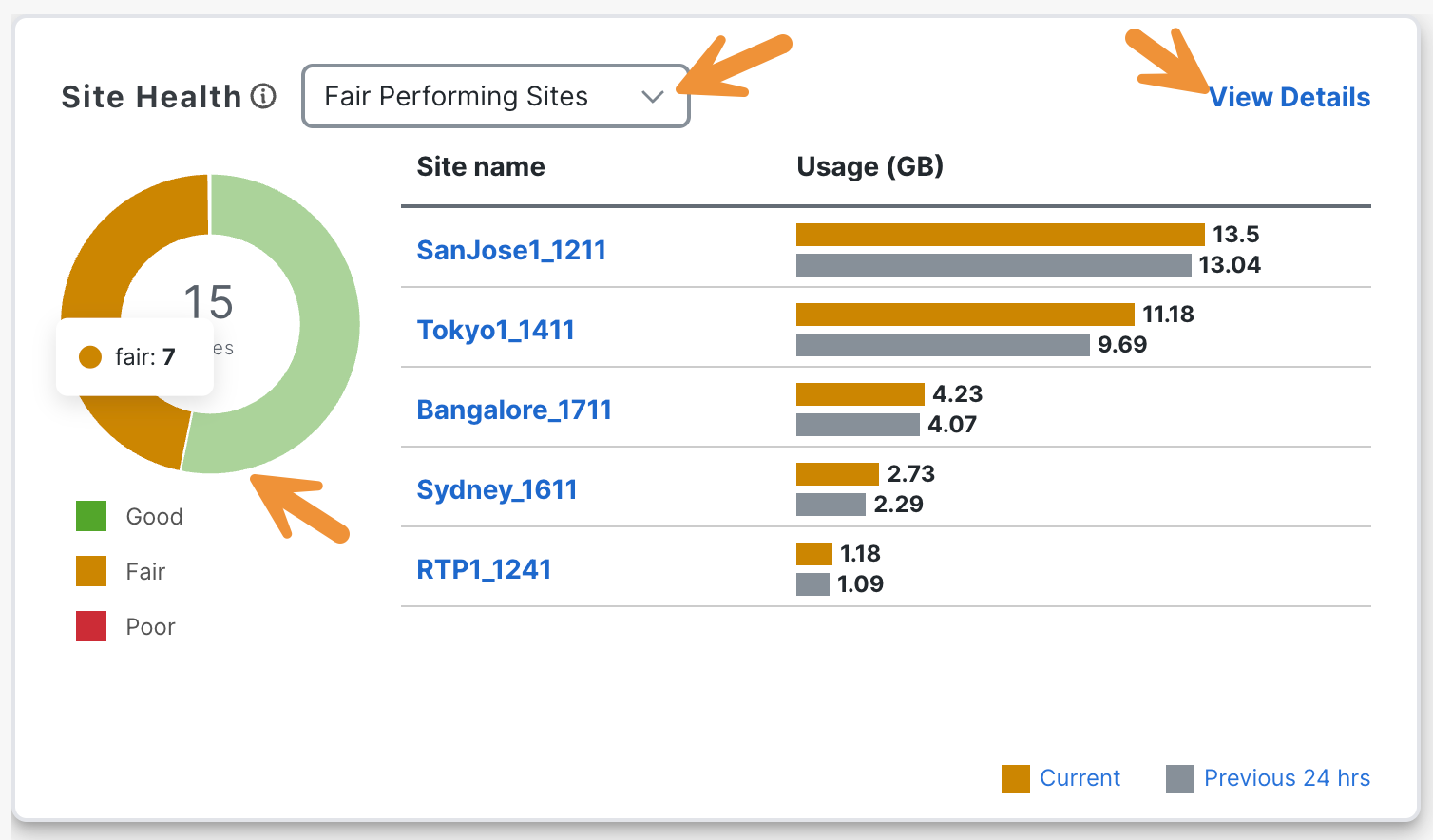
Hover over the graph in the Site Health section to find the number of devices with good, fair or poor performance. Then, click on View Details.
After clicking, a list of all the sites and a scorecard displaying their health statistics will be displayed. You will have the ability to check the health of the sites, devices, tunnels, applications, and application usage.
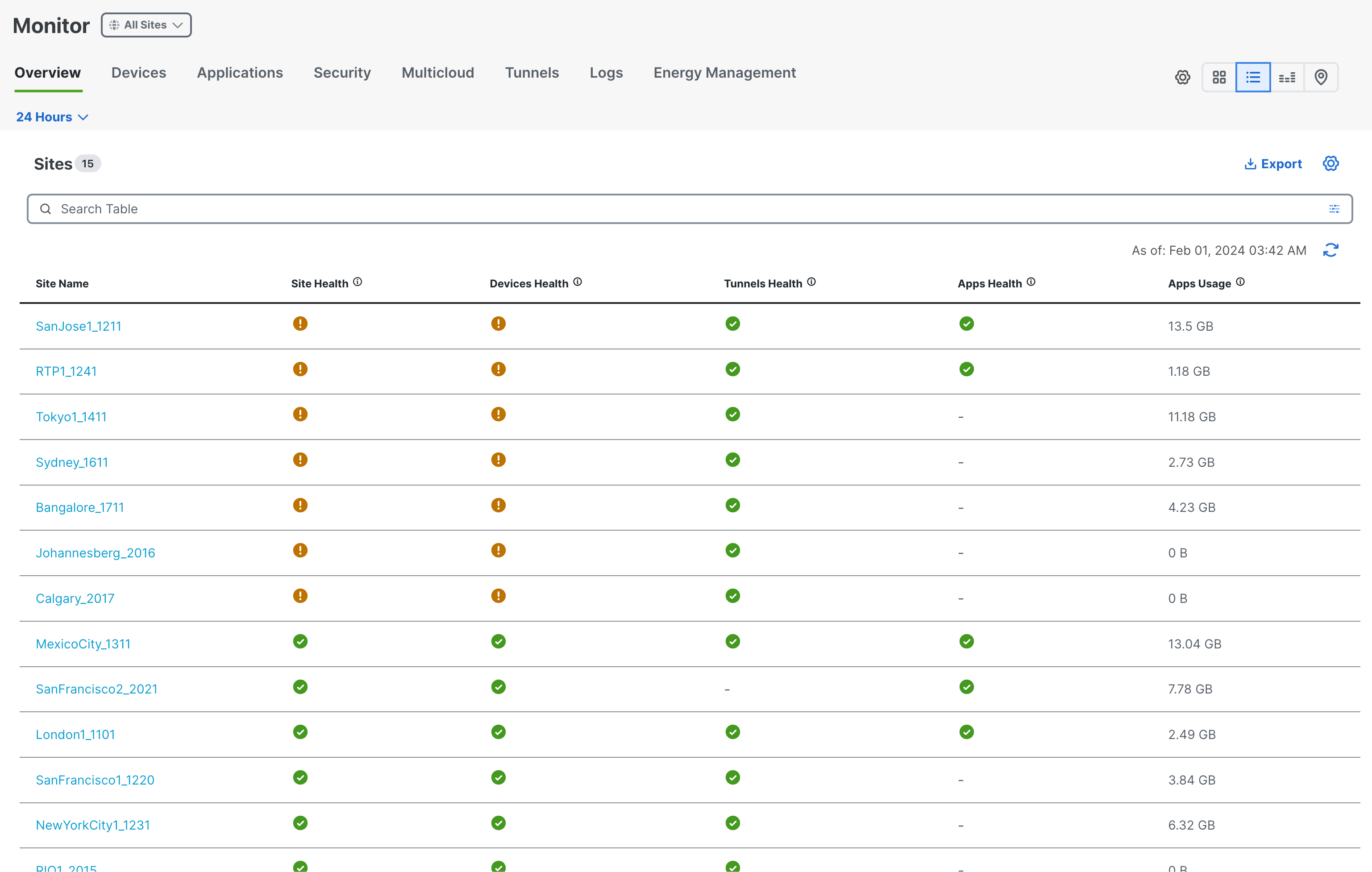
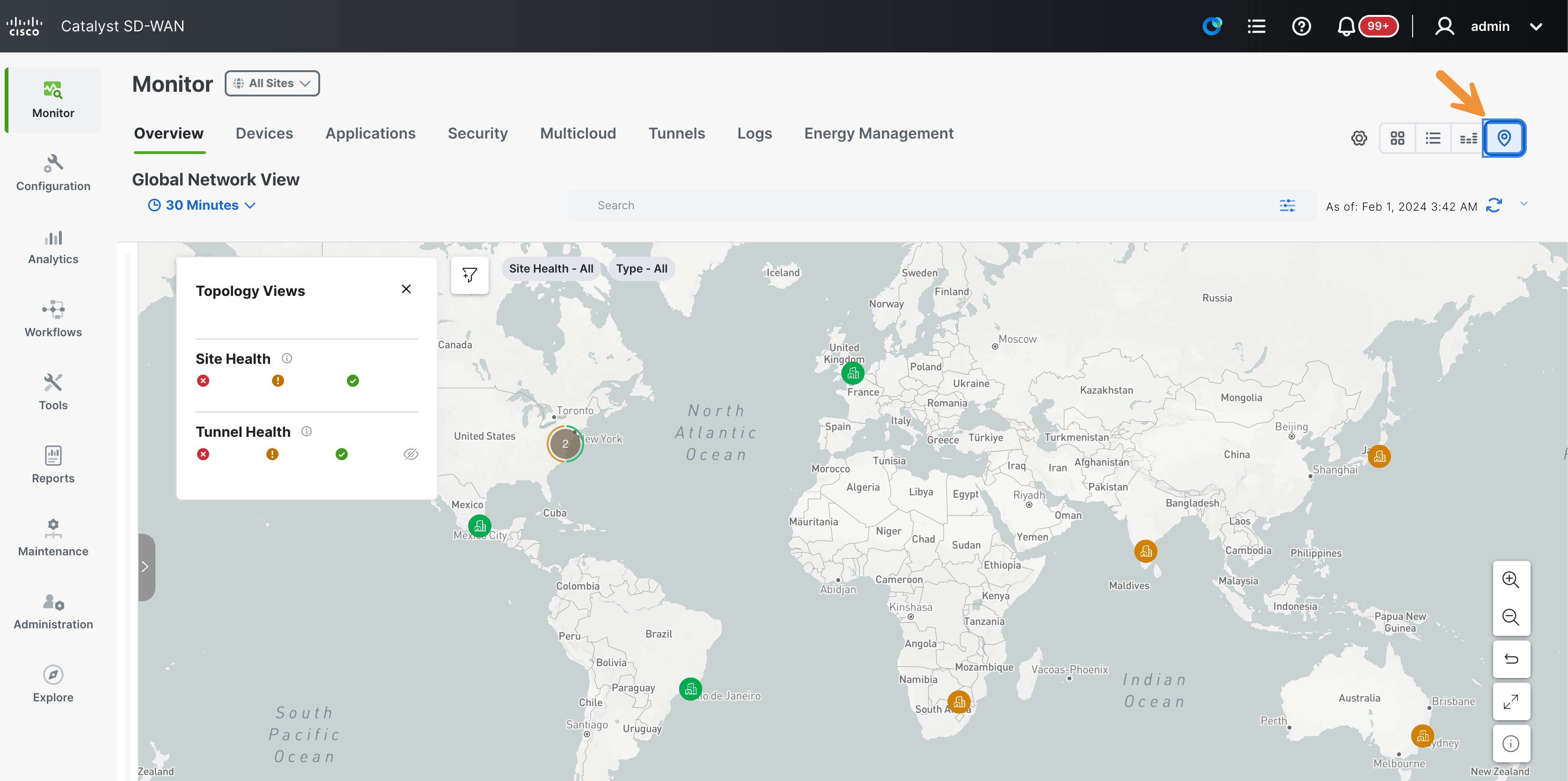
Click on the pin icon (located at the top right corner) to access the global network map.
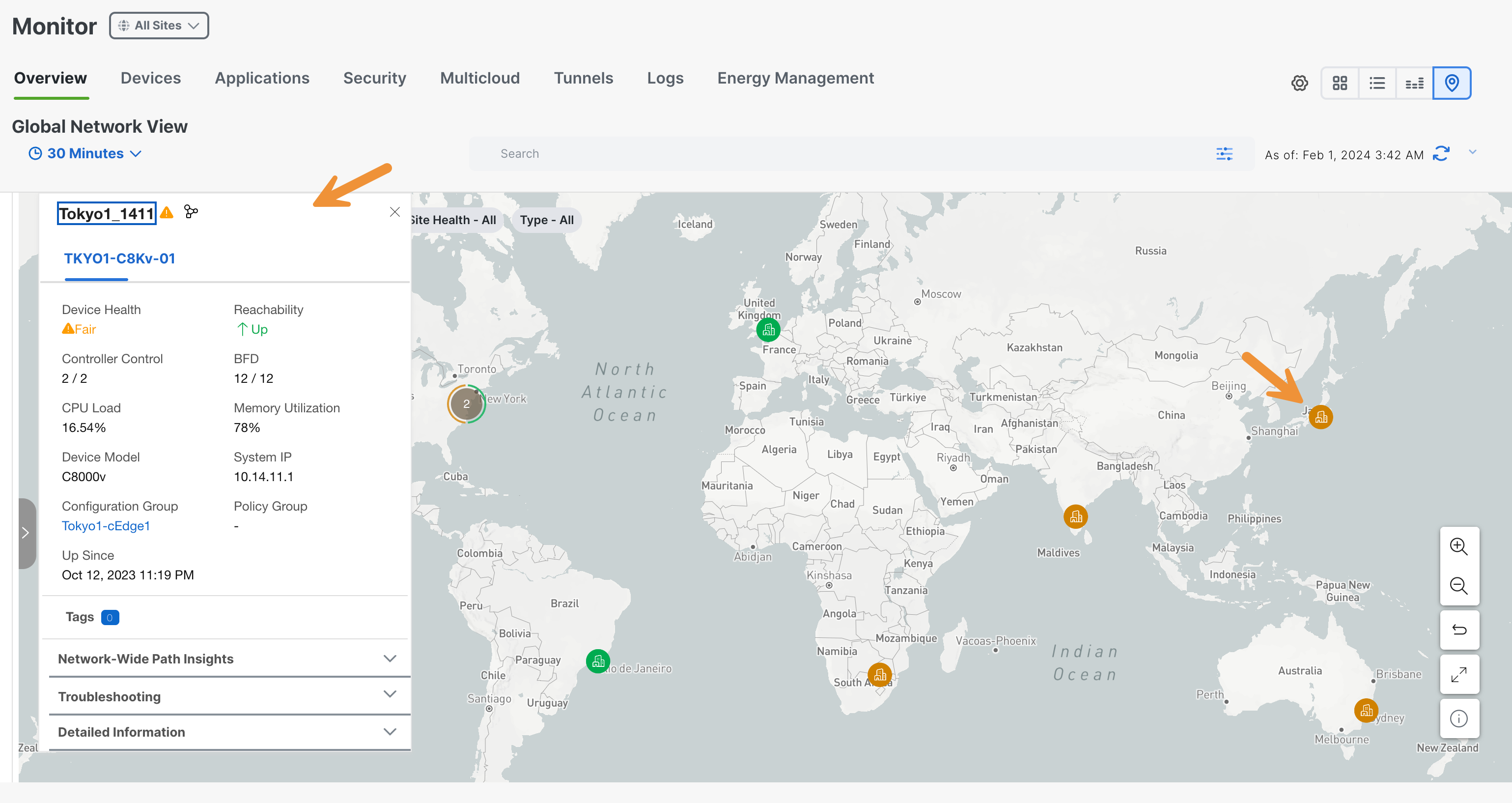
Click on one of the site icons to review a summary of the site and device information. After accessing it, close the window.
Click on the grid icon (located at the top right corner) to return to the overview page.
Click on the View Details option that is located under WAN Edge Health to access more detailed information about the devices and their current status.
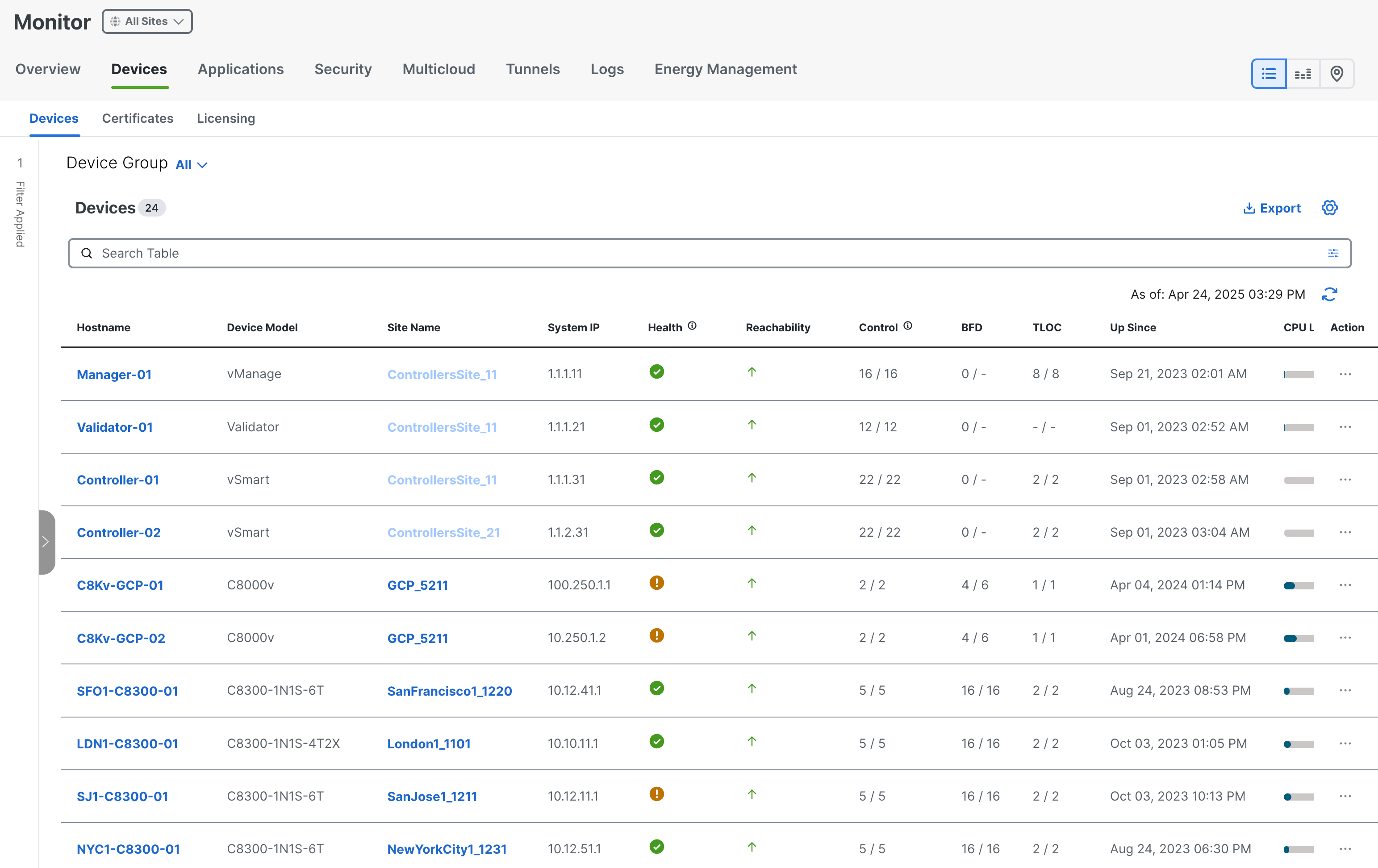
Click on Overview to navigate back to the dashboard landing page.
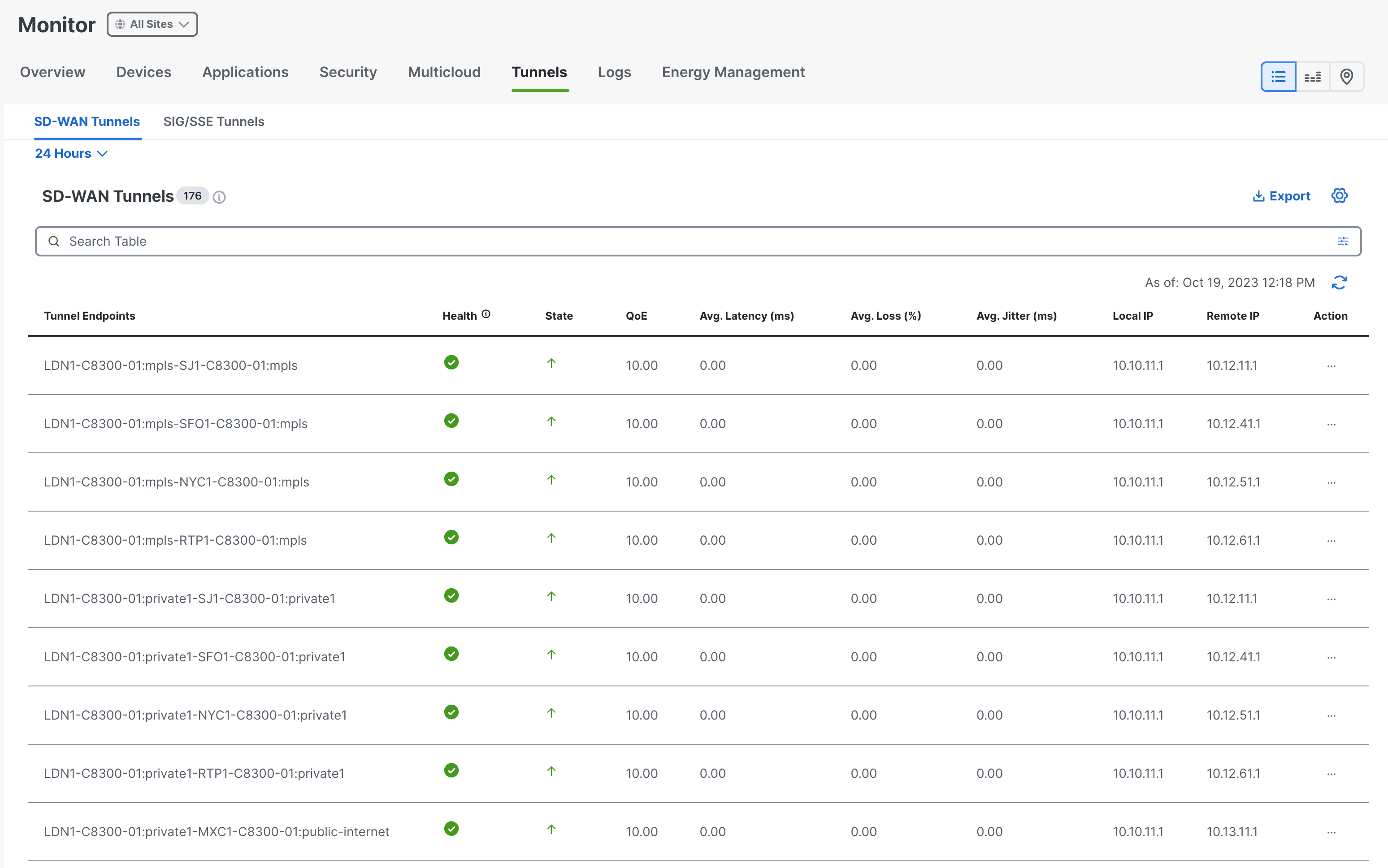
Click on the View Details option that is located under Tunnel Health to access more detailed information about the SD-WAN tunnels and their current status.
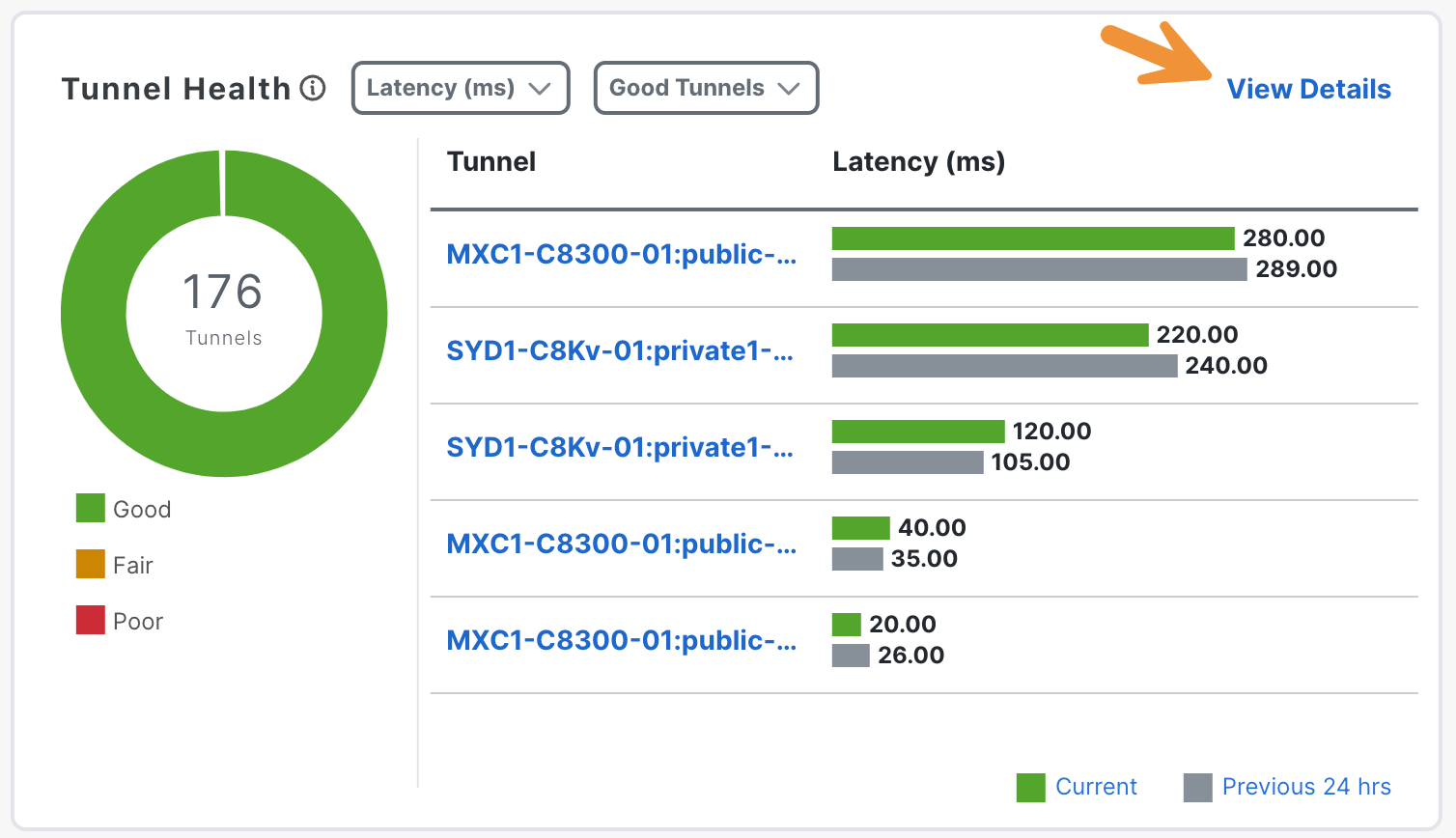
In an SD-WAN network, WAN edge devices establish data tunnels among themselves by default unless a policy changes this behavior.
A list of all the tunnels and a scorecard displaying their statistics will be provided. You will have the ability to review the tunnel endpoints and their respective details such as QoE, latency, loss and jitter.
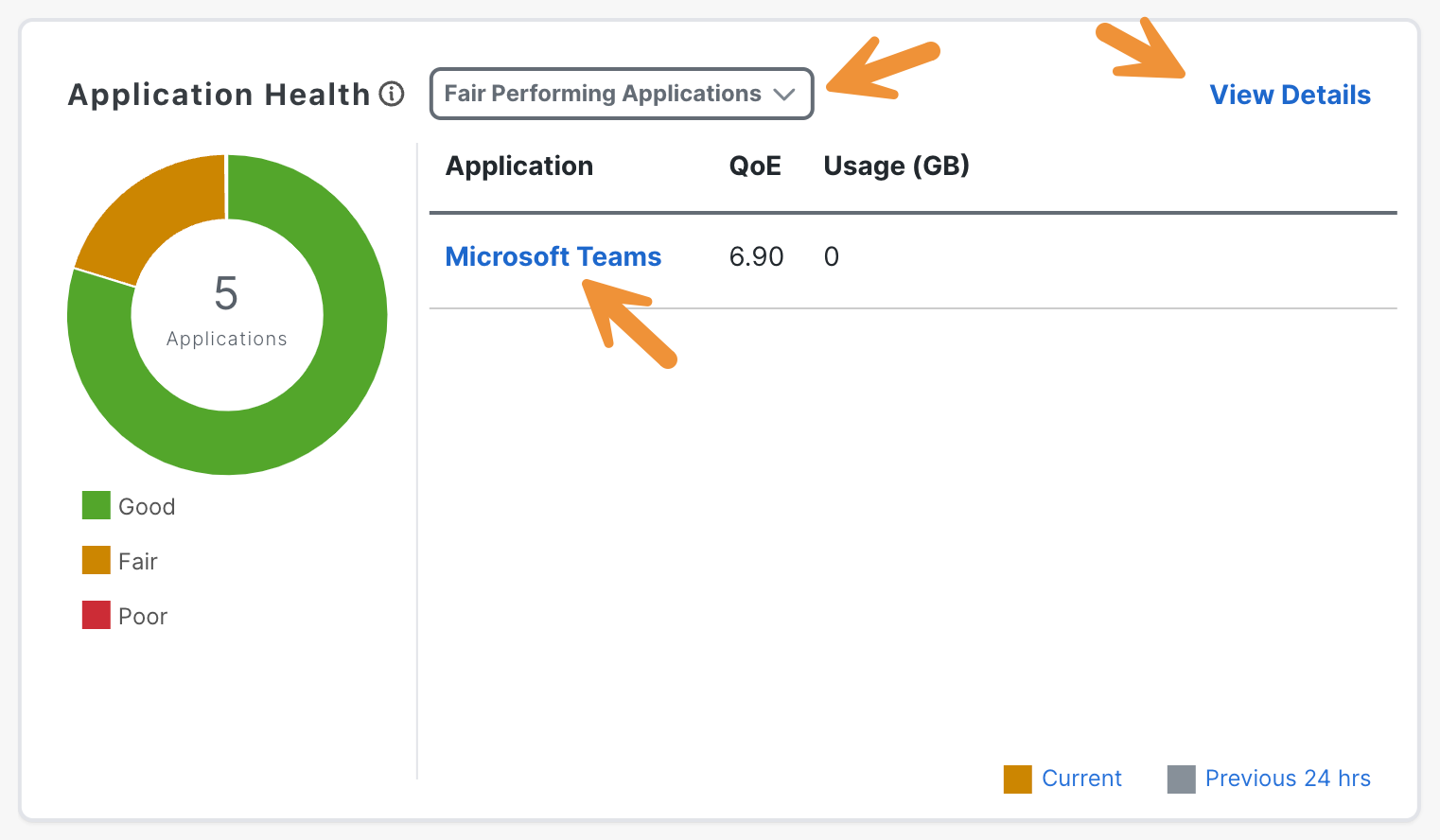
Click on Overview to navigate back to the dashboard landing page. Take a moment to review the graph located under Application Health. From the menu, you can select and explore the applications that have good, fair, or poor performance. Then click on View Details.
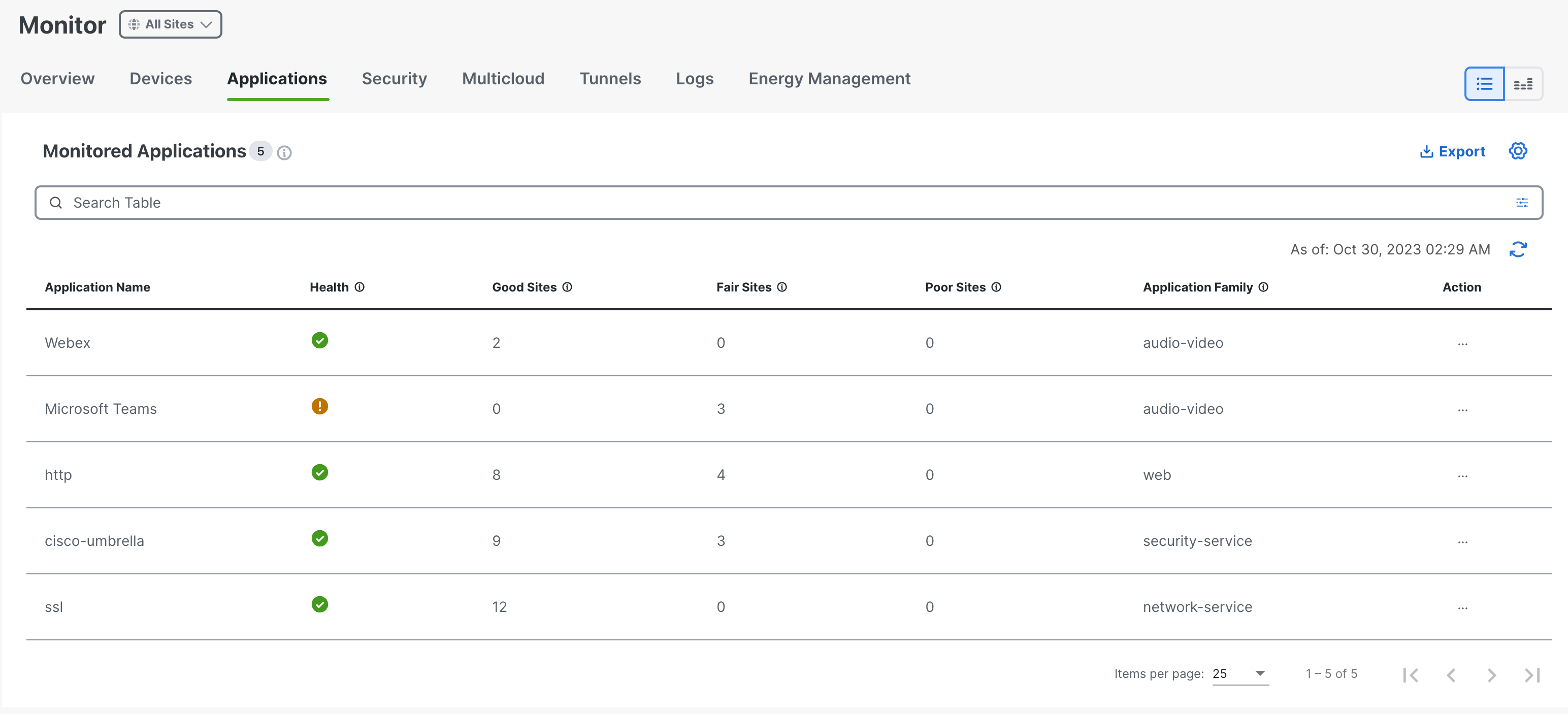
A list of the applications and a scorecard will be provided.
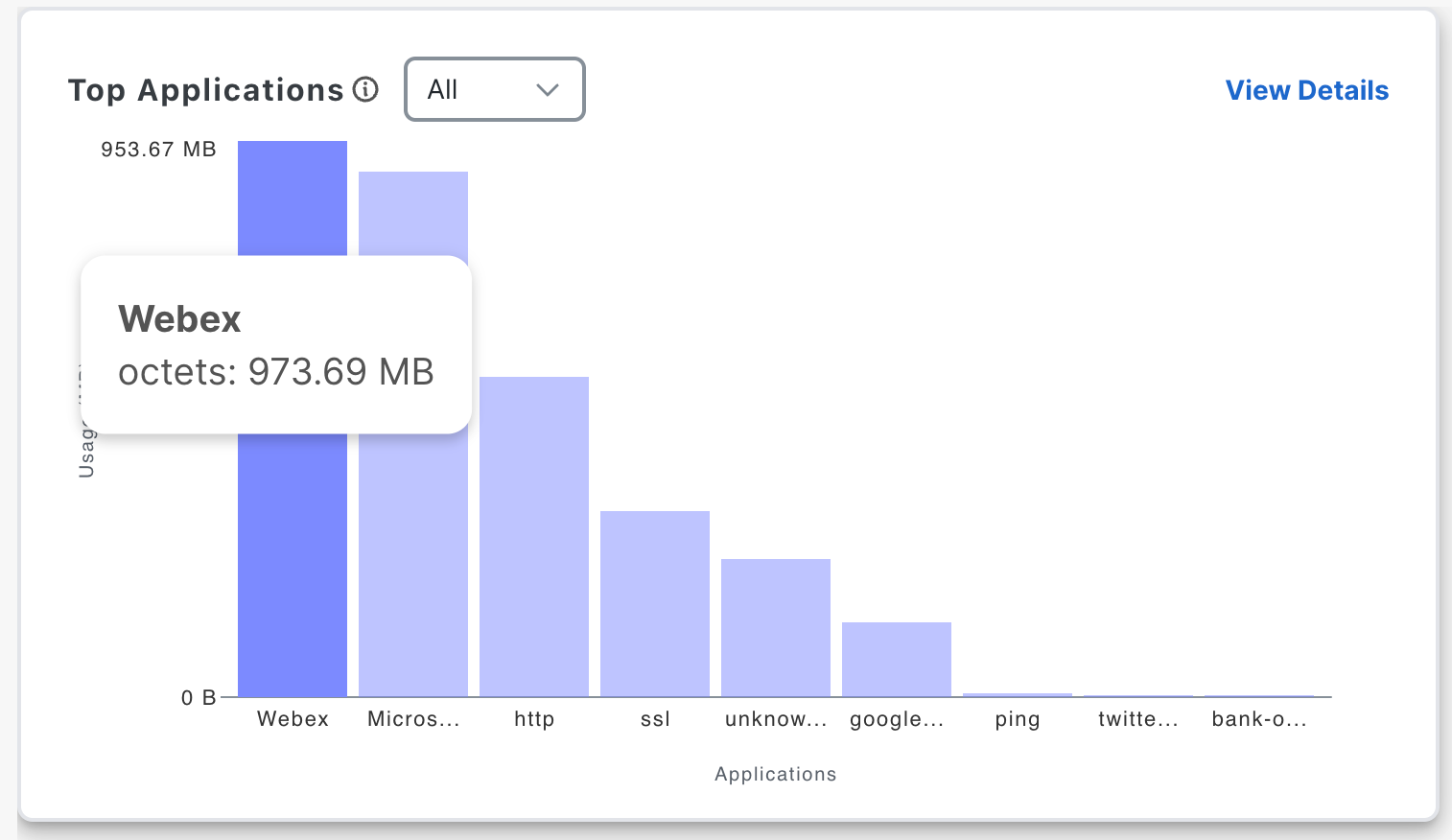
Click on Overview to navigate back to the dashboard landing page. Hover over the graph in the Top Applications section to explore the applications mapped in the SD-WAN fabric.
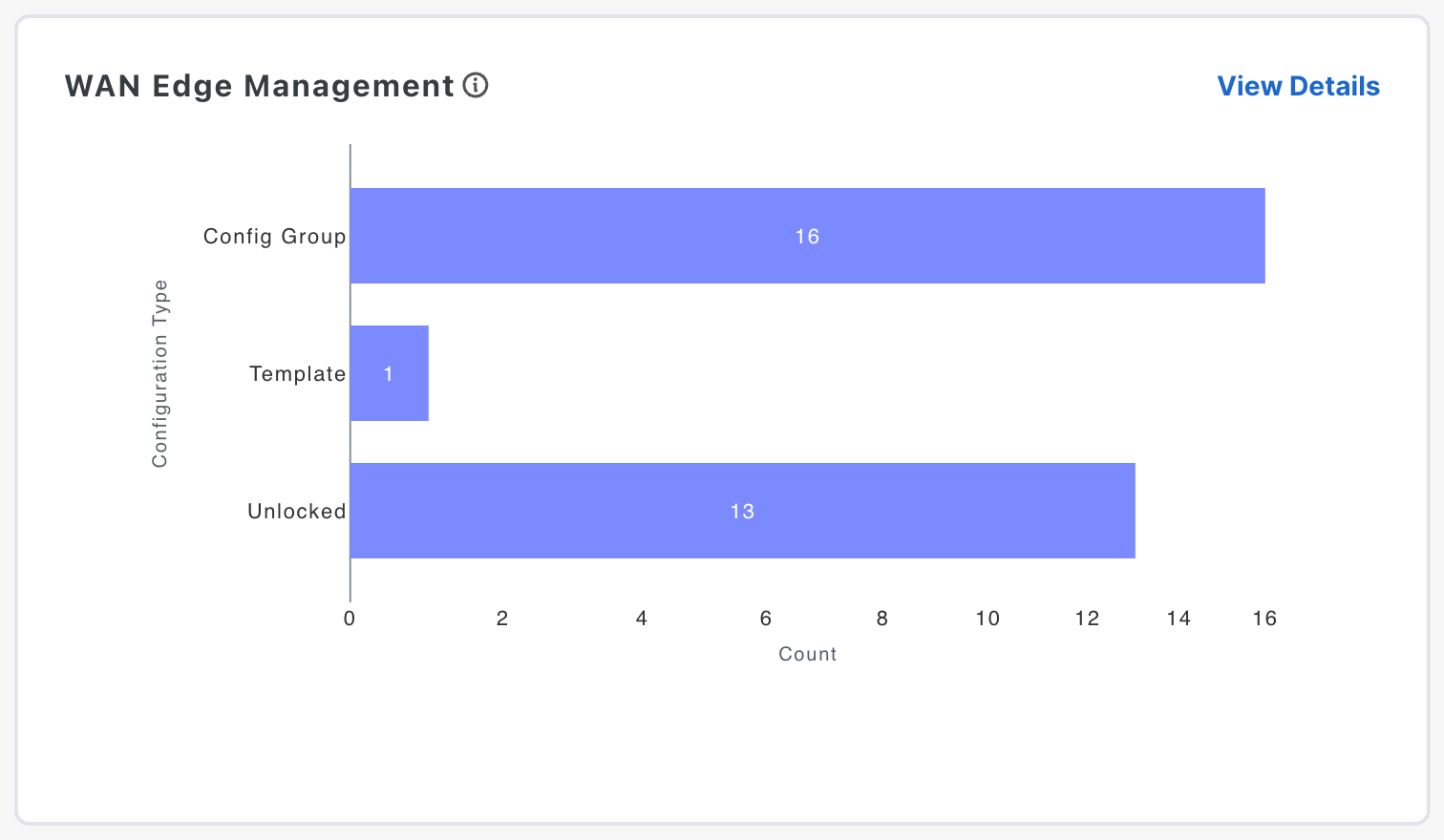
Take a moment to review the graph located under WAN Edge Management. It indicates the number of Configuration Groups and Templates being utilized in the network.
-
Cisco Catalyst SD-WAN has a history of using Device Templates with different Feature Templates that make up the configurations for each WAN Edge device.
-
To address this challenge and simplify the deployment and management of the Catalyst SD-WAN with an intent-based workflow strategy, Cisco has introduced Configuration Groups, also known as UX 2.0.
-
This graph indicates the number of locations that are still utilizing
Templates(legacy configuration type) compared toConfig Groups(new configuration type). This information might be extremely useful for the purpose of template migration.
Configuration Group Overview
A Configuration Group is a logical grouping of features or configurations that are applied to devices. It is similar to a Device Template but can be applied to different models.
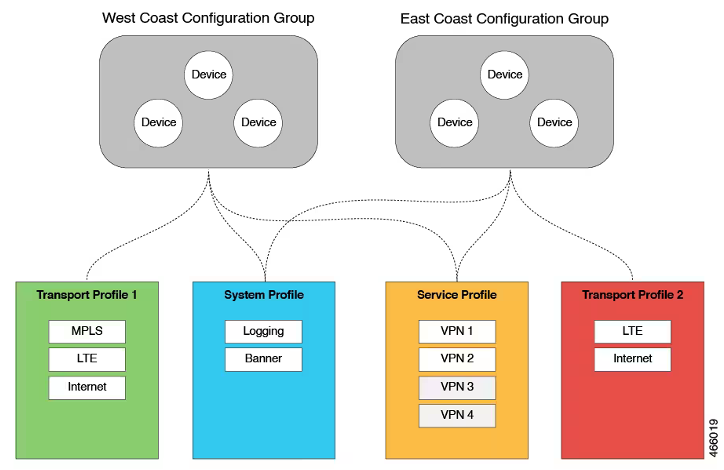
A Feature Profile is a building block of configurations that can be reused across different Configuration Groups. Examples of Feature Profiles are Transport Profile, System Profile, and Service Profile.
A Feature Profile consists of Features. They represent individual capabilities that can be shared across Configuration Groups, such as Service VPN, Transport Interface, Logging, etc.
You can create configuration groups based on your business needs. For example, if your organization operates in North America and has offices and network infrastructure on both the East Coast and the West Coast, you can create two configuration groups - the East Coast Configuration Group and the West Coast Configuration Group.
The figure below illustrates that both the East Coast Configuration Group and the West Coast Configuration Group utilize the same system profile and service profile. However, the transport profile differs between the two groups.
Please note that Configuration Groups only support IOS-XE based devices in either Controller (SD-WAN) or Autonomous Mode (SD-Routing). A device can be attached to either a Configuration Group or a legacy Device Template, but not both simultaneously.
To begin your exploration, navigate to Configuration > Configuration Groups.
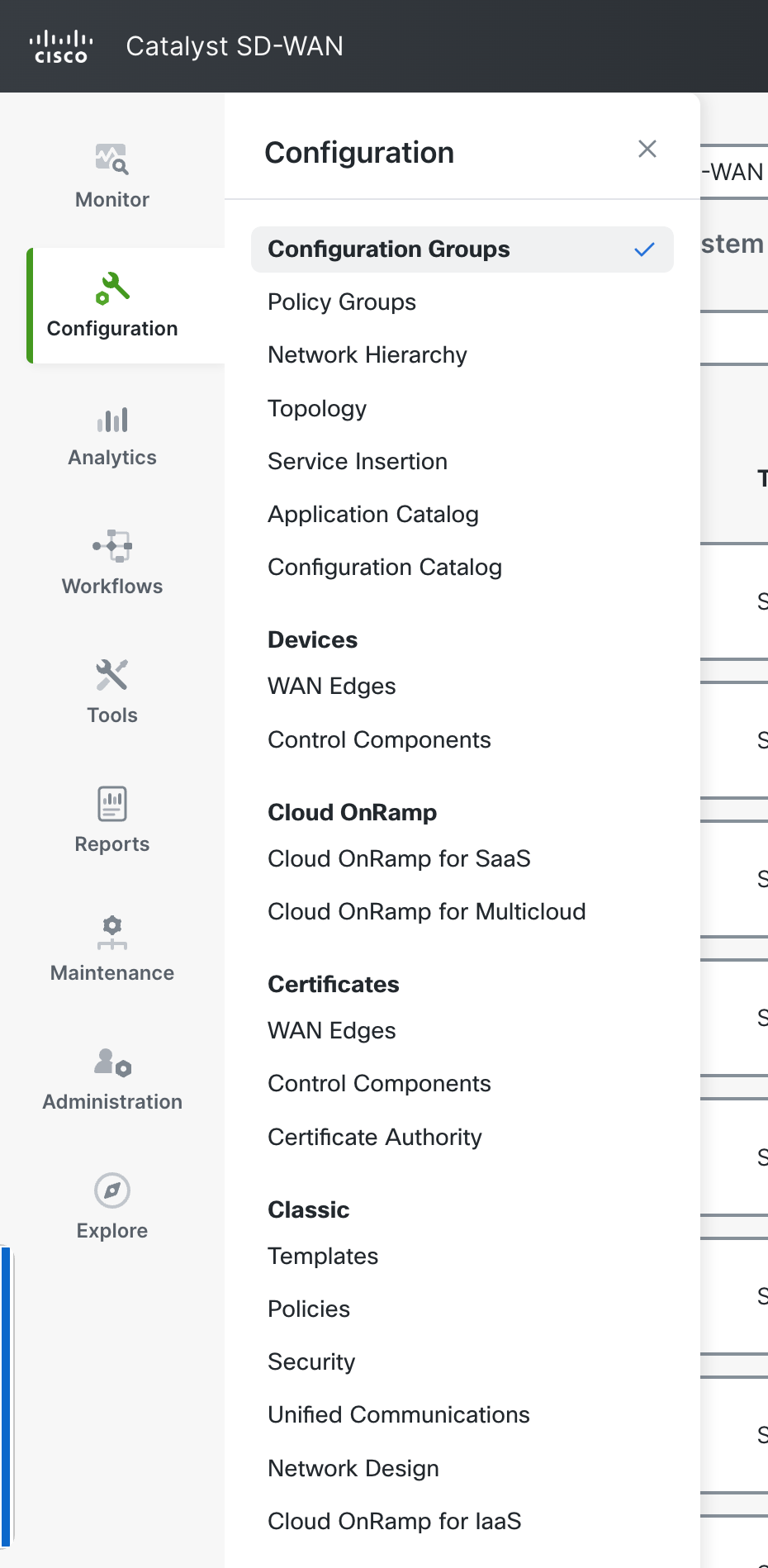
A list of the Configuration Groups will be provided.
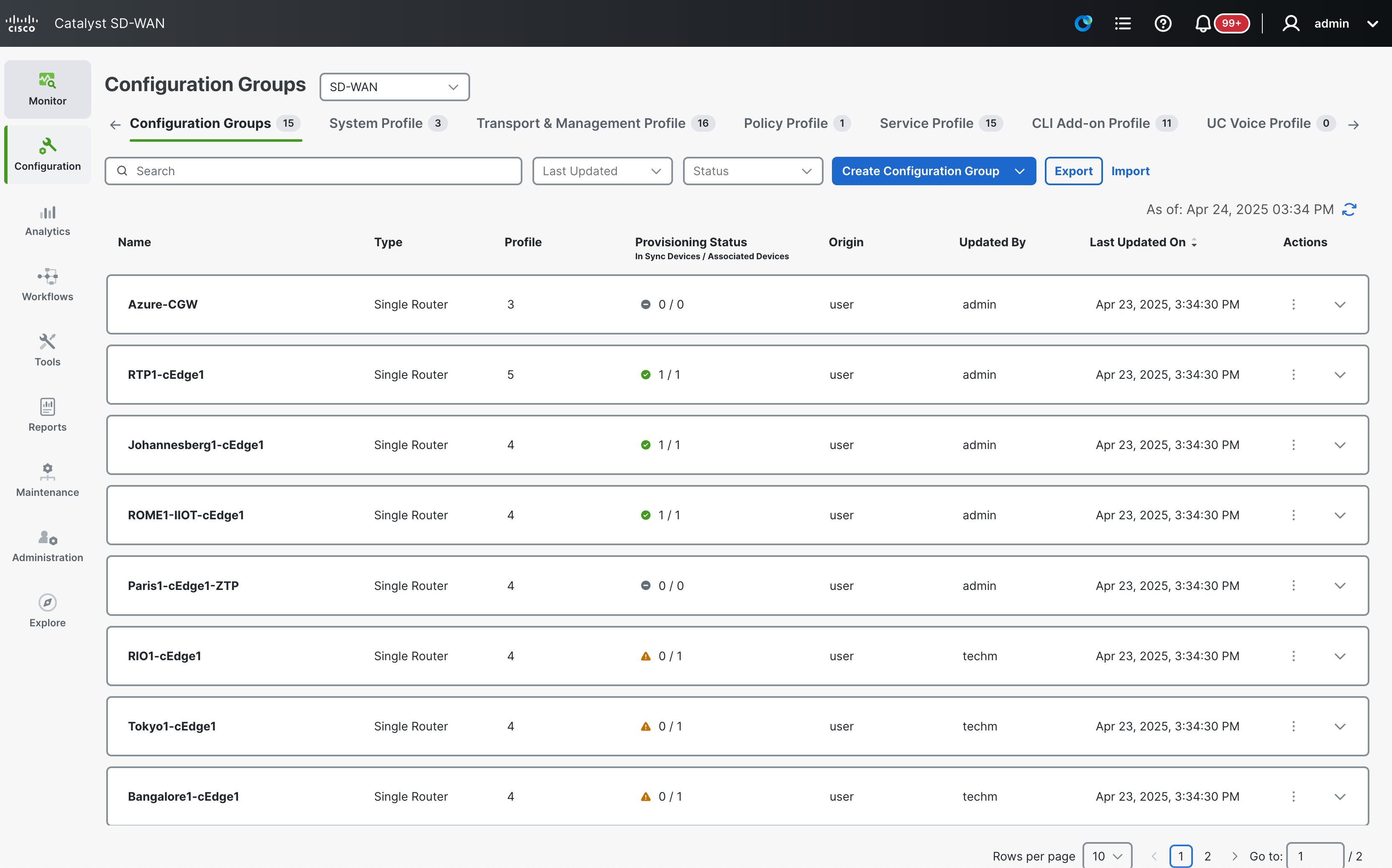
- Please be aware that you are currently only viewing the configuration groups for the WAN edge devices in SD-WAN mode. The configuration groups for the SD-Routing mode (autonomous) are not listed in this view (you will be able to review them in another demo section).
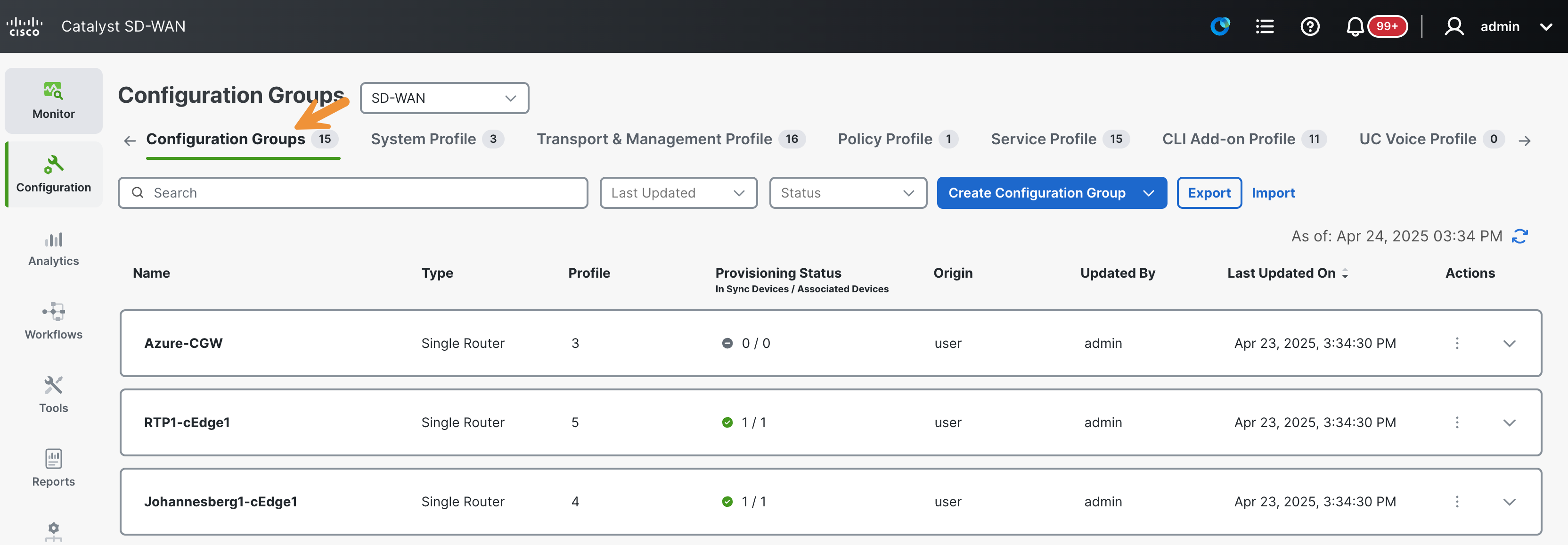
Review a Site Configuration (RIO)
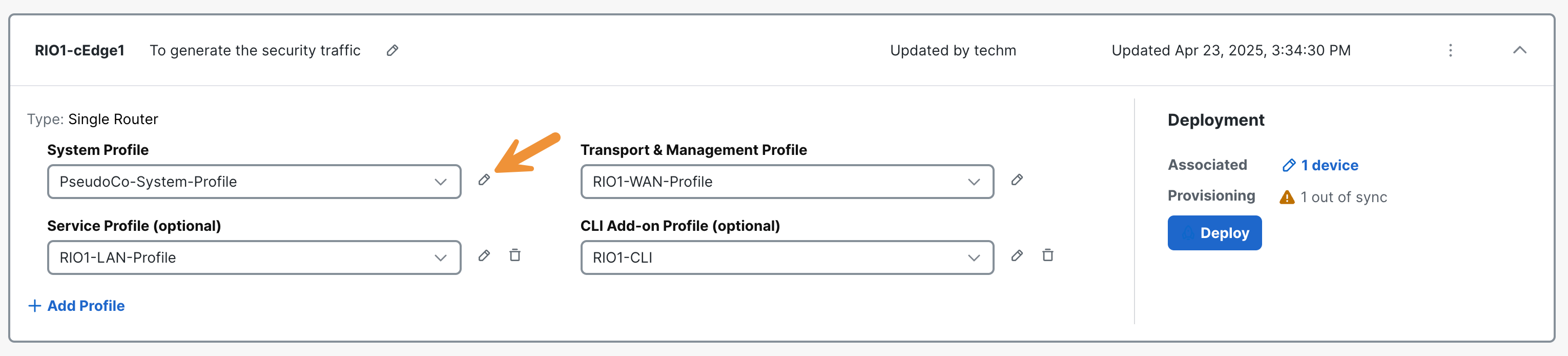
Please locate the Configuration Group labeled RIO1-cEdge1 and click on it to expand.
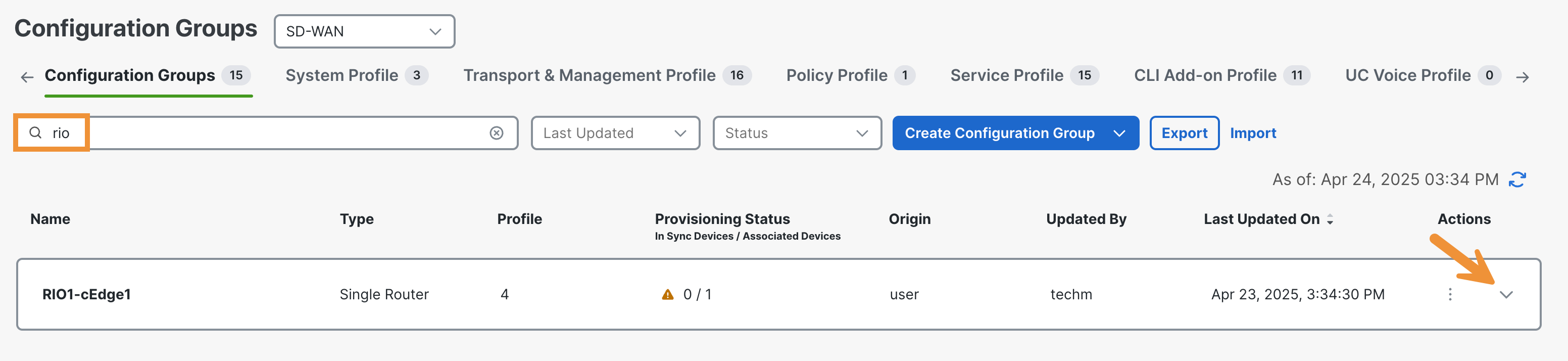
On the resulting page, you can view the Feature Profiles that make up this Configuration Group. Note that there are currently several Feature Profiles that make up the Configuration Group for the Rio device.
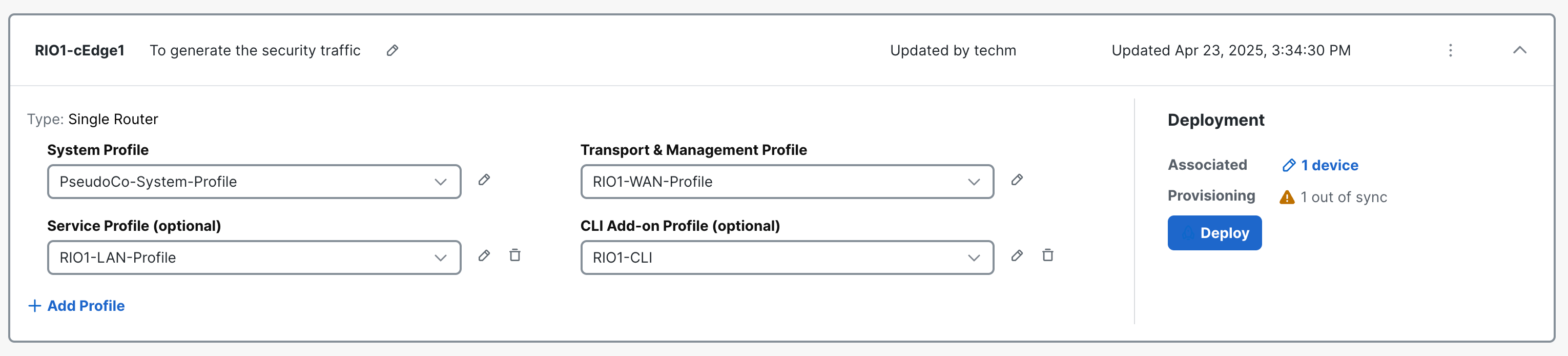
Now, please navigate to the System Profile section and locate the pencil icon. By clicking on it, the resulting panel will expand, revealing the Profiles contained within it.
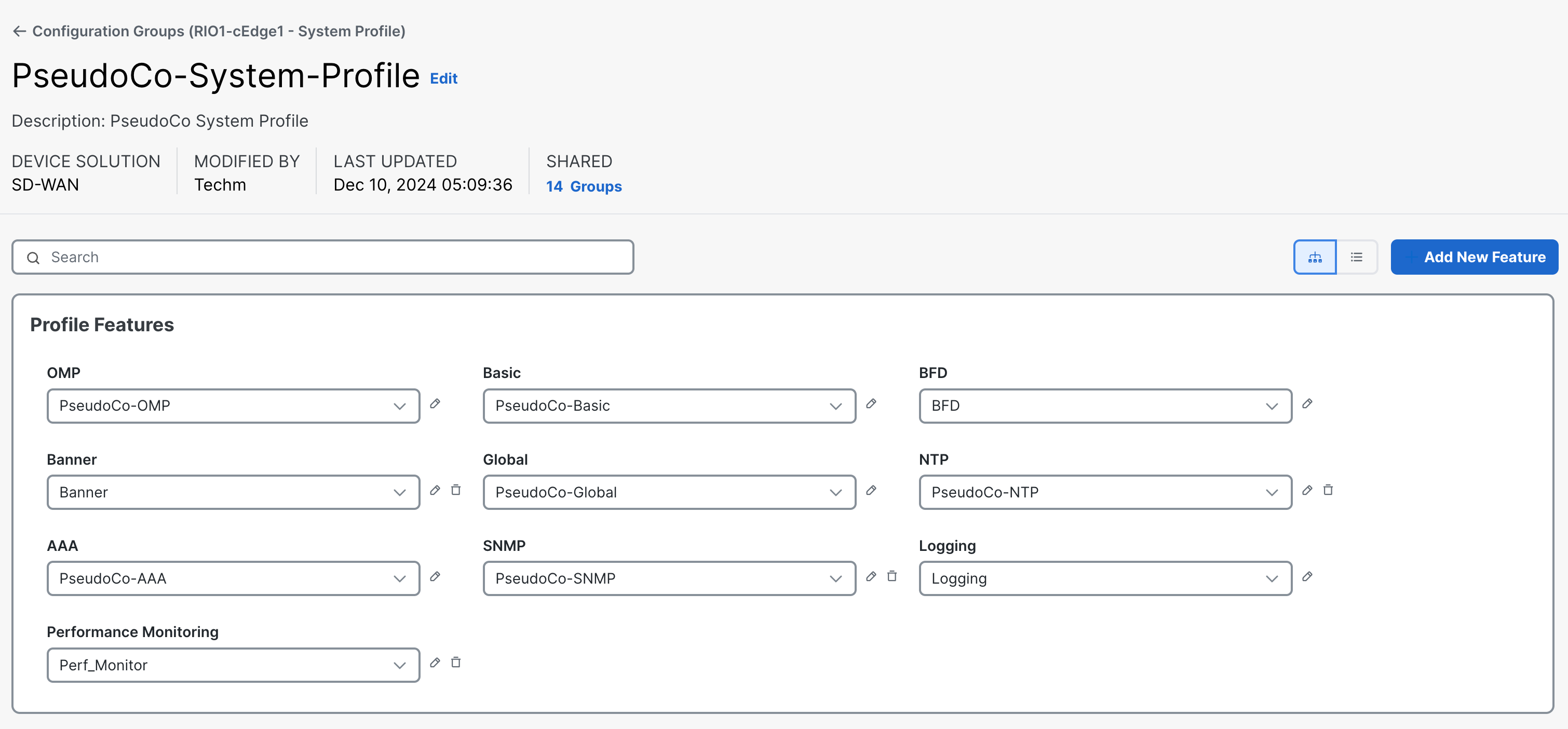
Please click on the Back button and navigate back to the Configuration Group section.
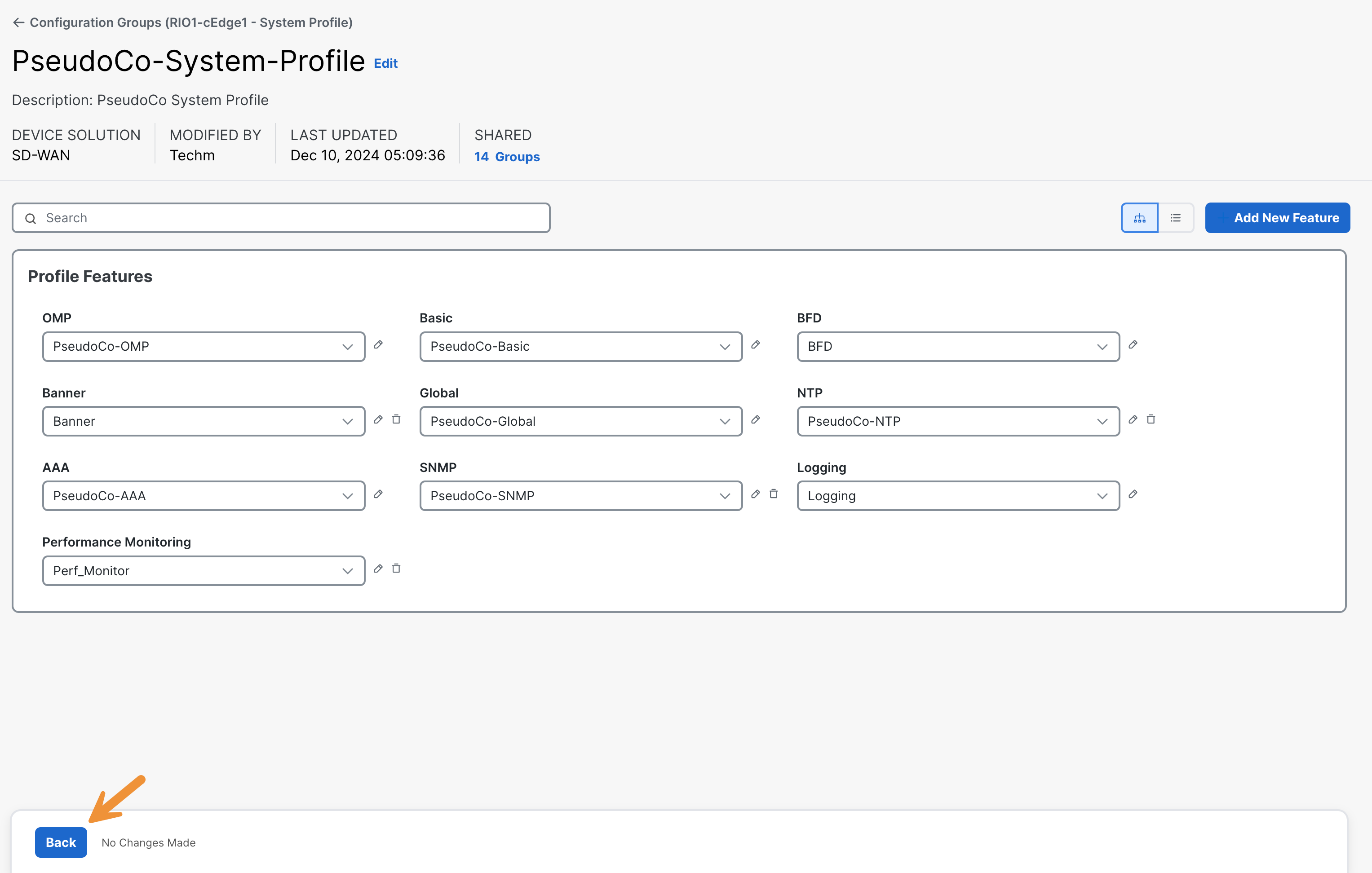
Finally, click on the device under Deployment to review the one associated with this configuration group.
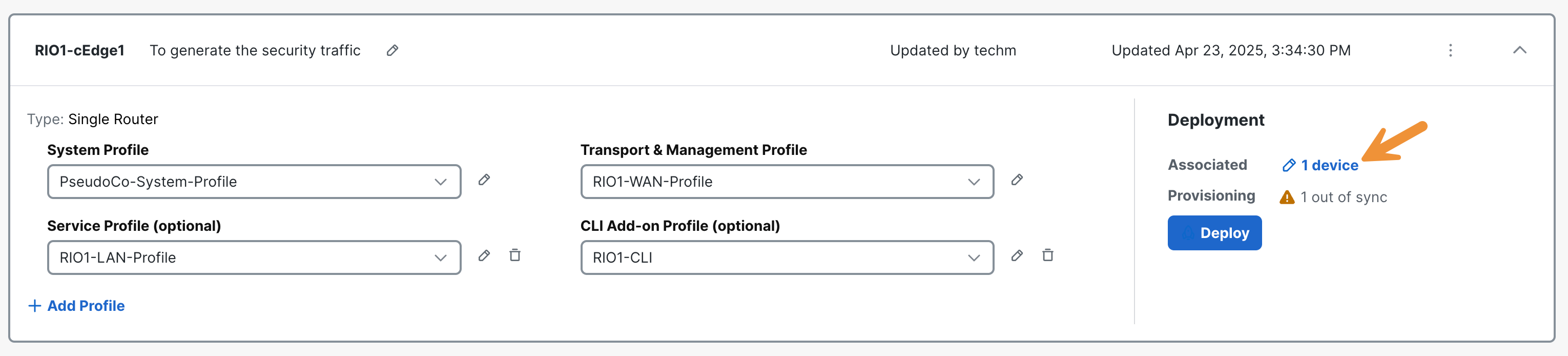
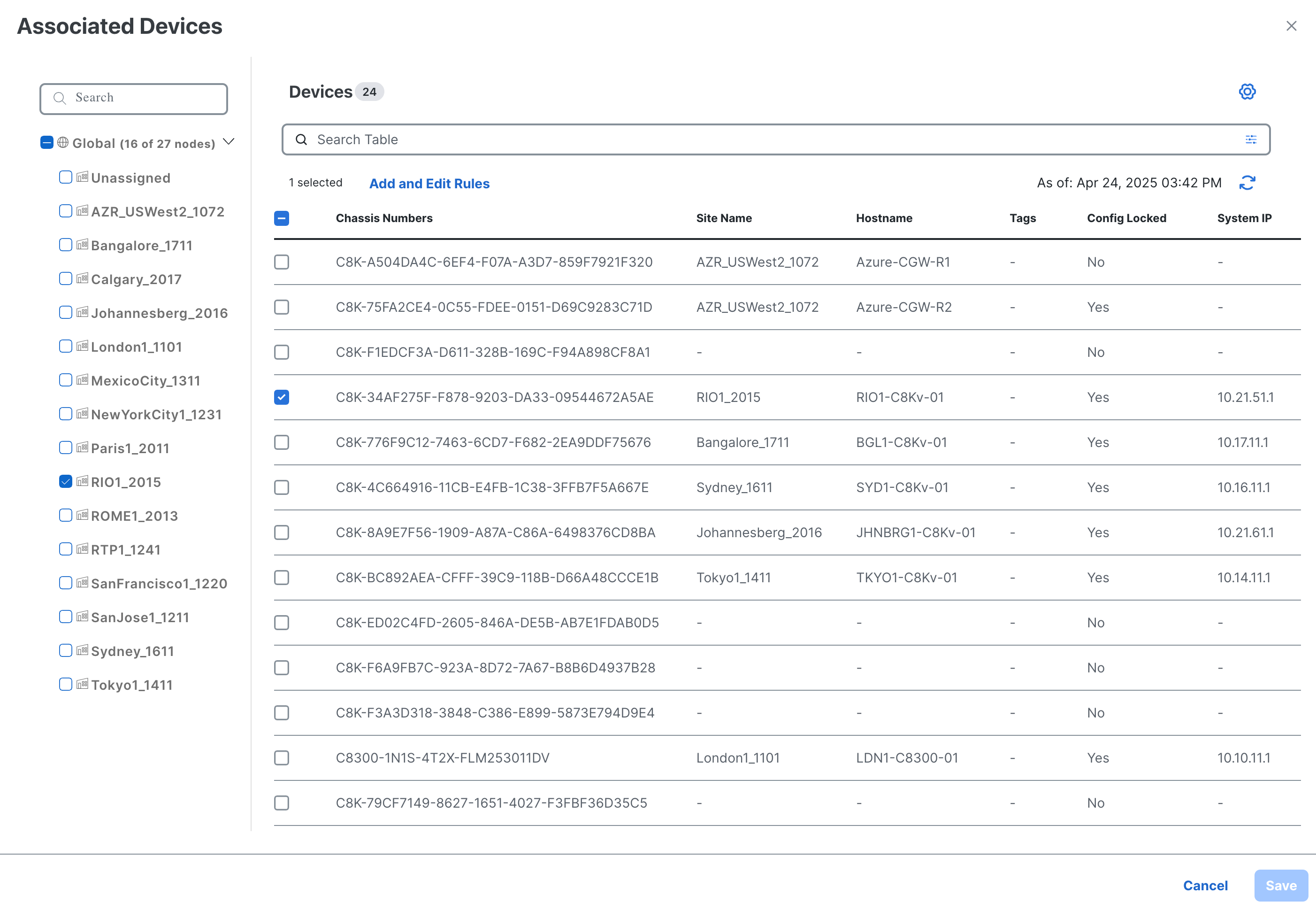
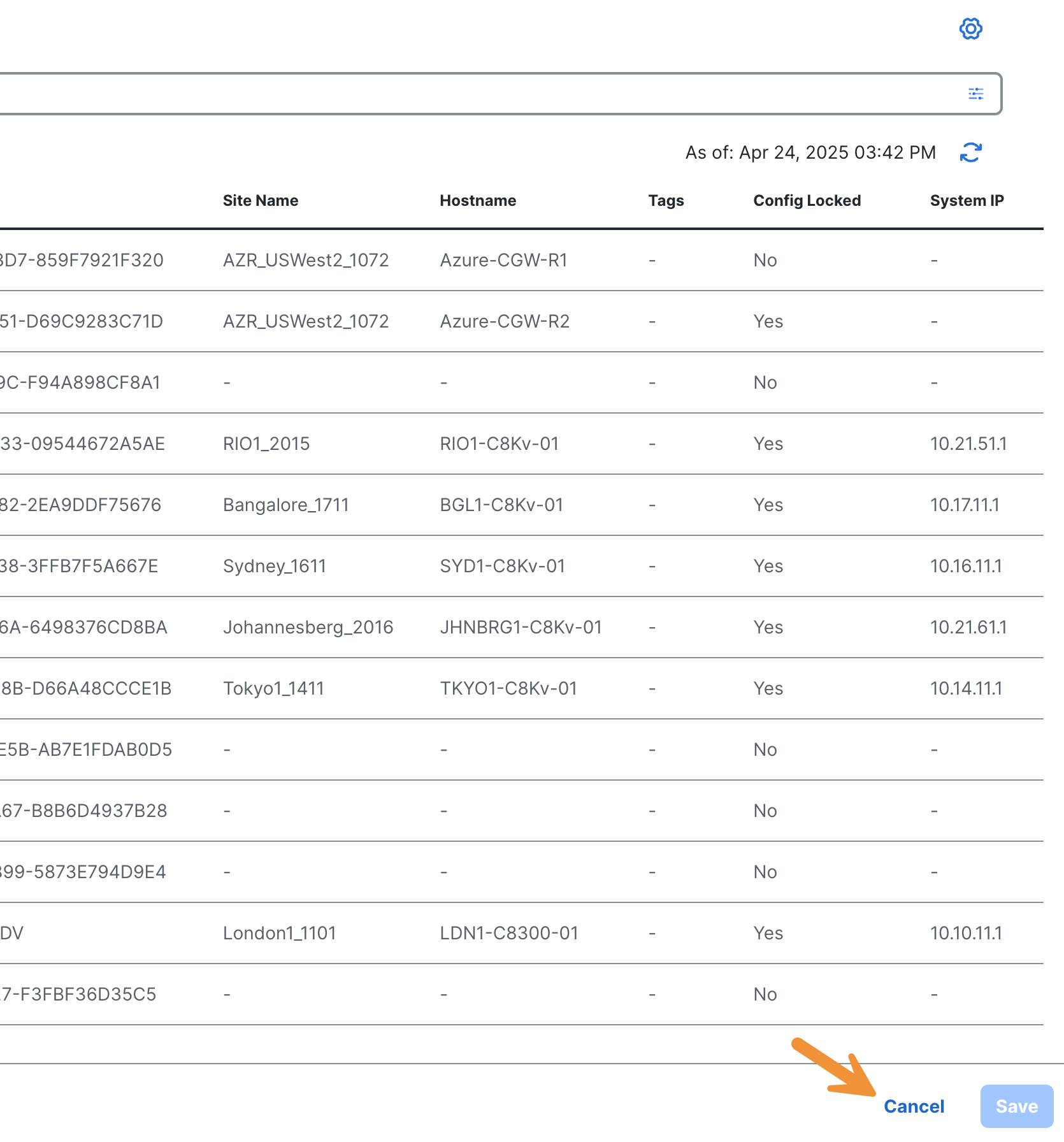
Click Cancel.
Deploy a Site Configuration Change (San Jose)
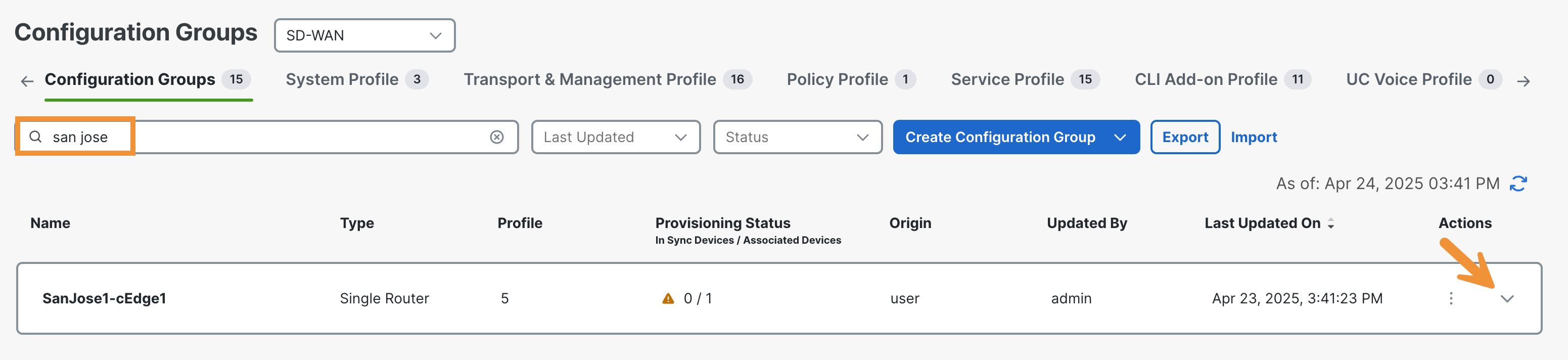
Please locate the Configuration Group labeled SanJose1-cEdge1 and click on it to expand. If you do not find it on the first page, be sure to check the subsequent pages. You can also use the Search bar to find it.
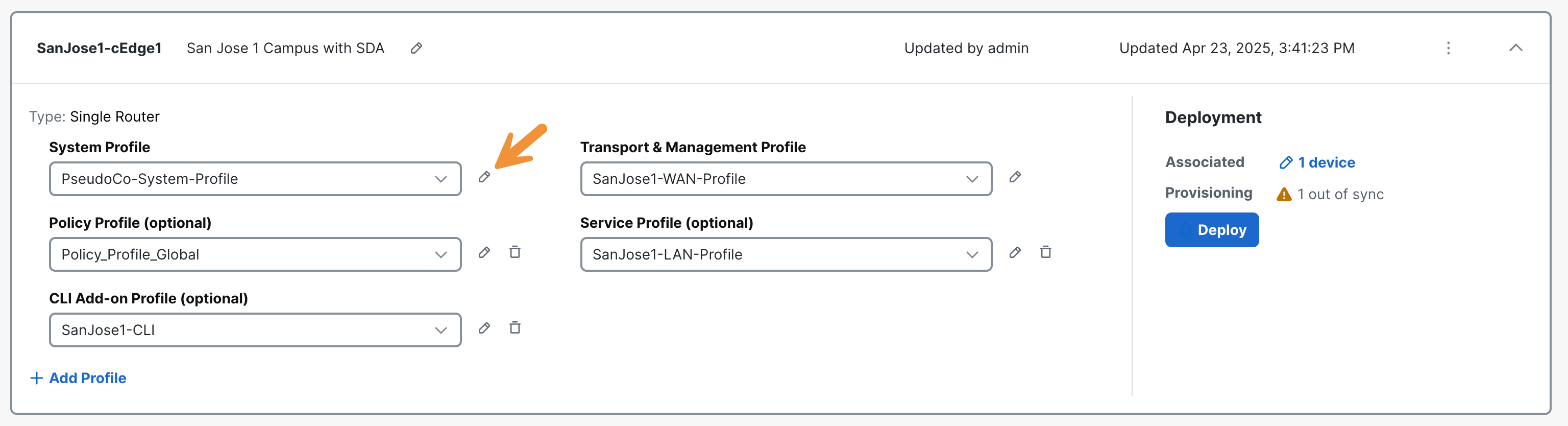
On the resulting page, you can view the Feature Profiles that make up this Configuration Group. Navigate to the System Profile section and locate the pencil icon. By clicking on it, the resulting panel will expand, revealing the Profiles contained within it.
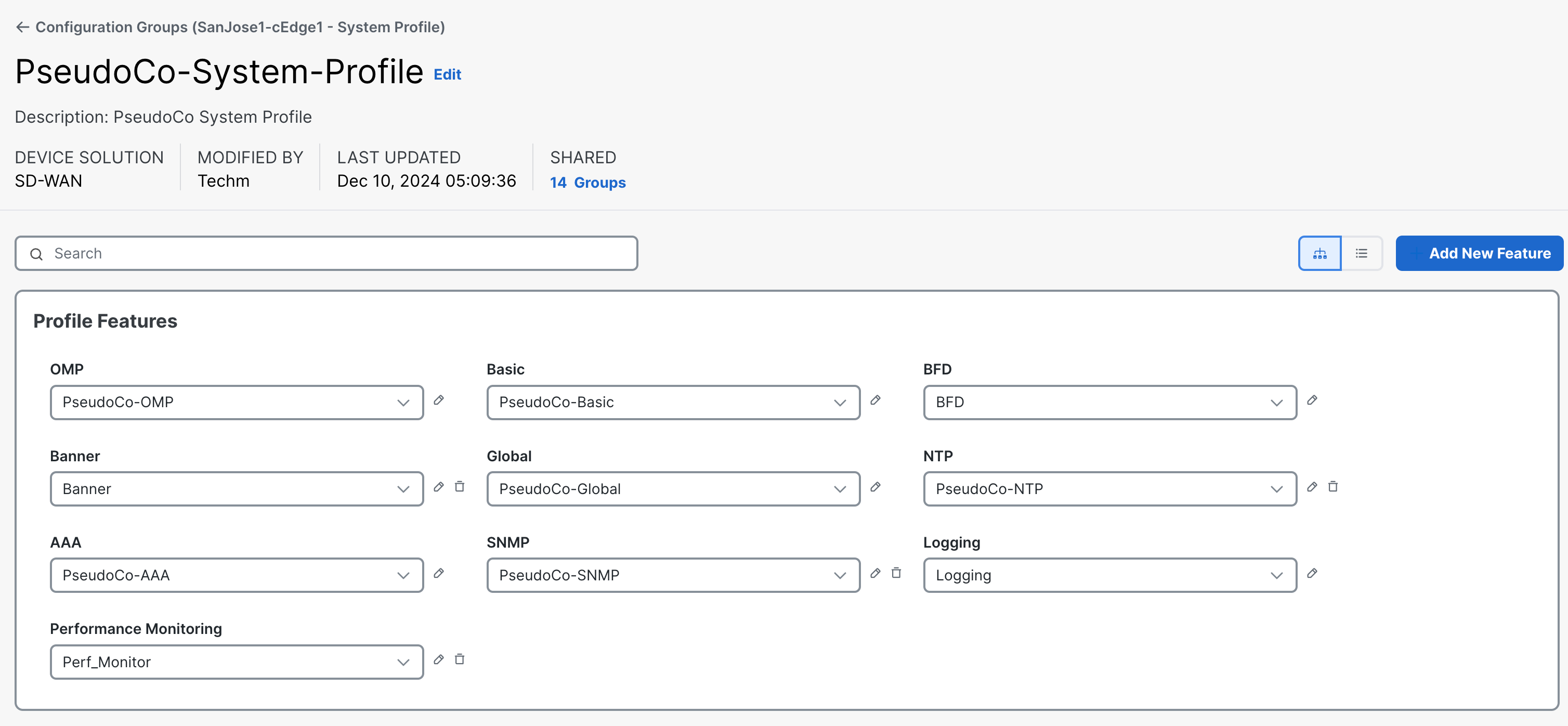
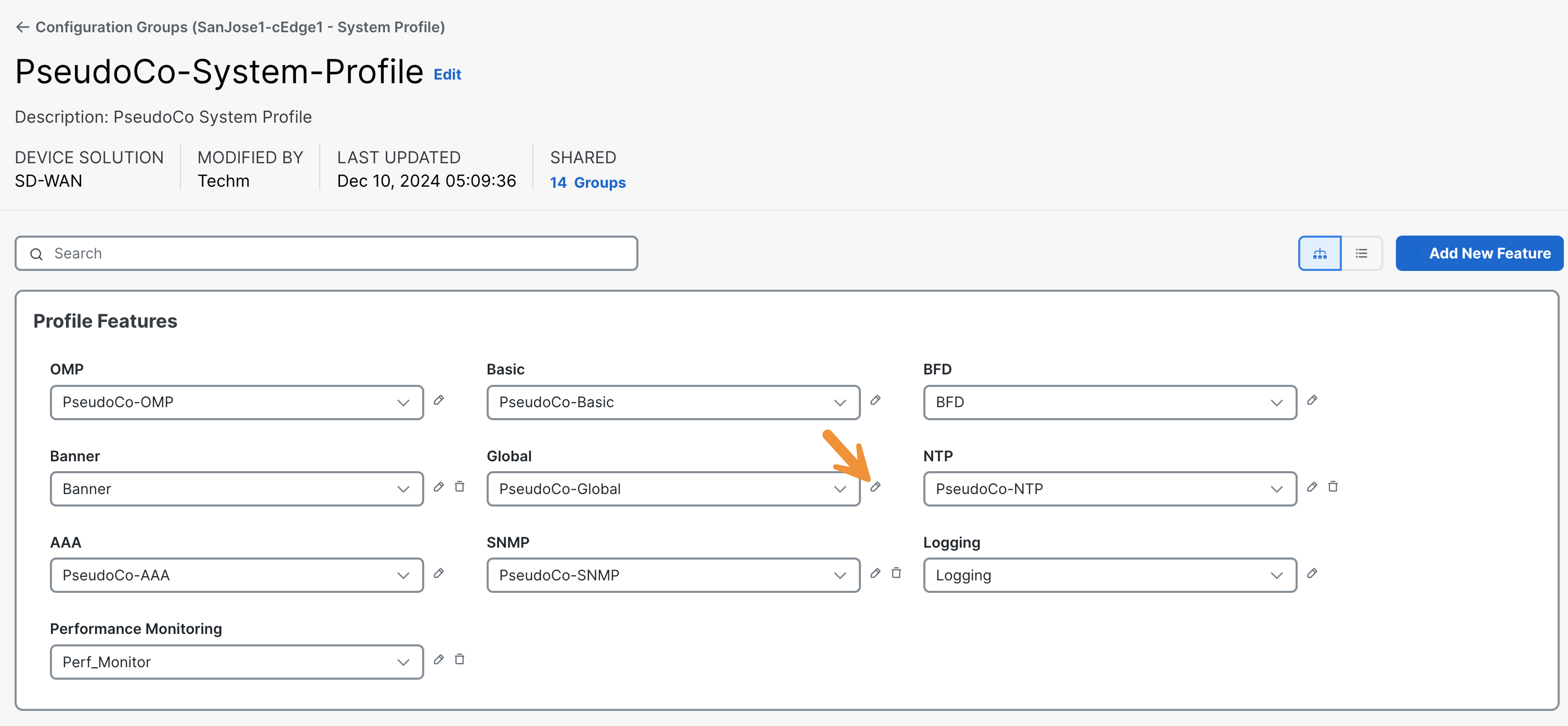
You will now change a configuration of the Global Feature Profile. Click on the pencil icon.
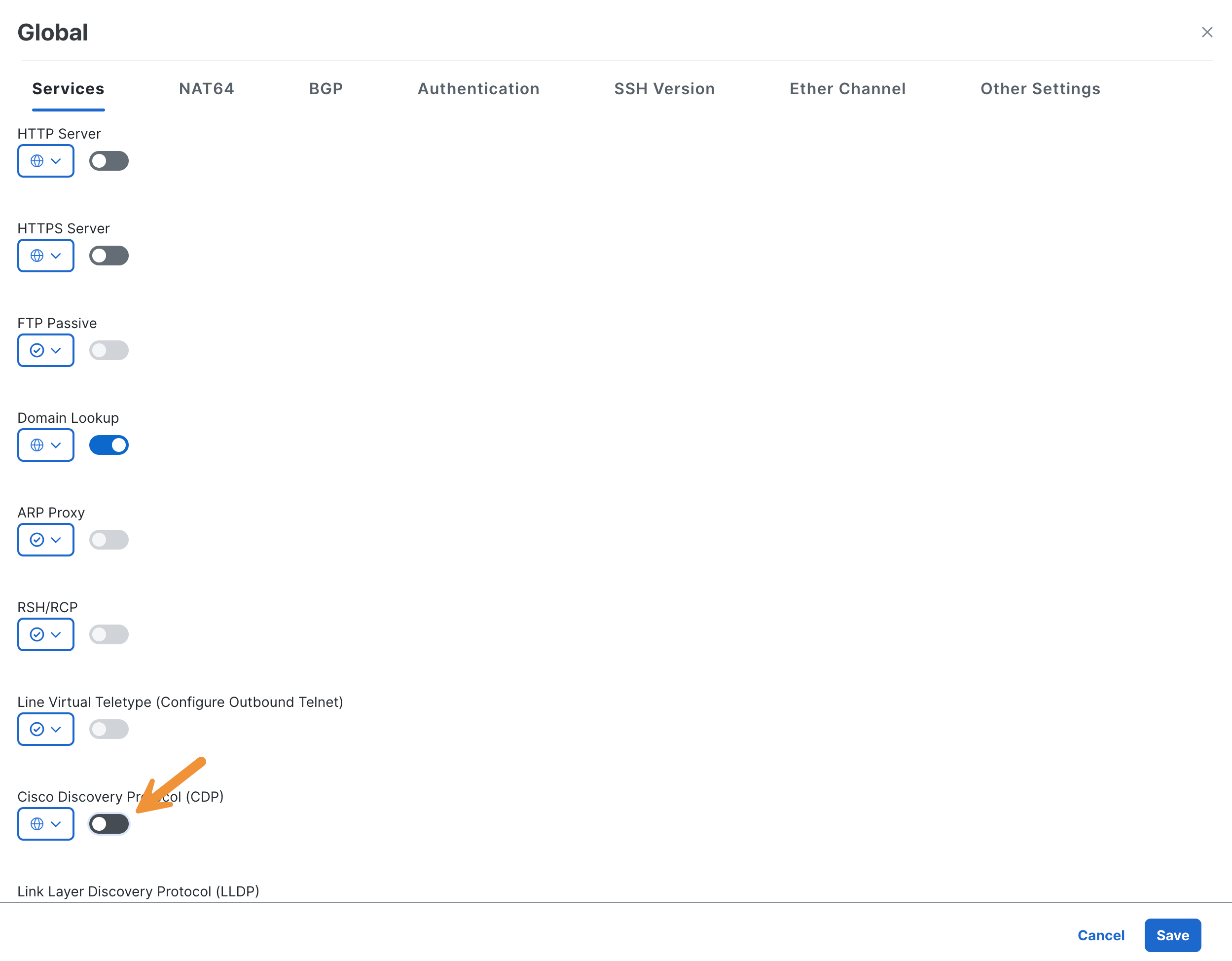
Scroll down and disable the CDP service.
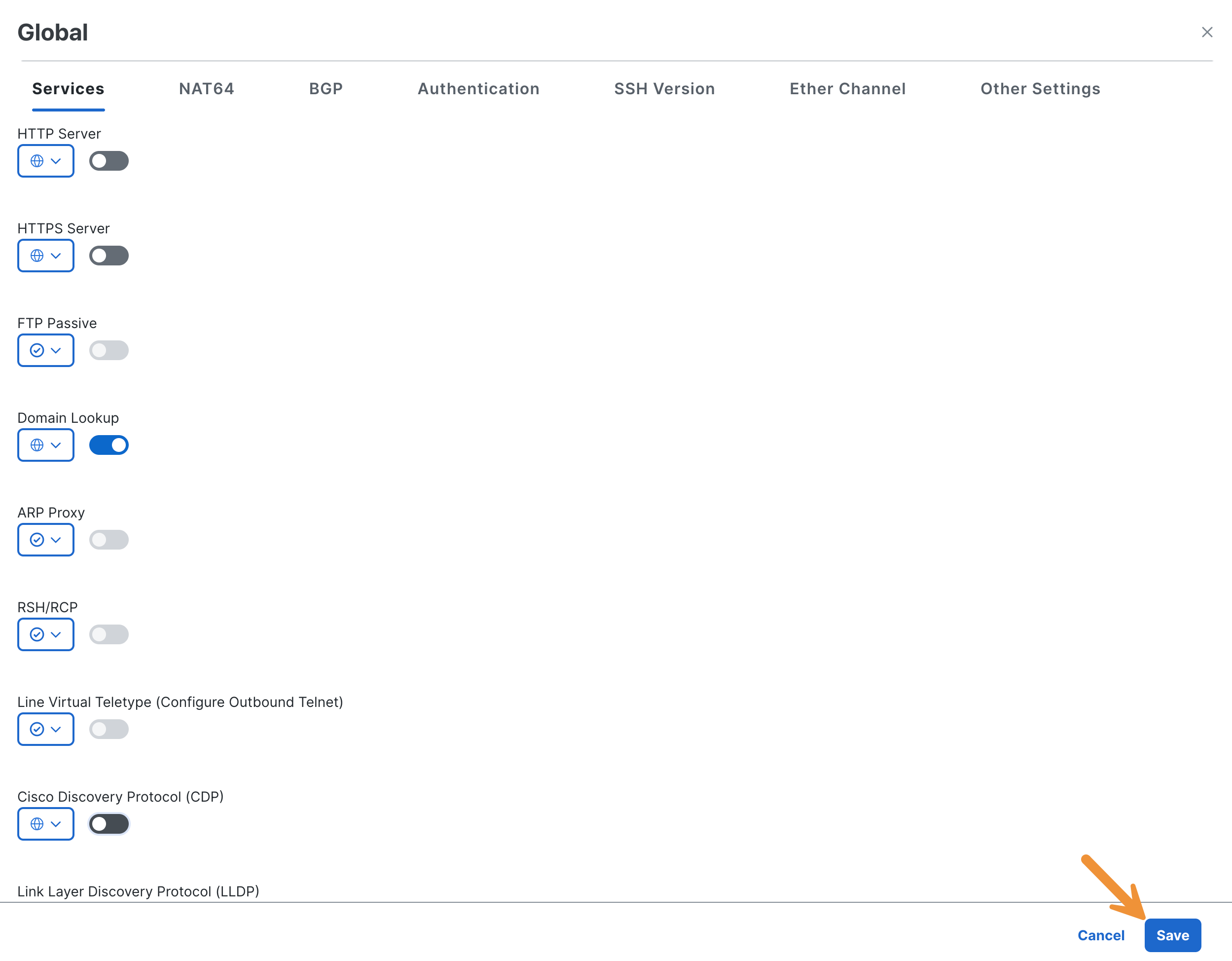
Click on the Save button.
Now click on the Back button and navigate back to the Configuration Group section.
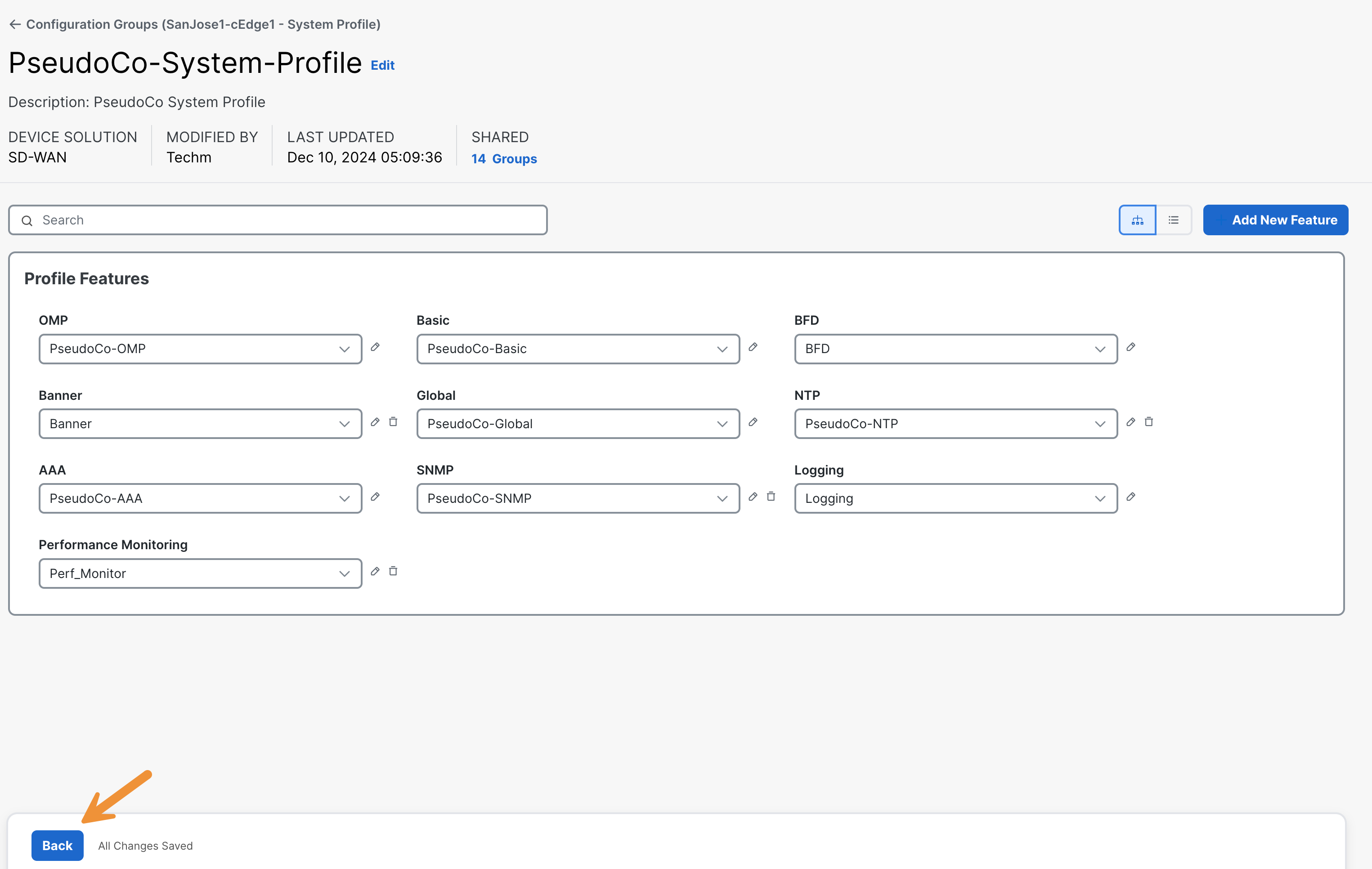
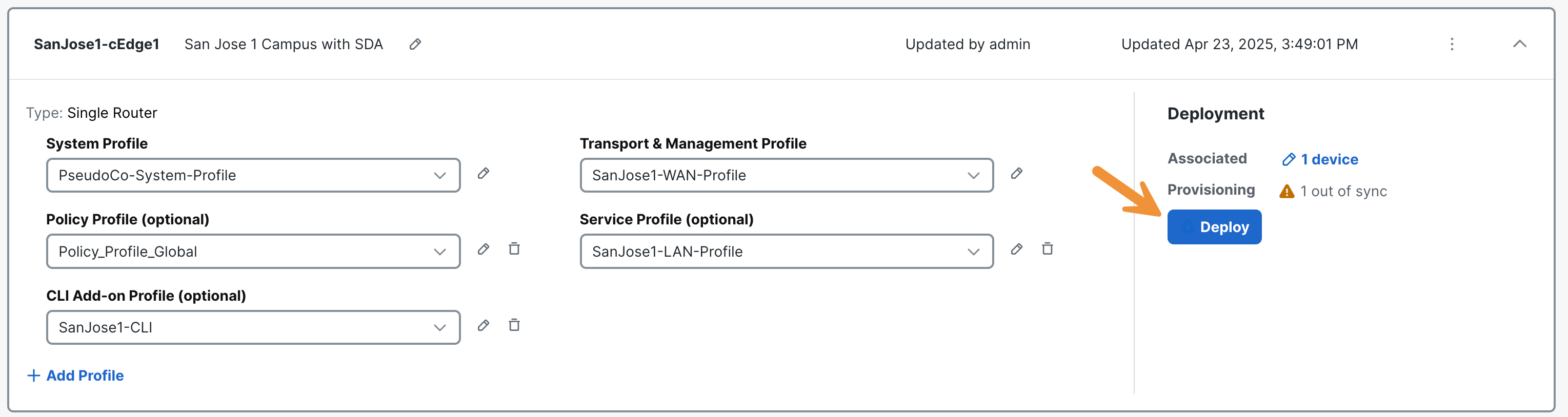
Verify the details under Deployment and notice that there is a device out of sync. Click on Deploy.
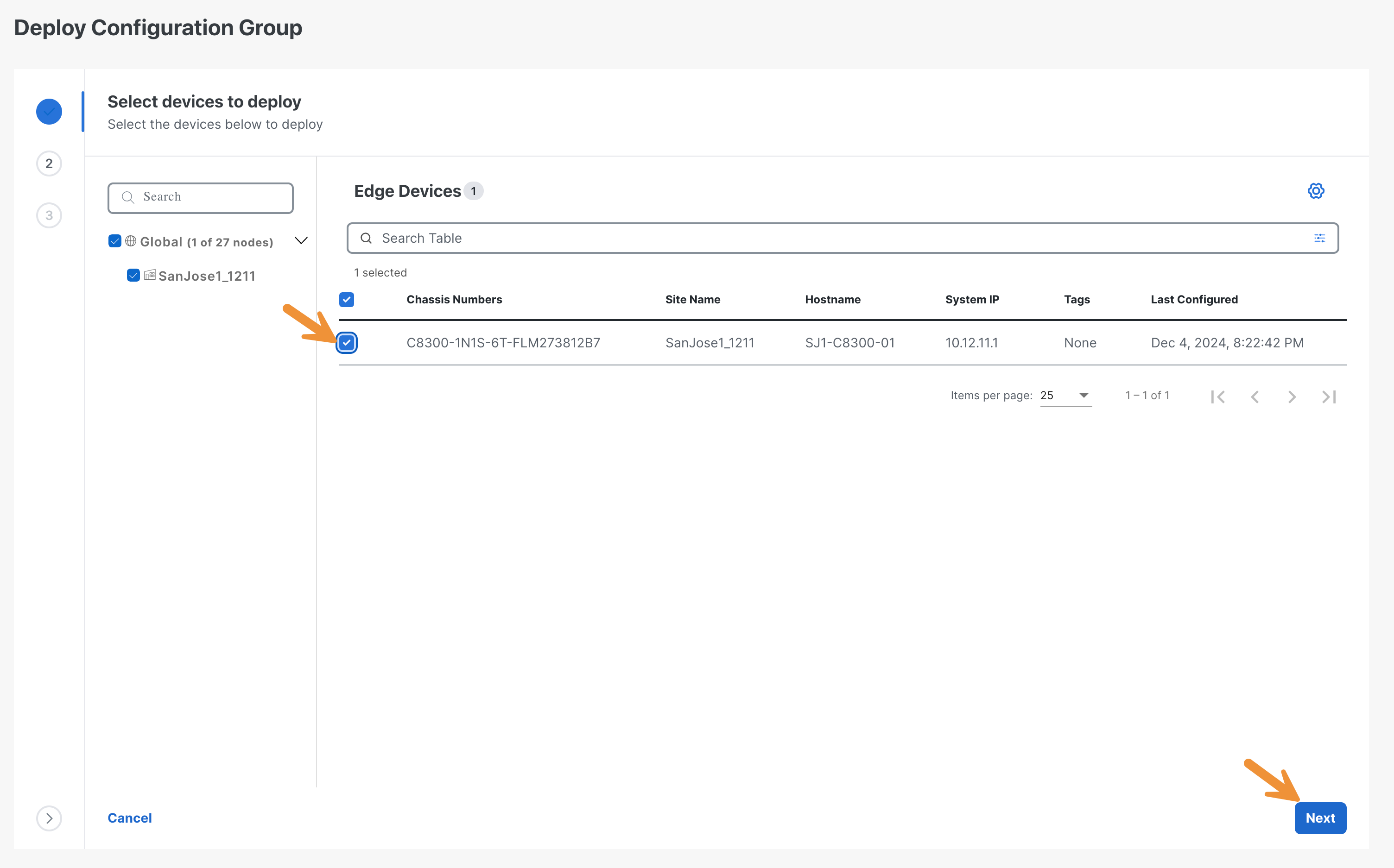
Select the edge device then click on Next
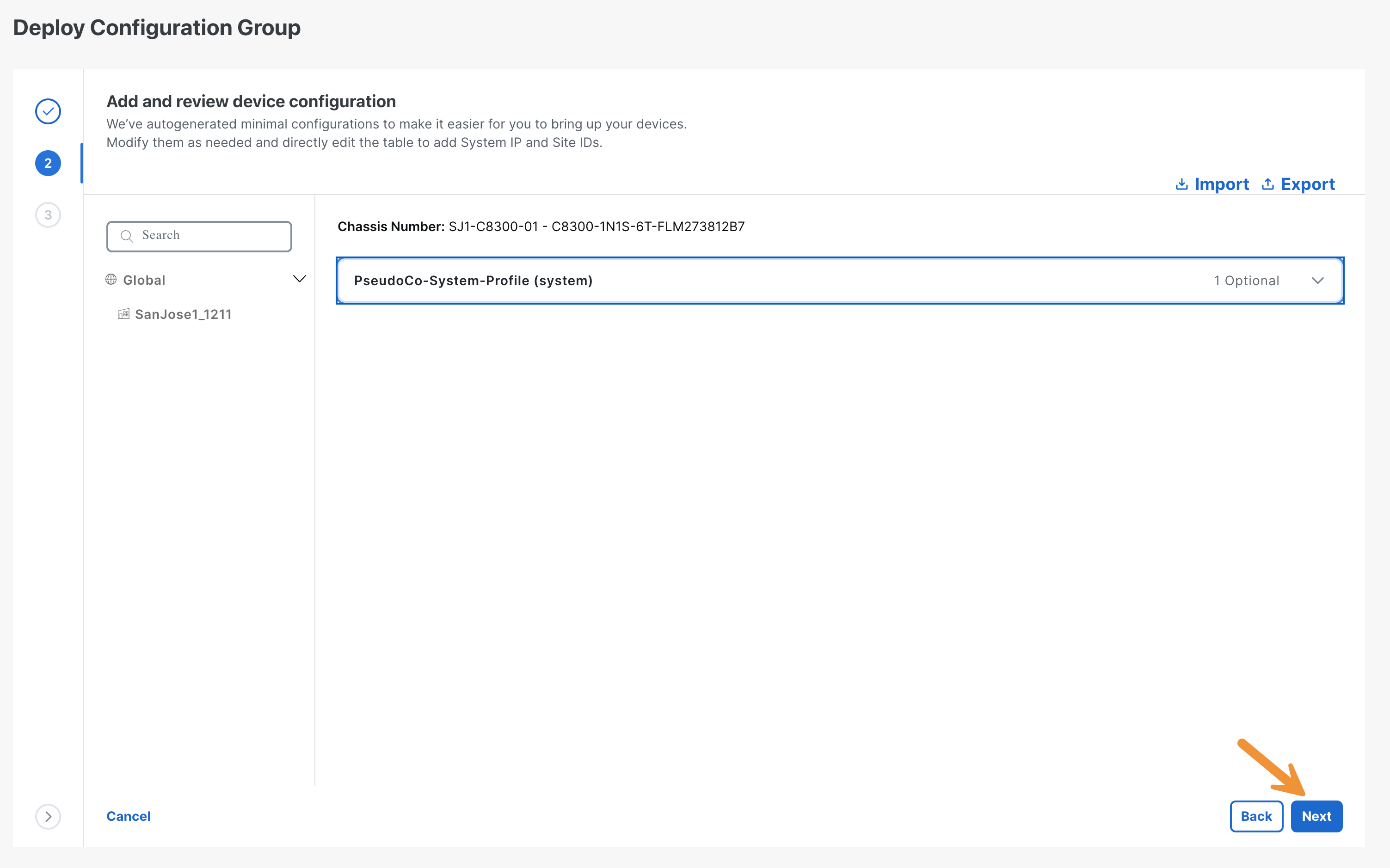
Click Next.
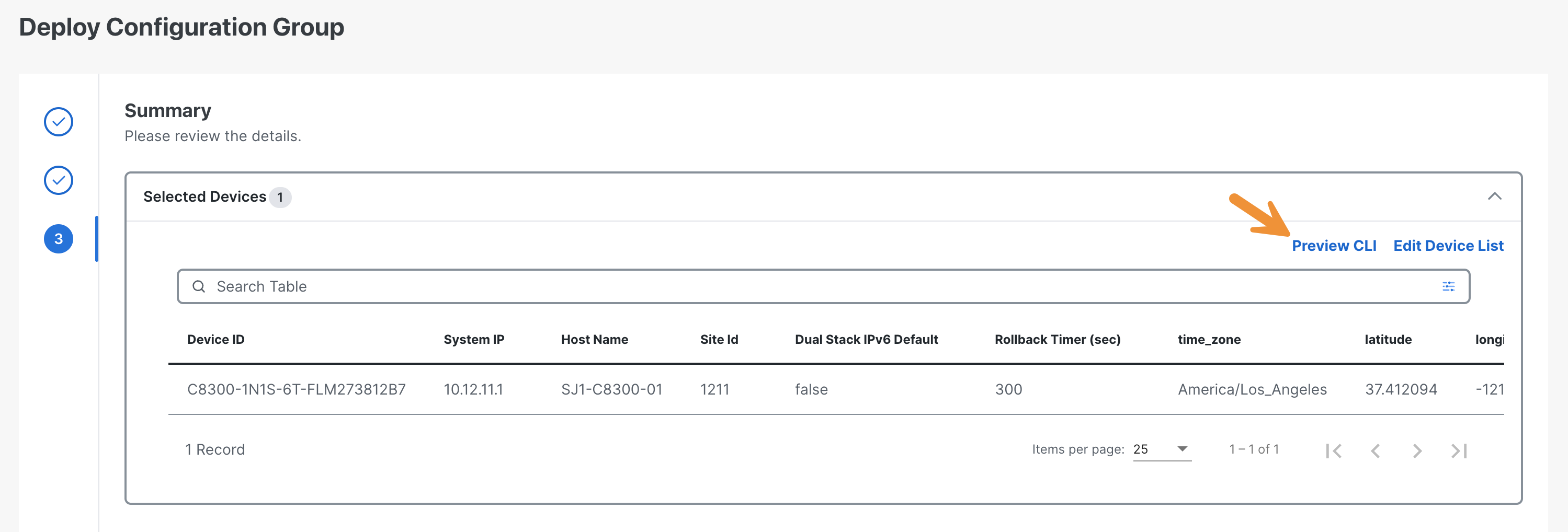
Click on Preview CLI.
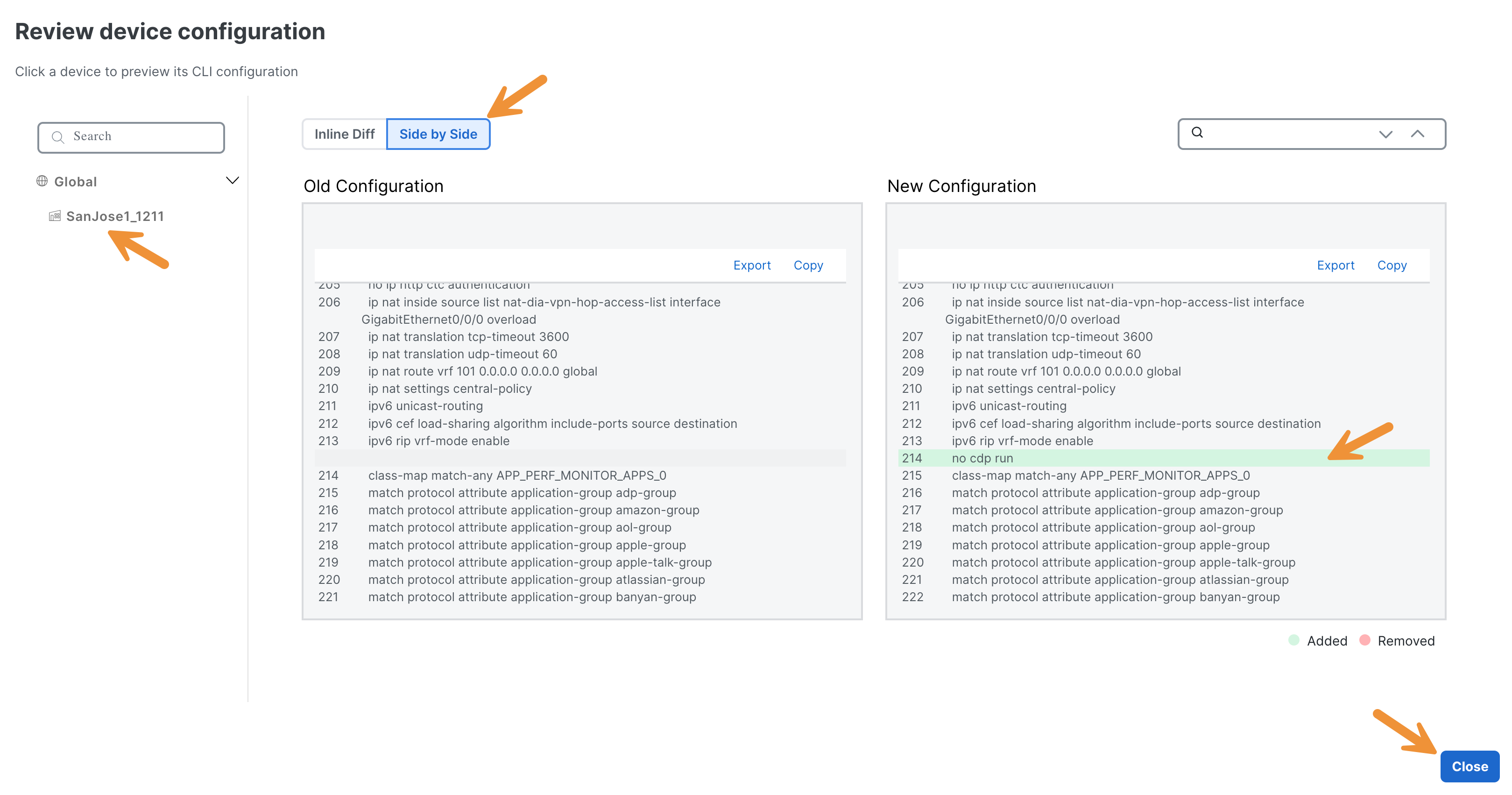
Click on the router name (left), select Side by Side, and find the CDP command in green on the right panel. Then click Close.
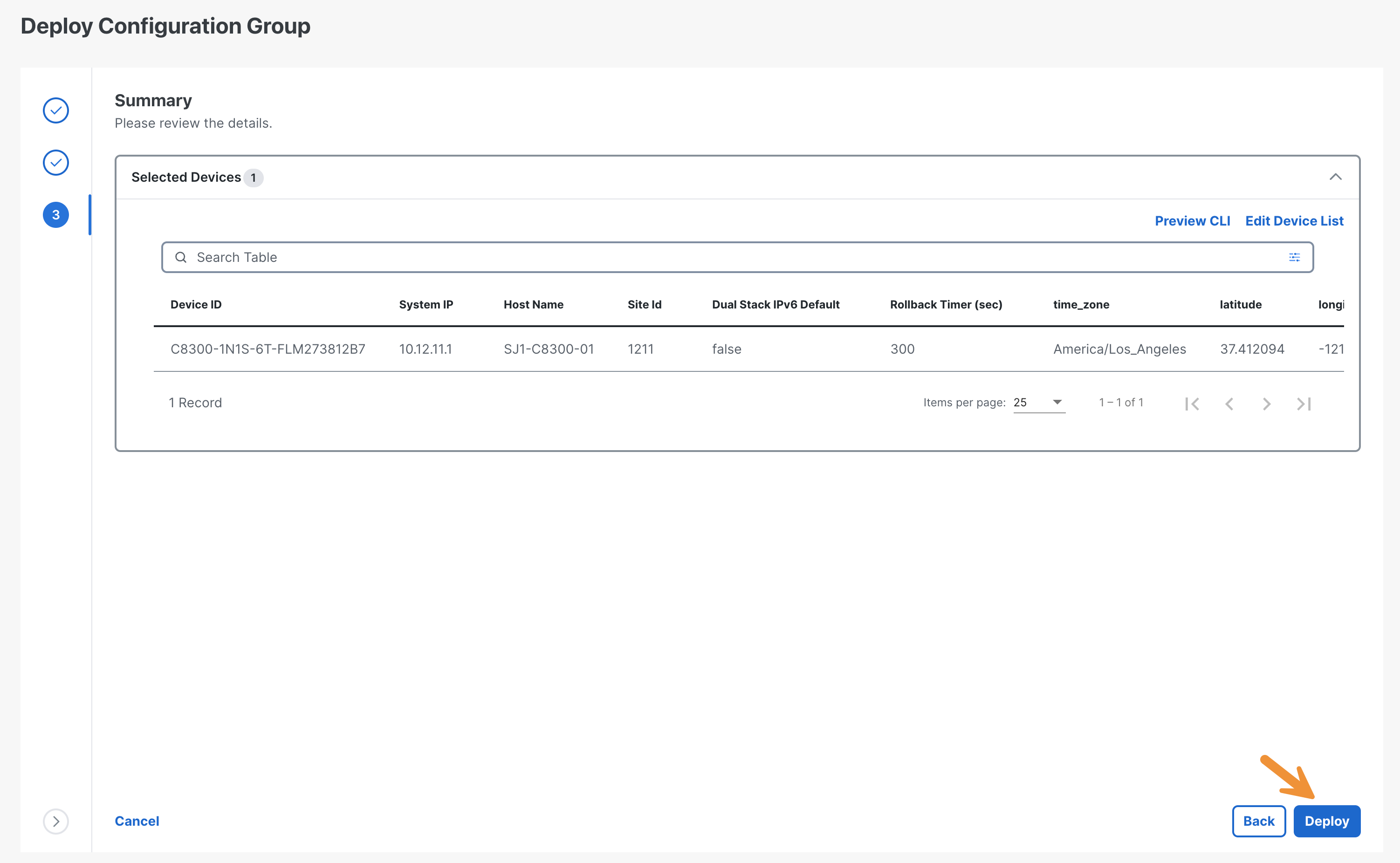
Click Deploy then on View Deployment Status.
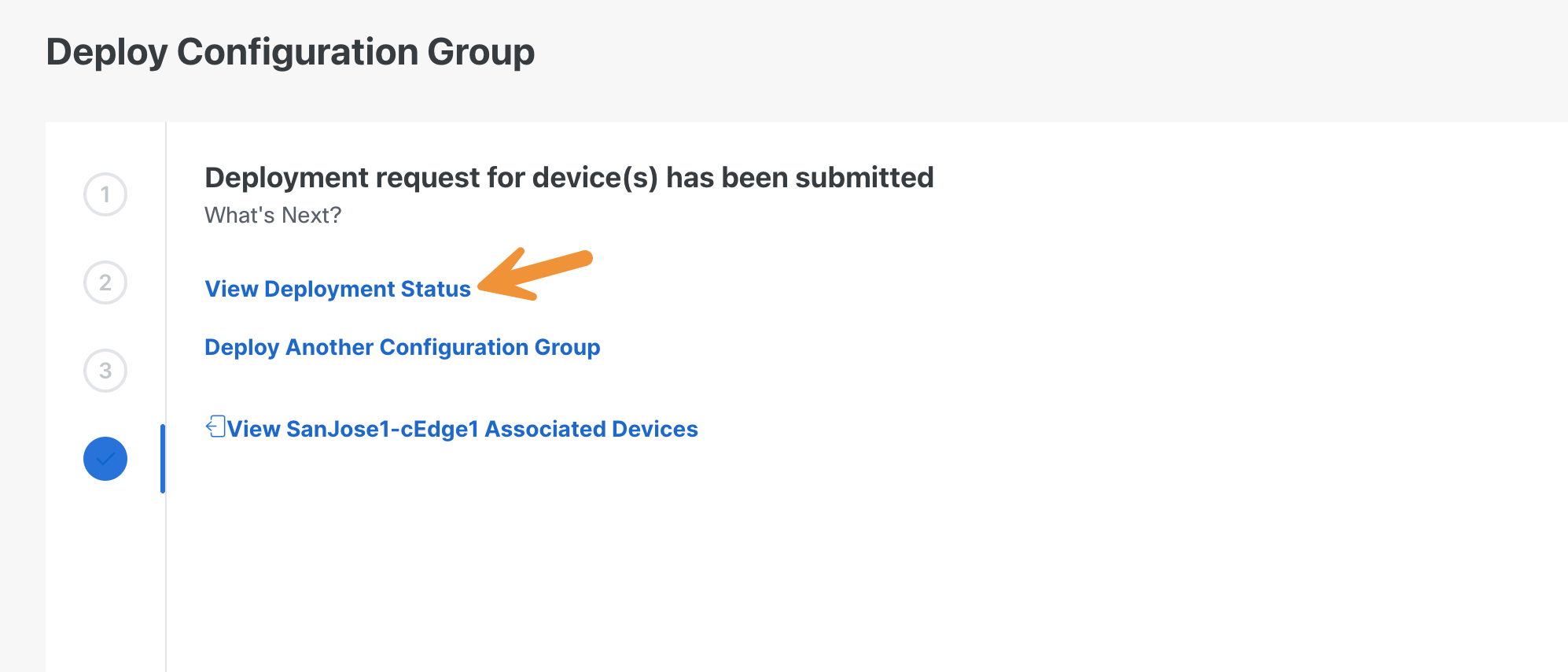
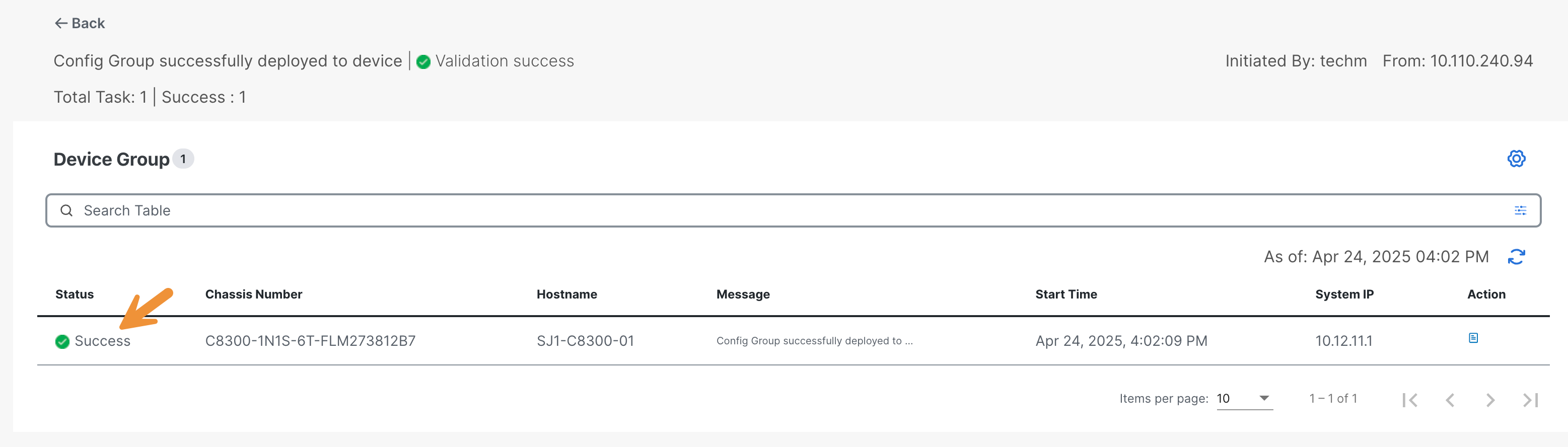
Wait until the status changes from In progress to Success. Your configuration change has been deployed!